Create Campaigns on Ankorstore
Last updated: September 3, 2026
Creating email campaigns on Ankorstore is simple and efficient. Follow the steps below to set up and send your campaign to retailers in their preferred language.
Getting Started
Access the Campaigns Tool
Log into your Ankorstore account.
Navigate to ‘Campaigns’, in the left-hand menu.
Click on ‘Create Campaign’ to begin.
What is a multilingual campaign?
A multilingual campaign allows you to send simultaneously emails to all recipients in your audience, regardless of their preferred language. You can design emails for different languages. The targeting will be based on the recipient’s language preferences.
How do I set up a multilingual campaign?
Step 1: Select or add your audience
Use segments or advanced filters to refine your audience.
For example, you can filter based on criteria such as:
Last order placed: "Never ordered."
Specific shop types.
Use the custom segment to search and include recipients directly or select one to more contacts from My Network and click “Send campaign”
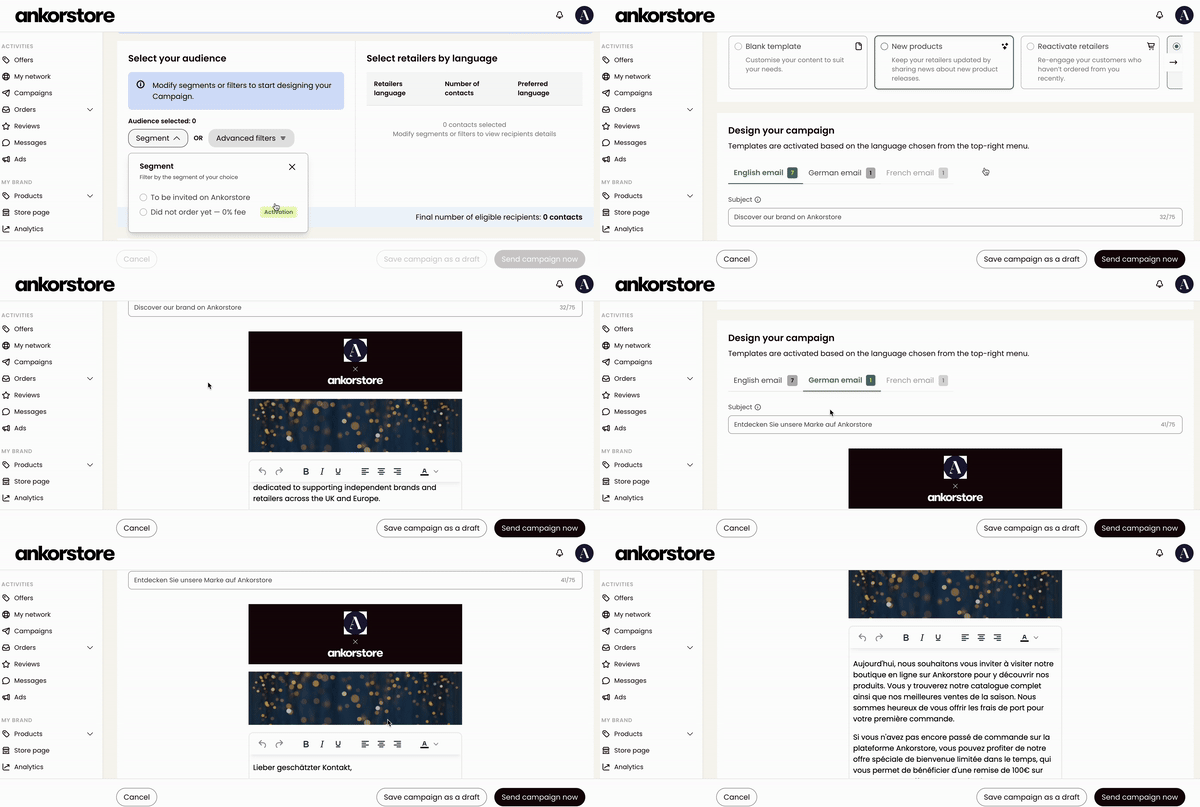
Step 2: Select languages for your campaign
Check the boxes corresponding to the Retailers’ Language available in the "Select retailers by language" section:
French
English
Spanish
German
Italian
The number of recipients for each language will be displayed.For example:
200 recipients used French as their preferred language (10 inactive contacts excluded).
10 recipients used English as their preferred language
30 recipients used Spanish as their preferred language
Note: Inactive contacts are recipients who are currently unsubscribed, from your campaigns.
Step 3: Set up your campaign
Campaign Name: Enter a name for your campaign (e.g., "New Collection Launch").
Sender’s Name: Input the sender's name, which will appear in the email header.
Step 4: Select a template
Choose from the available templates based on your campaign goals:
Blank Template: Create a fully custom email.
Reactivate Retailers: Re-engage inactive retailers who haven’t placed orders recently.
Activate Retailers: Target retailers who have never placed an order.
New Products: Highlight your latest products and collections.
Note: You can always send custom emails if that’s your preference.
Step 5: Design your campaign
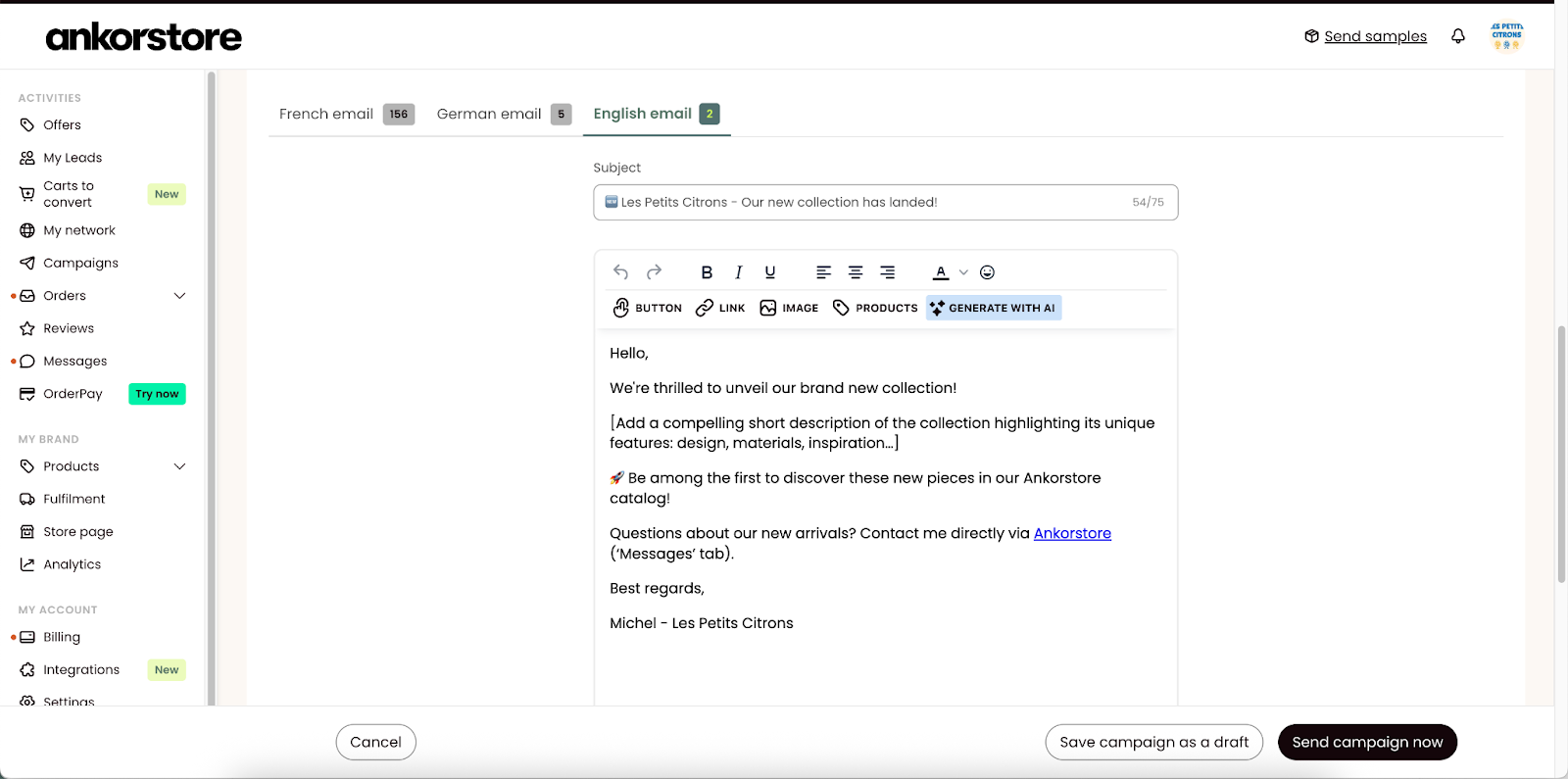
The emails for each language will activate automatically based on the selected languages in Step 2. Navigate through the language tabs (e.g., French, English, Spanish...) to customise each template as needed.
If a language is not selected in Step 2, its corresponding tab will be disabled.
Templates are pre-set based on the language selected but can be customised.
Add a subject to the email under each language tab.
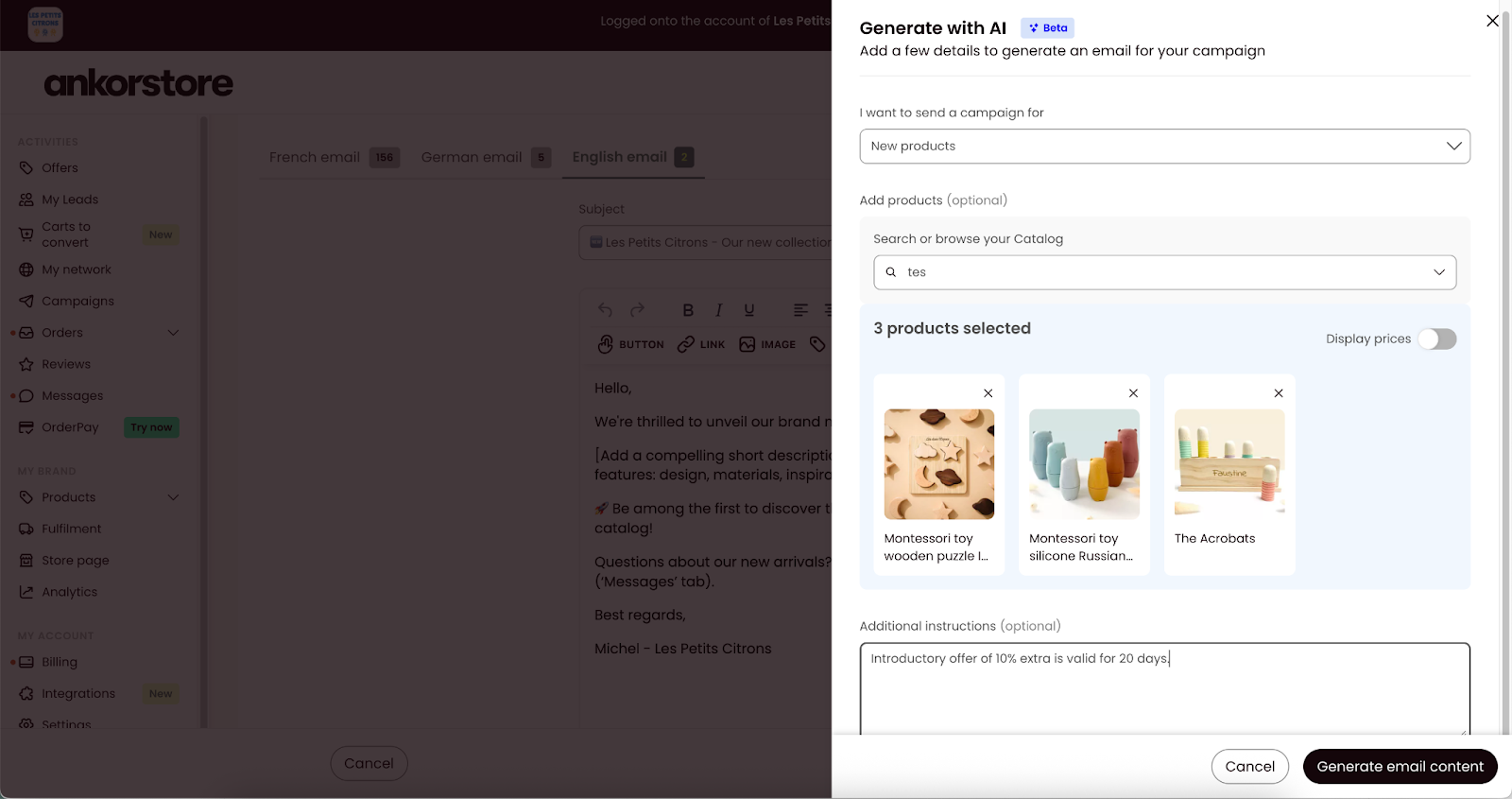
You can add images from the media library, products from your catalogue, add links, and add more than 1 CTA.
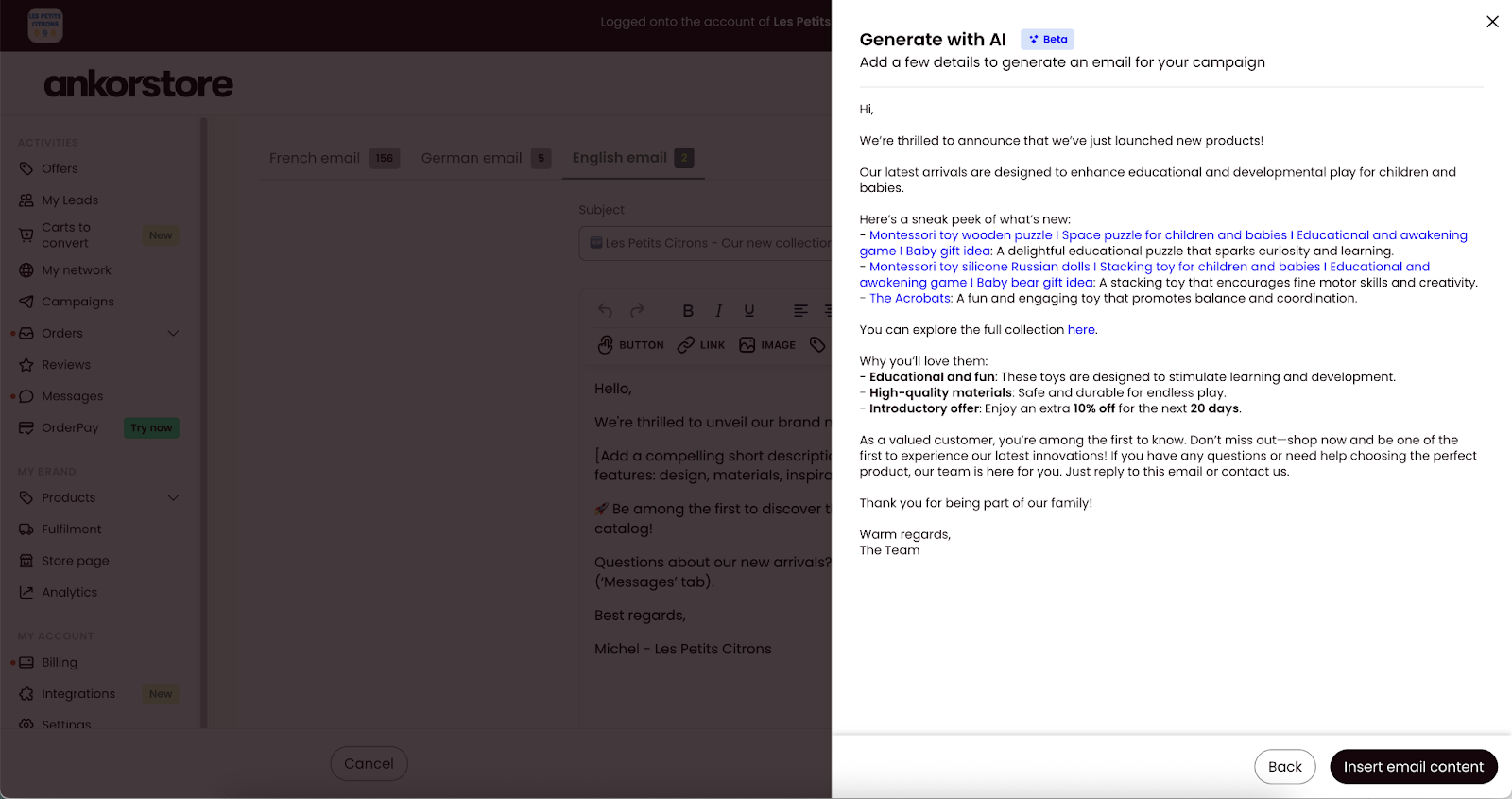
You can also generate custom email content using the "Generate with AI" feature by providing specific instructions or adding products to generate product descriptions. This feature will add the translated content in the language tabs.
Step 6: Send or schedule your campaign
Once all emails are set up and the audience is selected, you have two options:
Option A — Send now:
Click "Send Campaign" to distribute emails in all selected languages at once.
A confirmation modal will be displayed, showing the number of recipients and the selected languages for review.
Check the box confirming you agree to send the campaign to the selected retailers.
Option B — Schedule for later:
Click "Schedule Campaign" to choose a future send date and time.
Select your preferred date and time slot (available in 30-minute increments, based on your browser's timezone).
Confirm the scheduling. Your campaign will be saved with a Scheduled status and will send automatically at the chosen time.
Note: Tabs marked as inactive indicate that no campaigns will be sent to those recipients.
FAQ
How do I track the performance of my email campaign? What data is available for each email campaign?
You can track the performance of an email campaign by going to the‘Campaigns’ section of your account, where you'll see a list of all campaigns you've sent (including scheduled ones).
Here, you'll have access to a few basic metrics for each campaign, including the date, the number of recipients, the percentage of emails opened, and the click-through rate.
Click on a specific campaign to see even more metrics, such as the email sent, which retailers received the message, and who didn't.
Due to the high volume of data required, detailed campaign information is stored for only 90 days after the send date.
Can I schedule a campaign for a future date?
Yes! You can now schedule campaigns in advance. At Step 6, click "Schedule Campaign", then select your desired date and time (30-minute slots, based on your browser timezone). This lets you prepare campaigns ahead of time and have them sent at the right moment for your audience, without needing to be online at that exact time.
Can I cancel or edit a scheduled campaign?
Yes. You can cancel a scheduled campaign at any time before it sends. Cancelling will move the campaign back to Draft status, where you can edit the content and reschedule it whenever you're ready.
What are email campaigns, and why are they beneficial to my business?
Ankorstore’s ‘Campaigns’ tool allows you to mass email a segment of your contacts to advertise, share vouchers, request partnerships and more.
Creating campaigns through Ankorstore will enable you to attract potential customers and drive brand conversion. They’re an effective method of communicating new promotions, triggering purchases during specific seasons, and providing your network with incentives to purchase from you.
Our campaigns tool helps you target the right retailers by giving you nine specific audience segments to choose from:
All contacts: all your wholesale contacts.
All historical clients: all contacts you added who are previous customers.
All prospects: all contacts you added as prospects.
Visited your store: all contacts who visited your brand page.
Has items in cart: all contacts with one or more of your products currently in their cart.
Ordered: all customers who placed one or more orders from you.
Can I exclude inactive contacts?
Inactive contacts are automatically removed from the list of recipients.
How are the recipients’ languages determined?
The preferred language is based on the retailers’ preferences set in the system, not the shop’s country. For retailers that don’t have an Ankorstore account, we use the language that the brand has input when importing the contact.
What if I don’t customise an email for a selected language?
The campaign will send the default template for that language of the Retailer, but reviewing and tailoring the content for each language is recommended.
Are there campaign templates available?
Yes, the campaigns tool includes multiple templates that are available for you to use. However, you can always send custom emails if that's their preference.
Who can you send campaigns to?
B can send campaigns to any contact in the 'My Network' section of their account and any retailer who has purchased from the brand.
Can you send campaigns in different languages?
Yes, you will have the option to communicate with retailers in the language they've chosen as their preferred option, whether B uses a template or sends a customized email. However, B can only use one language per retailer.