Login Issues
Last updated: July 24, 2026
This article will provide you more information on how to log in, change your email address or reset the password of your account, and also all you need to know about the Two-Factor Authentication (2FA).
Where logging in to the account
Step 1: To access your Ankorstore account please go to the main page and click on Log in.
Step 2: A pop-up window will open where you need to insert your email address and your password.
Unable to log in or password forgotten
In case you are not able to log in due to an incorrect or forgotten password, click on “Forgotten your password?” in order to reset it.
You will need to fill in your email address again and click on Reset password to receive a link where you can update the new one.
Once it is done, you can log in again.
In case of difficulties with accessing your account we recommend trying another browser or clearing cache and cookies.
Change the email address linked to the account
Currently, the option of changing the email address to log in to your account is only possible on our side. If you wish to change it, please contact our Support team: 📄 Contact Form
Using different emails to log in and to receive notifications, is it possible?
Please note that the email address you use to log in is also used to receive the notifications from us.
It is not possible to use different email addresses to log in and to receive notifications.
Currently, only 1 email address can be linked to one account.
Tip 1: In case you need to provide access to your account to several people in your company, consider creating a separate group email address that will be used strictly for your Ankorstore account - for example ankorstore@yourcompanyname.com.
Tip 2: Please note that you also might be able to set up transfer of emails to other addresses directly on your email account (depending on the domain you use).
Updating your password
Step 1: You are able to change your password directly in your back office - tab Settings.
Step 2: To change your password please provide the current one and the new one and confirm the changes.
Enabling Two-Factor Authentication (2FA)
Two-factor authentication (2FA) is a critical enhancement to our security infrastructure at Ankorstore. Unlike traditional single-factor authentication, which relies solely on a username and password, 2FA incorporates an additional verification step to increase security.
Upon activating 2FA on Ankorstore, users will experience an additional verification step post-password entry (see screenshots below). This involves using an authenticator app linked to their account through a QR code scan. This setup ensures that account access is managed through a unique, dynamically generated code specific to their device. It is up to you to pick the best app you want, depending on your preference and phone type (android, ios). Here is a list of them: https://www.pcmag.com/picks/the-best-authenticator-apps.
Enabling/disabling 2FA as Brands or Retailers
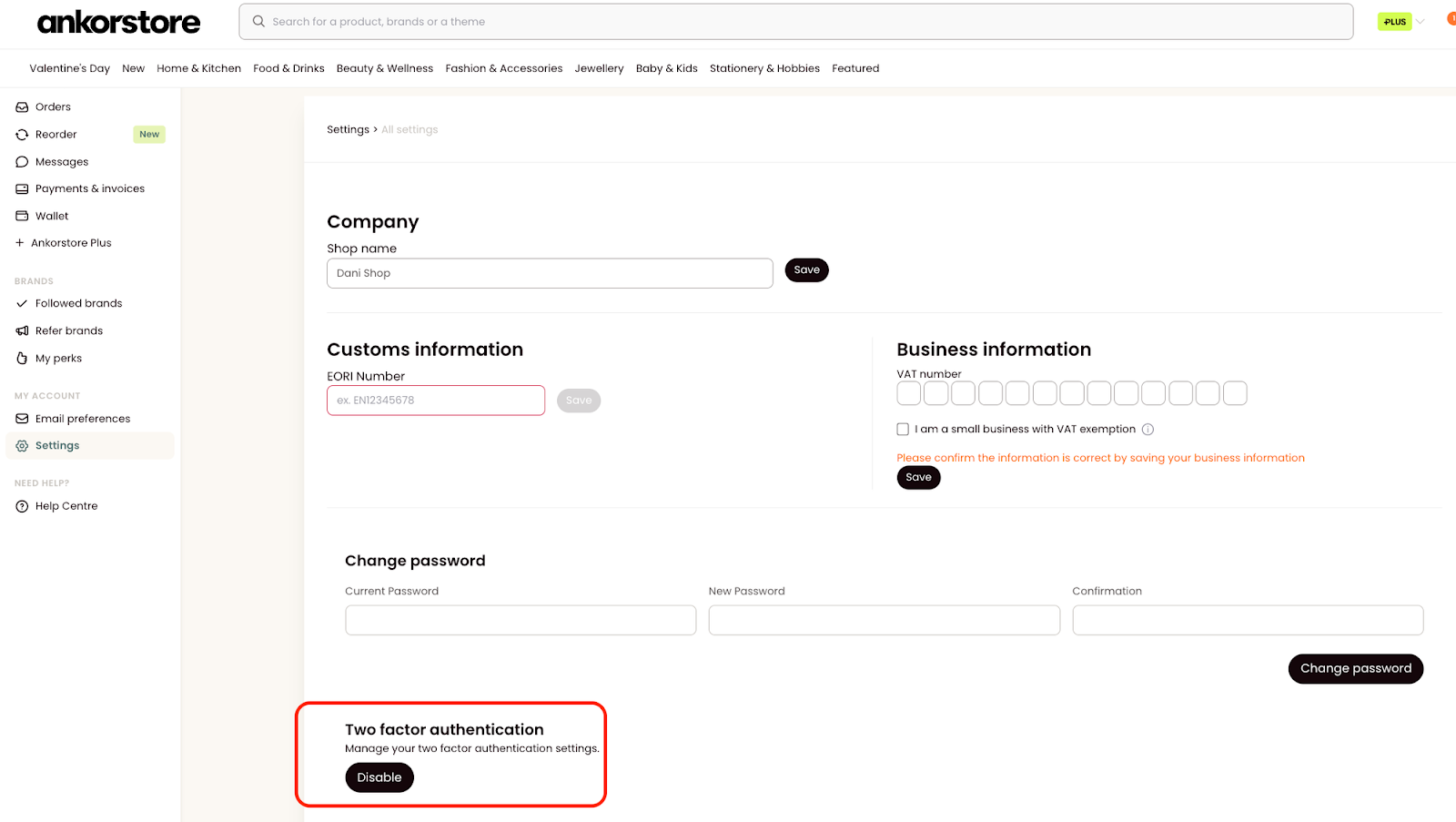
Step 1: Two-factor authentication can be enabled by users in their respective Back office (brand or retailer)
Step 2: Next, you have to activate the feature by scanning the QR code by an authenticator application on your smartphone:
Step 3: After successful activation, you can copy or download a list of recovery codes in case you would lose access to your authenticator application or smartphone. Keep in mind that this page is only displayed once, so there is no way to retrieve these recovery codes later.
If you wish to disable two-factor authentication later, you can do it on the same page:
2FA Challenge page upon Login
After successful login with your credentials, you will be prompted to pass the Two-Factor Challenge page:
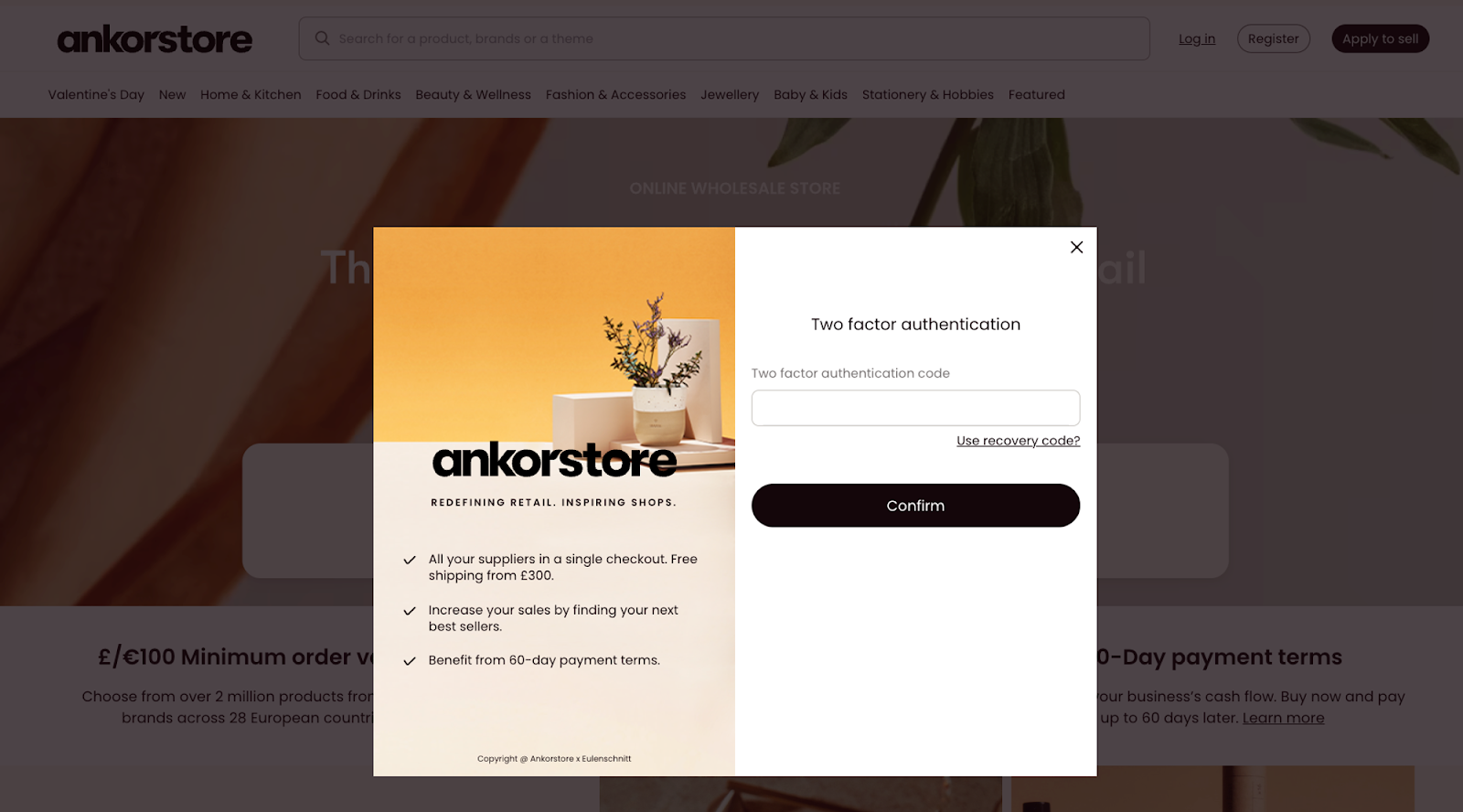
To connect successfully, simply open the authentication application you have chosen, copy and paste the code indicated in the application into the reply box and click on confirm to establish the connection.
In case you lose access to your authenticator app and/or smartphone, you can use one of your previously downloaded recovery codes to gain access to your account.