How to onboard my brand on Ankorstore?
Last updated: August 25, 2026
Here, you can find a summary of all the onboarding steps that you will need to take to start selling your products on Ankorstore:
Share information about your company and brand:
Step 0: Select your country from the list
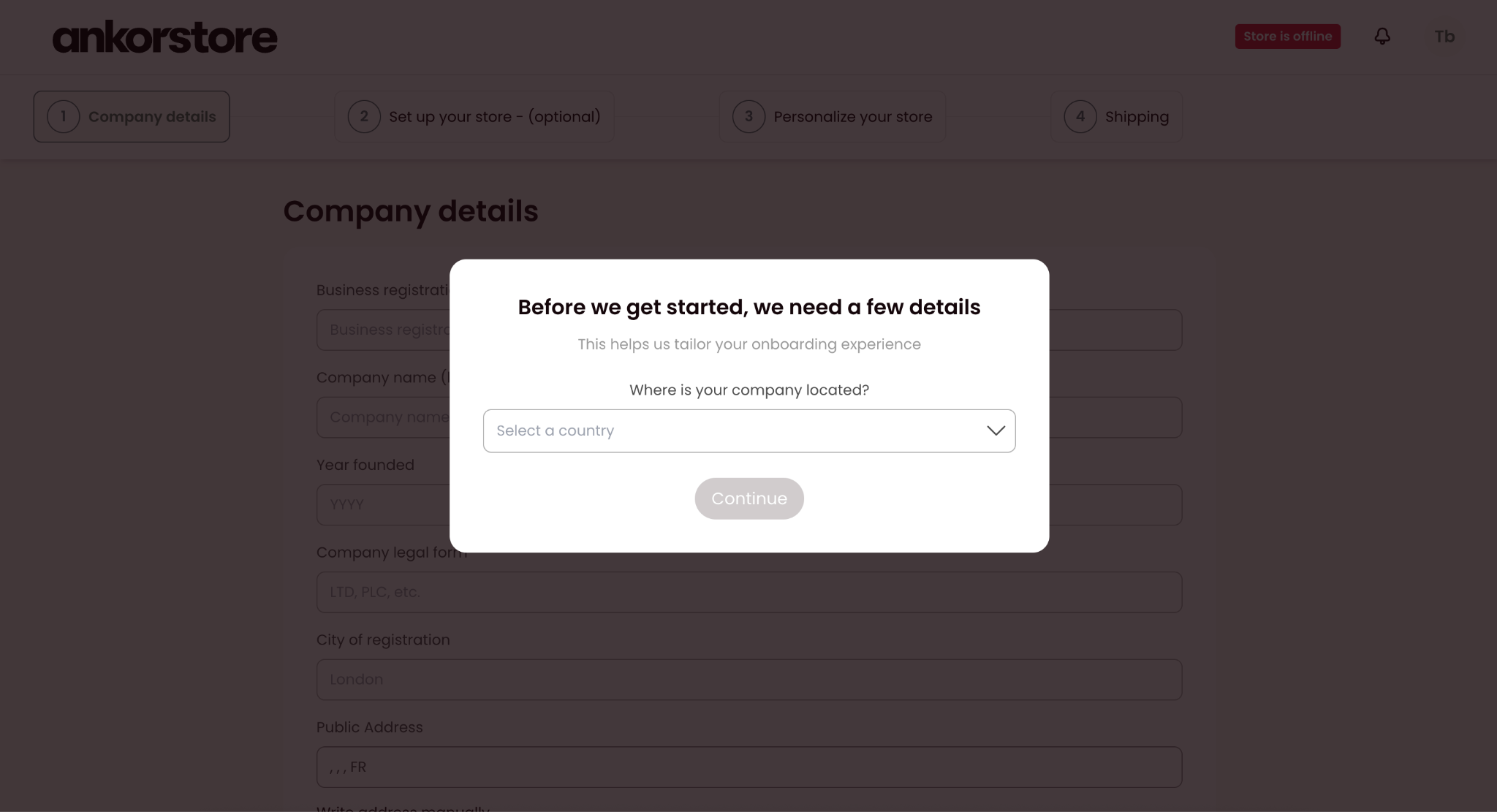
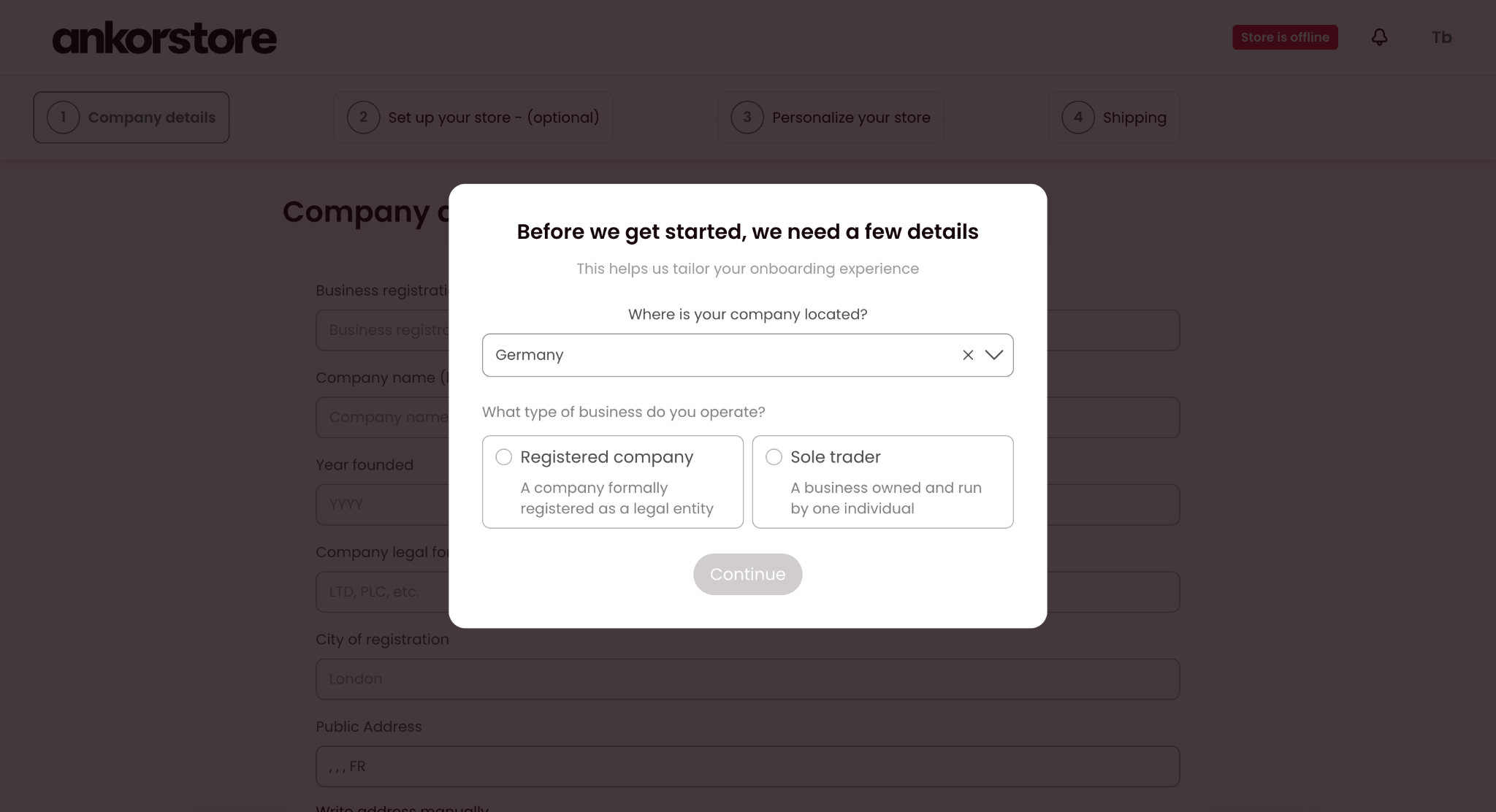
In case you are a German Retailer, you will need to select as a Registered Company or a Soletrader.
Step 1: Get started
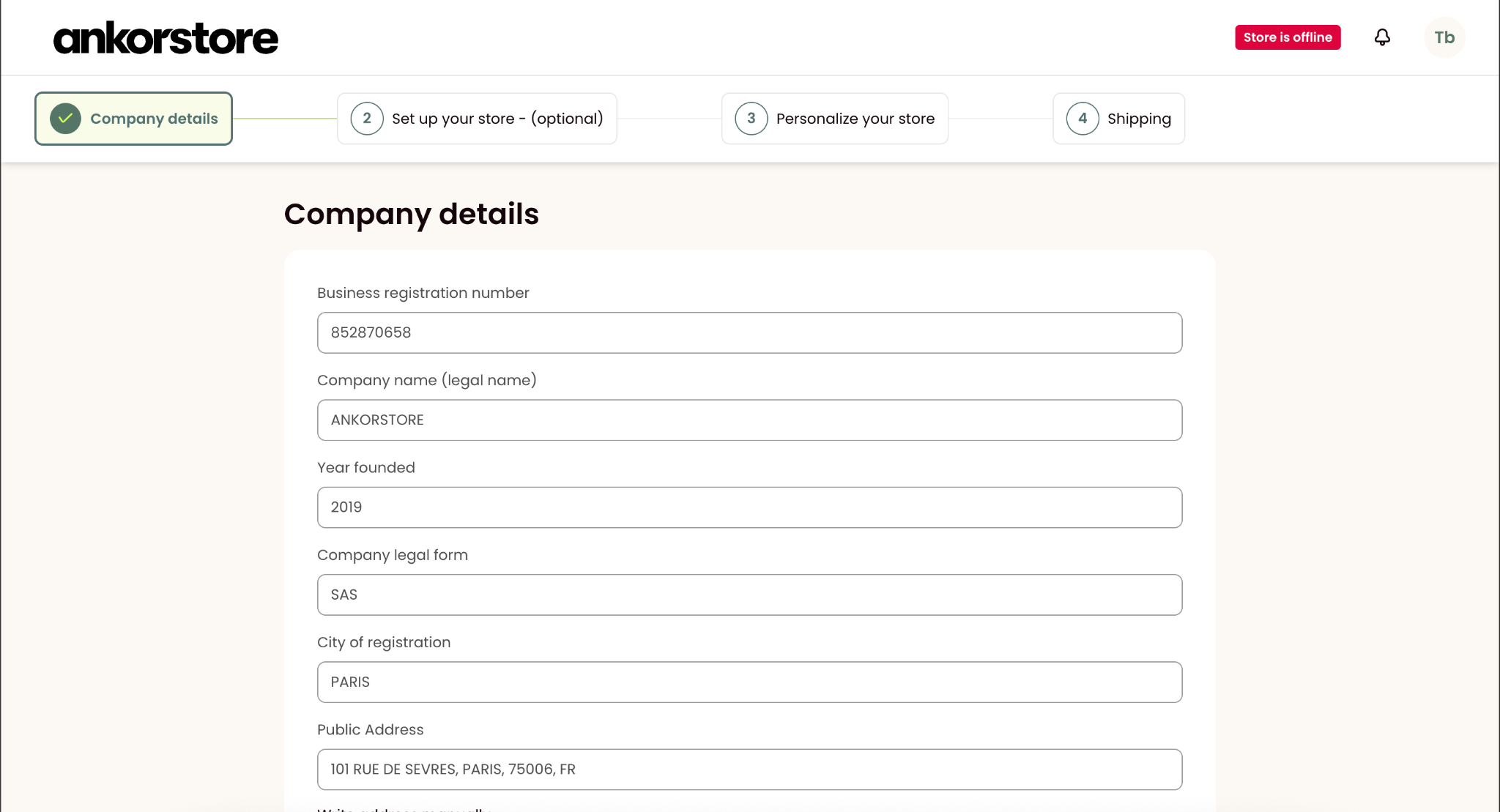
Company details
To begin, you’ll need to provide some essential information about your company:
Company registration number: It’s a unique identifier assigned by the government to identify the company for administrative purposes
Company Name: It’s the official and legal name of the company.
Year founded: The year of the brand's legal creation
Legal form: It’s the legal status you chose for your company.
City of registration
Public address. You can select to use it as your Billing address or add a different Billing address by unselecting the checkbox
VAT Number: It is composed of a two-letter country code followed by digits without spacing.
Instagram account (optional)
Step 2: Set up your store (optional)
During this step, you will be creating your Ankorstore catalog. Creating your catalog is not mandatory at this moment, but you will need at least 1 product in your catalog to set your store online. If you skip this step now, you will be able to complete your catalog later.
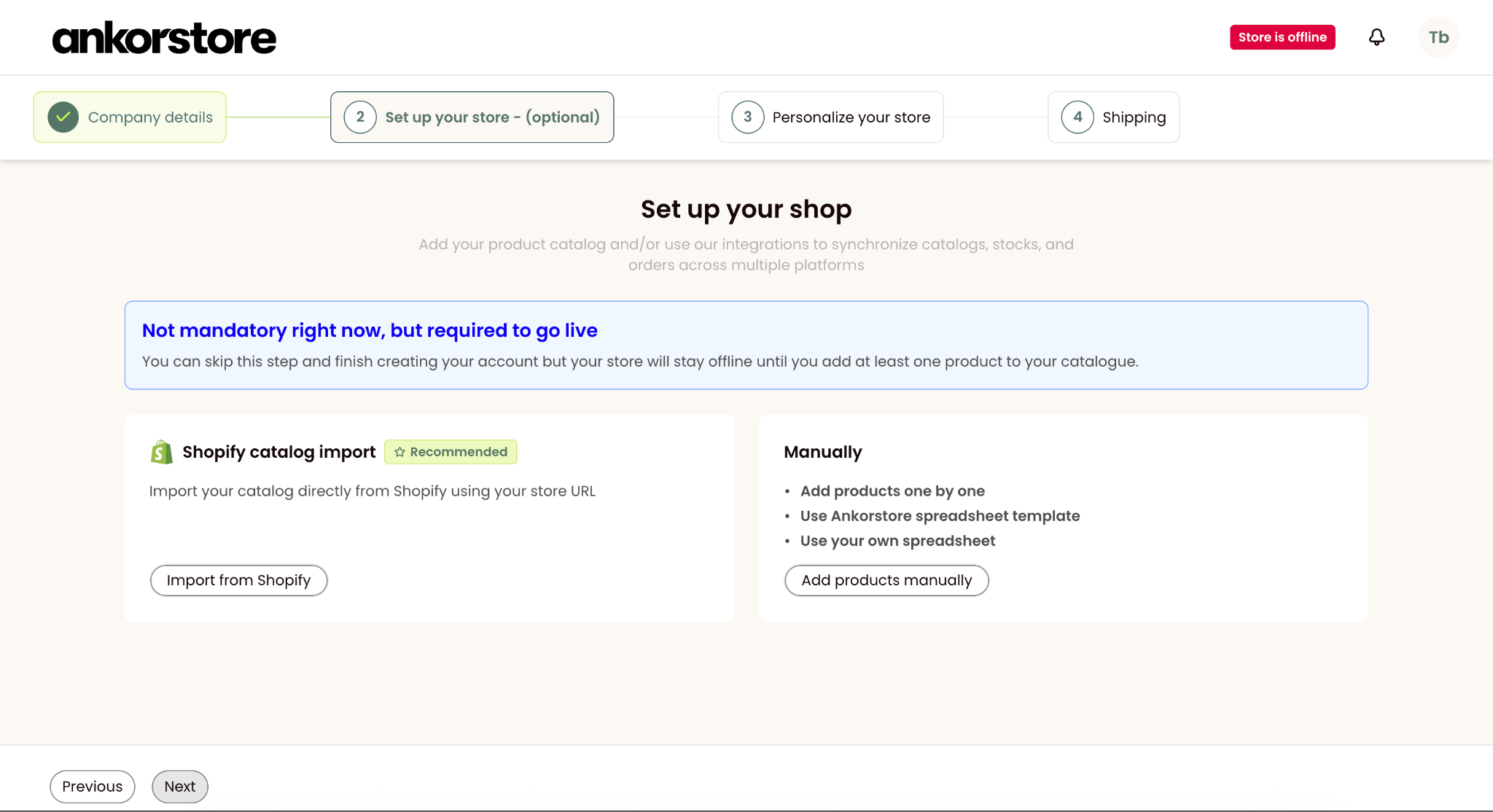
Step 2.1: Shopify catalog import
Select Import from Shopify in the Set up your store page. You will land in our Shopify import form. In this form, you will be able to set how your products will be imported from your shopify website.
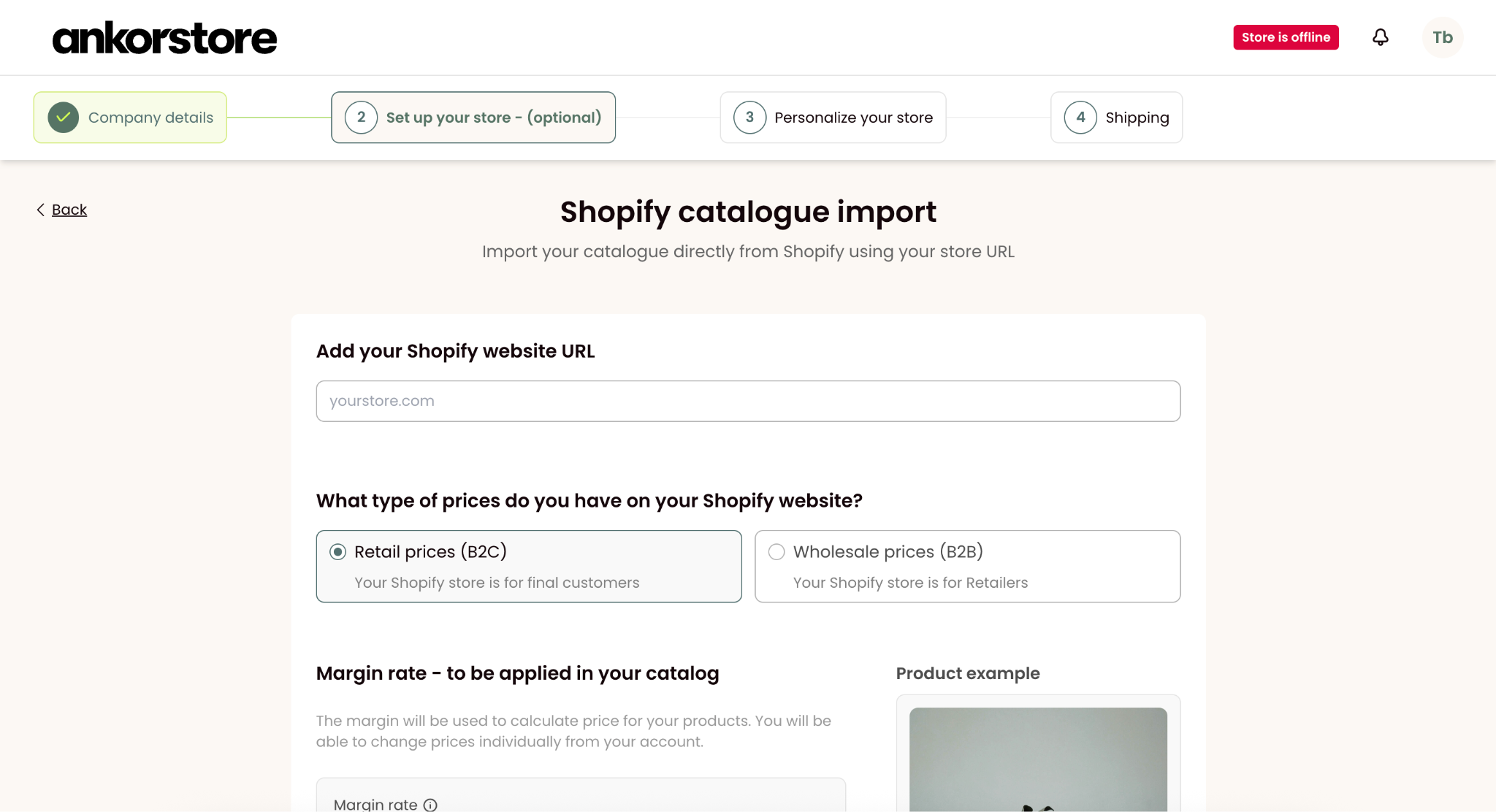
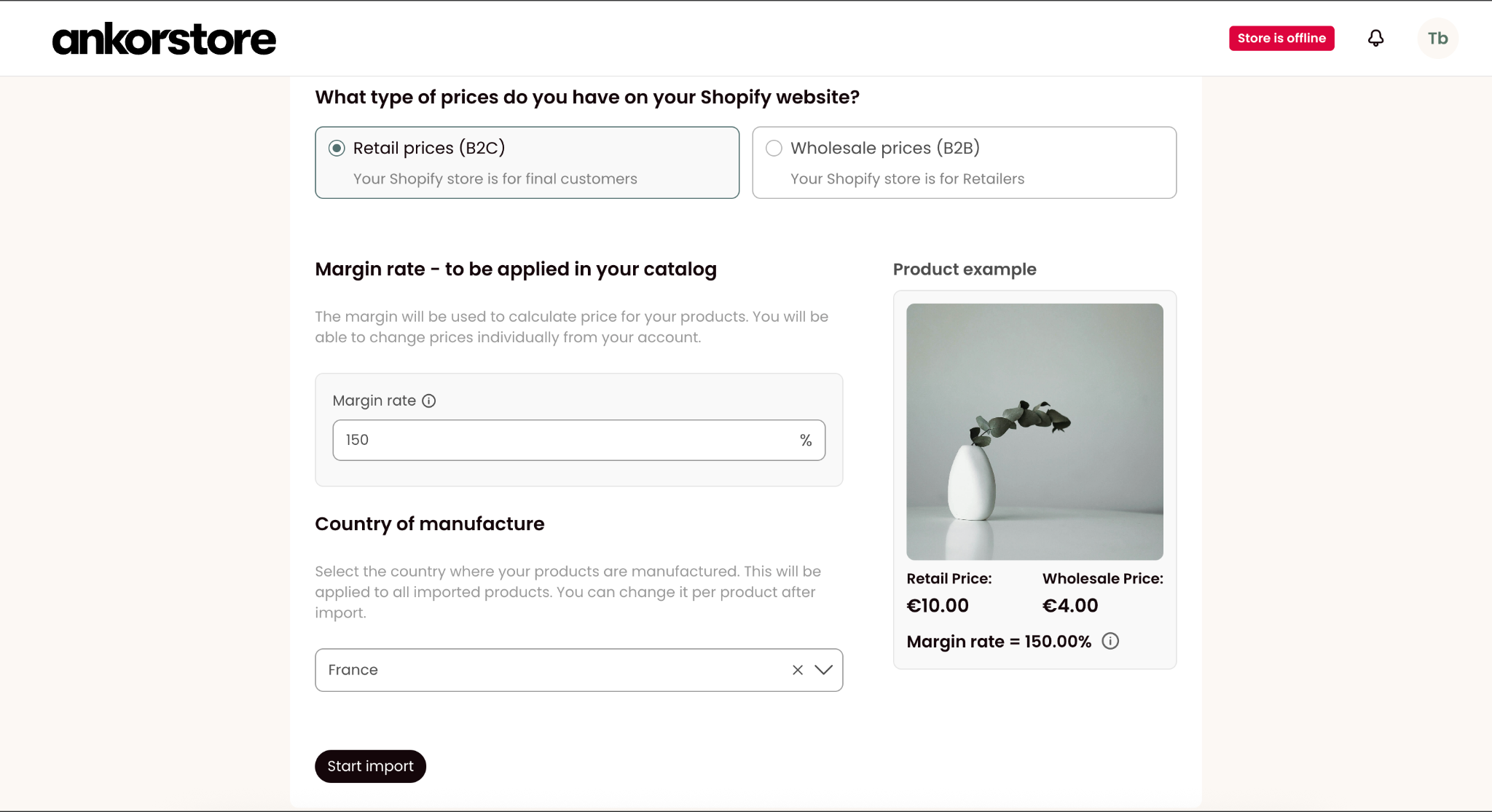
Important: this information will be used to import in bulk your products from Shopify. You will always be able to edit manually every single product later from your account.
Add your shopify URL. We will import your products from your website
Select if your website shows retail prices or wholesale prices. We will use your selection and your margin rates to calculate the other price.
Add your margin rate. You will be able to see the impact of the values in the product example
Select country of manufacture. It will be applied to all of your products.
Click on the Start import button
Check and confirm. A verification message will be displayed to confirm your choices.
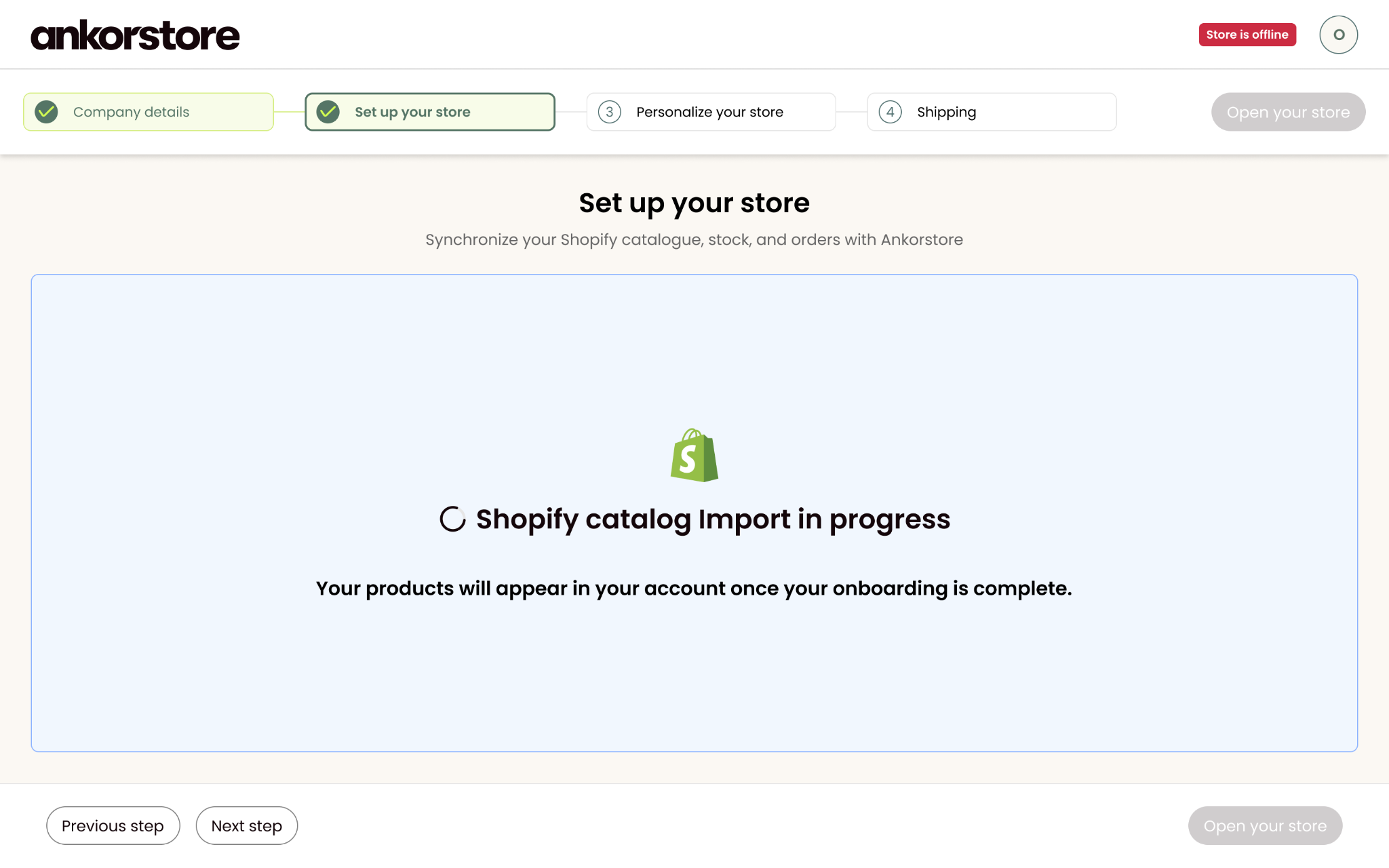
Shopify import may take some time. After importing, you can continue your sign up process. The import results will appear in your account later.
Step 2.2: Manual import
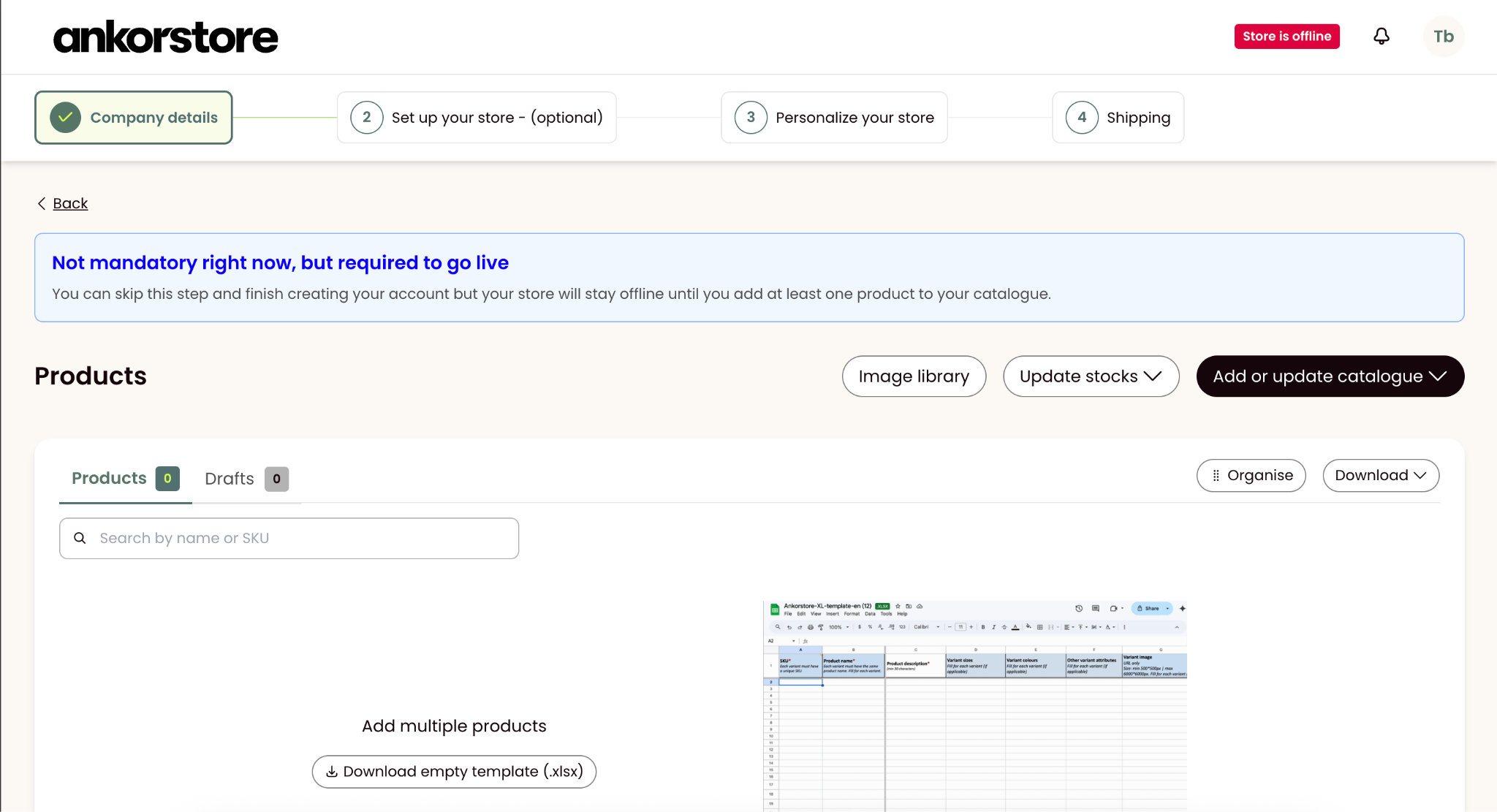
You have different options for adding products to your store:
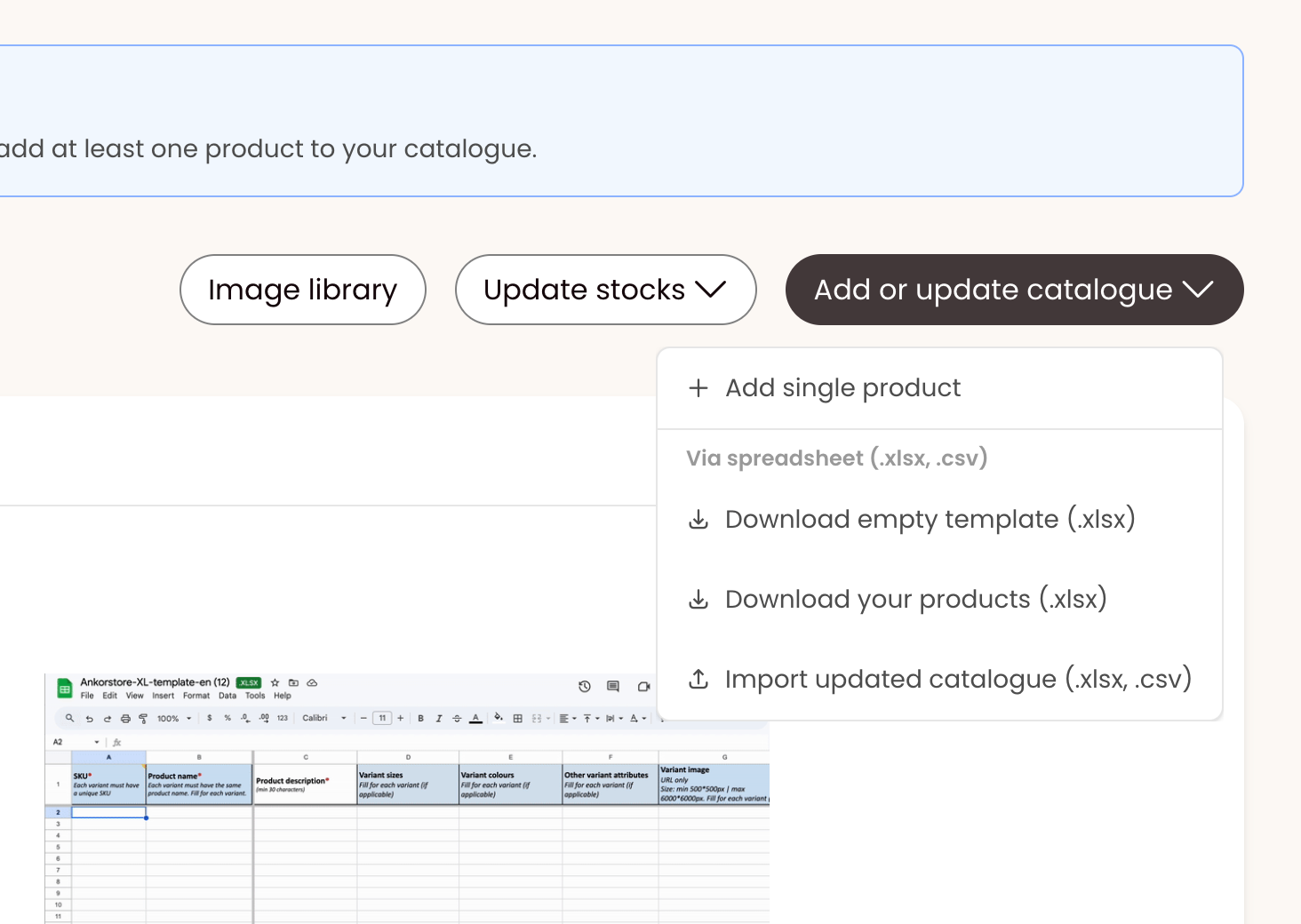
One by one - Recommended if you have less than 10 products to upload to your catalogue - link to article add or update article
XL/CSV file - Recommended if you have a large catalogue, and already some product informations stored in a XL/CSV file - link to article add or update article
Step 3: Personalize your store
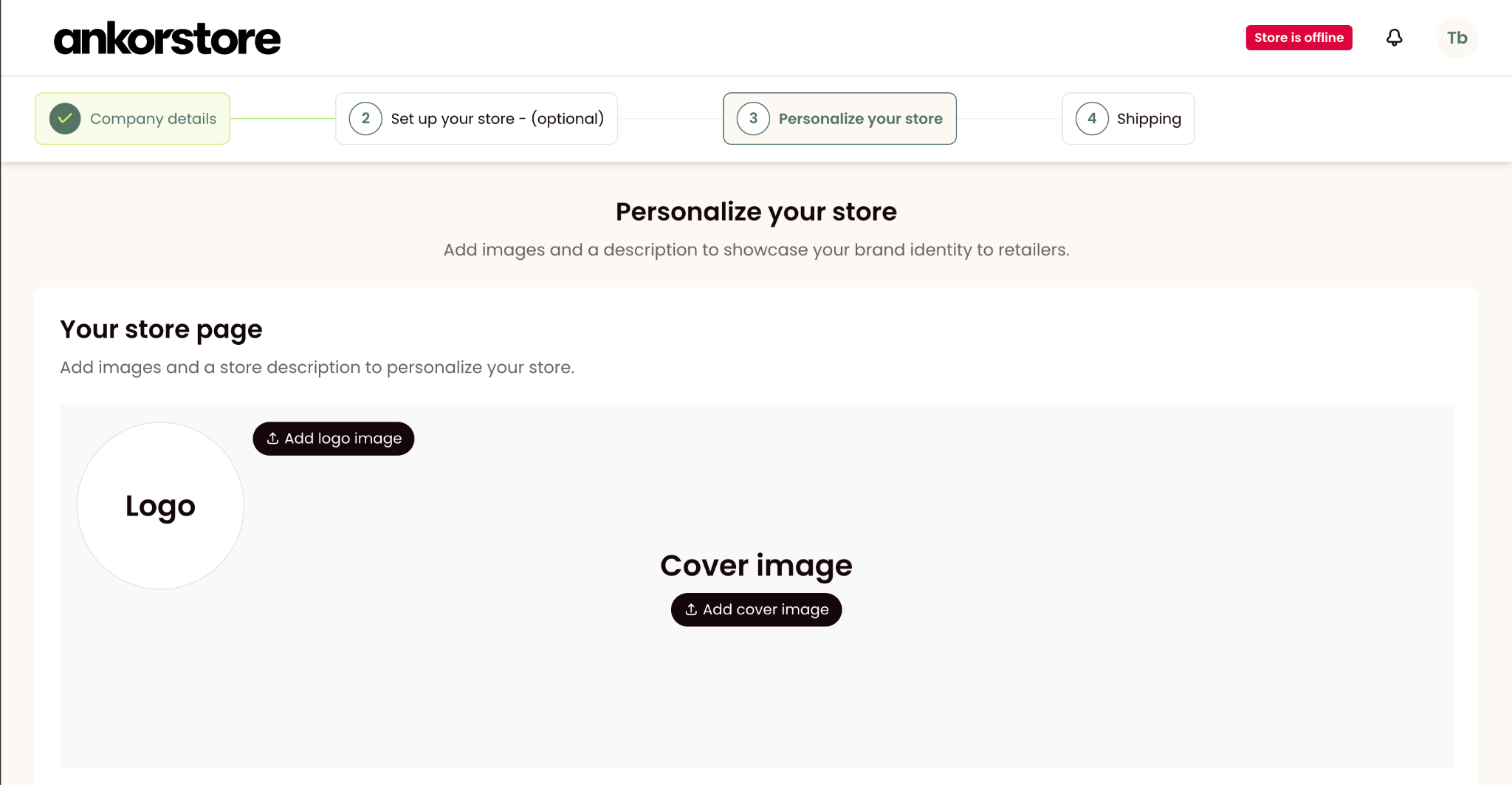
Add your logo
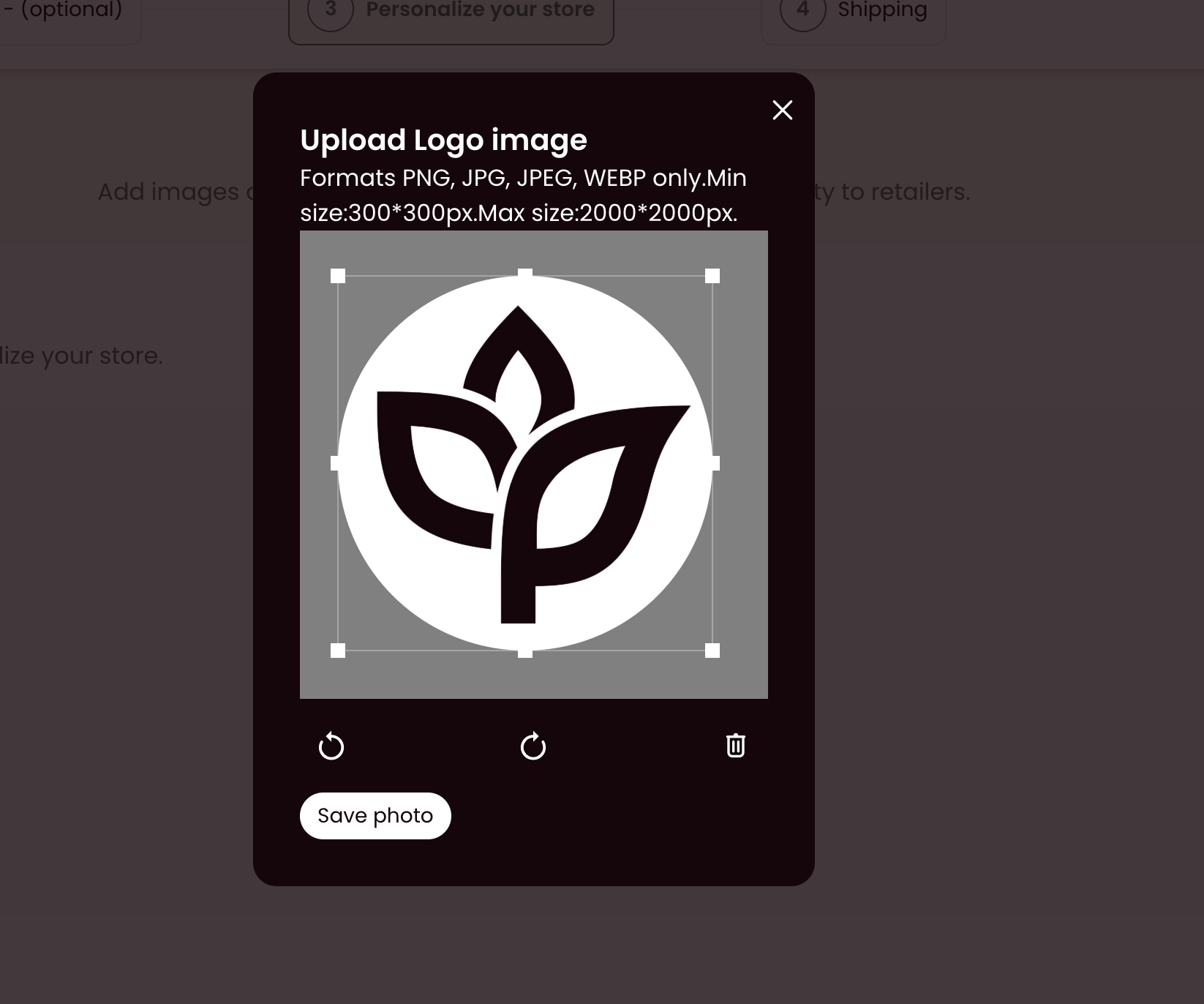
Your logo will appear in the top left-hand corner of your brand page. The size of the image should be between 300x300 px and 2000x2000 px. There are a lot of free tools available online to resize your images if needed.
Add your cover
Your cover picture should be an image without text that showcases your brand on our site. The size of the image should be between 1600x400px and 2000x500px. There are a lot of free tools available online to resize your images if needed.
Brand story
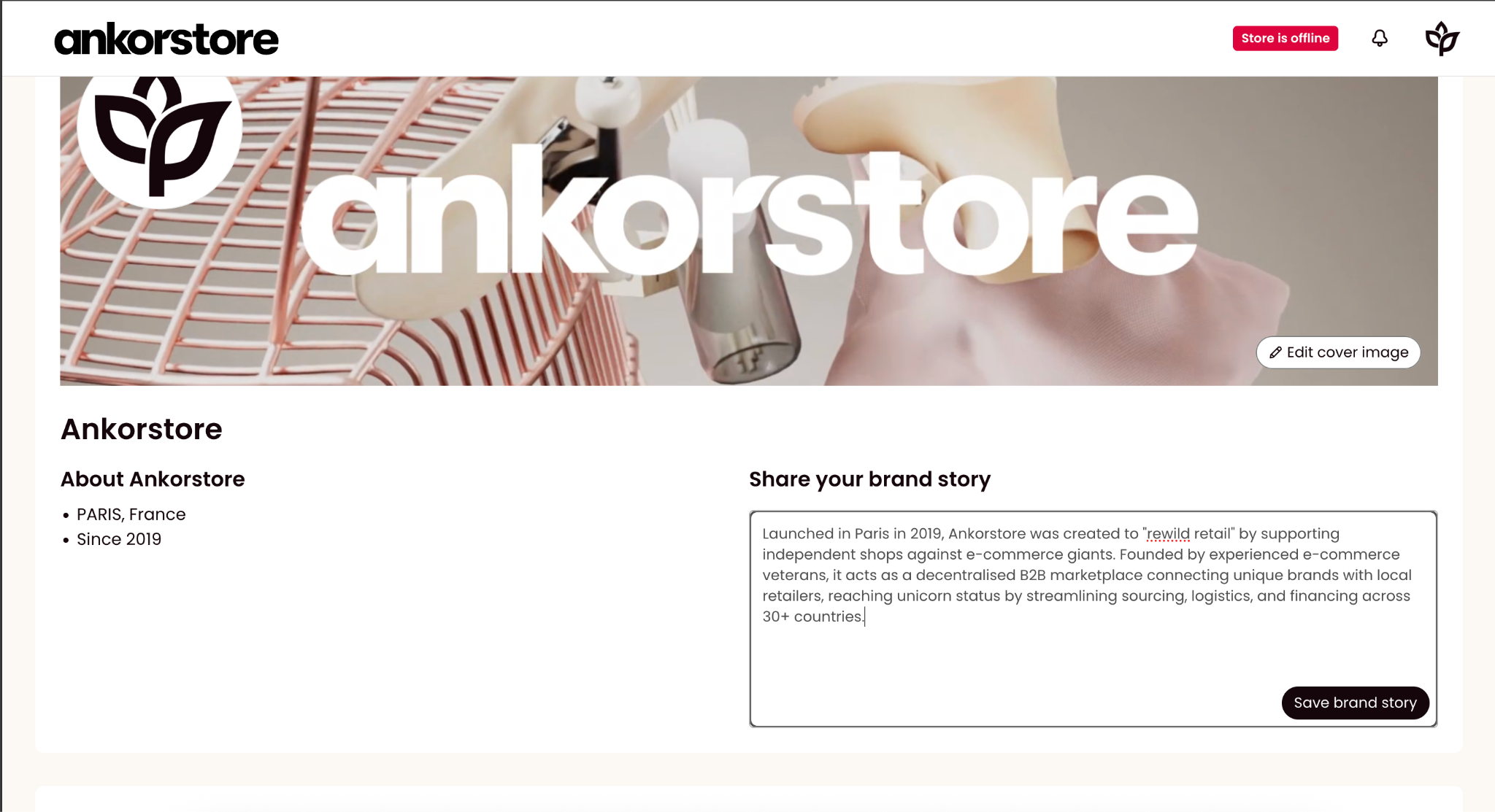
Think of your brand description like your digital shop window. Here you can share the history of your brand, any values your brand embodies, the details of your production and any positive reviews or awards that your brand has earned. The language that you write your brand story in should be the same language that you use when writing your product descriptions. The length of the paragraph should be between 200 and 800 characters.
Brand introduction video
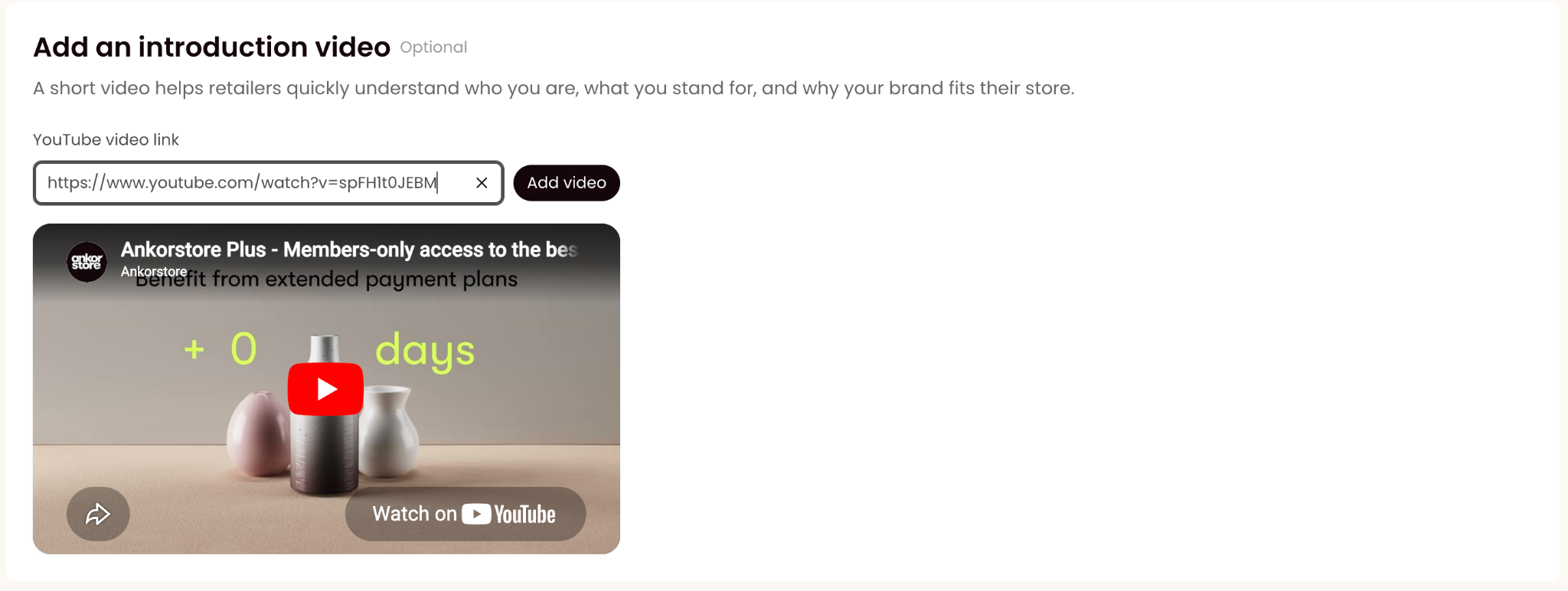
Paste a youtube video link and save to display an introductory video that retailers will be able to find in your Brand page on the marketplace
Brand tile
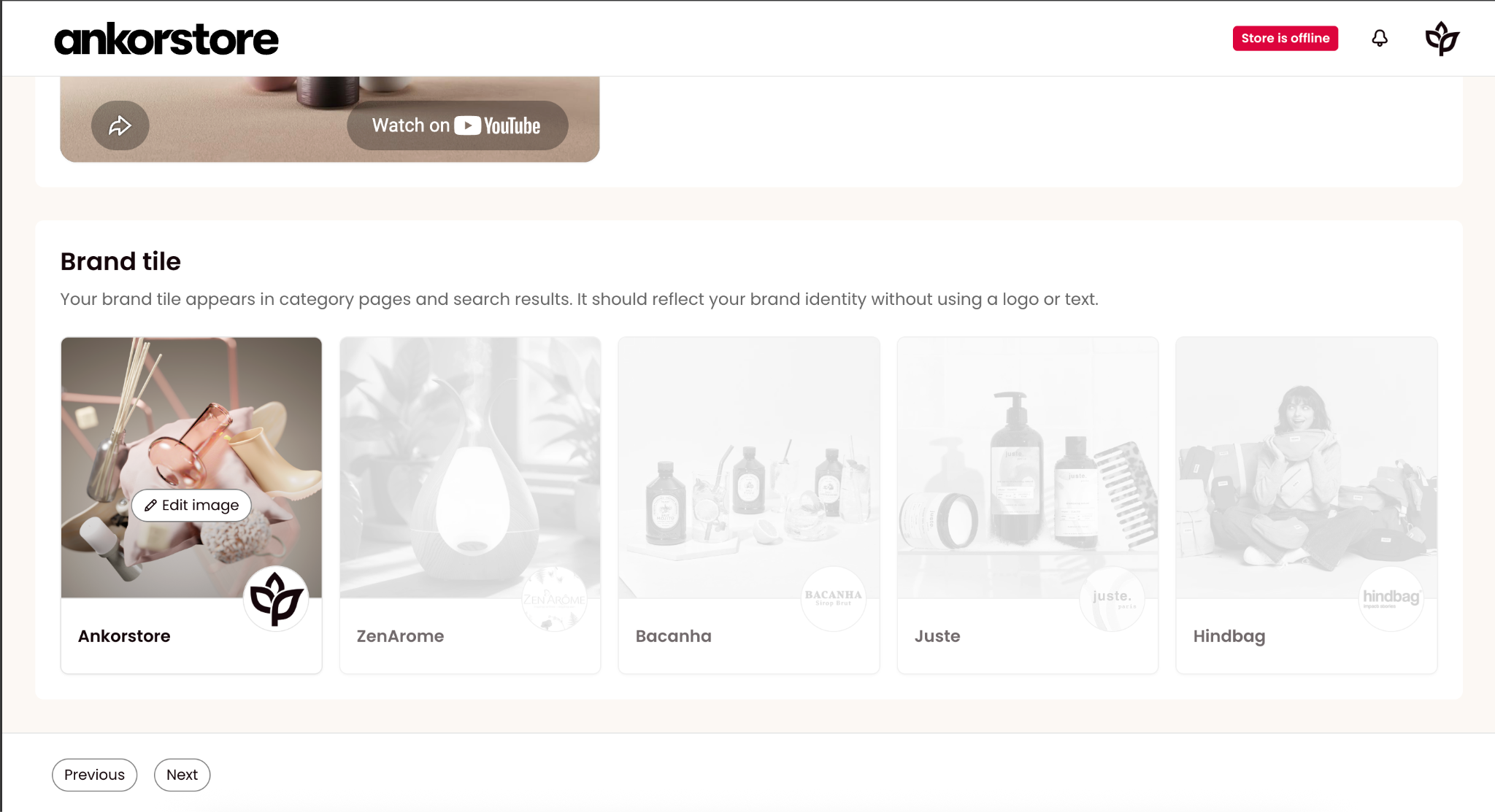
Upload your square preview showing your products. This image will appear in our catalogue and must reflect your identity without including your logo or any text. The size of the image should be between 500x500px and 2000x2000px.
Step 4: Shipping
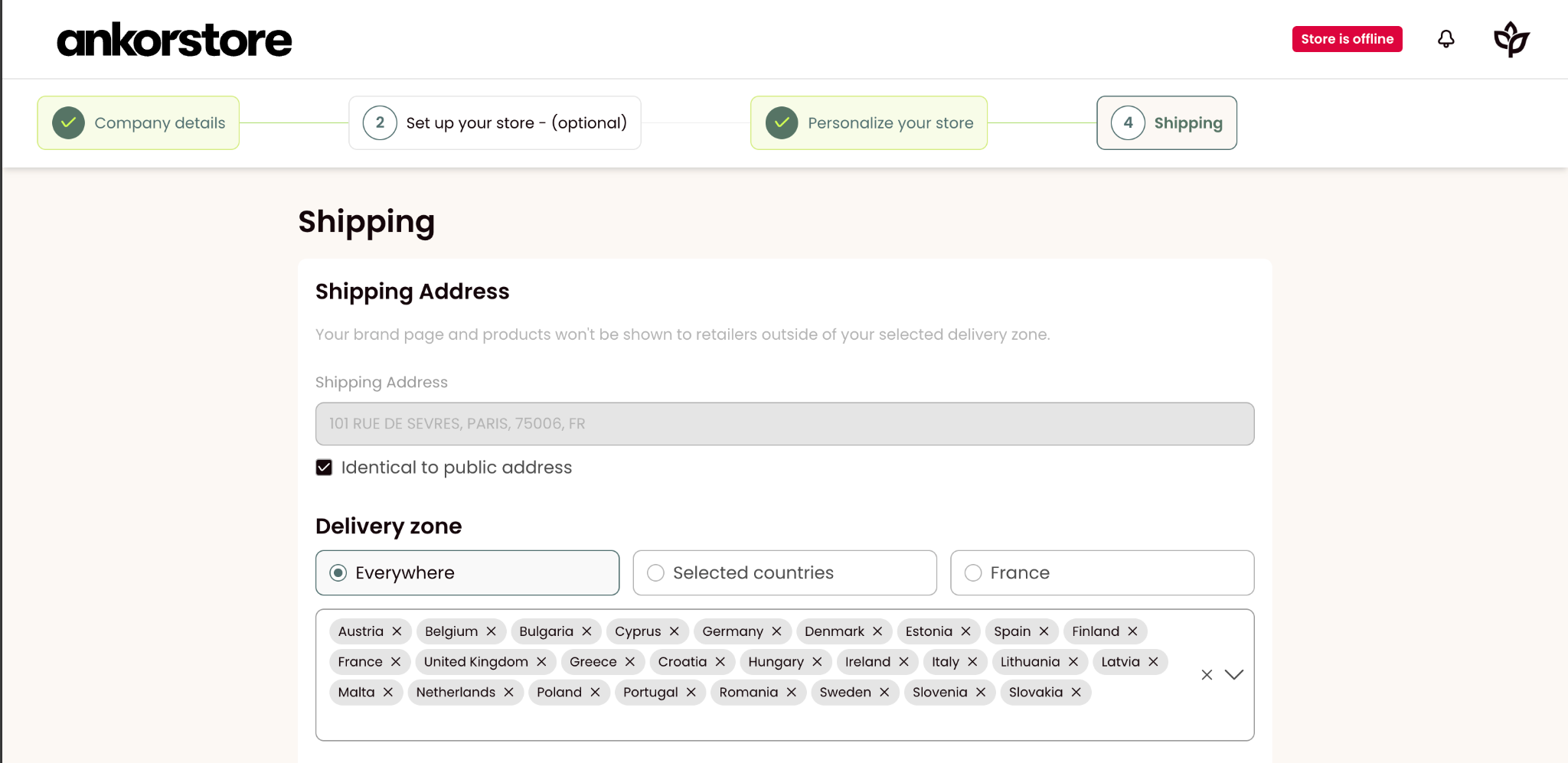
Shipping address
By default will use your public address (added during step 1)
If you want to add a different one, unselect the “Identical to public address” checkbox and enter your desired address.
Delivery zone
Delivery zone: geographical zones where you agree to deliver your products
EORI Number, to be able to ship your products to United Kingdom.
LUCID Number to be able to ship your products to Germany.
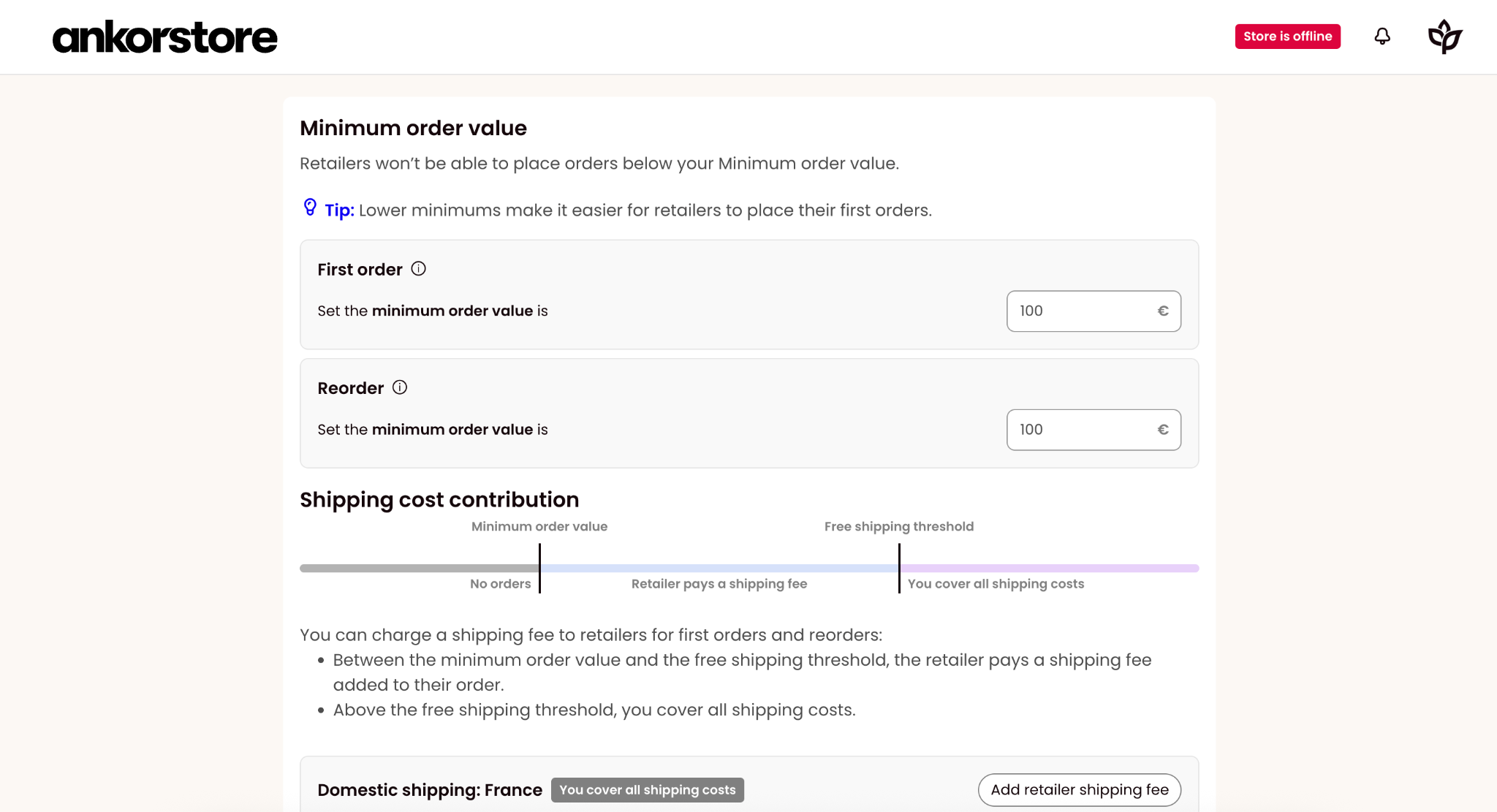
Set up your shipping preferences:
First order minimum order value
Reorder minimum order value
Set your own free shipping threshold and flat shipping fee within our recommended framework - Article
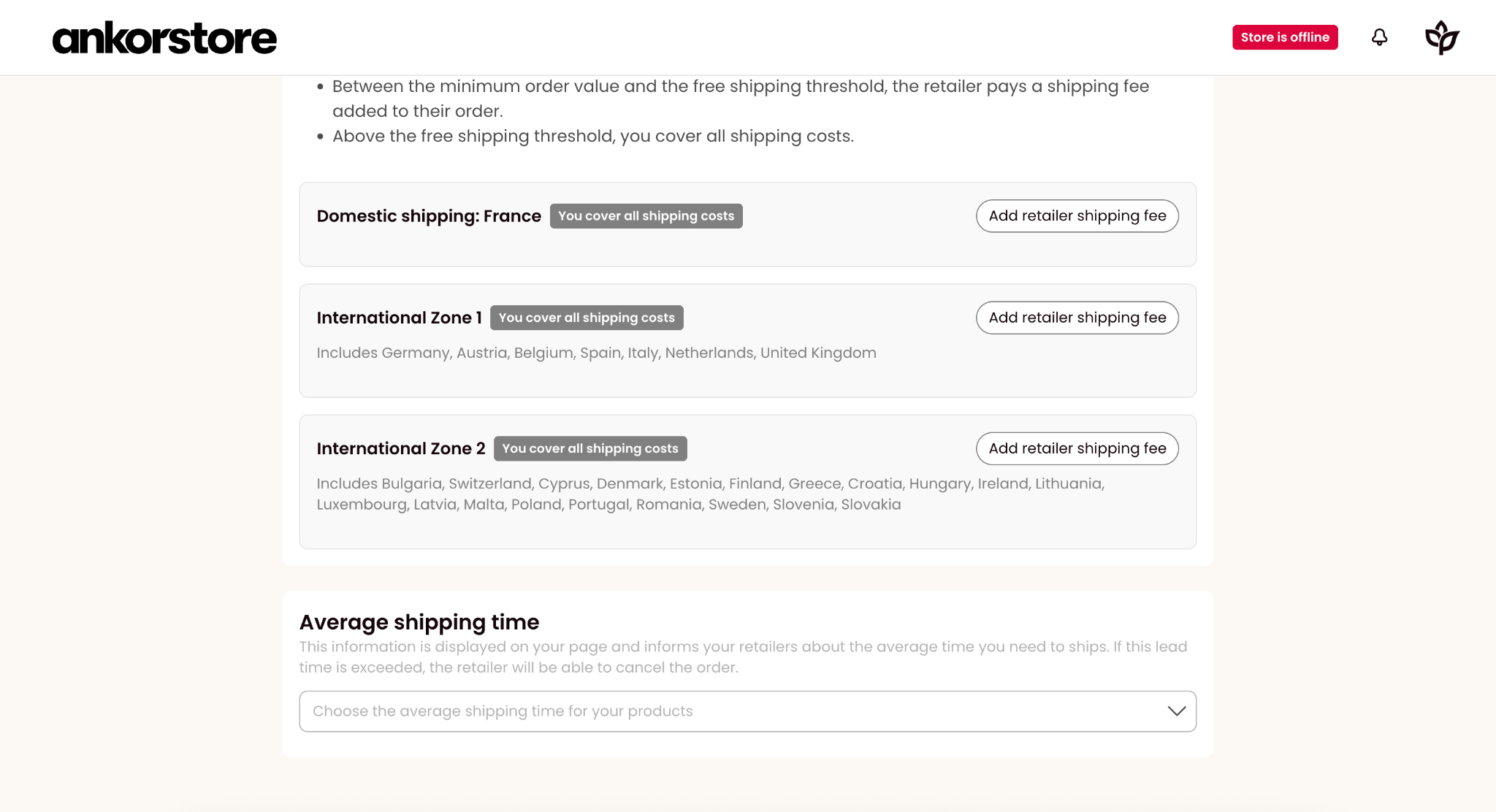
Average shipping time
This information is displayed on your page and informs your retailers about the average time you need to ship. If this lead time is exceeded, the retailer will be able to cancel the order.
Step 5: Finish onboarding / Open your store
Once steps 1, 3 and 4 are completed, you will be able to finish your sign up.
If you skipped step 2, you will be able to finish the sign up flow clicking the black button “Finish onboarding”.

If you completed step 2 during your sign up process, you will be able to open your store by clicking on the black button “Open your store”. Congratulations, your store will be set as Online and retailer will be able to find you and start ordering!

Step 5.1: Finish Onboarding
After completing the sign up process without a catalog, you will land in your Brand’s account with access to the sections needed to finish your sign up process.
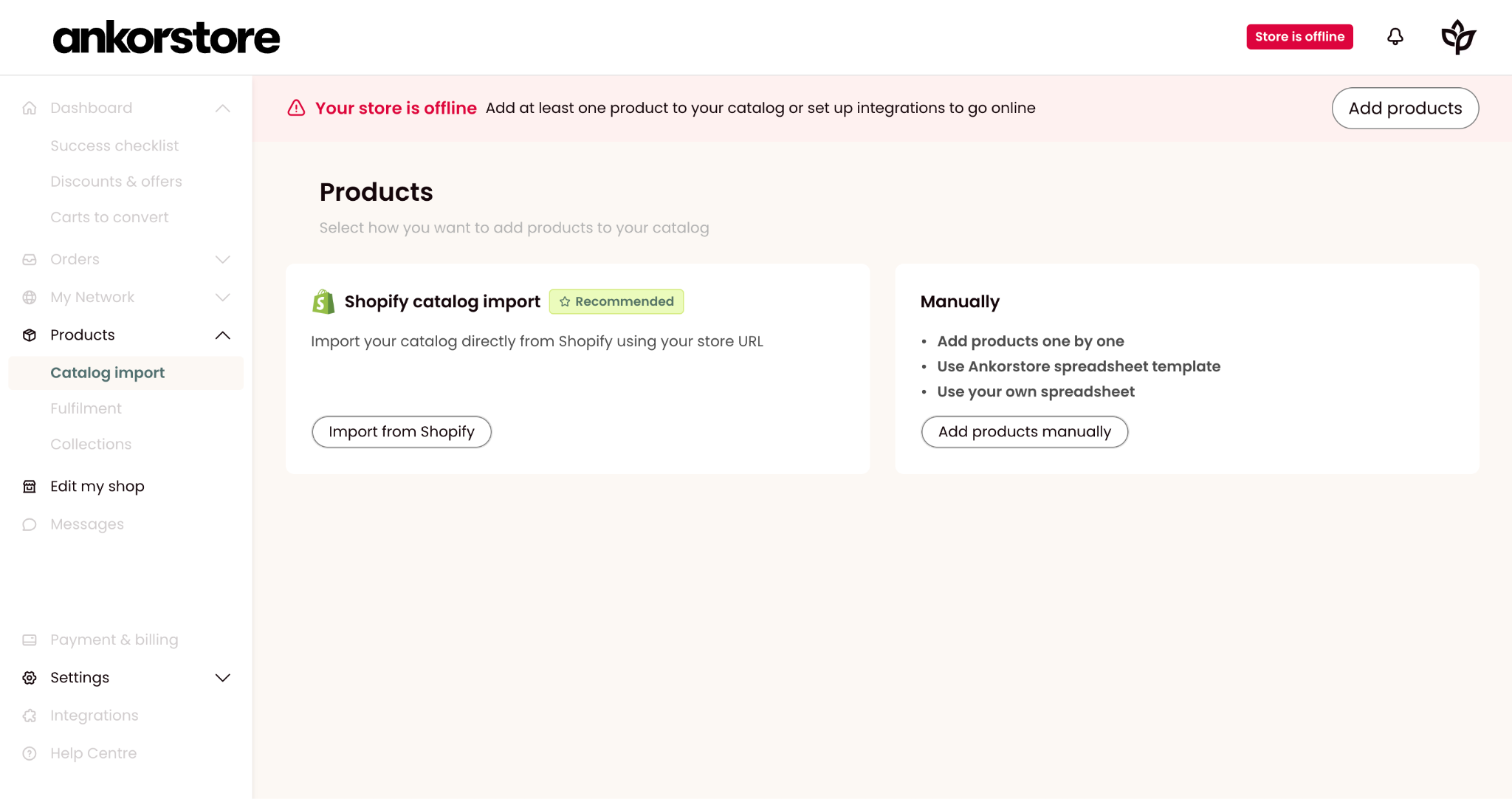
A red message will alert you: add at least one product to go online.
You can choose any of the options previously mentioned during step: “Shopify catalog import” or Manually.
If you select Shopify catalog import, you will be able to see a blue message explaining that your import is in progress.
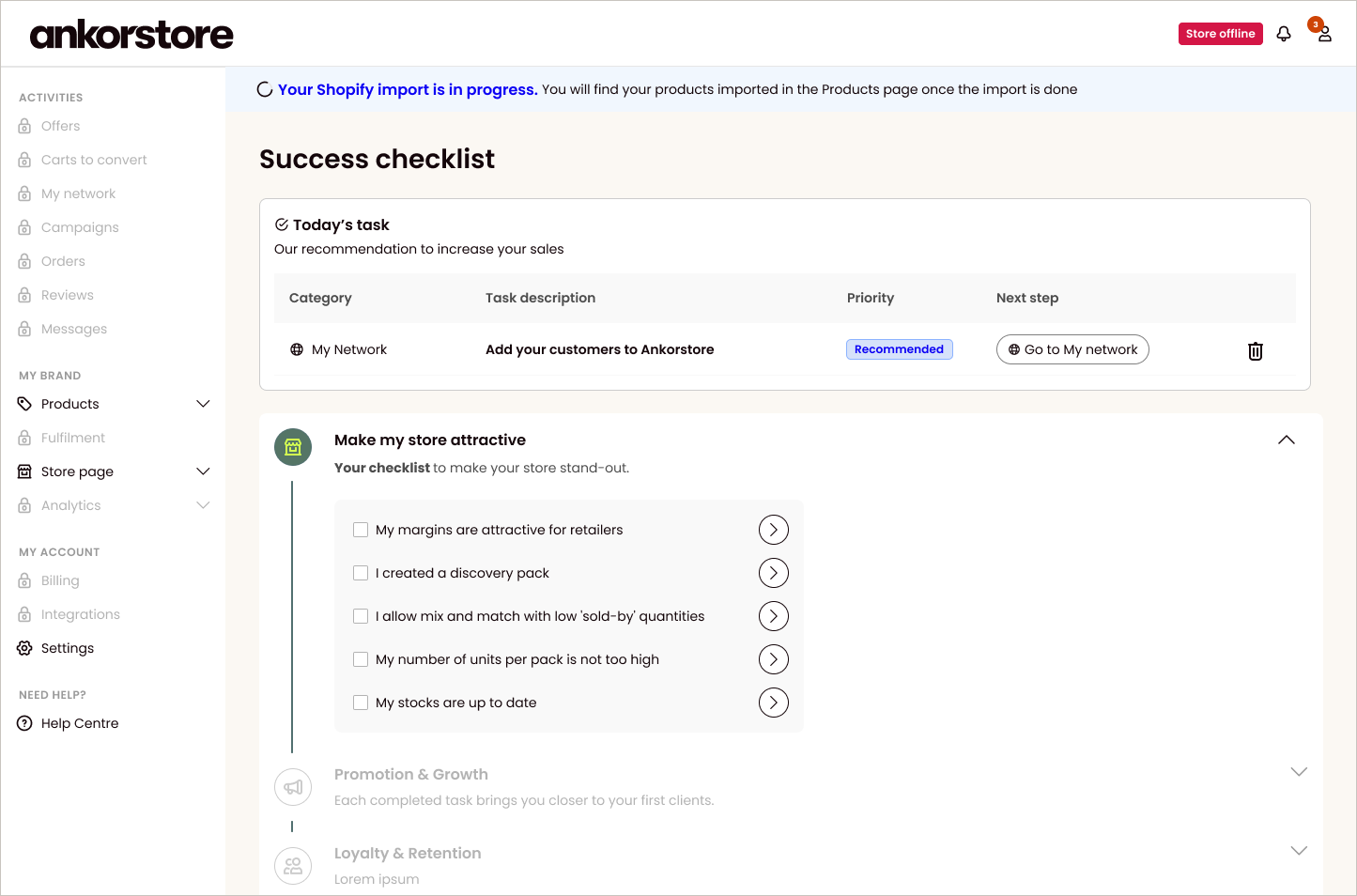
When the Shopify import is finished, you can find tree cases:
Products were imported and there is no missing information. You will see a green message and you will be able to go online by clicking on the black button “Open your store”
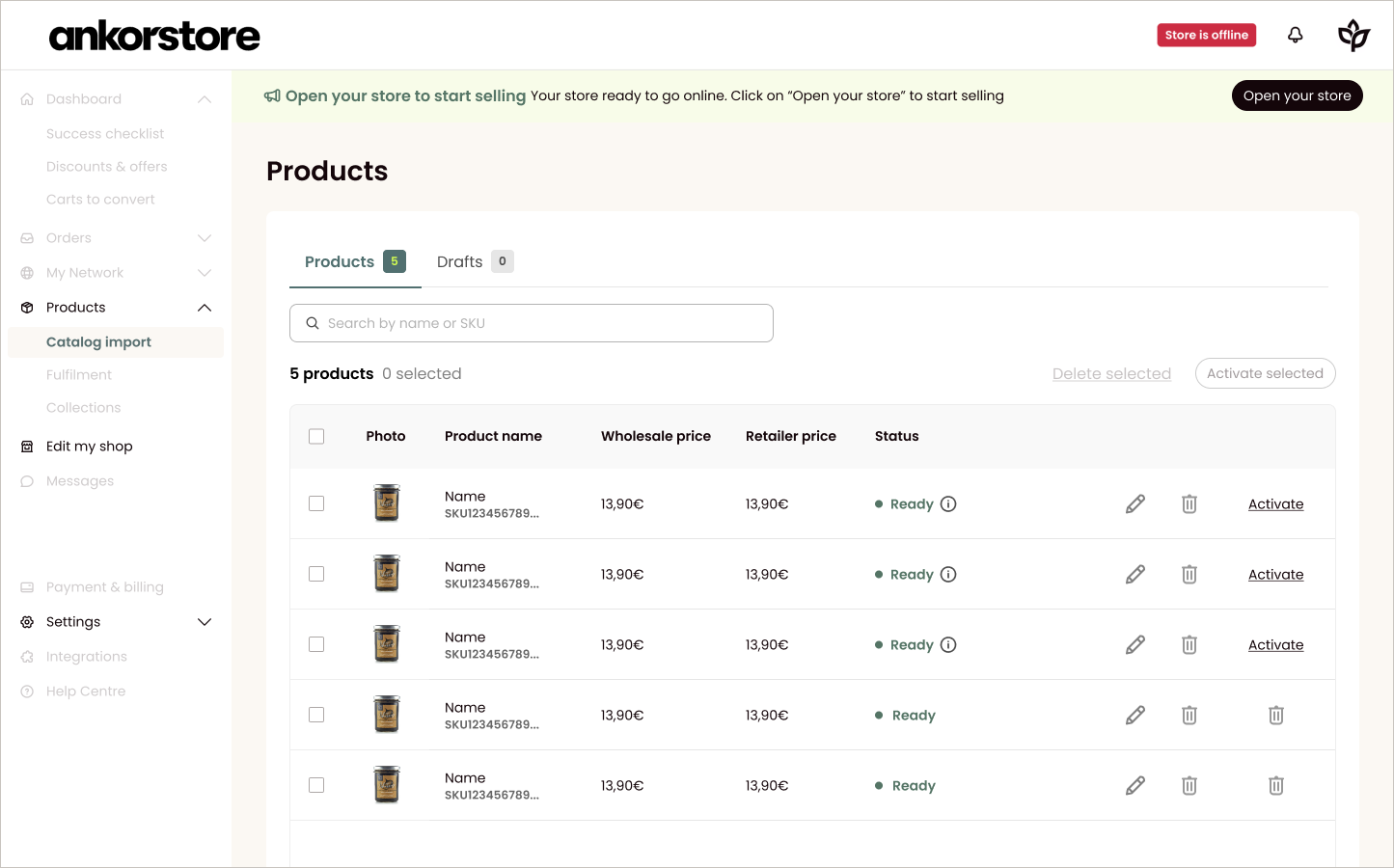
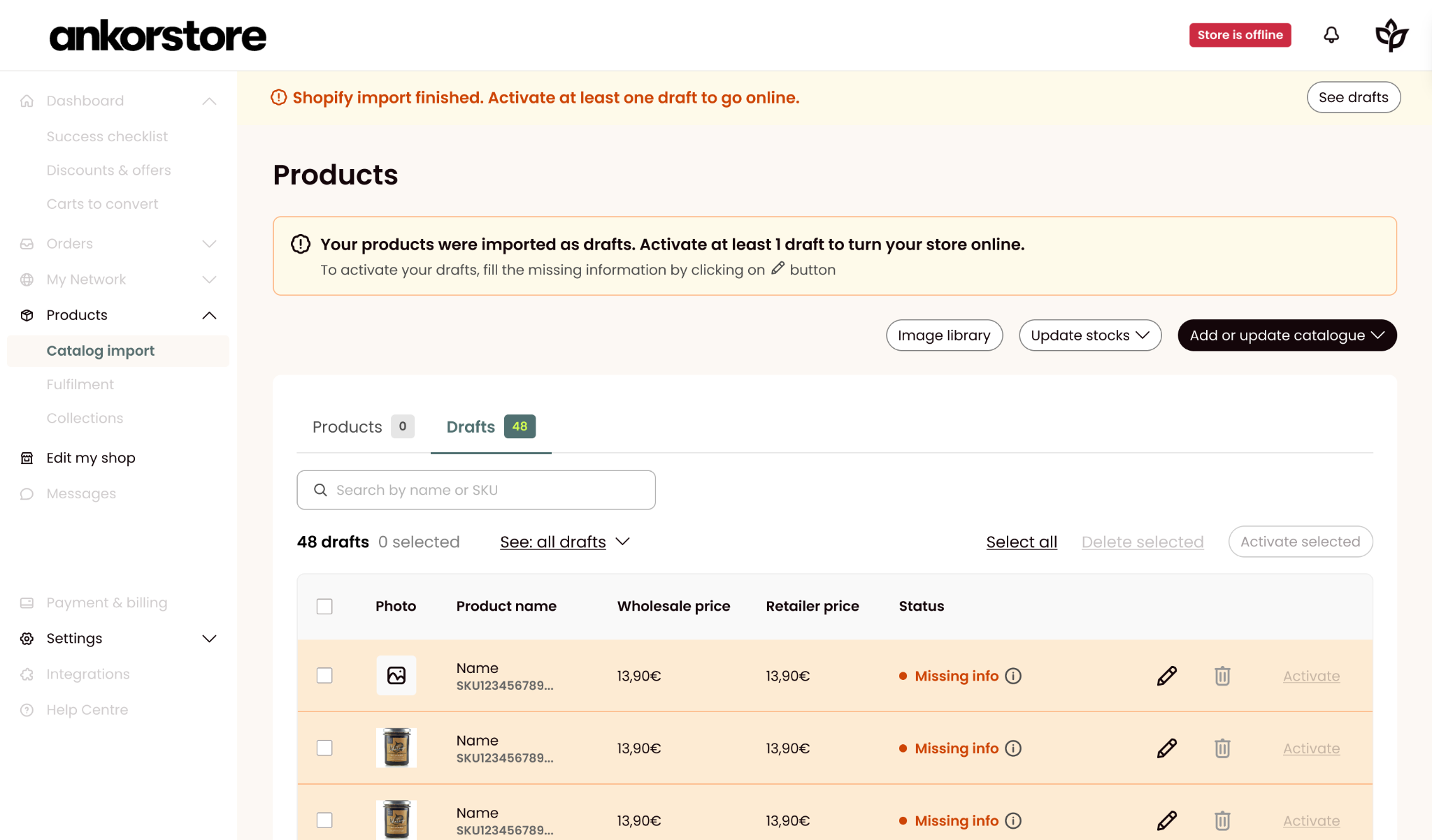
Products were imported, but there is missing information. You will see an orange message. Your products have been imported as drafts and you will need to edit them to fill the missing information. Click on the pencil icon on the drafts list to edit products. Once at least 1 product is ready (no missing information) You will see the green message on top of the page and you will be able to Open your store with the products Ready visible for the retailers.
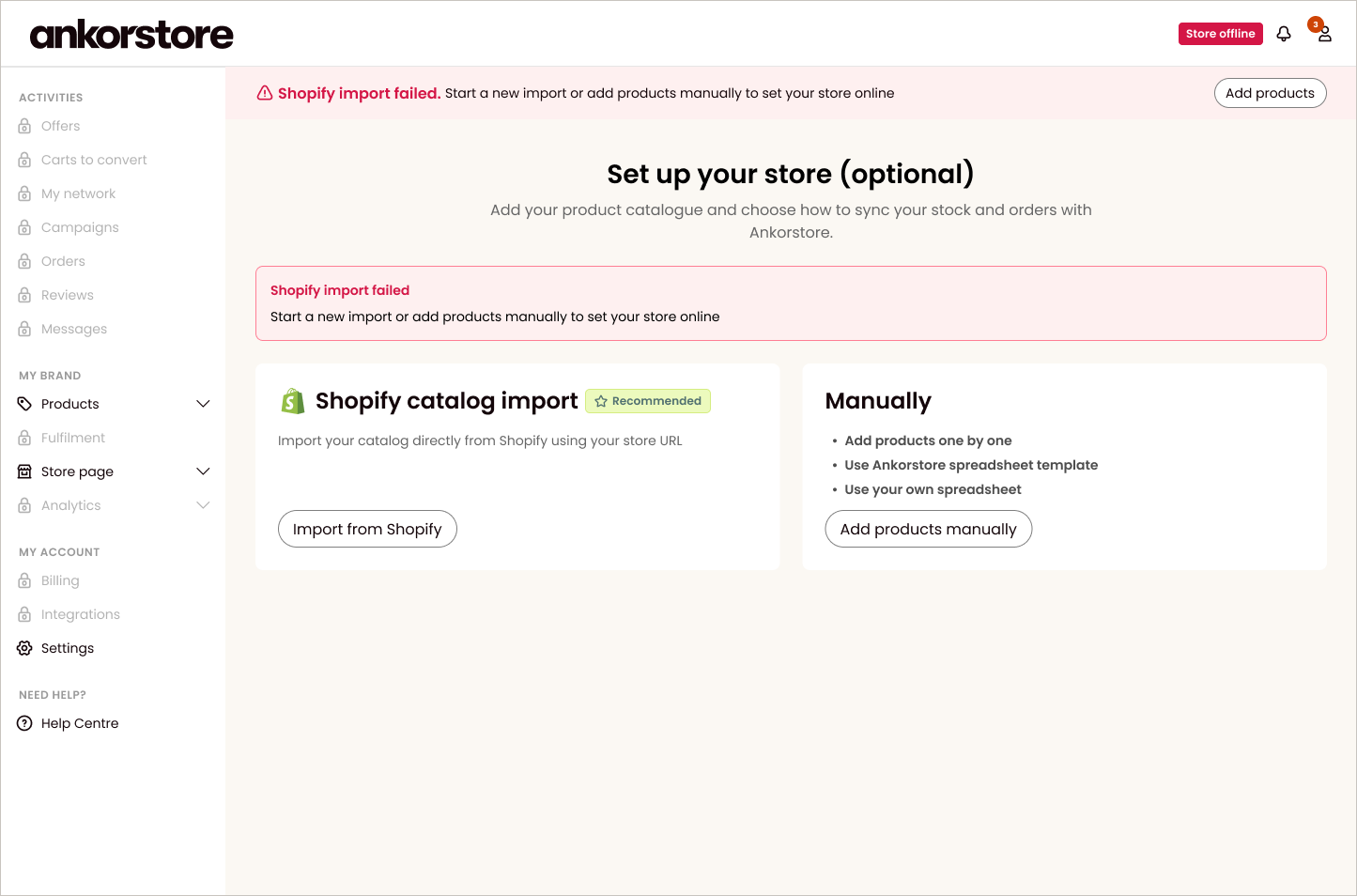
There was an error during the import. You will see a red message alerting you about the import failure. Try adding products again (via Shopify catalog import or manually)
Once you’ve completed the previous steps, you’re ready to launch:
Review: Double-check all your store details and product listings for accuracy.
Submit: Click the “Open store” button to send your store for approval.
Launch: Upon approval, your store will be live, and you can start selling your products!
After completing all the previous steps, the Ankorstore team will review your application and ensure that it’s compliant.
FAQ
How long do descriptions need to be?
We recommend you to have detailed descriptions of both your brand and products. This is because the more information that you provide, the more likely you’ll be to appear when a retailer is searching for a product. We suggest a minimum of 800 characters for your brand description and 600 characters for each product description.
Which products won’t be allowed on Ankorstore?
While we thrive for having the widest and most qualitative selection of products on Ankorstore, we also want to protect our community of Brands and Retailers from some specific undesired products.
Therefore, we will systematically unlist (without prior notice) Brands which display products from the following list on their shop:
Any weapons, including firearms, ammunition, explosives, knives or related items
Any products containing explosive (e.g., fireworks), flame-retardant chemicals, or asbestos
Any hazardous, toxic, flammable, biohazardous, unsafe or dangerous products
Any products related to terrorist organizations, e.g. Merchandising or writings
Any product related to authoritarian political regimes or political extreme ideas, e.g., Confederate merchandising flags or nazi symbols
Any products that promote / glorify hate or violence towards any person or group of people
Any products with discriminatory connotations and considered offensive to one culture or a group of people
Any products that engages in, encourages, promotes or celebrates unlawful violence or physical harm to persons or property; or engages in, encourages, promotes or celebrates unlawful violence toward any group based on race, religion, disability, gender, sexual orientation, national origin, or any other immutable characteristic
Any products which promote, glorify or stigmatize any religion
Any products containing any amount of drugs, including legal products related to online pharmacies, or illegal substance
Any products that contain Cannabidiol (CBD) or Tetrahydrocannabinol (THC), e.g., products with Cannabis sativa, Cannabis indica, Cannabis ruderalis, full spectrum hemp oil
Substances designed to mimic illegal drugs
Any regulated product such as Cigarettes, cigars, tobacco, e-cigarettes, vape sticks, chicha, and any other related smoking items at large
Any animal (dead or alive)
Any product with provocative and explicit sexual connotation
Any product related to pornography, including images, litterature, videos or other offensive materials
Any product linked to sites offering any sexually-related services such as prostitution, escorts, pay-per view, adult live chat features
Any products related to Video game or virtual world credits
Prepaid phone cards, cell phones, telecommunications equipment and telephone sales
Any cheap quality product from a dropshipping site
Any product linked to the purchase of a service (e.g., Grocery delivery, travel company, personal trainer, Investment & credit services, Money and legal services)
Gift cards
Any product considered as purely B2B product (e.g., medical equipment, go-karts)
Any product related to gambling or lottery involving currency (digital or traditional)
Virtual currency or stored value
Fine art
Any used / second-hand products
Any other inappropriate products that would violate Ankorstore Terms of Use, at Ankorstore’s discretion
But we, as host of the platform, also want to protect designers and innovative brands.
As a result, any infringement of copyright may lead to definitive deactivation of the usurper’s account.
Any counterfeit products or products which are displayed without the right to sell them will lead to the ban of the brand involved.
How can I export or import my store from another marketplace?
It is very simple to export your product data from the website's back office.
Export my products from another marketplace
Once you have your CSV/XLS, you can import the data into the Ankorstore platform. To do this, you will need to transfer the data into Ankorstore’s CSV/XLS and upload the new file in the flow.
How can I share my Shopify store and import it into Ankorstore?
Follow the article: 📄 Integrate your store with plug and play connectors or Ankorstore’s API
How can I export my Wix catalogue?
To download all of your products in a CSV/XLS file, you will need to go to your site’s dashboard and select ‘Store Products’, then you will need to click on the export icon (show icon). After that, there will be a pop up where you will need to click on ‘Export’ which will then download the file with all products.
Export my products from Wix
How can I import my Woocommerce catalogue?
To download all of your products in a CSV/XLS file, you will need to follow these steps:
Go to: WooCommerce > ‘Products’
Select ‘Export’ at the top. Then the ‘Export Products’ screen will display.
Select ‘Export All Columns’
Select ‘Export All Products’
Select ‘Export All Categories’ and select your chosen categories. Make sure to match your categories with the categories found on Ankorstore.
Select ‘Generate CSV/XLS’. Wait for the export to finish.
Download your file
How can I import my Magento catalogue?
Follow these steps to download all of your products in a CSV/XLS file from Magento:
Go to the Admin menu, select ‘System’ > ‘Import/Export’ > ‘Export’
In the Export Settings section, specify the following:
Set ‘Entity Type’ to ‘Products’
Accept the default Export File Format to ‘CSV/XLS’
After you change the Entity type, a list of attributes will appear at the bottom. This section is used to exclude attributes from your export for various reasons. Select the attributes you want to exclude from the export by clicking the appropriate checkbox to the left of the attribute. This step can be skipped and is not necessary to export products.
Click ‘Continue’ to download the CSV/XLS file.
Export my products from Magento
How can I import my Prestashop catalogue?
To export your catalogue from Prestashop, you need to have ‘Store Manager for PrestaShop’ installed. To do this, download the free trial version, install the application and connect it to your store database.
Once the connection is established, you will see all your store data, including products, categories and images, displayed.
On the top menu you’ll see two options to export products.
The ‘Export’ option saves product data available in the grid (the fields you can see) as an Excel, HTML, or XML file.
Below, you’ll find step-by-step instructions on how to use the export tool.
Steps to Export PrestaShop Products with Store Manager:
Open Store Manager for PrestaShop and launch the Import/Export Wizard.
Select ‘Export File’
Click on ‘Export Options’ to filter your products before export and then set ‘Advanced Export Options’.
Select ‘Export Fields Delimiters’ and ‘Quote Character’.
Select ‘Fields to be Exported’.
Preview Export data
Download file
Export my products from Prestashop
How to display the best images of your products?
Read our further article to learn more about displaying the best images of your products :
What happens after I request to join Ankorstore?
Our team will review your application and check that we have all the details we need to start working together. Our team will usually get back to you in less than 48 hours.
How to change my EShop language?
In Ankorstore we provide automatic translations in 5 languages:
English
French
German
Spanish
Italian
Where can I change the language of the website? Can I preview the content in another language?
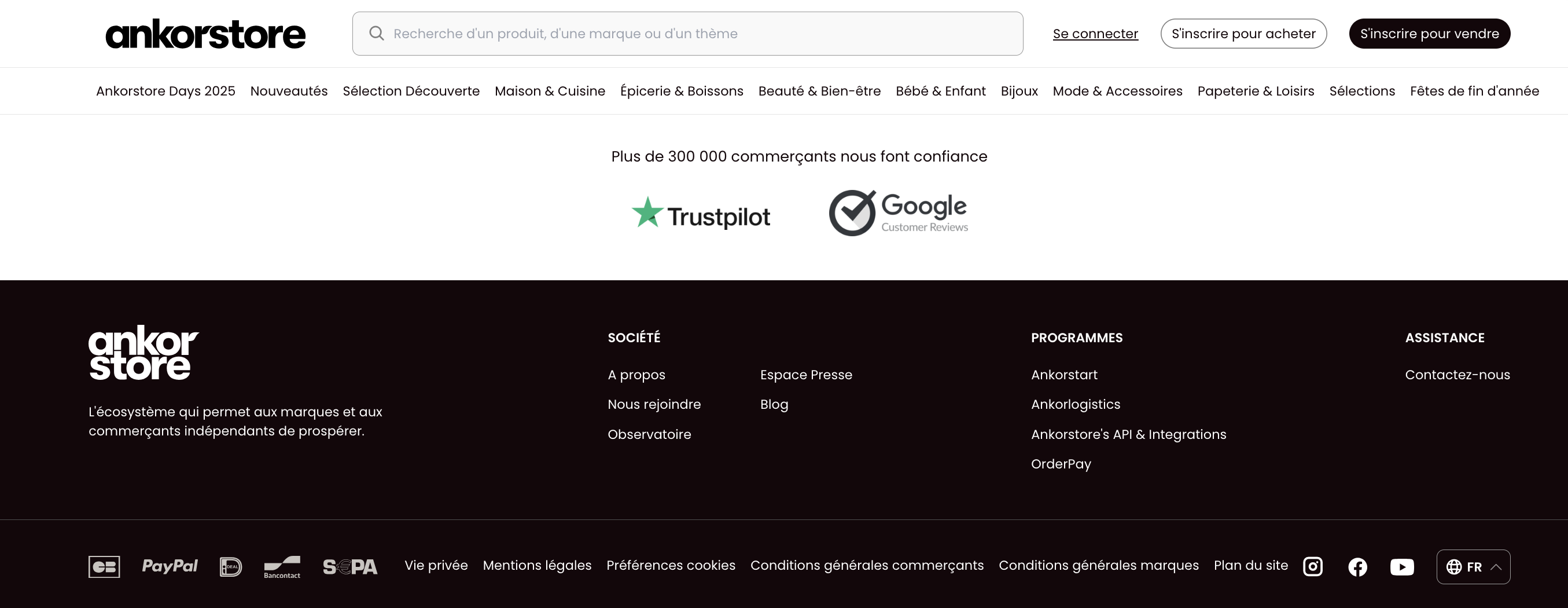
To change the language on the website scroll down at the bottom of the main page and click on the language abbreviation (EN, FR, DE, ES, IT).
You can switch the language of your page to be able to preview how it looks for different retailers from different countries.
Can I provide my own translations for different languages?
Our translations are automatic and we do our best to guarantee good quality of them. However, if you spot a mistake or wish to edit some parts manually, please reach out to our Support:
Please note that manual translations can be handled only in exceptional cases.
Are all the brand and product information translated automatically?
We provide automatic translations for the whole content of your page (brand description, product information, etc), apart from Product Titles.
In order to help your retailers find your product easily, try to provide product titles in universal language including the keywords that best describe the product.
Can I change the language of my back office?
The language of your back office is set up during the onboarding of your brand. If you need to change it please contact our Support: .
We recommend that you can also activate automatic translation directly in your browser, if needed.