How the "Ankorstore: Sell Wholesale" works in Shopify
Last updated: September 18, 2026
Note: The Ankorstore: Sell Wholesale App only has a 1-to-1 connection option (1 Shopify account to 1 Ankorstore account). In case you want to sync with multiple Ankorstore stores, please contact the customer service from your customer portal.
You can use Shopify to sell your products on different online sales channels. Sales channels represent the different platforms where you sell your products. By connecting each sales channel to Shopify, you can keep track of your products, orders, and customers in one place.
Ankorstore: Sell Wholesale
The Ankorstore: Sell Wholesale app improves the day-to-day operations of Ankorstore Brands by removing manual work.
Features and Benefits :
Ankorstore Order sync from Ankorstore to Shopify
Automatically receive orders placed on Ankorstore in Shopify
Keep the orders updated as they are being processed in Ankorstore
Ankorstore Marketplace Product Catalog management
Decide which product from your Shopify Catalog can be sold on Ankorstore
Keep your stock levels in Ankorstore updated with your Shopify product availability
Keep your product price in Ankorstore updated base on your Shopify
Here is a video to present the Ankorstore: Sell Wholesale application
Installation and Setup
Note: If you have the old application named “Ankorstore Sales Channel” installed, please uninstall it before you install the new application Ankorstore: Sell Wholesale. Please visit our dedicated section on how to do so if you need help.
Launch the install from the Shopify app store
Application install video :
Step 1 - Click this link to go directly to the Shopify appstore on the Ankorstore: Sell Wholesale application page. You can also copy this link in to your browser https://apps.shopify.com/ankorstore-sell-wholesale
You will get this page
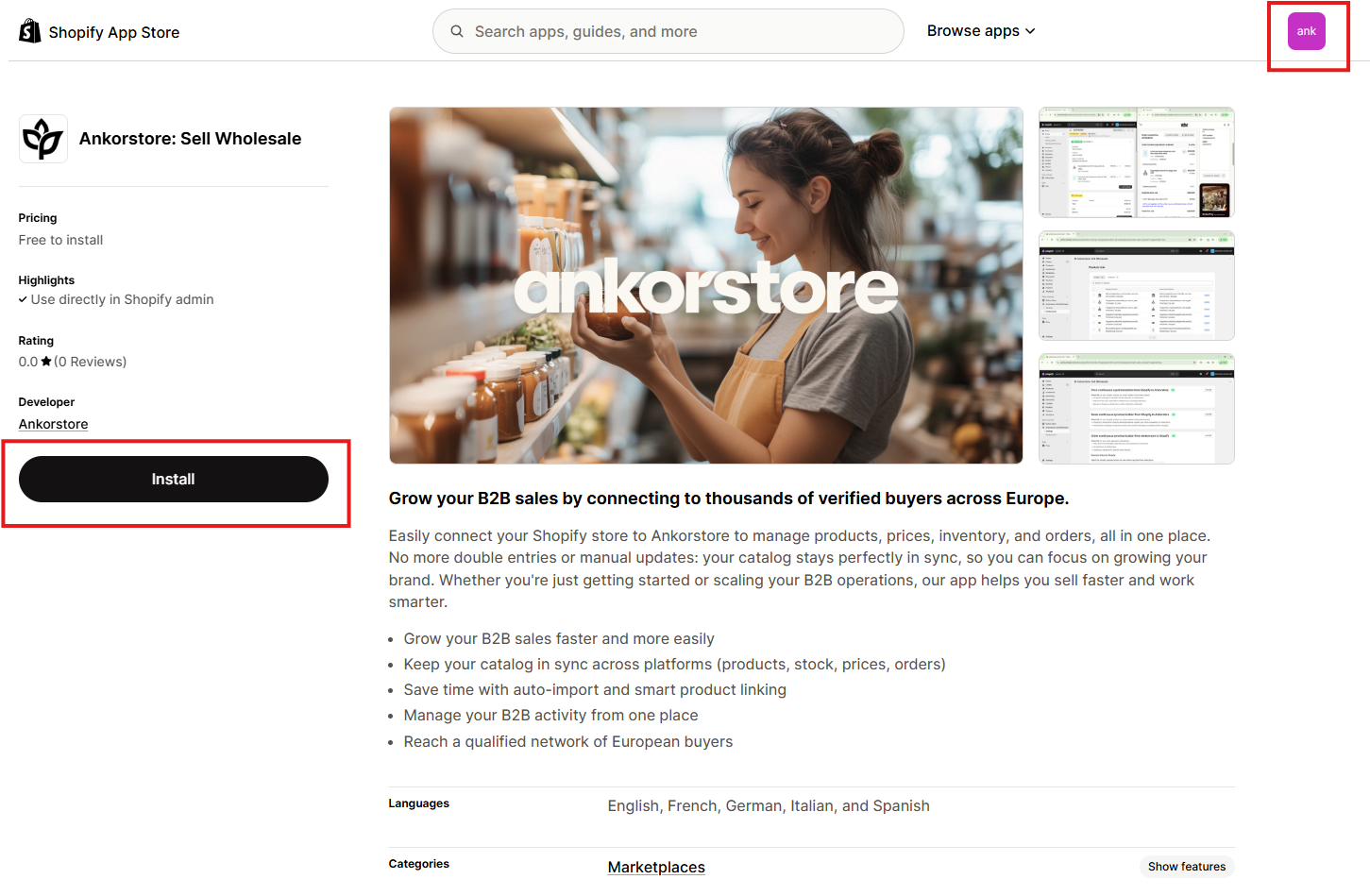
Step 2 - Before clicking “Install” please make sure you are on the right Shopify store using the button on the top left.
Step 3 - Now click “Install” you will be redirected to your Shopify store and prompted with a screen to start the installation.
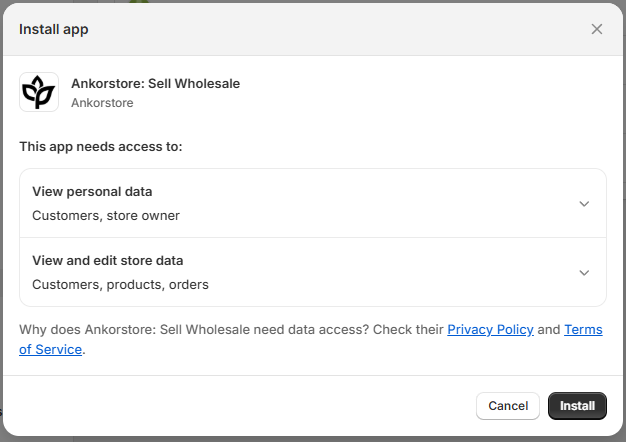
Step 4 - Click “Install” in the dialog and you are presented with the Welcome screen of the Onboarding. Please be aware that Shopify will start adding all your products in the channel Ankorstore: Sell Wholesale. Don’t worry we will not impact your Ankorstore catalog here.
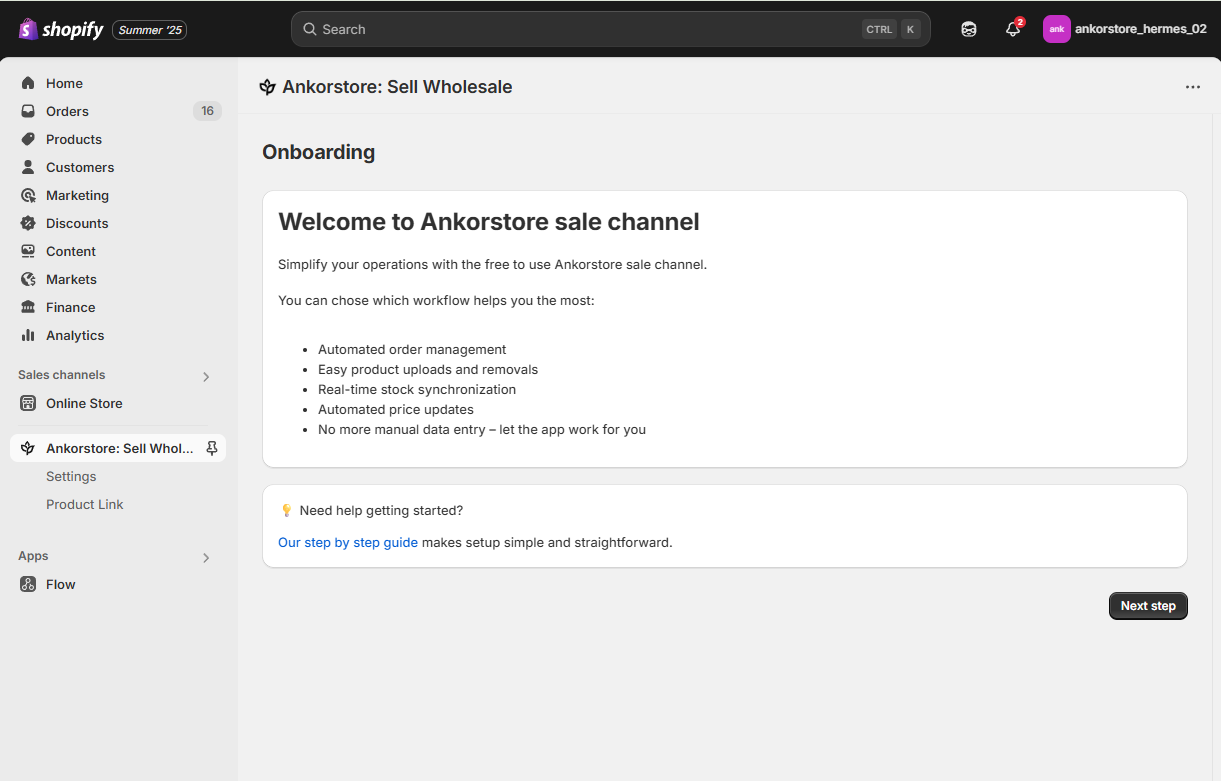
Step 5 - Click “Next step” to get the Authentication page that will allow you to connect your Shopify store with Ankorstore
Authentication to connect Shopify and Ankorstore
Step 1 - After clicking on the “Next step” button you will be presented with the Authentication page.
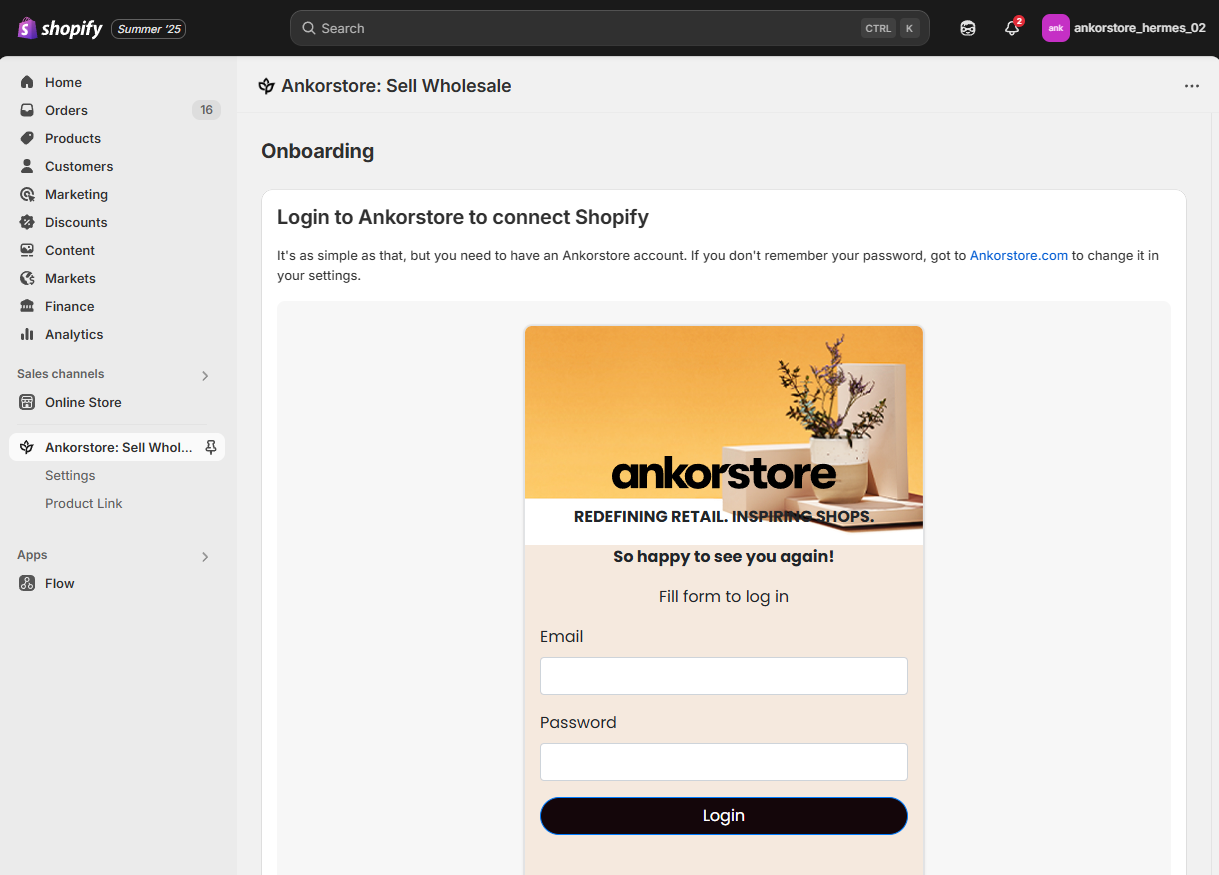
Step 2 - Provide your Ankorstore Email connection and password, the hit Login.
Step 3 - You will be presented with a successful message and couple seconds after you will be redirected to setup your preferences
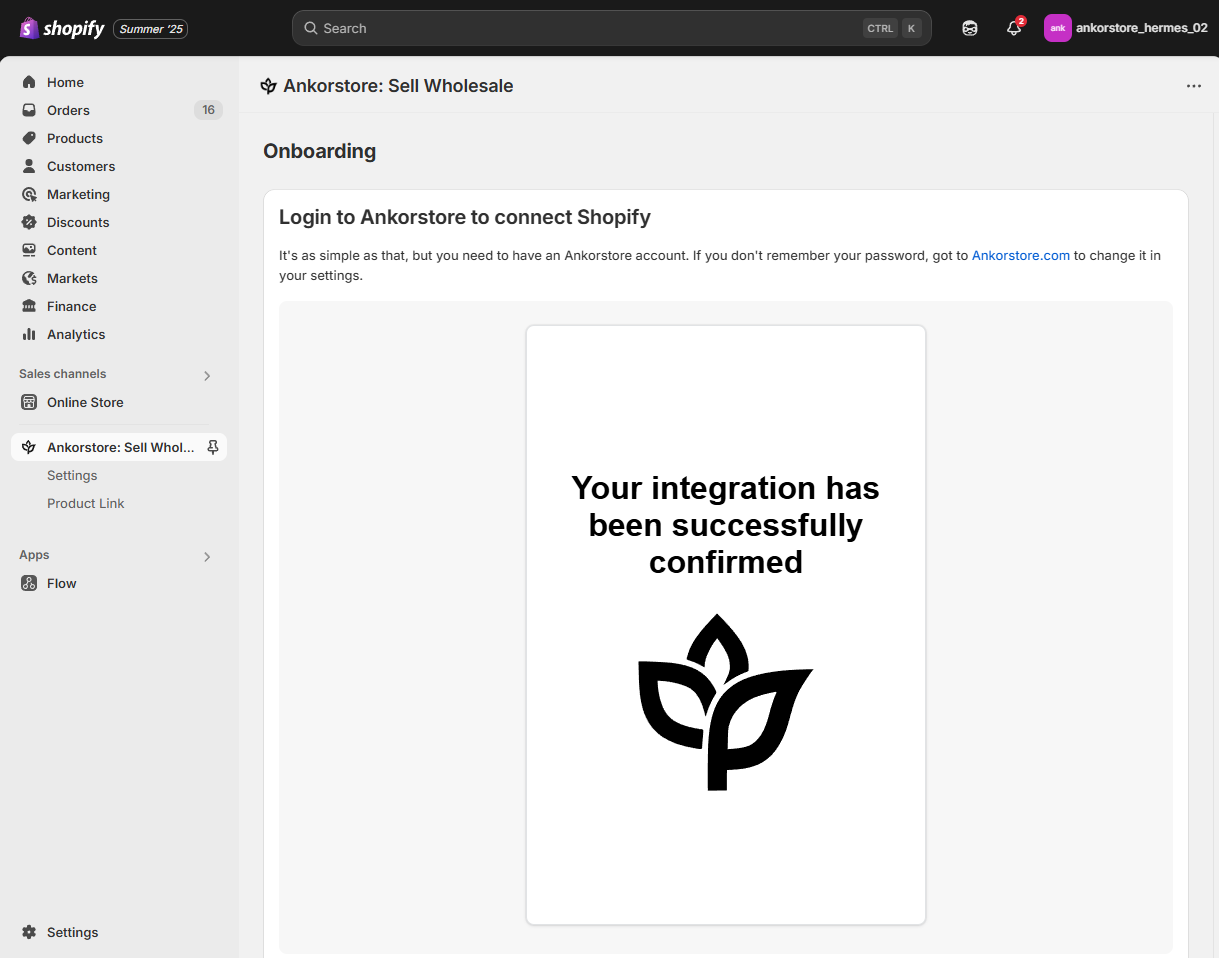
Onboarding and setup
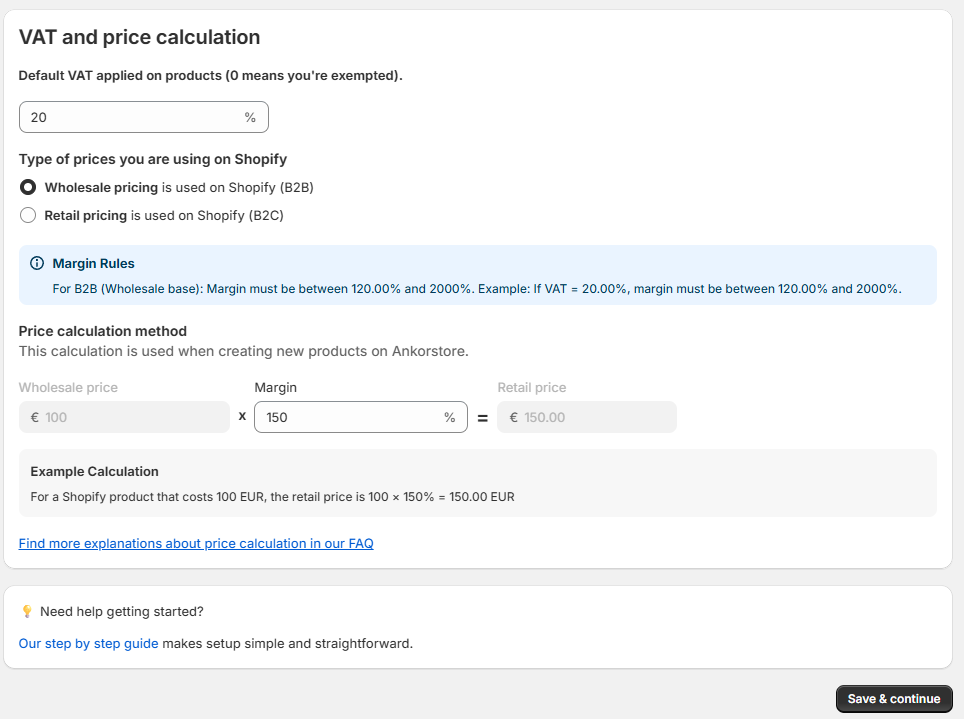
Step 1 - Setup your “VAT and price calculation” section
Default VAT : used later only for product import
Price type and margin : used for Price Sync and Product
Those fields are not definitive, you can change later it needed
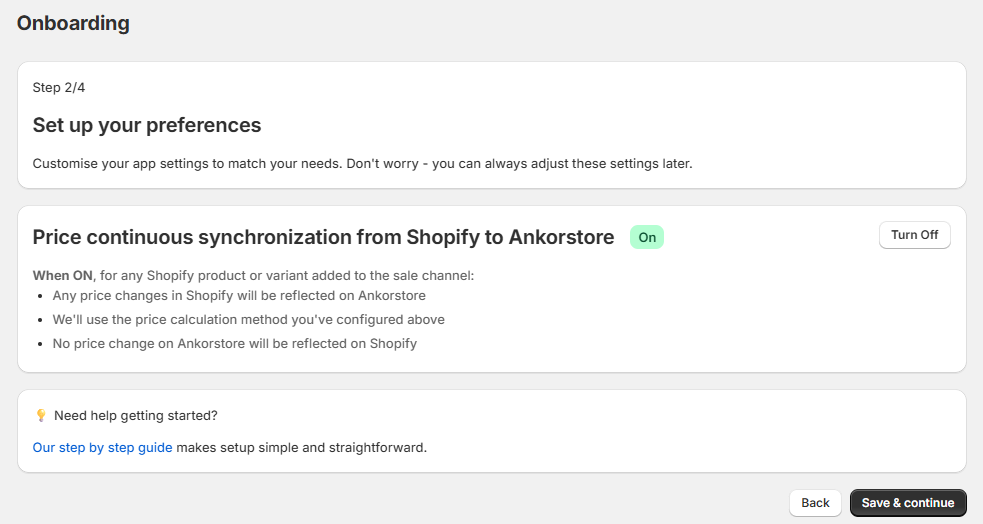
Step 2 - Turn ON or OFF the Price Continuous Synchronization. By default it is set to ON
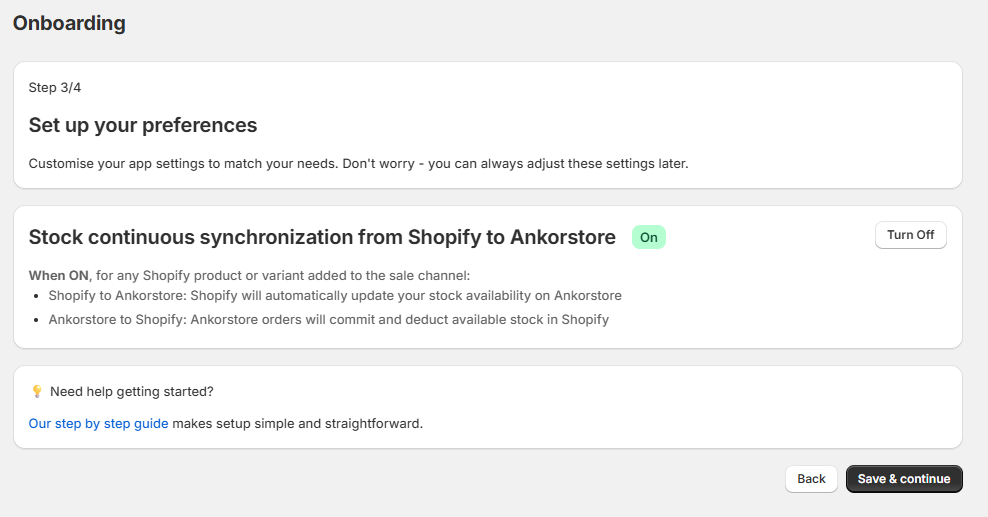
Step 3 - Turn ON or OFF the Stock Continuous Synchronization. By default it is set to ON.
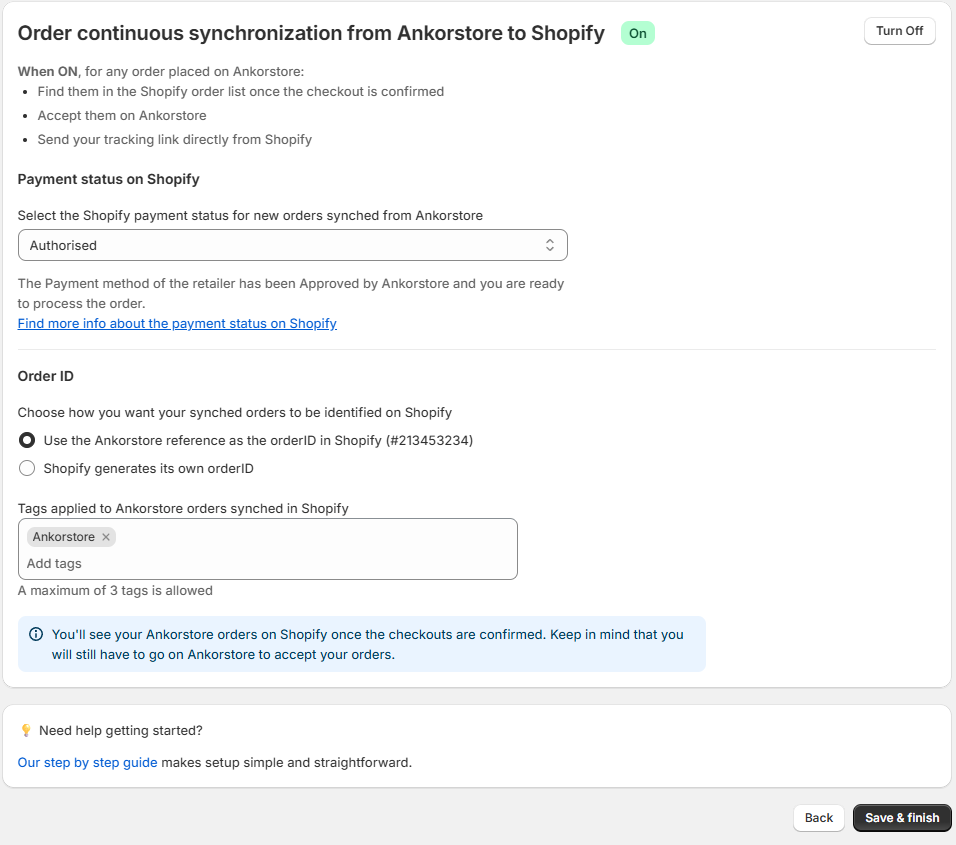
Step 4 - Turn ON or OFF the Order Continuous Synchronization. By default it is set to ON.
The Shopify Payment Status for when we create a new Ankorstore Order in Shopify : Authorized (default), Pending, or Paid
The id to use as reference for new Orders : Ankorstore reference or Shopify generated id
Up to 3 tags to help identify Ankorstore orders quickly in shopify. By default we have Ankorstore
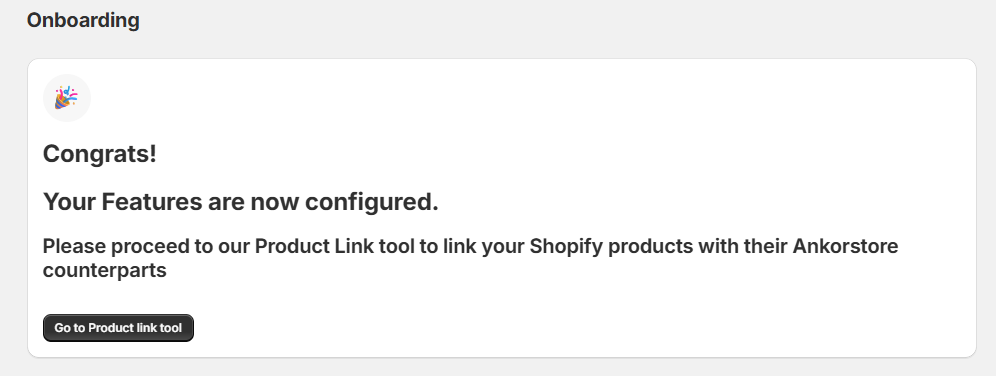
Step 5 - You will be greeted with a message inviting you to proceed to the Product linking tool. Click the button to start.
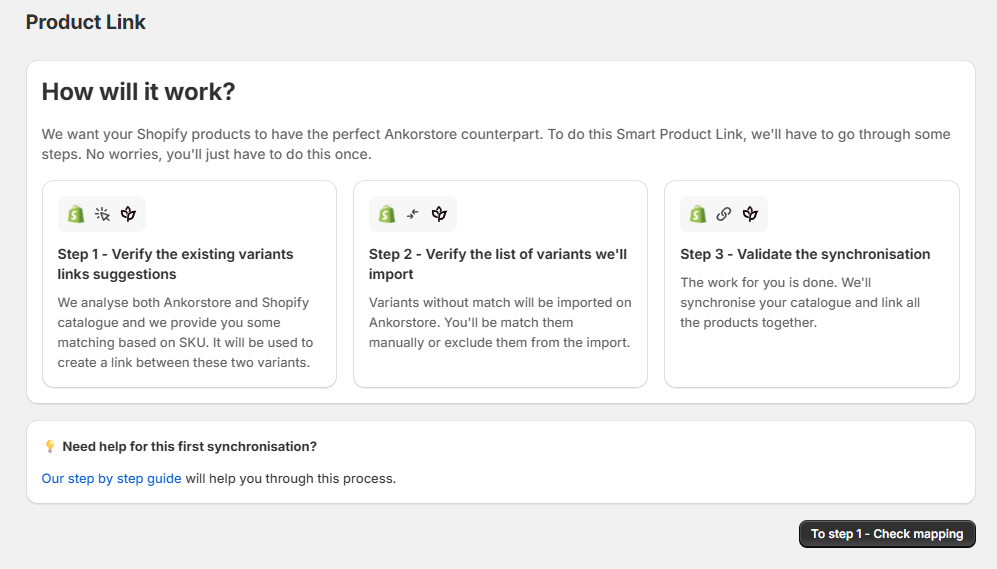
First Product Linking
Since it is the first time you will use the Product Linking tool, you will get an explanation on how this first setup works.
Step 1 - Click to go to the first step when you are ready
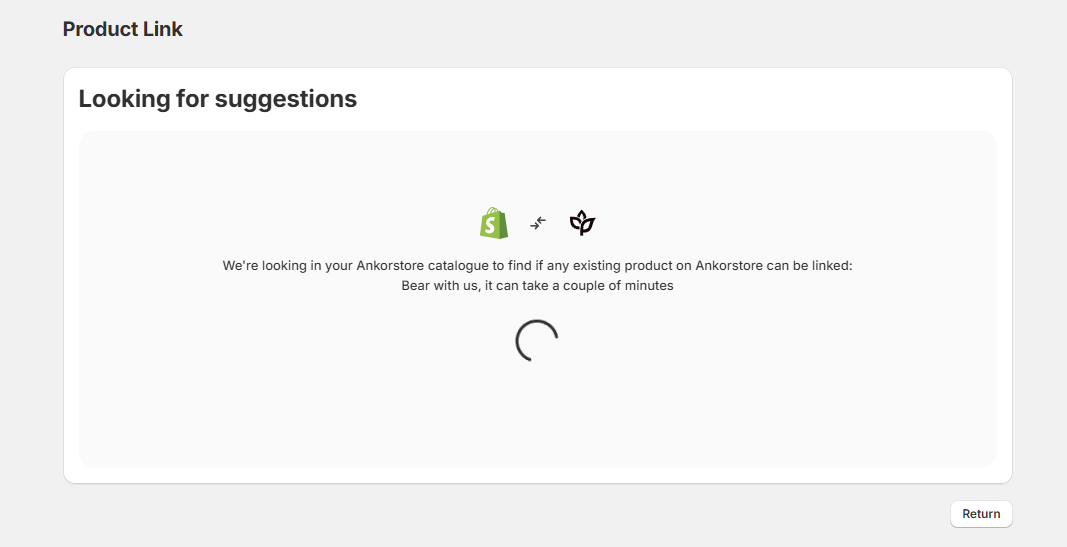
Step 2 - Application will then try to match your shopify products with the ones on Ankorstore using the SKU.
Step 3 - You will then be presented with the result of the matching. You can see which Shopify product variants are connected to which product variants in Ankorstore. Yes link is at Variant level not just product. If you don’t want a link you can break it.
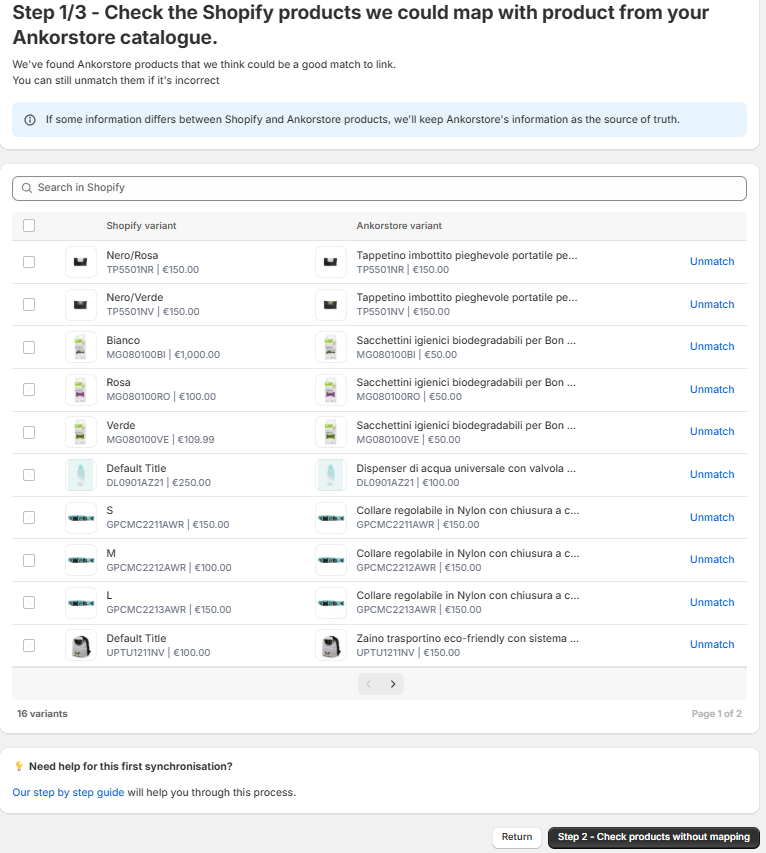
Step 4 - When you are satisfied with your links go to the next steps to check the Shopify product variants that could not be found in Ankorstore using the SKU. You can then choose to :
Manually Link them : it will open a dialog to search the product in Ankorstore
Or mark them as “Not relevant to Ankortsore”.
Or “Import to Ankorstore” this will effectively create the product in Ankorstore provided all validation criterions are met.
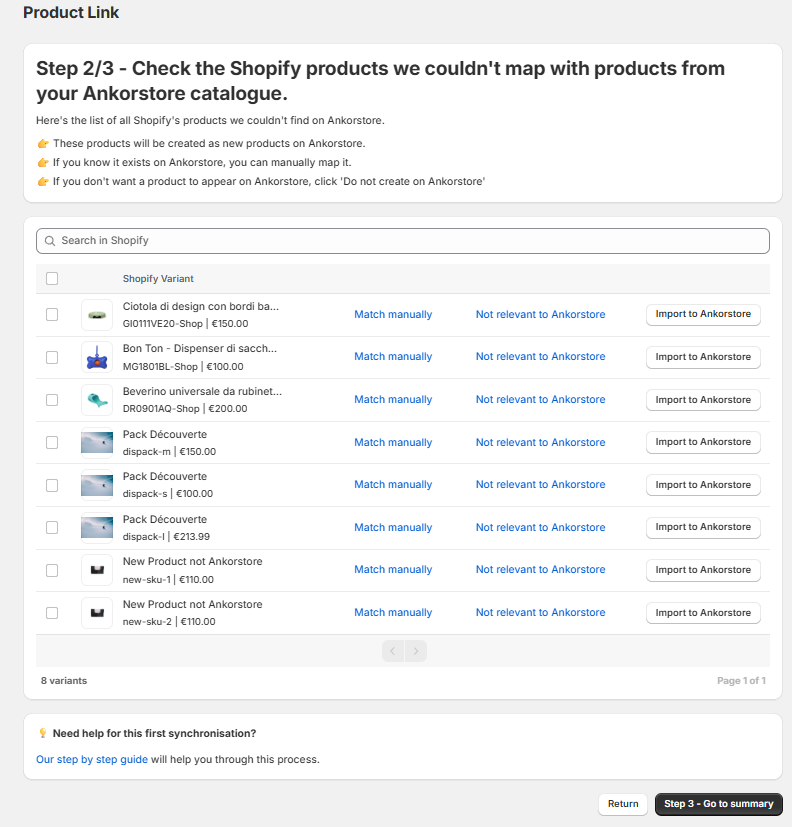
Step 5 - Once you are satisfied click to go on the 3rd and final step to confirm your work.
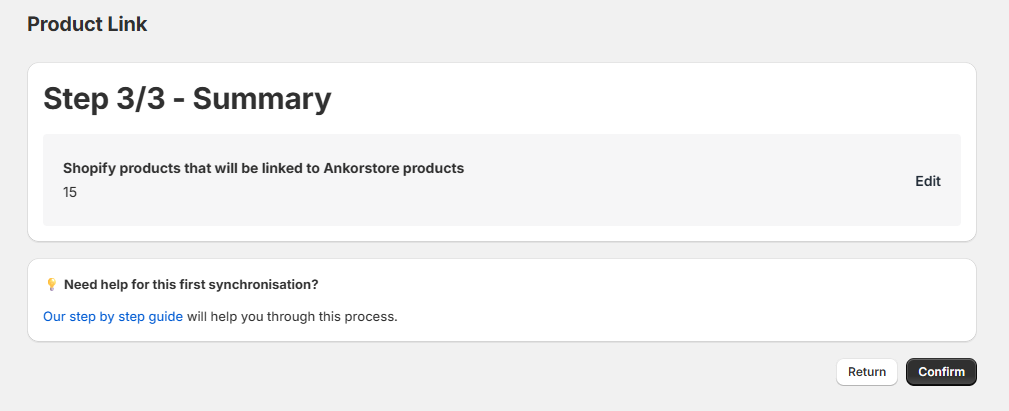
Congratulations! Your setup is complete and you can start benefiting from the application features:
Order Sync can start
Price and Stock can be continuously synched from Shopify to Ankorstore for linked variants
Manage Product Linking : LINK, UNLINK products or mark them as Not Relevant to Ankorstore
Import new products in Ankorstore via the UNLINK tab of the Product Linking tool
Navigating the Application
The Application Homepage
Step 1 - Access the home page by simply clicking on the application. Access the app from your “Sales Channels” on the left menu or by searching for Ankorstore: Sell Wholesale in your shopify admin search bar
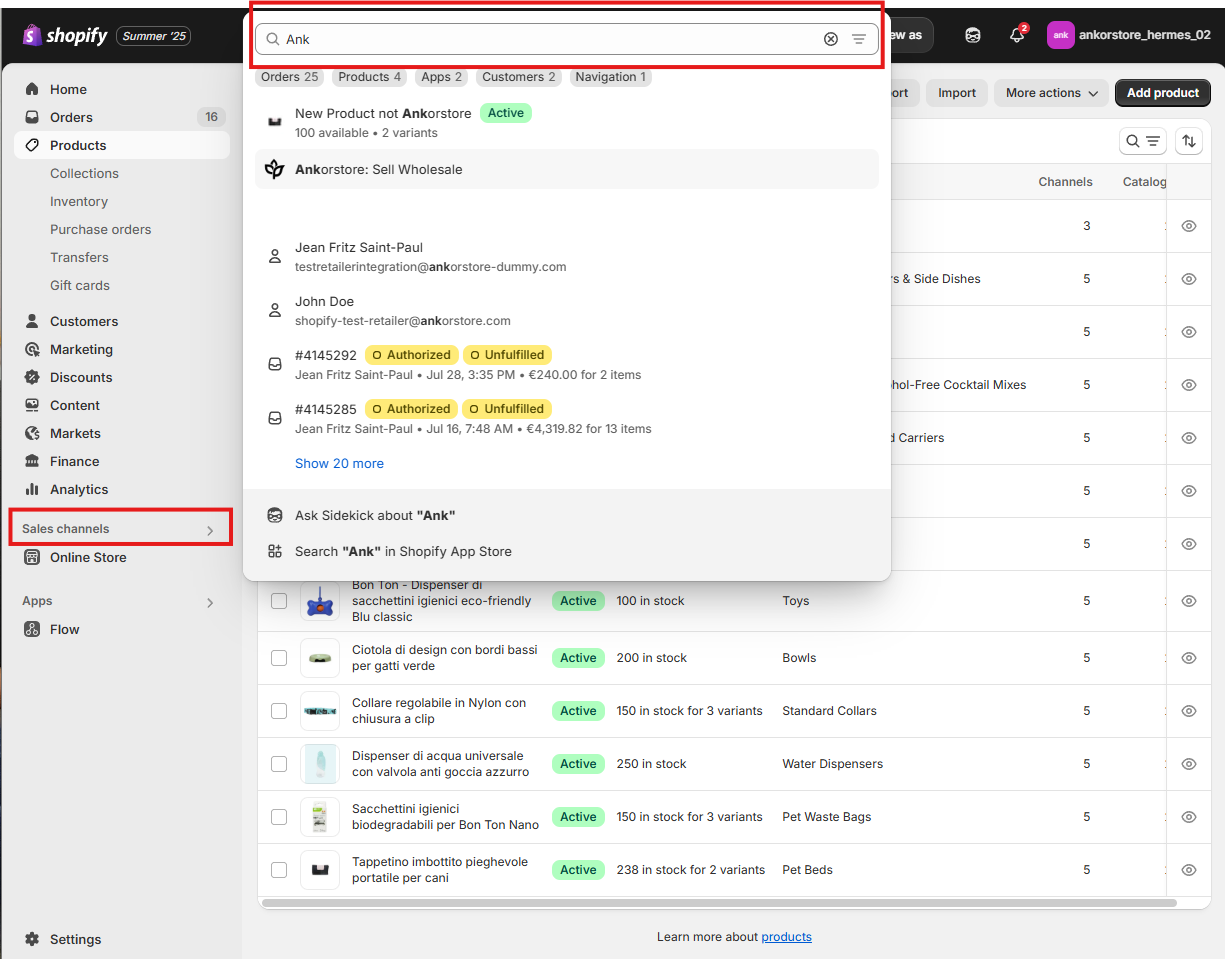
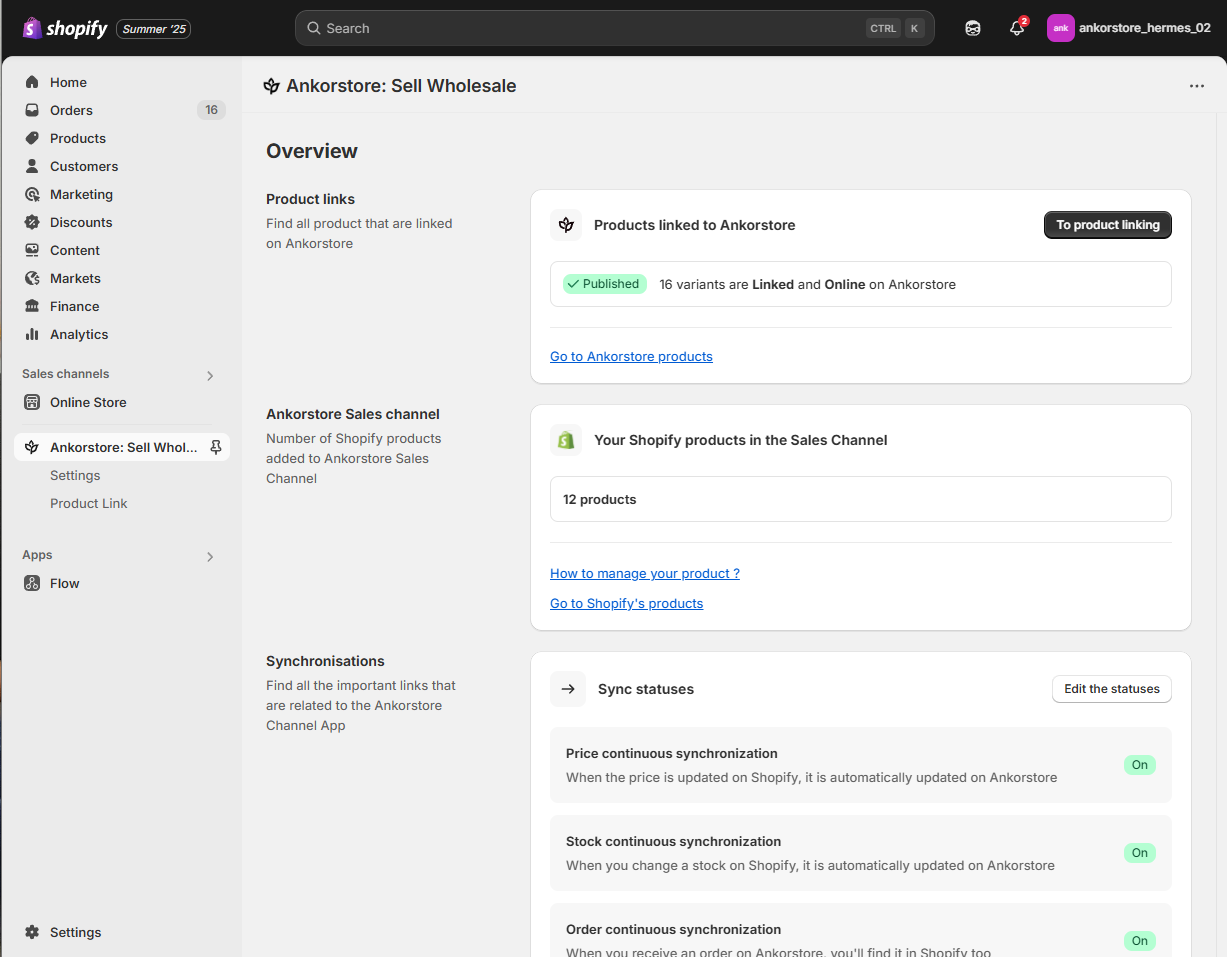
Step 2 - The regular homepage looks like this
Step 3 - If you haven’t done the First product linking you will have something like this
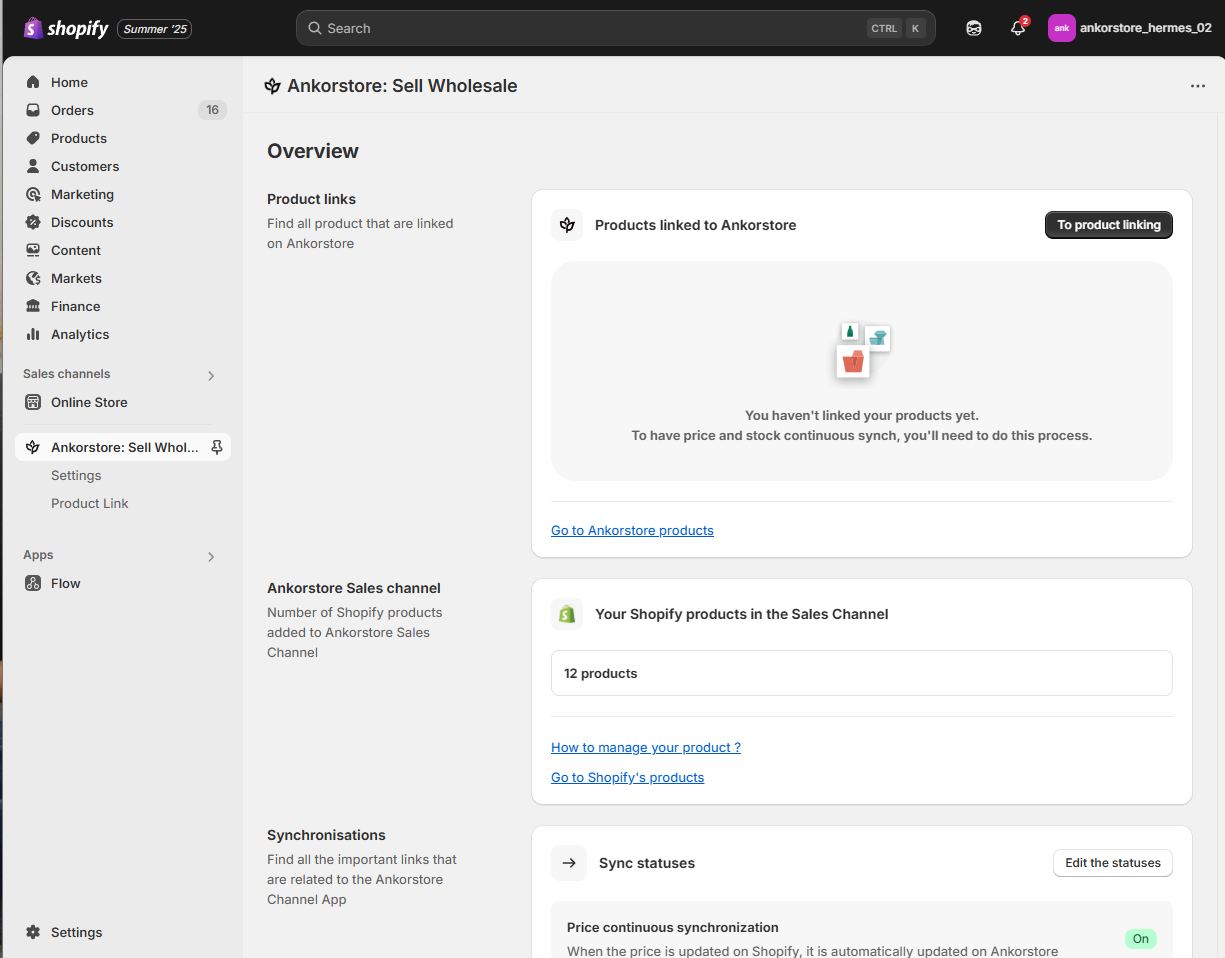
Step 4 - On the home page you have the following informations:
Number of LINKED shopify variants in Ankorstore
Number of Shopify products in the sales channel
Status of the features that are enabled
Links to our knowledge center
A button to disconnect the App : Caution ! Using this will also reset the app and you will have to redo the onboarding process and first product linking. Your catalog in ankorstore and shopify will not be affected
The Application Settings
Step 1 - From the Application homepage, you access the app settings by clicking on “Settings” on the left panel or on “Edit statuses” button
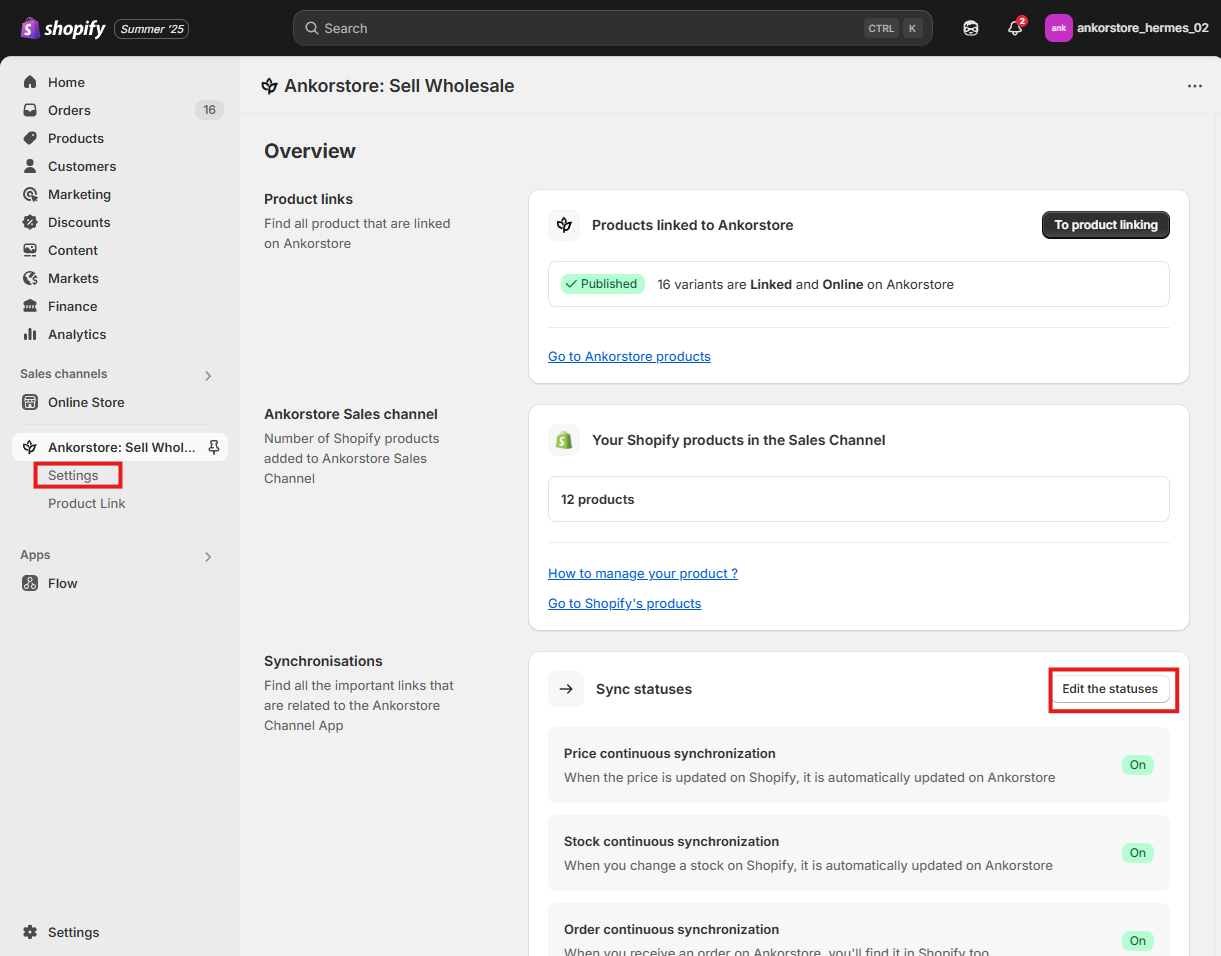
Step 2 - In the settings you have access to :
VAT and price calculation Section to set
the Default VAT used for Import
The price type used in Shopify and margin to calculate the required price for Ankorstore
Price continuous synchronization from Shopify to Ankorstore : ON / OFF
Stock continuous synchronization from Shopify to Ankorstore : ON / OFF
Order continuous synchronization from Ankorstore to Shopify : ON / OFF
The payment status that will be set when an Ankorstore order is created i Shopify
Whether to use Ankorstore Id or let shopify generate and Id for the orders
The tag to easily identify your Ankorstore orders in Shopify
The Product Linking
Step 1 - From the Application homepage, you access the app settings by clicking on “Product Link” on the left panel or on “To product liking” button
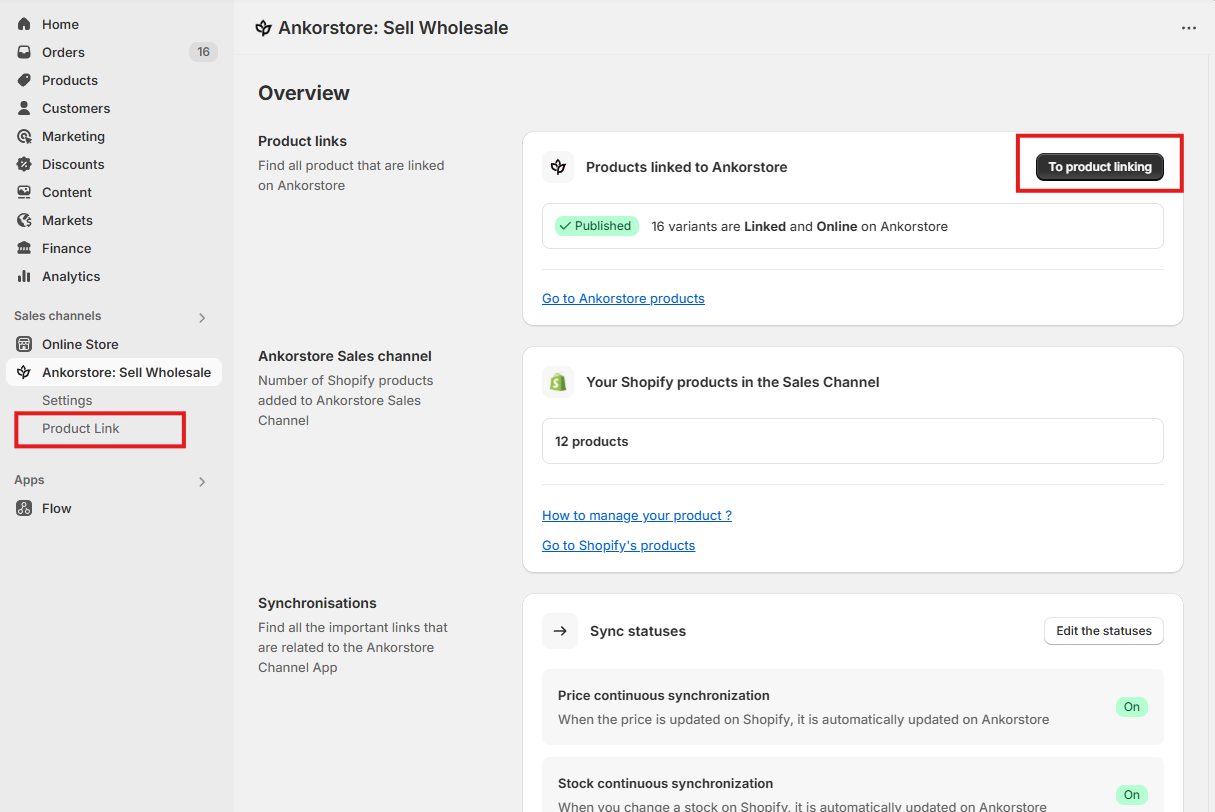
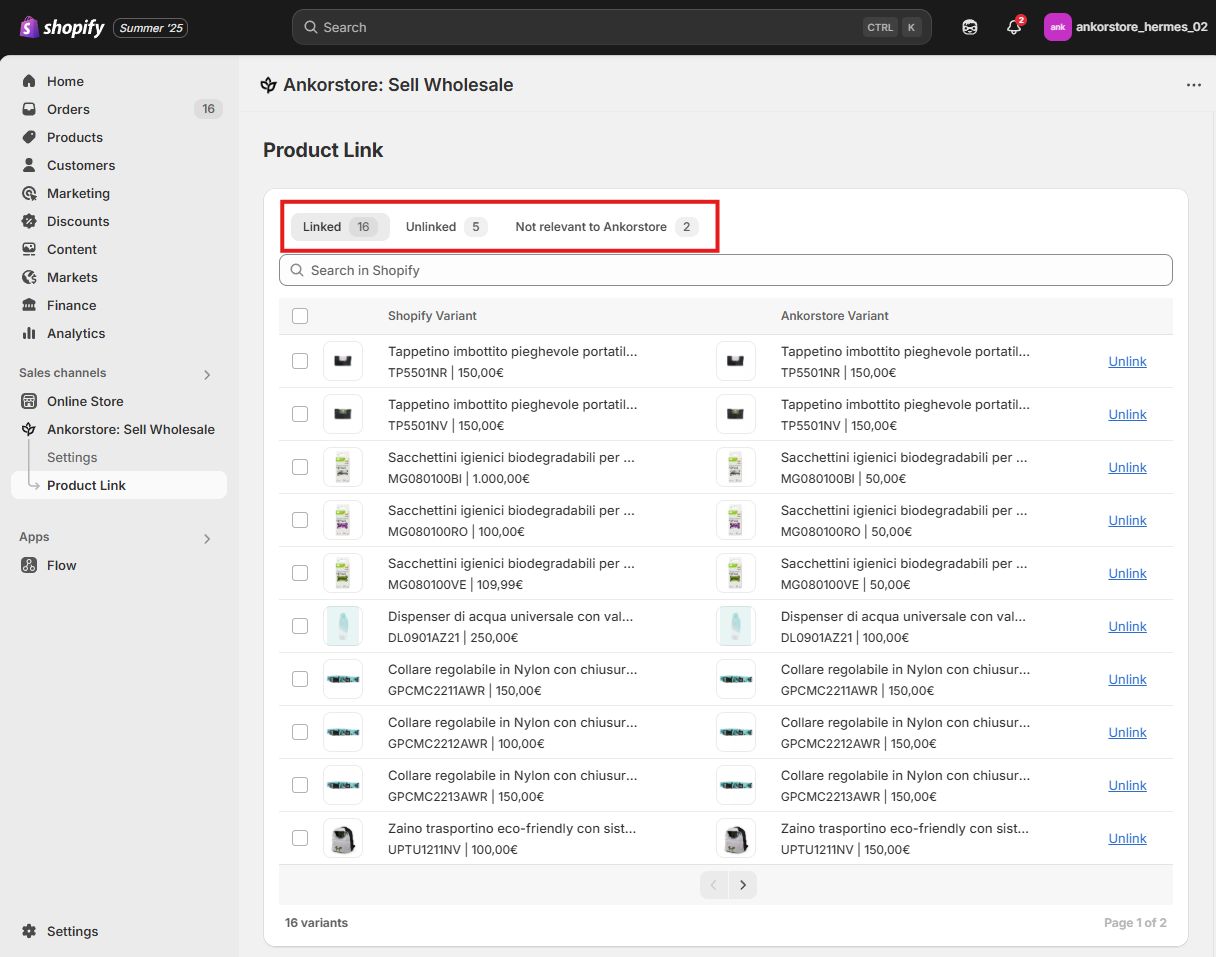
Step 2 - You have 3 tabs in the Product Linking (More details to come later)
Linked : The shopify product variants that are connected or have a Counterpart to Ankorstore. Only those can benefit from price and stock synchronization
Unlinked : The shopify product variants not connected or without a counterpart in Ankorstore. Here you can decide to manually link them or import them
Not relevant to Ankorstore : The shopify product variants that are in the sales channel but the brand don’t want them on Ankorstore at all
Managing your product catalog from Shopify to Ankorstore
Start by adding/removing Shopify products from the Sales Channel
This feature allows you to select which Shopify products you want our Sales channel app to have access to. Sales Channel management is done:
Using the product catalog tool in shopify.
At Product level in Shopify not Variant.
This implies that if a product in Shopify has variants that are not relevant to Ankorstore they will all be in the sales channel. Don’t worry you can use the Product Linking tool to have a control at Variant level and not just product.
How to add products to sales channel on Shopify
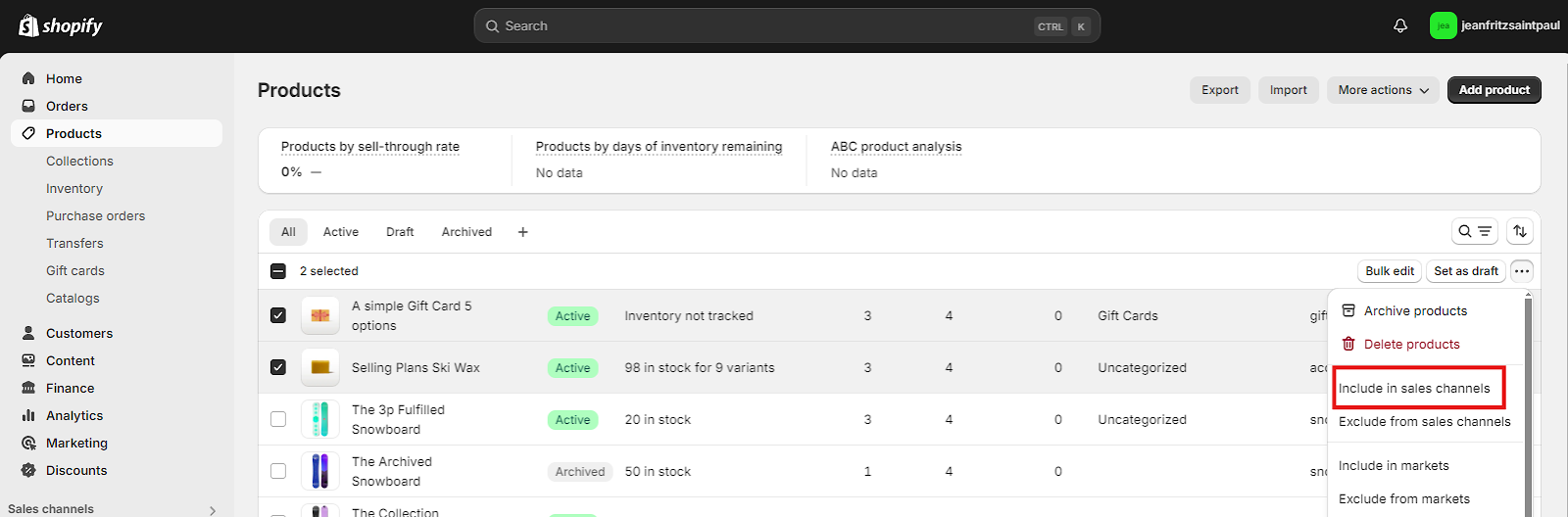
Option 1 - From the Shopify product catalog tool, you can select the list of products to be added into the sales channel and add them in the Ankorstore: Sell Wholesale channel via the Include in Sales channel Option
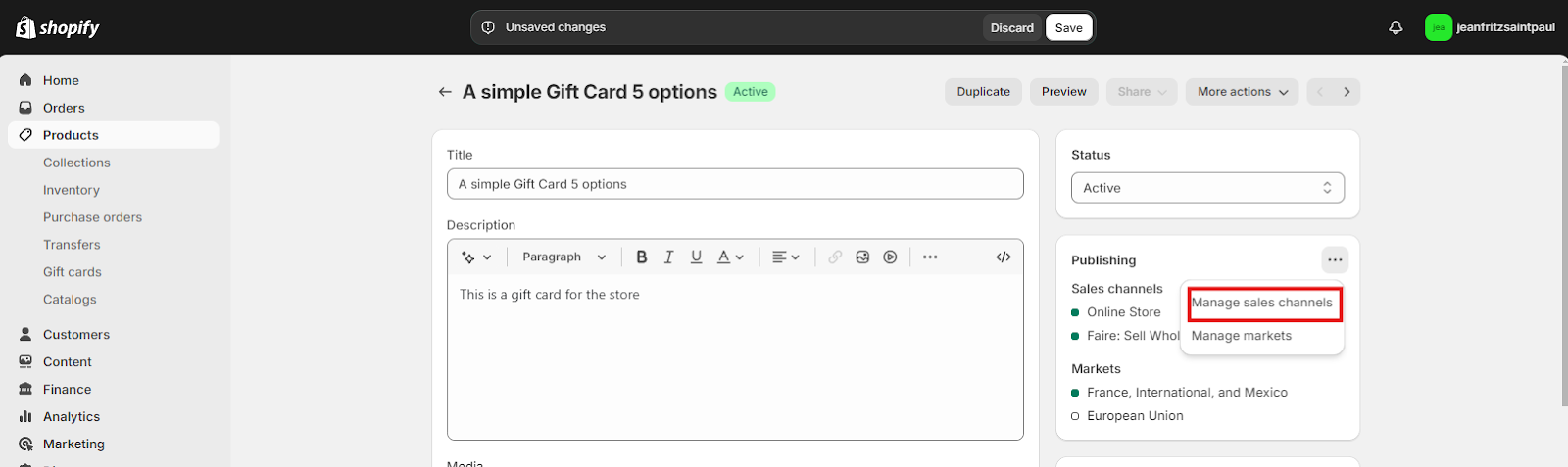
Option 2 - From the shopify product information sheet you can add the product to the sale channel via the Manage sales channels option. Can also be done via the Shopify bulk editor
When a Shopify product is ADDED to the Sales channel:
The “Ankorstore: Sell Wholesale” application receives a trigger for the newly added product(s) in the sale channel
The “Ankorstore: Sell Wholesale” application Auto-Link the shopify product variants with their Ankorstore counterparts using SKU matching. This Auto-linking feature happens only if the Matching SKU Ankorstore counterpart is available for Linking.
Those variants start having price and stock sync to Ankorstore. If a no counterpart is found on Ankorstore, the product variant will go in the UNLINKED section of the Product Linking tool where it can be Imported to Ankorstore by you later
How to remove products from the sales channel (Provided by Shopify)
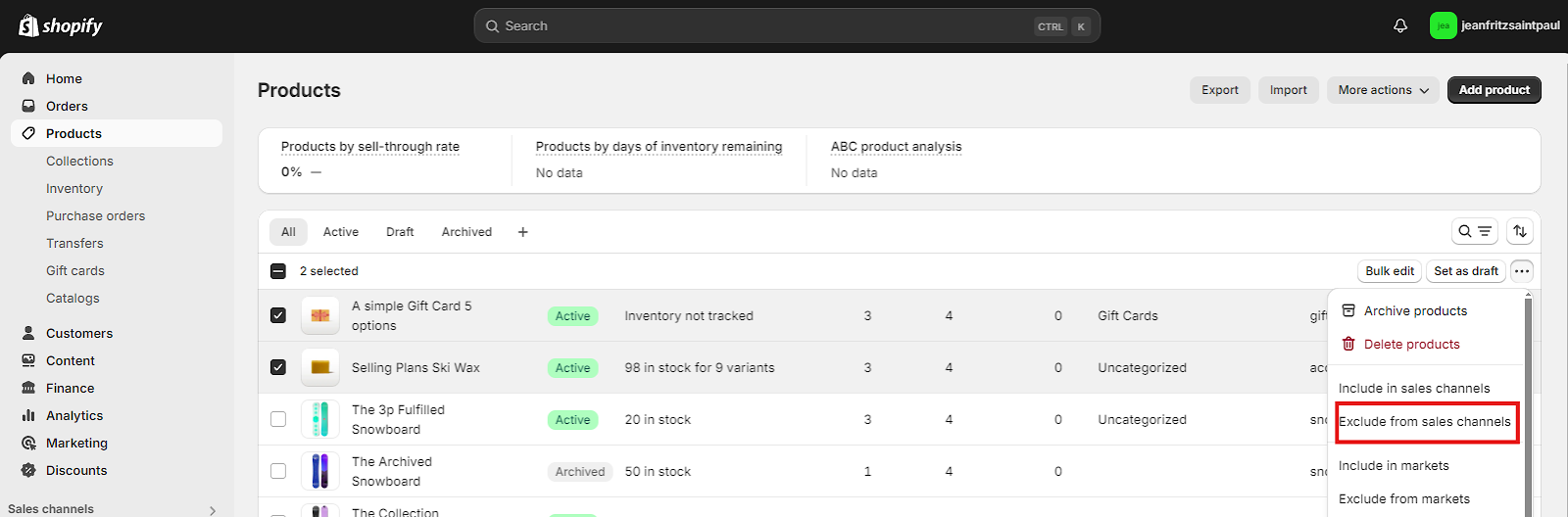
Option 1 - From the shopify product catalog tool, you can select the list of products to be added into the sales channel and remove them in the Ankorstore: Sell Wholesale channel via the Exclude from Sales channel Option.
Option 2 - From the shopify product information sheet the brand can remove the product from the sale channel via the Manage sales channels option. This can also be done via the shopify bulk editor.
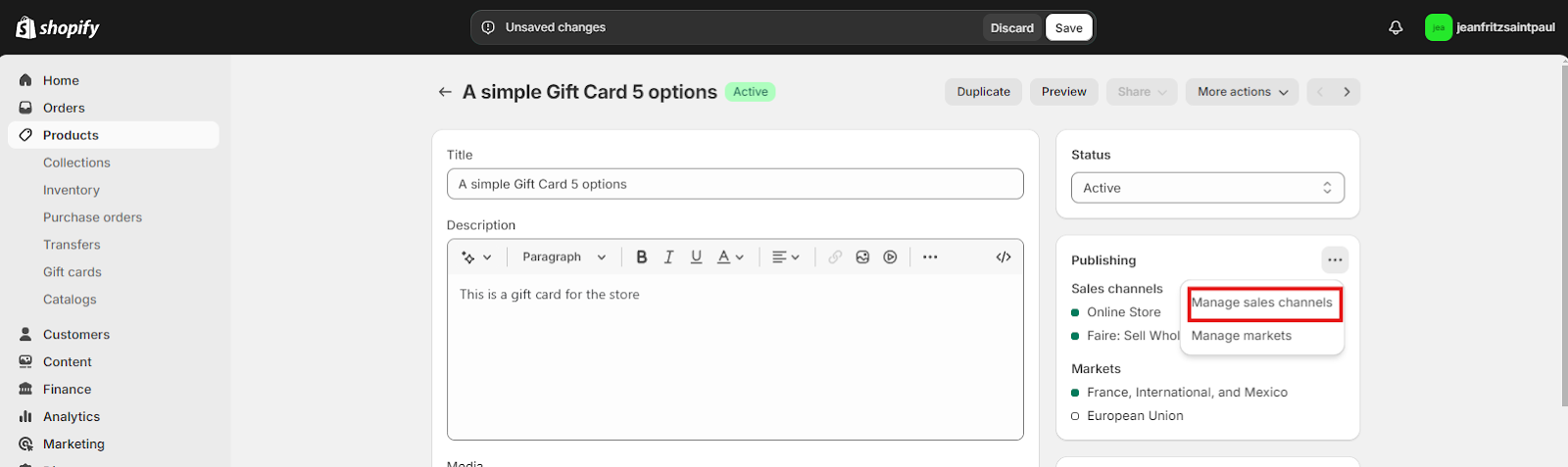
When a Shopify product is REMOVED from the Sales channel:
The “Ankorstore: Sell Wholesale” application receives a trigger for the removed product in the sale channel
The “Ankorstore: Sell Wholesale” application deletes all links related to the shopify product variants.
All variants of the removed shopify product are no longer visible in the product linking tool as they are no longer in the sales channel.
All the variants remain in Ankorstore as they are. You can go to Ankorstore to remove them or set them Offline.
Using the Product Linking tool to manage how Shopify and Ankorstore products are linked
This feature allows you to link a Shopify product variant to an Ankorstore one.
Only Shopify products that are published in the Sales channel can be manipulated by the product linking tool. Only linked product variants can benefit from the Price and Stock sync features from Shopify to Ankorstore. You can create, view, update and delete the link between the product in Shopify and Ankorstore.
Product Linking is done at VARIANT level between Shopify and Ankorstore. You may link a product Variant in Shopify to a Product variant in Ankorstore with different SKU (Not recommended but possible)
Using the product linking tool, you have access to 3 Sections or tabs : LINKED, UNLINKED, and NOT RELEVANT TO ANKORSTORE
LINKED : Contains all the Shopify product variants published in the sale channel with a linked counterpart on Ankorstore.
For each Item of the List you can Unlink the product variant with its Ankorstore Counterpart
You can select multiple LINKED Shopify product variants to do bulk actions on them : unlink
UNLINKED : Contains all the Shopify product variants published in the sale channel WITHOUT a linked counterpart in Ankorstore. It can because a link existed and you decided to break it or because we could not find a match to begin with.
For each item of the list you can do 3 Actions :
Link the product variant with an Ankorstore counterpart
Mark the product as Not Relevant to Ankorstore (This will move the product to the Section NOT RELEVANT TO ANKORSTORE)
Import the product variant in Ankorstore if no Suitable counterpart can be found. (This import will automatically create the LINK for you)
You can select multiple Unlinked Shopify product variants to mark them as “not relevant to Ankorstore” or import them in bulk.
NOT RELEVANT TO ANKORSTORE : Contains all the Shopify product variants published in the sale channel that you designate as not pertinent for Ankorstore. As Example : you can have a product that has multiple variants (S, M, L , XL, XXL) some of them can be sold on Ankorstore (S,M,L) and others are not by your choice (XL, XXL).
For each item of the list you can choose to “Restore” them as Unlinked to be later Linked or Imported
You can select multiple “Not relevant to Ankorstore” shopify product variants to “Restore” them in bulk.
Product Linking : LINK a Shopify product variant to Ankorstore via the UNLINKED section
The assumption here is the brand wants to link a Shopify product variant with a Variant that exists in Ankorstore and is not already linked to Shopify.
Step 1 - Open the Product linking tool via the “Ankorstore: Sell Wholesale” Application.
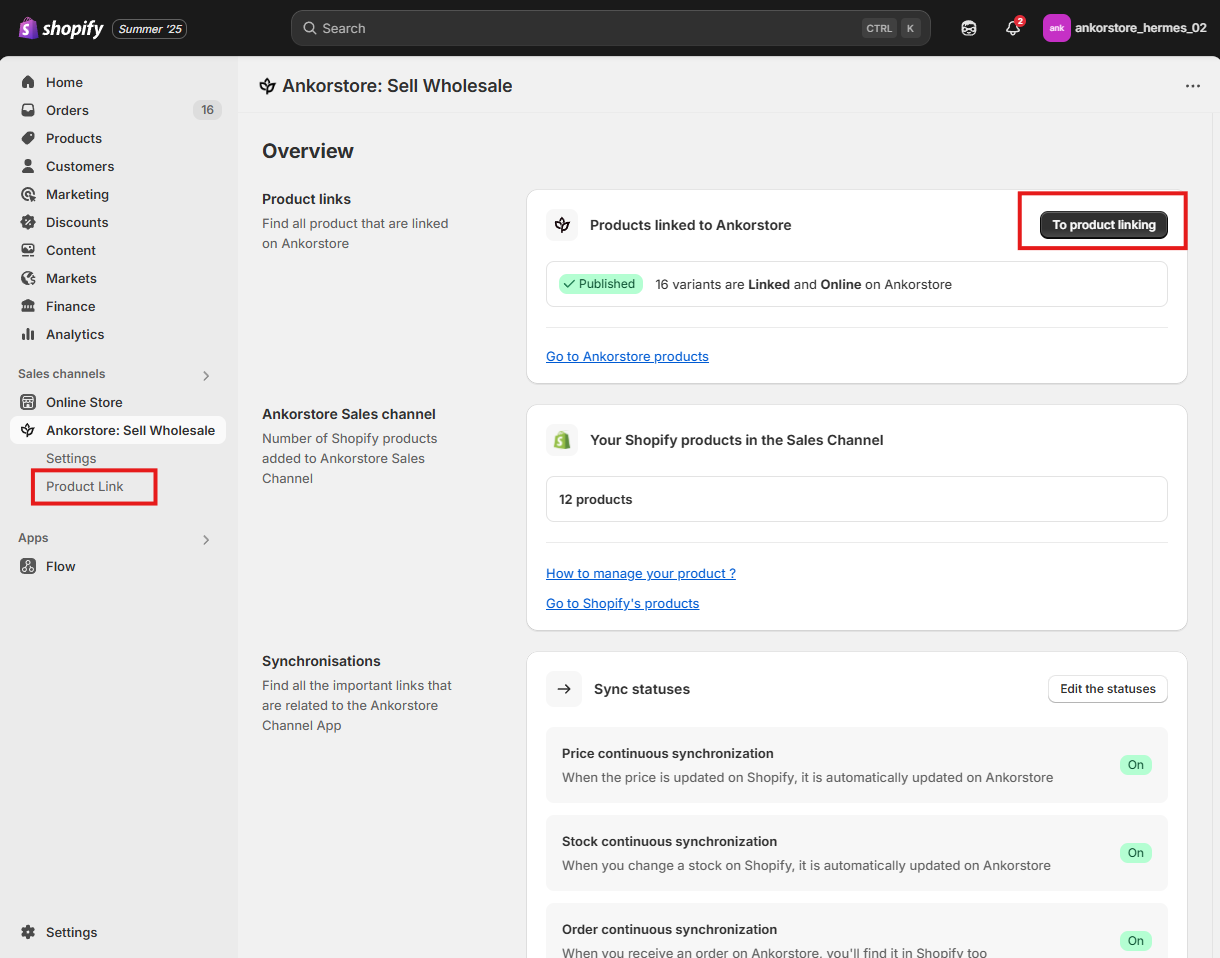
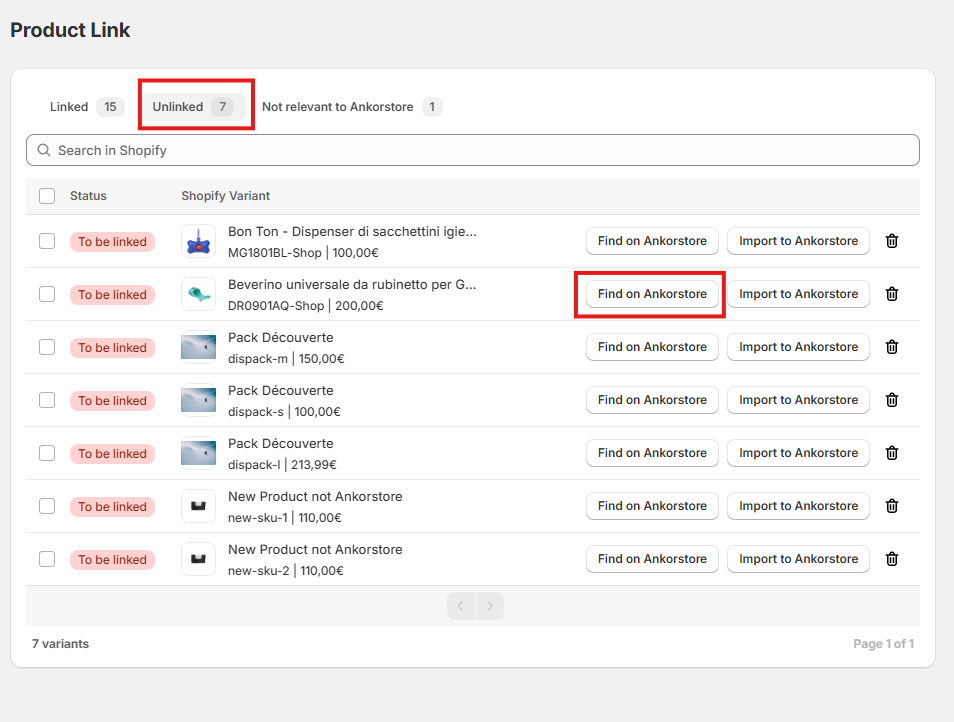
Step 2 - Select the UNLINKED to display all the Shopify product variants published in the sale channel WITHOUT a linked counterpart in Ankorstore.
Step 3 - Select the Shopify product variant to be Linked.
Step 4 - A window will then appear, allowing you to search for the corresponding Ankorstore product by title or SKU to link it to the Shopify product variant. This search frame only returns Ankorstore product variants that are not linked to a Shopify product variant.
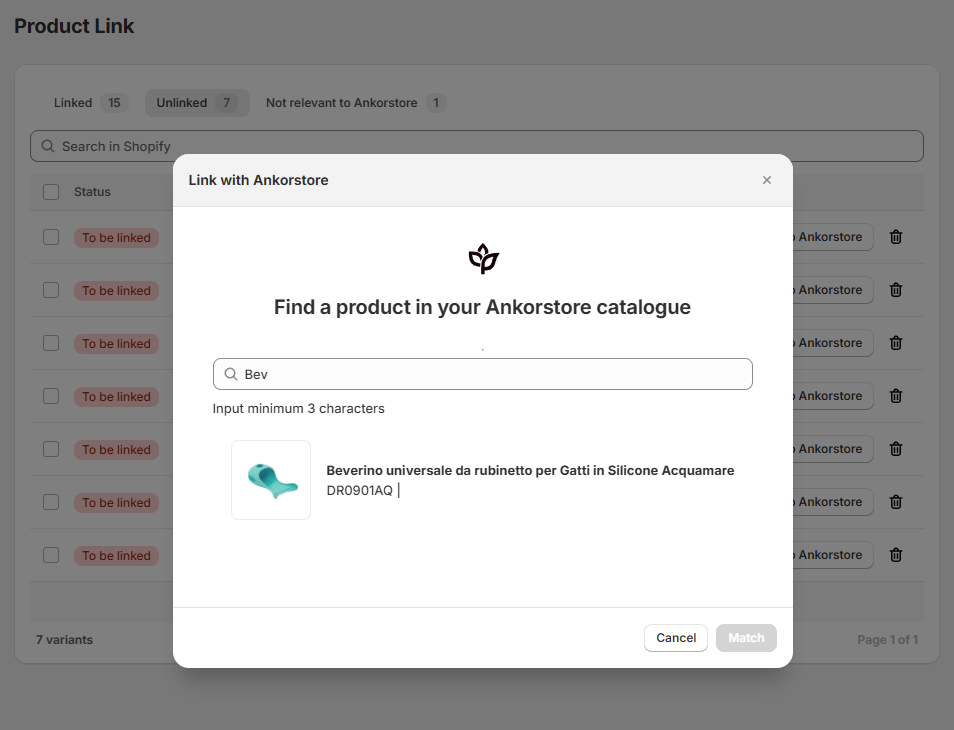
Step 5 - Select the Ankorstore product variant to be the counterpart of the shopify one and click “Match”.
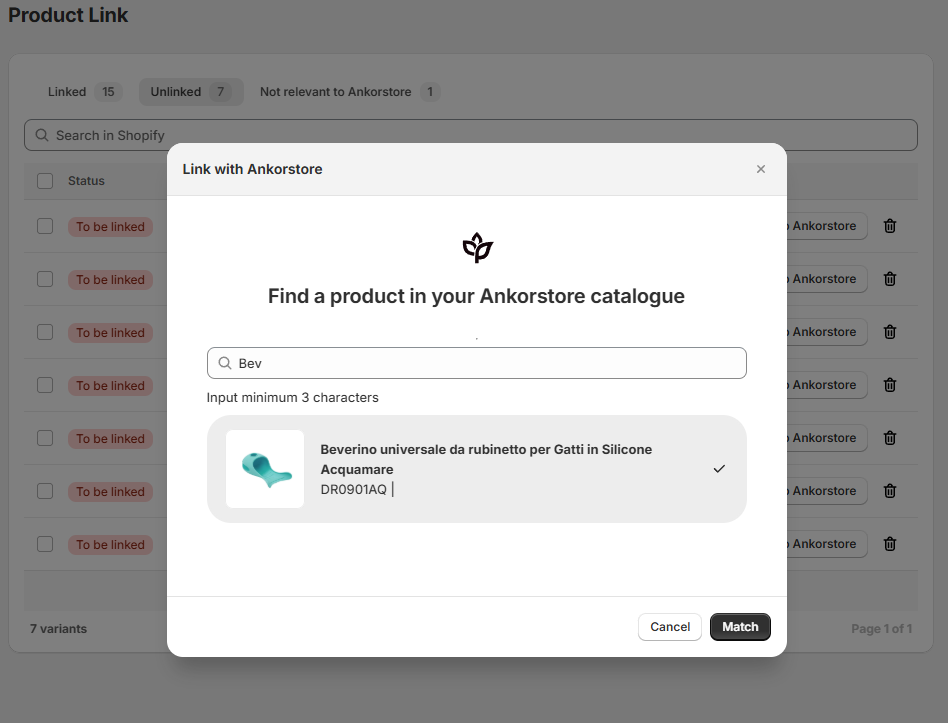
Step 6 - The link is created and the newly Linked Shopify product variant is visible in the LINKED section of the product Linking tool
Product Linking : UNLINK a Shopify product variant to Ankorstore
How to unlink a Shopify product variant from its Ankorstore counterpart:
Step 1 - Open the Product Linking tool via the “Ankorstore: Sell Wholesale” application.
Step 2 - Select the “LINKED” section to display all Shopify product variants that are currently published in the sales channel and linked to Ankorstore products.
Step 3 - Click “Unlink” next to the Shopify product variant you wish to disconnect from Ankorstore.
Only the link between the Shopify variant and the Ankorstore product is removed.
No changes are made to the product’s structure or online status in Ankorstore.
Step 4 - The link is now removed, and the Shopify product variant appears in the “UNLINKED” section of the Product Linking tool.
Product Linking : IMPORT a Shopify product variant to Ankorstore
This process assumes that the brand wants to import a Shopify product variant into Ankorstore.
Rules:
Brands can only import Shopify product variants that are part of the sales channel and whose SKU is not already present in Ankorstore.
If the Shopify product variant’s SKU already exists in Ankorstore, the brand will be prompted to link the two variants instead of importing the Shopify variant.
The brand can either choose to link the variants or update the Shopify product variant to use an SKU that is not already used in Ankorstore.
When importing a Shopify product variant into Ankorstore:
The system will try to add the variant to an existing product in Ankorstore, if possible (for example, if the Shopify product already has another variant linked to Ankorstore).
If any Ankorstore validation criteria are not met, an error message will be displayed.
If a new product is created in Ankorstore, it will be set ONLINE immediately.
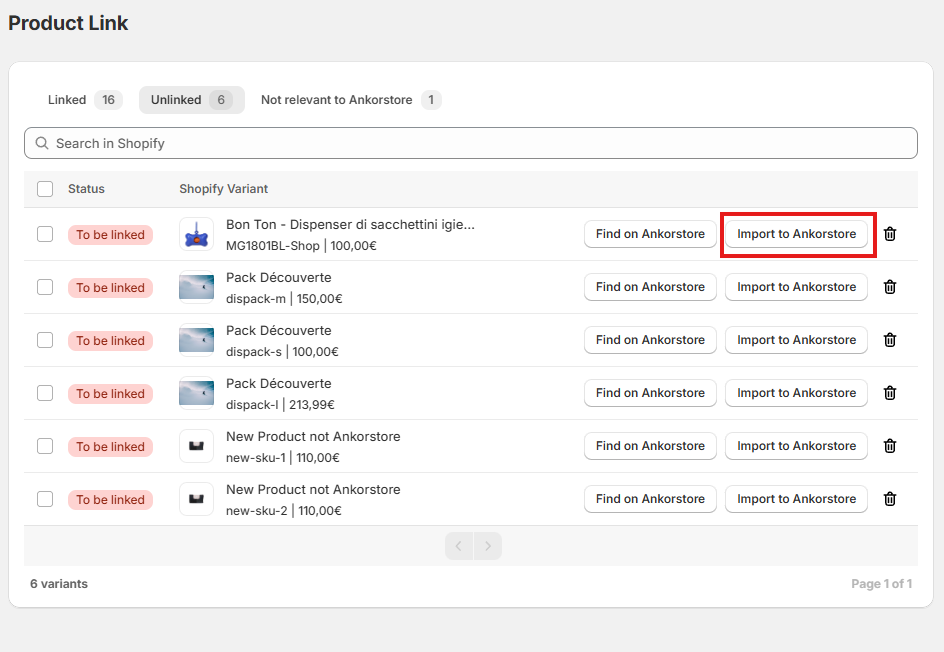
The Product is imported in Ankorstore, the link is created. The newly Linked Shopify product variant is visible in the LINKED section of the product Linking tool
Order Sync : Receive your Ankorstore orders in Shopify
This feature allows you to receive Shopify orders placed in Ankorstore marketplace.
You are still required to process your orders in Ankorstore using your back office.
In other words :
You need to accept your orders in the Ankorstore.
If you ship the order in Shopify, you need to mark them as shipped in Ankorstore. Ability to Sync Shipping back from Shopify to Ankorstore will come later.
If a tracking link is added in Shopify you need to manually add it to Ankorstore. Ability to Sync Tracking link back from Shopify to Ankorstore will come later
Here is an example to illustrate : Order is placed in Ankorstore, synched to Shopify, processed and fulfilled in Ankorstore.
Example
Step 1 - A retailer places an order in Ankorstore
Ankorstore validates the order and payment.
The Order is created in Shopify
Shopify Order status : Unfulfilled
Shopify Order payment status : Authorized. Can also be Paid or Pending depending on your settings in the Ankorstore: Sell Wholesale App.
If Stock Continuous Sync is enabled, Shopify applies the inventory policy relative to the items in the order.
A new retailer customer is created on Shopify if the customer doesn’t exist (identification is done using the email of the retailer).
In the order Additional Details in Shopify we have:
Ankorstore order reference
The retailer VAT number
Step 2 - You connect to Ankorstore and accept the order.
You may change some item quantities in the Order during this stage
Once you accept the order in Ankorstore it is automatically updated in Shopify :
We apply any item quantity changes, and shopify reflects the change in the inventory.
In the order Additional Details in Shopify we add your Confirmation date
Step 3 - You will then process the order in Ankorstore to have it shipped
Once the order has been sent to the Retailer, we update in Shopify : Shopify Order status Fulfilled
We add the tracking info if it is available at this time.
Meaning this works for Ankorstore Fulfillment and Ankorstore Label Shipment.
For your custom shipment in Ankorstore the tracking info is not sent to Shopify.
Step 4 - Once the Retailer confirms the reception in Ankorstore,
We update the order in Shopify adding the Reception date in the order Additional information.
The order is then invoiced in Ankorstore and you are paid.
We update the order in Shopify.
We sent the final values for the billing items
We also move the payment status of the Order in Shopify to Paid .
The final order status in shopify in this case is : Fulfilled, Paid .
Be aware, we do not support the following cases :
OrderPay orders from Ankorstore to Shopify
External Orders sent to Ankorstore for fulfillment
Split Orders Synched from Ankorstore to Shopify
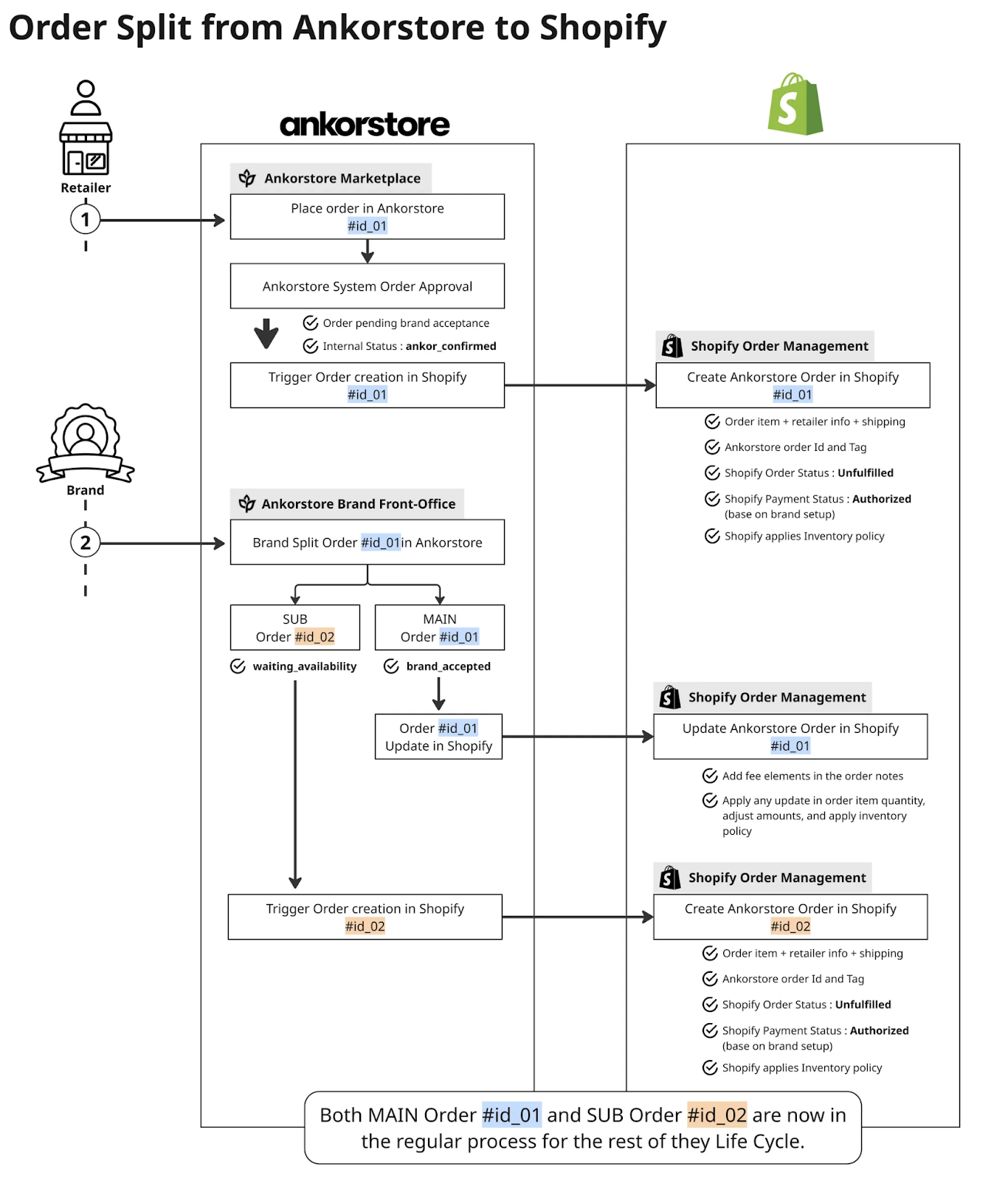
Step 1 - A retailer places an order in Ankorstore. We assume OrderId=01.
Ankorstore validates the order and payment.
The Order is created in Shopify
Shopify Order status : Unfulfilled
Shopify Order payment status : Authorized. Can also be Paid or Pending depending on the brand settings in the Ankorstore: Sell Wholesale App.
If Stock Continuous Sync is enabled, Shopify applies the inventory policy relative to the items in the order.
A new retailer customer for the brand is created on Shopify if the customer doesn’t exist (identification is done using the email of the retailer).
In the order Additional Details in Shopify we have:
Ankorstore order reference
The retailer VAT number
Step 2 - You connect to Ankorstore and decide to split Order 01.
Order 01 is now known as the “Main order” and Ankorstore will apply the item changes to it and set as accepted.
With the remaining items Ankorstore will create a Sub-order, OrderId=02 pending stock availability.
For the main order, OrderId=01; status= accepted, we update it on Shopify:
We apply any item quantity changes. Shopify reflects the change in the inventory.
We add the Billing items in the Shopify order notes.
In the order Additional Details in Shopify we add your Confirmation date
For the sub-order, OrderId=02; status=pending stock availability, we trigger the order creation in Shopify same as for a regular order.
The 2 orders are now considered as regular ones from this point and will move according to the example provided earlier
Benefit from the Price Continuous Synchronisation
When enabled, this feature keeps your product prices on Ankorstore automatically synced with your prices in Shopify. Price synchronization only applies to products that are currently linked, if a product link is deleted, price sync is disabled for that item. Please note: the sync is always one-way, from Shopify to Ankorstore.
We prioritize the values entered in the Shopify metafields "Ankorstore Wholesale and Retail Price" at the variant level. These metafields are particularly useful if you use different pricing ratios for different products.
If no values are set in the "Ankorstore Wholesale Price" or "Ankorstore Retail Price" metafields, we will use the default ratio set in the VAT and Price Calculation section.
No price changes made in Ankorstore will be reflected back in Shopify.
Please note: Turning this feature ON is not retroactive, it will only apply to variant price changes made after the option is enabled.
Benefit from the Stock Continuous Synchronisation
When enabled, this feature keeps your product stock levels on Ankorstore automatically synced with your stock in Shopify. Synchronization only applies to products that are currently linked,if a product link is deleted, stock sync is disabled for that item. Stock updates are always from Shopify to Ankorstore: Shopify will automatically update your product availability on Ankorstore, based on the total quantity available across all your Shopify inventory locations.
Conversely, when an order is placed on Ankorstore, the stock will be committed and deducted in Shopify according to the inventory policy you have set there.
Please note that turning this option ON is not retroactive; it will only track and sync stock changes made after the feature has been activated.
FAQ
How to migrate from the old application Ankorstore Sales Channel to the new Ankorstore: Sell Wholesale ?
Here is a quick video on how to uninstall the old application and install the new one
Step 1 - Search for the Old App
From your Shopify admin homepage, if you don’t see “Ankorstore Sales Channel” in the left-hand menu, use the top search bar and type: Ankorstore
Look for the app called “Ankorstore Sales Channel”
Step 2 - Uninstall the Old App
Click on Ankorstore Sales Channel to open it
You should see a red banner at the top inviting you to uninstall
Click the “Uninstall” button directly in the banner
Or, click the three dots on the top right, then select “Uninstall”
Choose any reason, then confirm by clicking “Uninstall”
You're done with the old app!
Step 3 - Install the New App
To install the new app, search “Ankorstore” in the Shopify App Store
Or simply click the link we’ve provided in the description or email
Follow the steps to complete the installation of Ankorstore: Sell Wholesale
That’s it! You’re now set up with the new and improved Ankorstore app.
What will happen to my ongoing Ankorstore orders that were synched by the old application, once I have migrated?
Once you’ve migrated, the new application will not be able to access or manage orders that were created by the old Ankorstore app.
You will need to manually finish processing those orders in your Shopify admin.
Here’s what to do:
Log in to your Ankorstore back office to check the status of each ongoing order
Then, go to Shopify and manually update each order:
Mark the order as "fulfilled" when the shipment has been sent
Mark it as "paid" once Ankorstore has transferred the payment
This manual process only applies to orders created via the old app before migration.
All new orders going forward will be handled by the new application automatically.
What happens when you publish a product in the Ankorstore: Sell Wholesale channel in Shopify ?
Adding a product in the sales channel app will automatically link the product in Shopify with its correspondent in Ankorstore using the SKU matching if a Counterpart is founded in Ankorstore. If No counterpart is found, the Variants will go in the Unliked tab of the Product Linking tool so you can either manually Link them, Import them or mark them as Not relevant.
What happens when you remove a product in the Ankorstore: Sell Wholesale channel in Shopify ?
Removing a product from the sales channel app will automatically remove the link with its correspondent in Ankorstore. Will not remove the product in Ankorstore, if you want to do so, you can do it in Ankorstore directly.
What happens when you link a Shopify variant with an Ankorstore counterpart using the Product Linking tool ?
Product Linking is done at VARIANT level between Shopify and Ankorstore.
When a Link is created, we store and maintain a mapping of the Shopify Product variant ID with the Product variant ID from Ankorstore, this relationship is independent of the SKU. We also immediately sync the price and stock only if those features are ON. NO full product update in Ankorstore.
What happens when you unlink a Shopify variant with an Ankorstore counterpart using the Product Linking tool ?
Unlinking Shopify product variants to Ankorstore counterparts imply the Price and Stock sync will stop for the variants. However, we will not delete in Ankorstore. If you want to do so, you can go to Ankorstore and archive or put the product offline.
What are the rules to import a product from Shopify to Ankorstore using the Product Linking tool ?
You can only import Shopify product variants that are part of the sales channel, and for which the SKU is not present in Ankorstore.
If the Shopify product variant SKU is present in Ankorstore you can either link the variants or change the product variant in shopify to have an SKU not used in Ankorstore to import it after.
When importing the Shopify product variant in Ankorstore :
We will try to put it in an existing product in Ankorstore if possible. For example if in Shopify, the variant is part of a product that already has a variant linked to Ankorstore.
If an Ankorstore validation criteria is not met you will get an error message
If a new product in Ankorstore is created, it will be put ONLINE directly
When are my orders created from Ankorstore to Shopify ?
Orders are pushed from Ankorstore to Shopify as soon as they are ready to be accepted in your Ankorstore back office.
What order information is synched from Ankorstore to Shopify ?
Order Items: Name, SKU, Quantity, Price (Ankorstore wholesale price)
Line items are matched using the Product Link that exist or the SKU
If match is found → Shopify product name and picture are shown.
If no match → line is created as a "comprehensive" product.
Retailer Info: Name, VAT number
Shipping Info: Address, method
In Shopify Order Additional details :
Ankorstore order ID
Retailer VAT number
Brand Confirmed date
Retailer Received date
In Shopify Order Notes we have the Billing items
Configurable in the app settings :
Order ID logic: use Ankorstore Order ID or generate a new Shopify order ID.
Order tags in Shopify : with default tag Ankorstore .
The initial payment status of the order in Shopify: Authorized, Paid, or Pending.
What order status changes are synched from Ankorstore to Shopify ?
When you accept the Order in Ankorstore, we sync the order to Shopify, add fees, update qty and line items.
When the Order is shipped in Ankorstore, we sync the order to Shopify and update fees. Mark order as fulfilled in Shopify.
Tracking info sent to Shopify if : Ankorstore Fulfillment or Ankorstore Label Shipment
Tracking info not sent to Shopify for brand custom shipment.
When the order is received by the retailer, we sync the order to Shopify, update fees, mark order as Paid in Shopify.
When the order is rejected or canceled in Ankorstore, we cancel the order in Shopify.
What order status changes are synched from Shopify to Ankorstore?
When the order is canceled in Shopify, we cancel the order in Ankorstore.