How to install and use the Sellsy integration?
Last updated: July 22, 2026
How do I install the Sellsy integration?
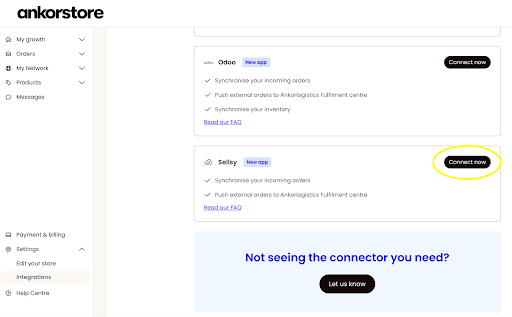
Log in to your Ankorstore account and navigate to the "Integrations" tab. Next, click on "Plug & Play" and scroll down to the Sellsy subsection.
Click "Connect now." You'll be redirected to start the onboarding process and guided through each step. To learn more about the different fields and how to complete them, hover your cursor over the question mark next to each field.
Follow the steps below to complete the onboarding:
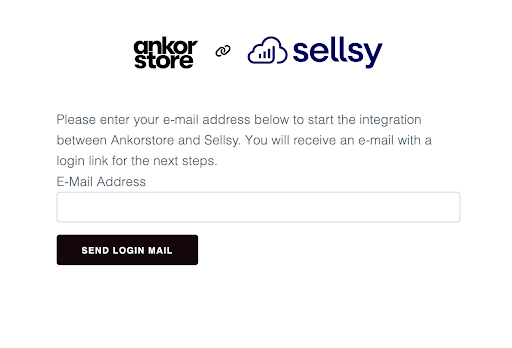
Page 1: Log in to the onboarding portal using single sign-on (SSO) with your email address. (This does not have to be the email address you use for Ankorstore, but it is essential to remember which email address you used for future edits to your settings.)
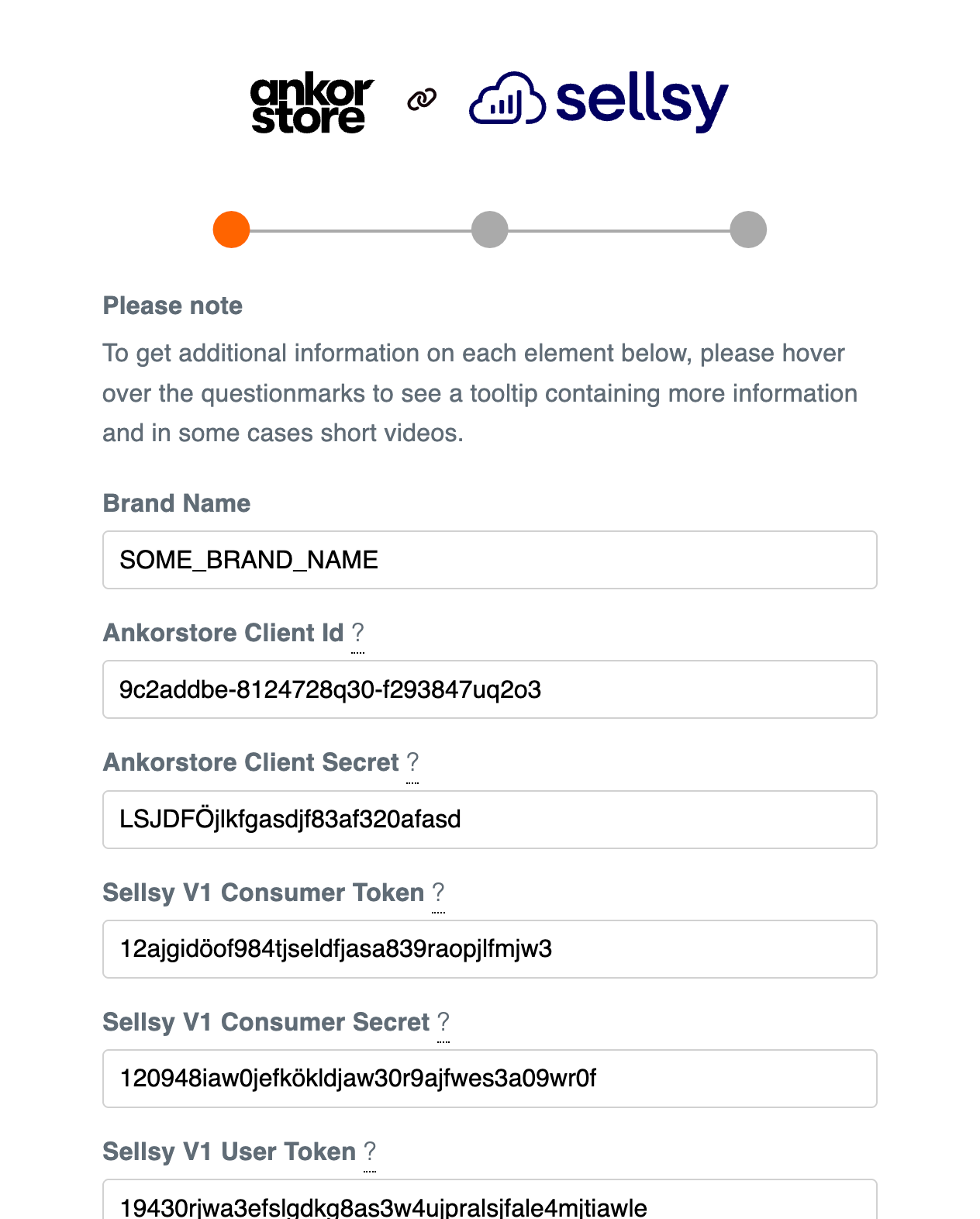
Page 2: Retrieve API keys for Sellsy and Ankorstore. You will need to provide two sets of Sellsy keys/credentials. Videos on obtaining these keys are available in the onboarding portal. (You can also access them here: Sellsy v1, Sellsy v2, Ankorstore)
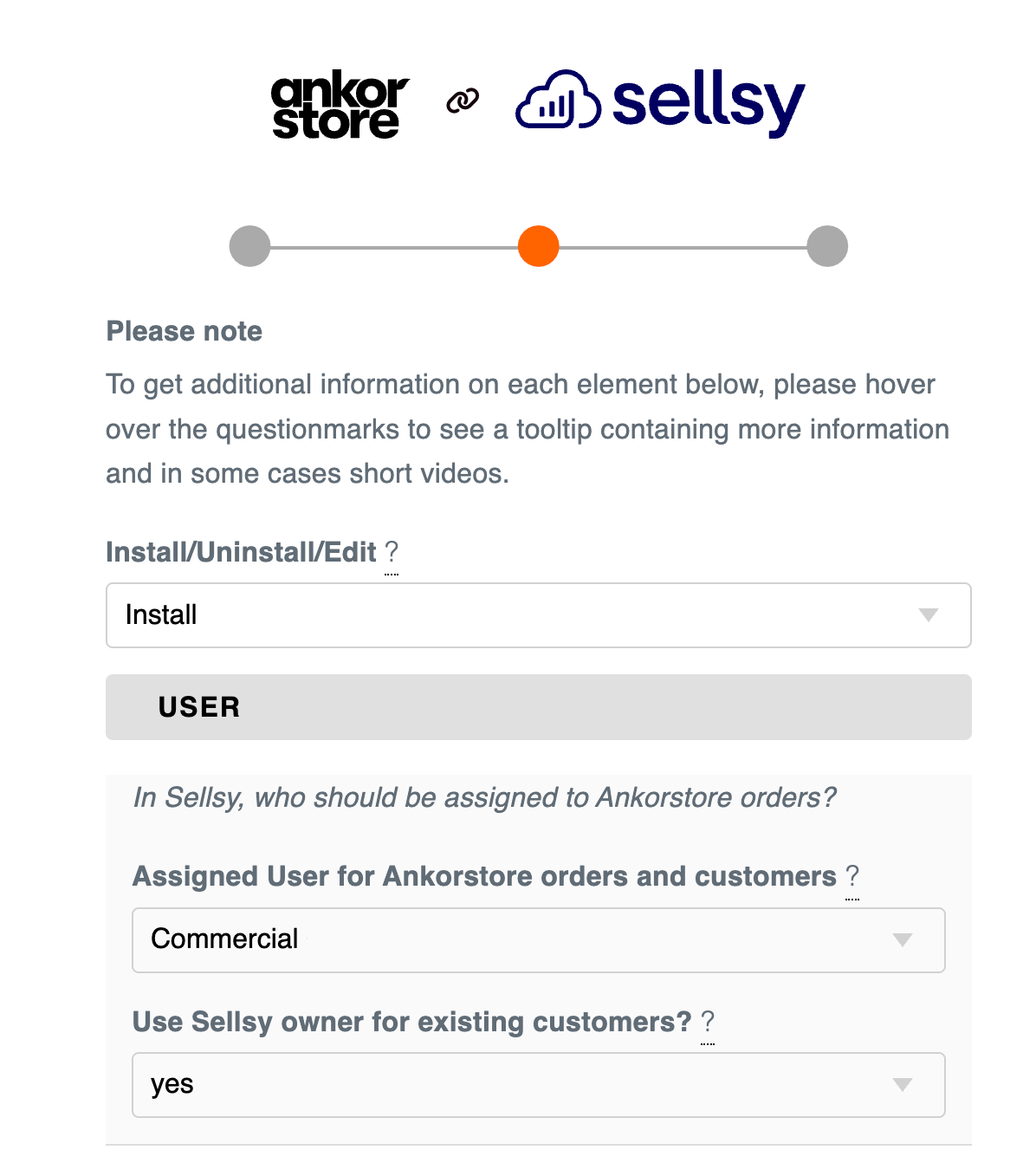
Page 3.1 : Set the Sellsy user account
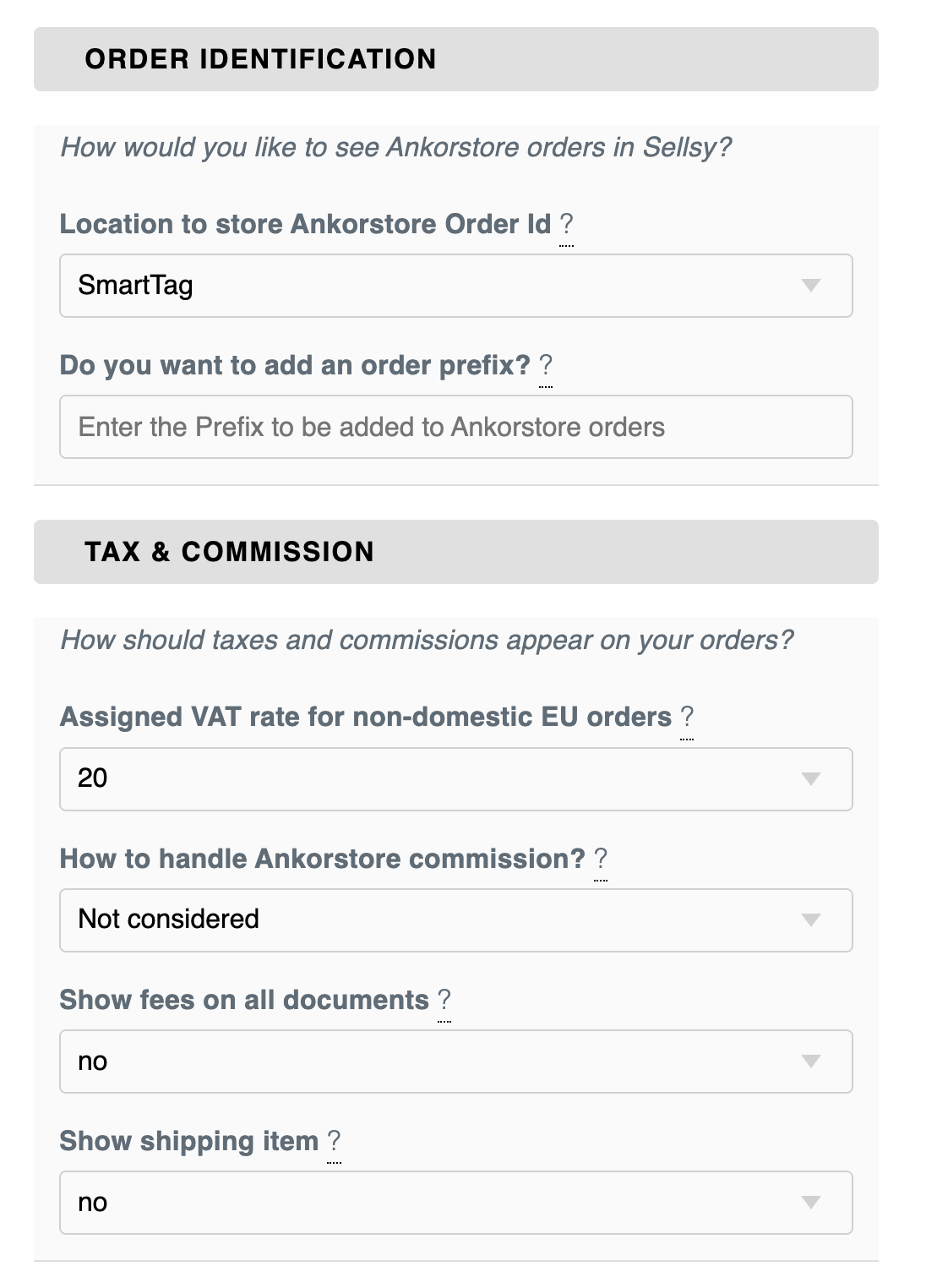
Page 3.2 : Orders from Ankorstore to Sellsy Identification, tax and Commission
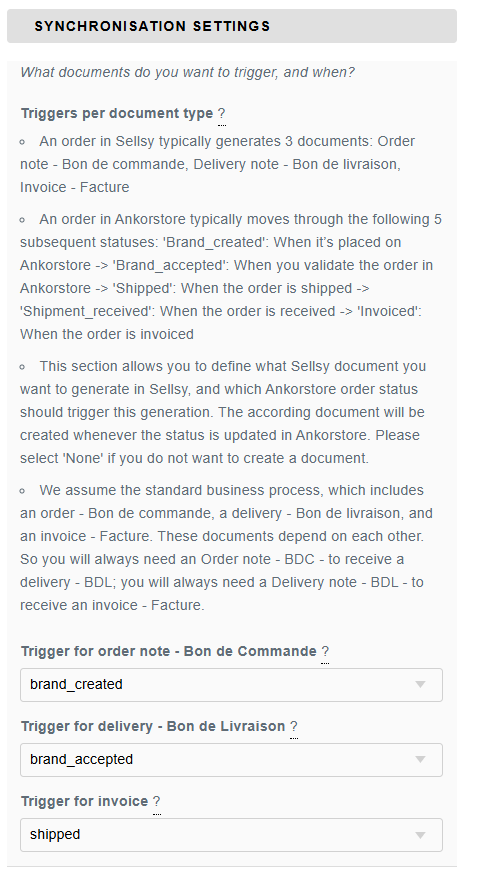
Page 3.3 : Synchronization Settings
Page 3.4 : Ankorstorlogistics Fulfillment Center
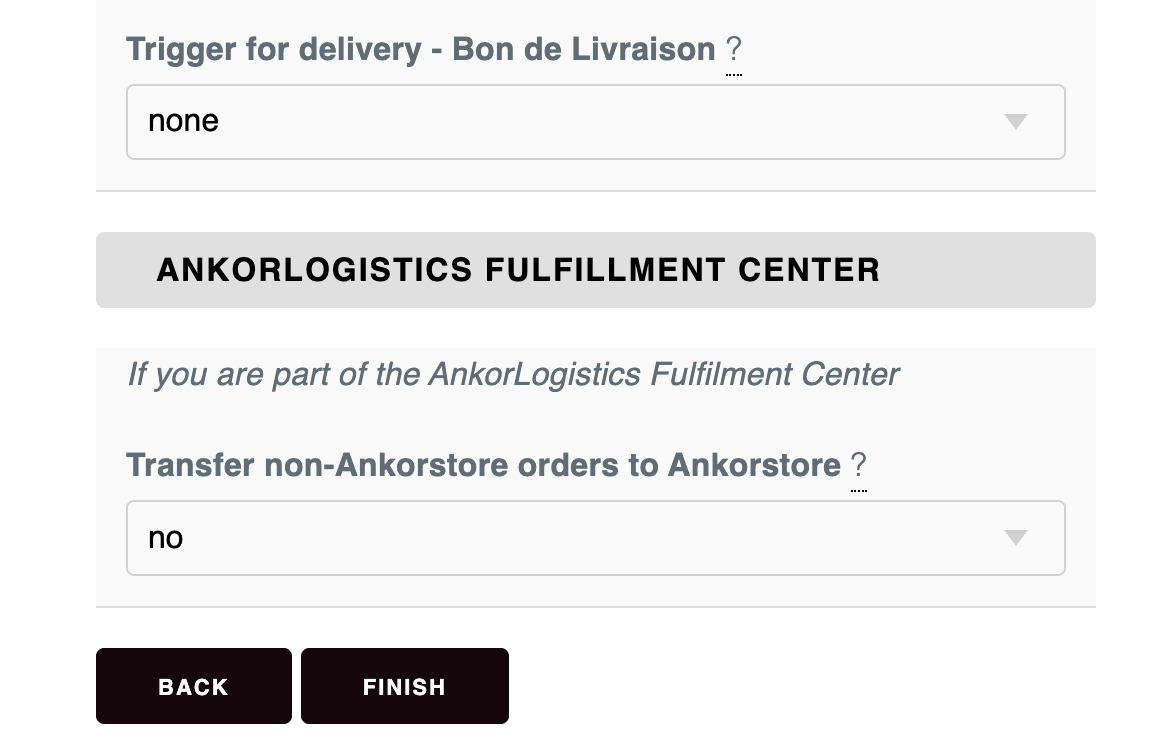
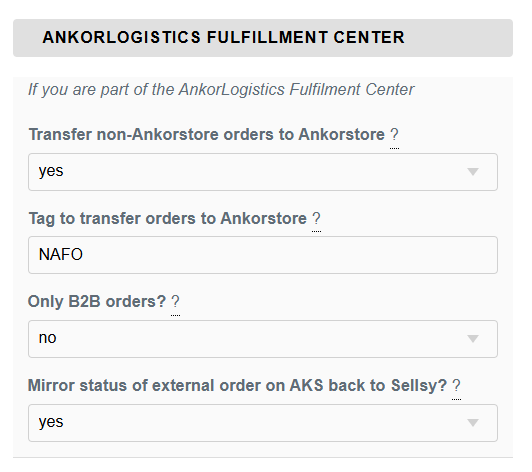
For the AnkorstoreLogistics fulfillment center if you select “Yes” you need to set the tag to send the Orders From Sellsy to Ankorstore Fulfilment Center for delivery.
After completing steps 1, 2 and 3, your integration will be live with your selected settings.
How can I make changes to the settings?
Firstly, it is important to remember the email address used to sign in. You can easily access and change your settings through the onboarding portal using the same email address.
What capabilities does the integration support?
The Ankorstore and Sellsy integration supports order synchronisation:
From Ankorstore to Sellsy
Ankorstore orders are automatically reflected in Sellsy
If Ankorstore customers are not already in Sellsy, they are automatically created based on their email address.
Transactional documents (like delivery notes and invoices) are created in Sellsy according to order status updates in Ankorstore.
From Sellsy to Ankorstore (only applies to brands who are part of Ankorlogistics Fulfilment Centre)
Orders in Sellsy that did not come from Ankorstore can be routed to the Ankorlogistics Fulfilment Centre.
Can I automatically update inventory levels on Ankorstore?
No, there is no integration supporting inventory synchronisation between Sellsy and Ankorstore. If you want to learn more about how to update your stock, click here: 📄 Stock Management
How does the Sellsy integration work?
Prerequisites
It is important to ensure that the SKUs used in Ankorstore and Sellsy match precisely. If there is a discrepancy, the connector will not recognise the product, and orders will not reflect automatically in Sellsy. (In such cases, manual order transfer will be necessary.). The SKU in Ankorstore must either a) exactly match an SKU of a product in Sellsy (Product Reference) or b) exactly match an SKU of variant/declination (Variant Reference). If no matching variant can be found, you will receive an error email.
When transferring orders from Ankorstore to Sellsy, existing Sellsy customers are recognised by their email addresses. This minimises formatting issues and reduces the risk of mismatching customer bases. Therefore, it's crucial to maintain accurate email addresses for all customers in Sellsy. A new customer entry will be created if a customer email address cannot be found. If multiple customers in Sellsy have the same e-mail address, the first match will be used.
What triggers the creation of the Ankorstore order in Sellsy?
To generate an order note (‘Bon de commande’), brands usually select the trigger ‘brand_created’ or ‘brand_accepted’)
This depends on the settings you chose during your onboarding. You can specify which document should be triggered by each Ankorstore event. Generally, in Sellsy, the order creation can be triggered by two relevant Ankorstore events:
When the order is placed on Ankorstore (status of the order is “ankor_confirmed”)
After you have validated the order in Ankorstore (status is “brand_confirmed”)
How is the current order process structured?
For this interface we are assuming a standard process, which includes an order (“Bon de commande”, or BDC), a delivery (“Bon de livraison”, or BDL) and an invoice (“Facture”). These documents depend on each other. So you will always need
Order (BDC) to receive a delivery (BDL)
Delivery (BDL) to receive an invoice (Facture).
You can choose not to trigger an invoice; however, if you do want to trigger an invoice, an order must be triggered first, followed by a delivery.
What triggers the creation of delivery notes or invoices?
To generate a delivery note (“Bon de livraison”), brands usually select the trigger ‘shipped’. If you don’t want a delivery note (“Bon de livraison”) to be created automatically, you need to select the trigger ‘none.’
To generate an invoice (“Facture”), brands usually select the trigger ’shipped’ (or sometimes ‘order_received’). If you don’t want an invoice (“Facture”) to be created automatically, you need to select the trigger ‘none.’
How can I transfer orders from Sellsy to the Ankorlogistics Fulfilment Centre?
Orders are transferred to Ankorstore:
From a delivery (BDL) in Sellsy, for which an order (BDC) must exist.
When a relevant smart tag is added to it
When a specific tag is added to a delivery (BDL) in Sellsy, orders are sent to Ankorstore. Therefore, for the transfer from Sellsy to Ankorstore to work correctly, the delivery must be associated with an order (BDC).
Your settings determine the relevant tag. To transfer a delivery (BDL) to Ankorstore, it's as simple as adding the designated tag exactly as you defined it in the settings, and then saving the delivery (BDL).
For this process to work correctly:
you must be a customer of Ankorstore Fulfillment Center
SKUs on Ankorstore must exactly match the SKU of the items in the BDL
Inventory on Ankorstore must be greater or equal to the amount you are trying to ship
Order quantity in BDL must be compatible with the minimum order quantity / case size set in Ankorstore