Login Issues
Last updated: September 22, 2026
This article provides information on how to log in, change your email address, reset your password, and everything you need to know about Two-Factor Authentication (2FA).
Logging into your account
Step 1: Go to the Ankorstore homepage and click on Log in.

Step 2: A pop-up window will open where you need to insert your email address and your password.
Unable to log in or password forgotten
If you cannot log in due to a forgotten or incorrect password:
Click on “Forgotten your password?”
Enter your email address and click Reset password.
You’ll receive an email with a link to create a new password.
Once updated, you can log in with your new credentials.
Tip: If you still experience issues, try using another browser or clear your cache and cookies.
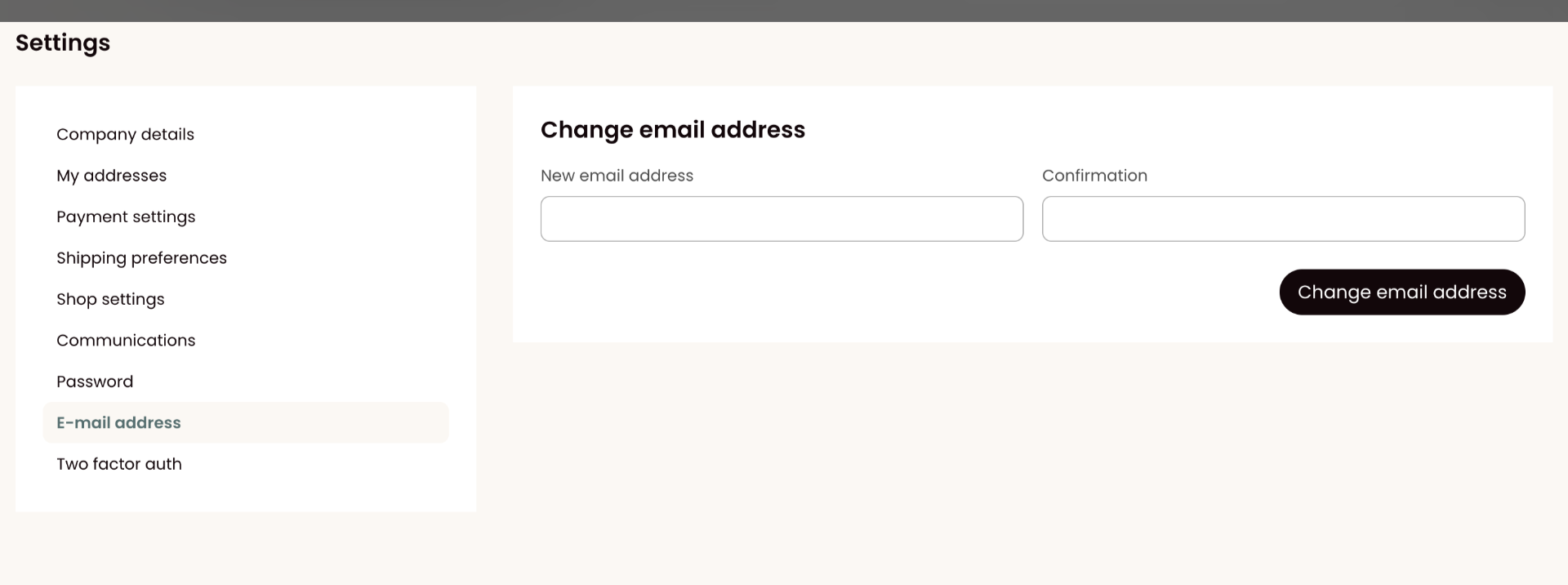
Changing the email address linked to your account
Log in to your Ankorstore brand account.
Go to your settings tab
Update your email address as needed.
Can I use different emails for login and notifications?
No. The email address used for login is also used for all Ankorstore notifications.
Currently, only one email address can be linked to an account.
Tip 1: If multiple people need access, consider using a shared group email address for your Ankorstore account (e.g. ankorstore@yourcompany.com).
Tip 2: Depending on your email provider, you may be able to set up automatic email forwarding to other addresses.
Updating your password
Step 1: In your back office, go to the Settings tab.
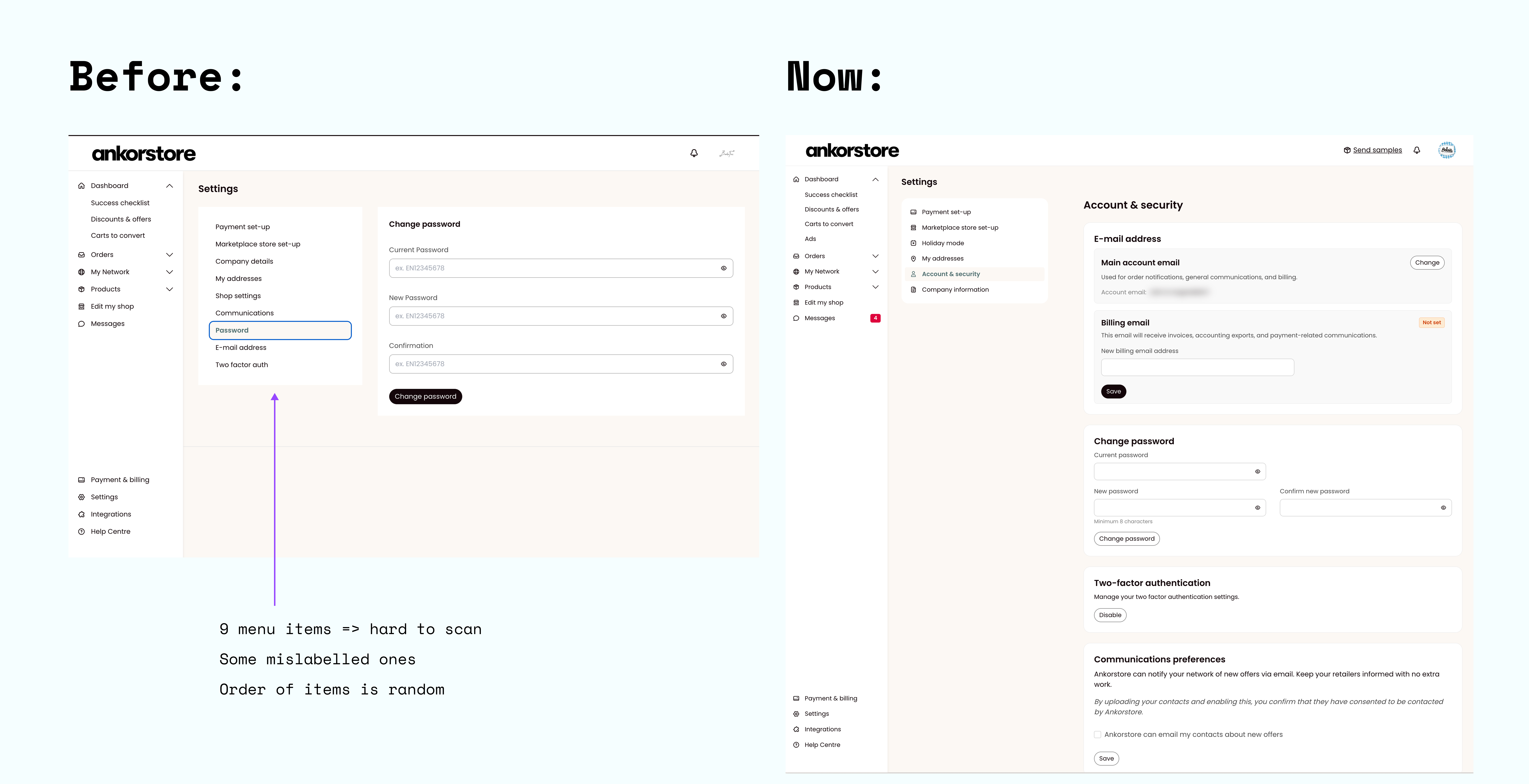
Step 2: Enter your current password and your new password, then confirm the changes.
Two-Factor Authentication (2FA)
Two-factor authentication adds an extra layer of security to your Ankorstore account. Instead of relying only on your password, 2FA requires a second step of verification, typically through an authenticator app.
To enable 2FA:
Step 1: Two-factor authentication can be enabled by users in their respective Back office (brand or retailer)
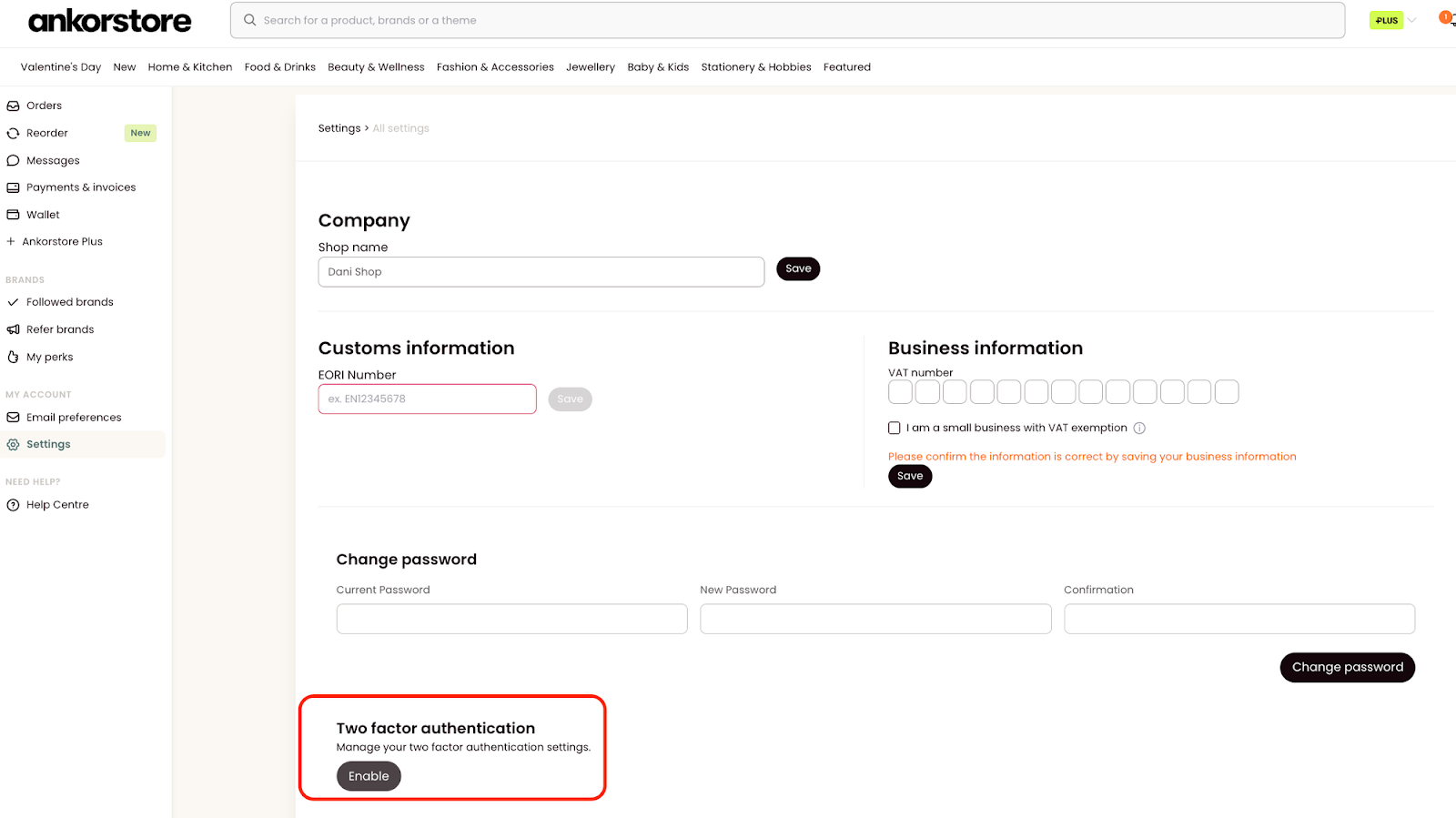
Step 2: Next, you have to activate the feature by scanning the QR code by an authenticator application on your smartphone (see this list of popular apps).
Step 3: After successful activation, you can copy or download a list of recovery codes in case you would lose access to your authenticator application or smartphone. Keep in mind that this page is only displayed once, so there is no way to retrieve these recovery codes later.
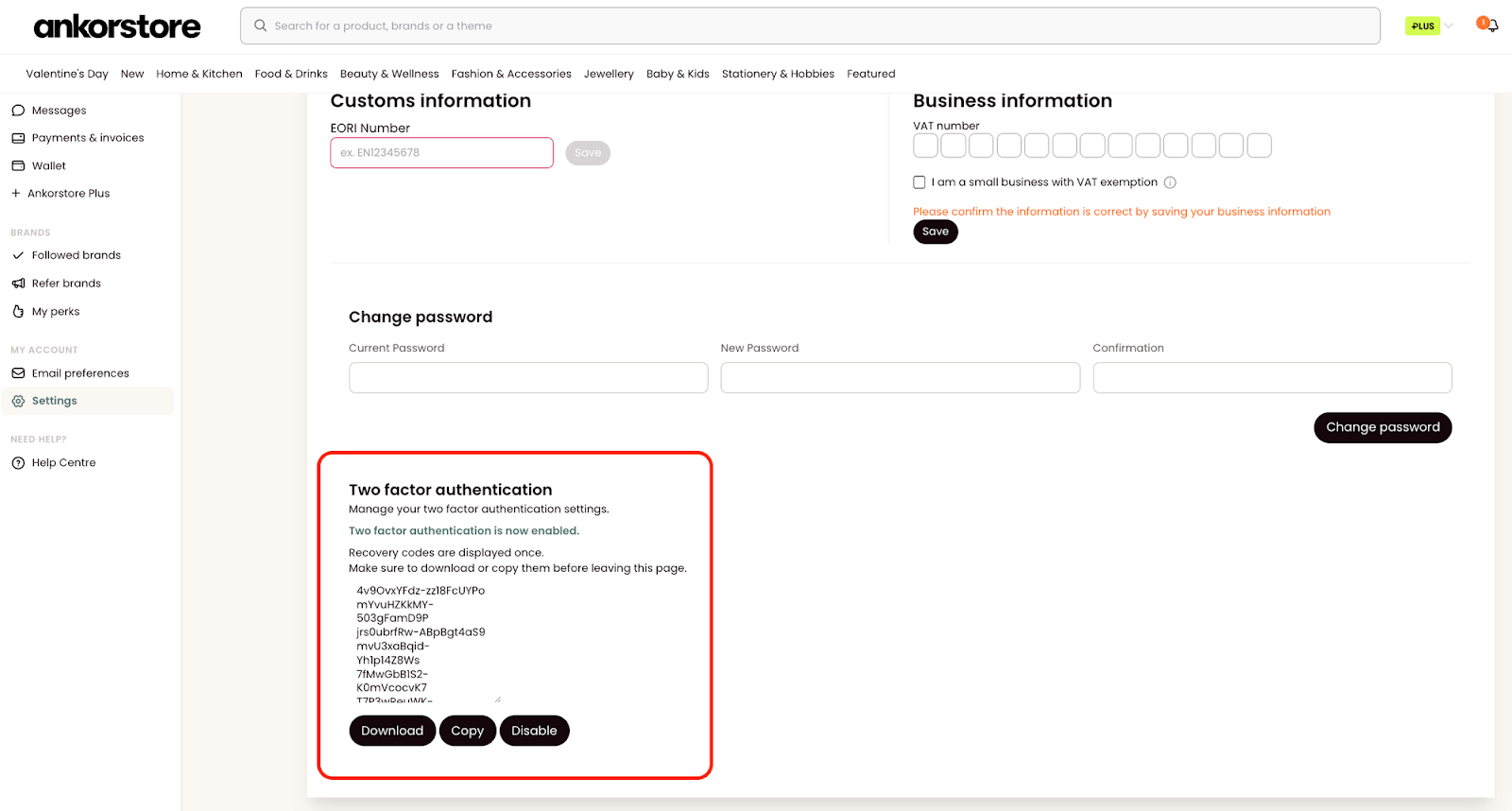
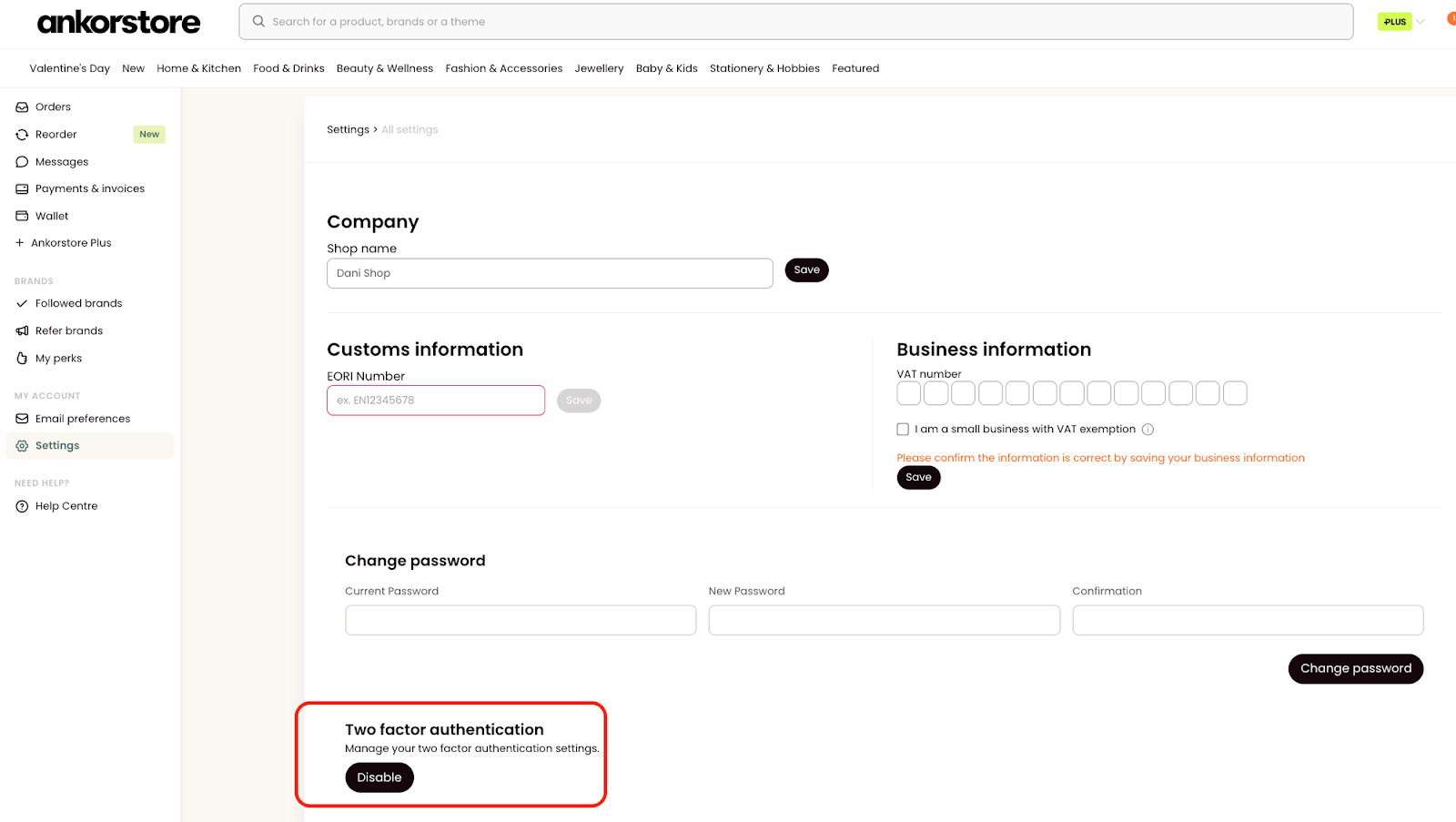
To disable 2FA, return to the same page in your Back Office.
2FA Challengen when Logging In
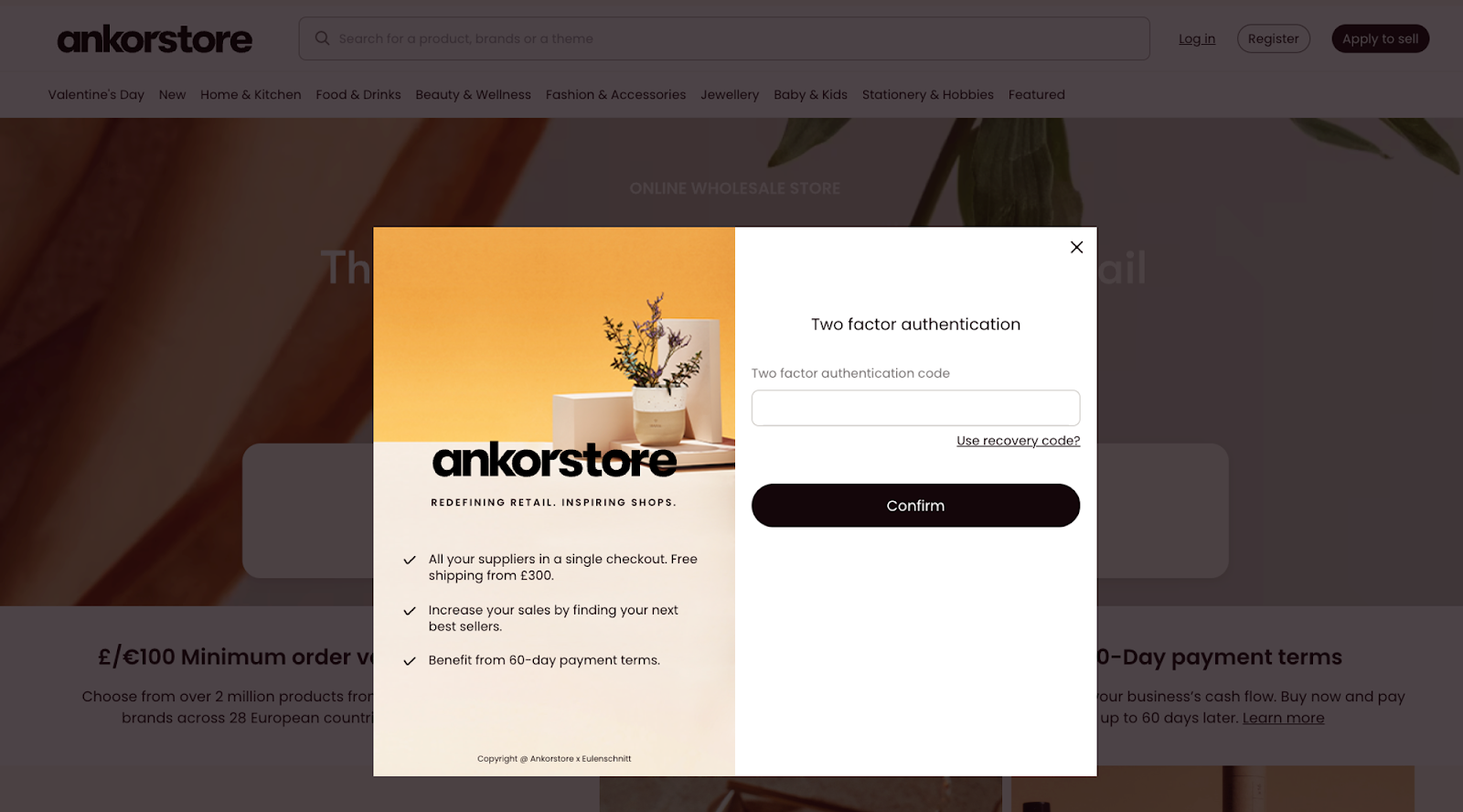
After entering your login credentials, you’ll be prompted for a 2FA code:
Open your authenticator app.
Enter the code shown into the prompt and click Confirm.
If you lose access to your authenticator app or device, use one of your previously saved recovery codes to regain access.