Solve catalogue errors import or fix pending updates
Last updated: September 7, 2026
Solve product errors in bulk from the Drafts tab
Solve errors in Drafts individually
Resolve 'Update failed' on Products
Solve errors by uploading a CSV or an XLSX file (recommended in case of numerous errors to fix)
Solve product errors in bulk from the Drafts tab
To correct errors in bulk in your drafts, you select at least 1 item. After that, new sections will appear on top of the list, and you will be able to modify 4 types of fields:
Edit Product types
Edit units per pack
Edit VAT
Edit Made in
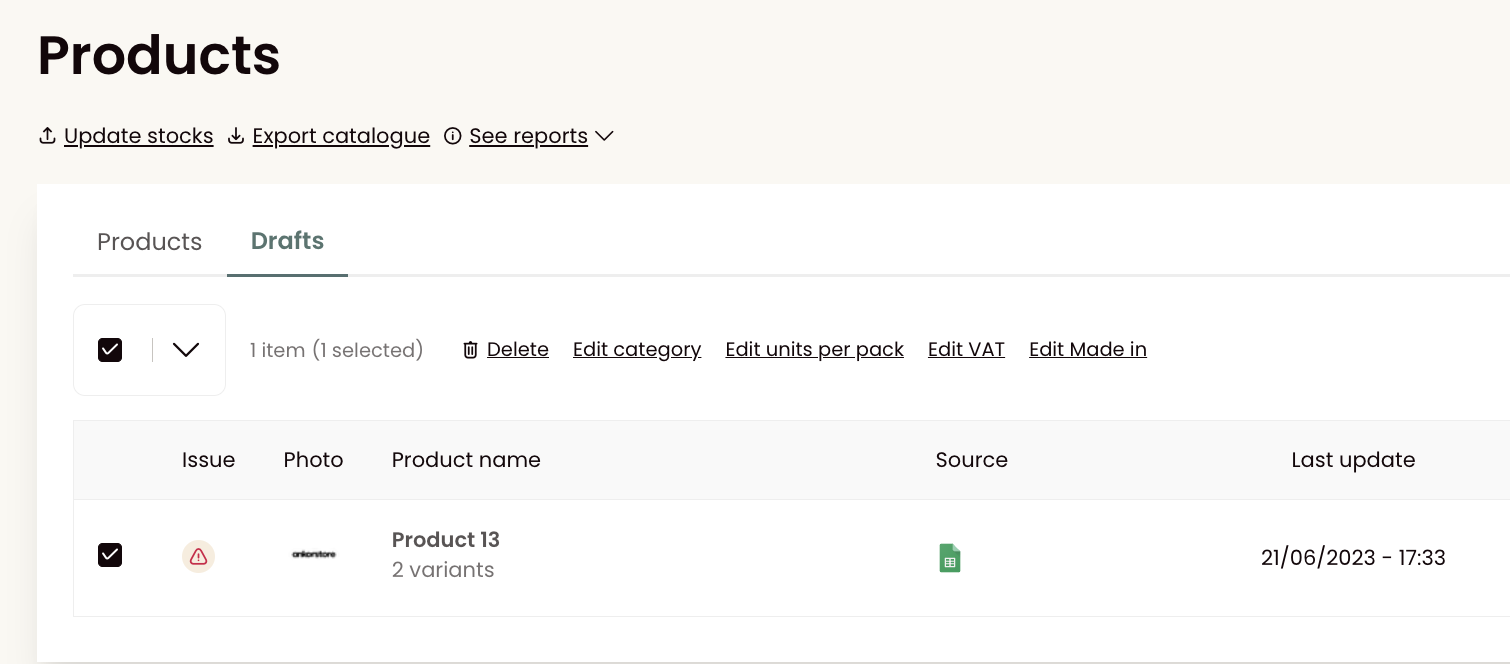
Tip: Please note that you are also able to delete several drafts using this function.
If all the drafts are correct and ready to be activated, you can select them and activate them in bulk.
Solve errors in Drafts individually
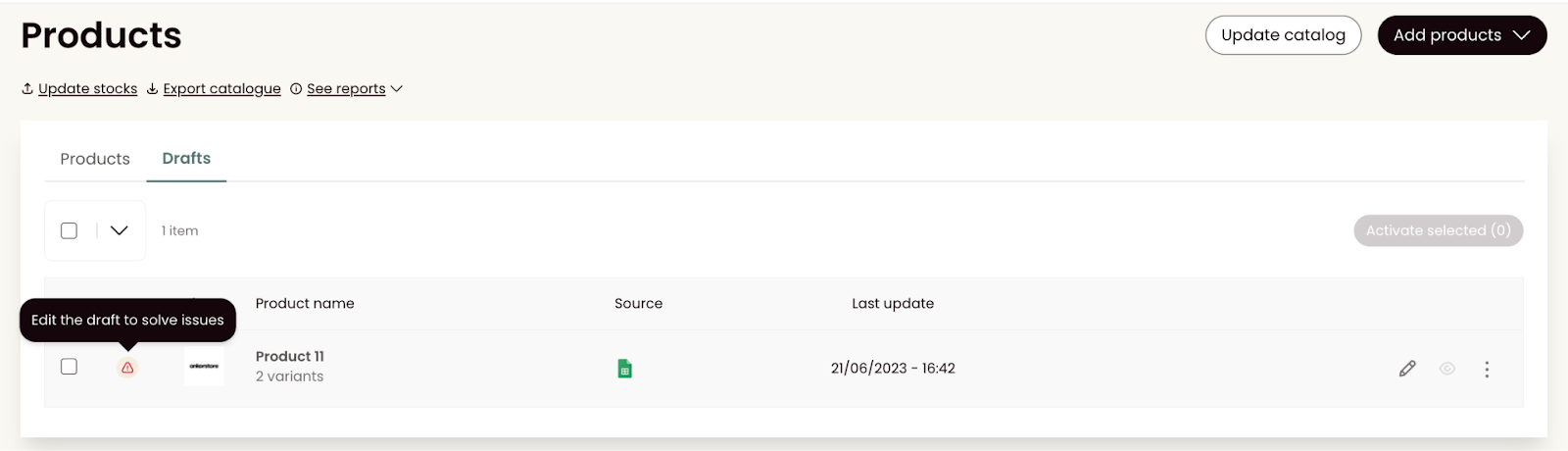
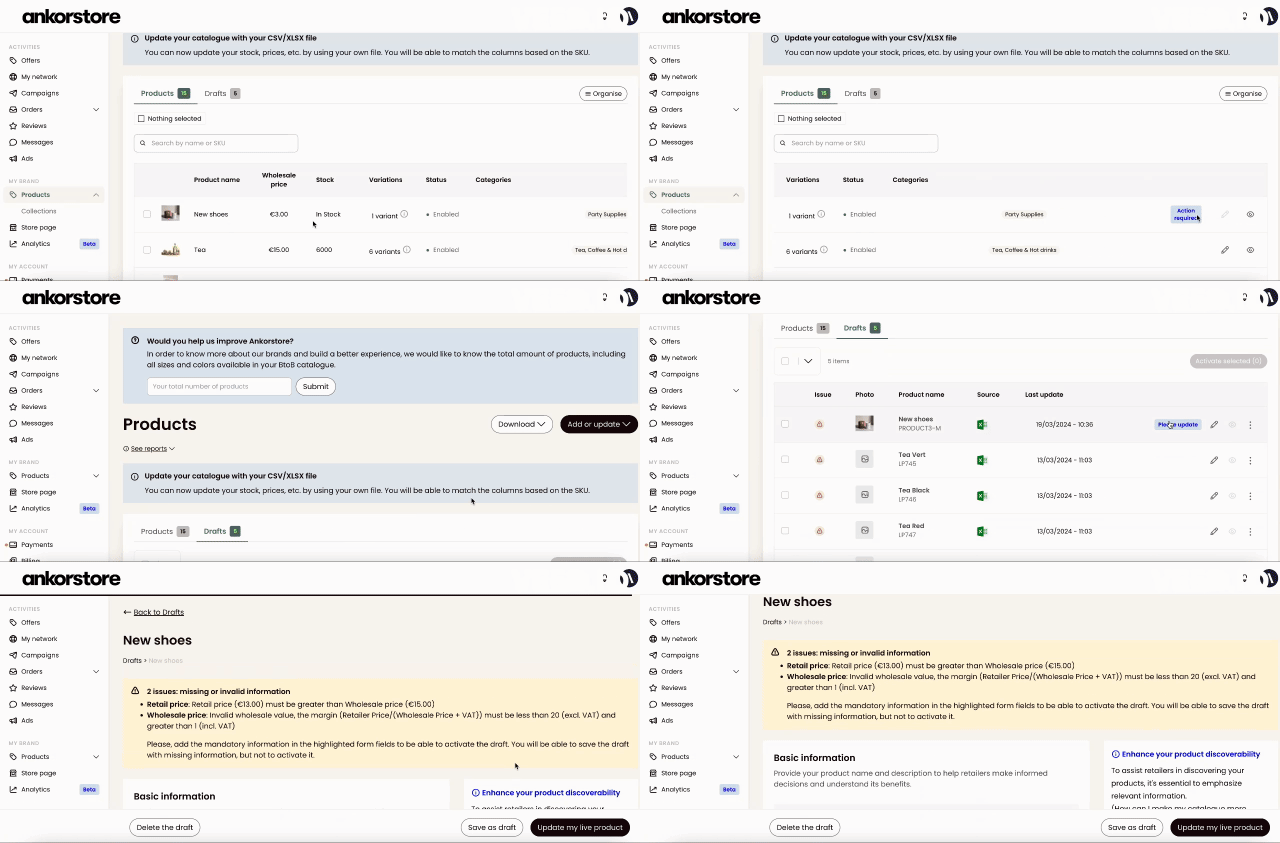
The red triangle sign indicates that you need to Edit the draft to solve issues. Click on the pencil sign on the right in order to access the draft form and review the issues.
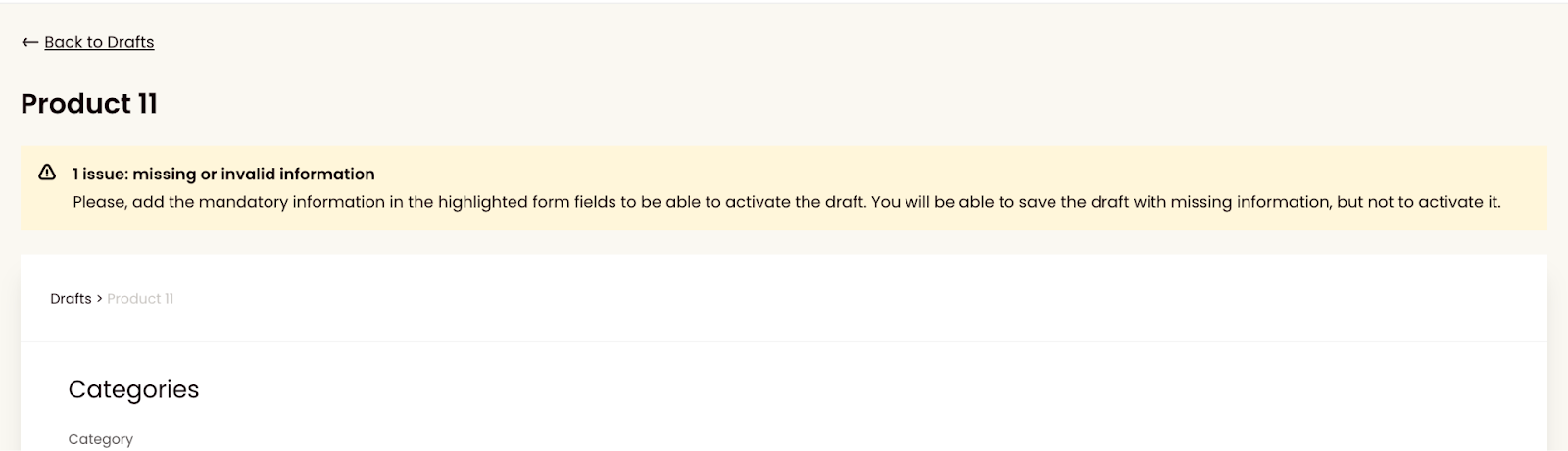
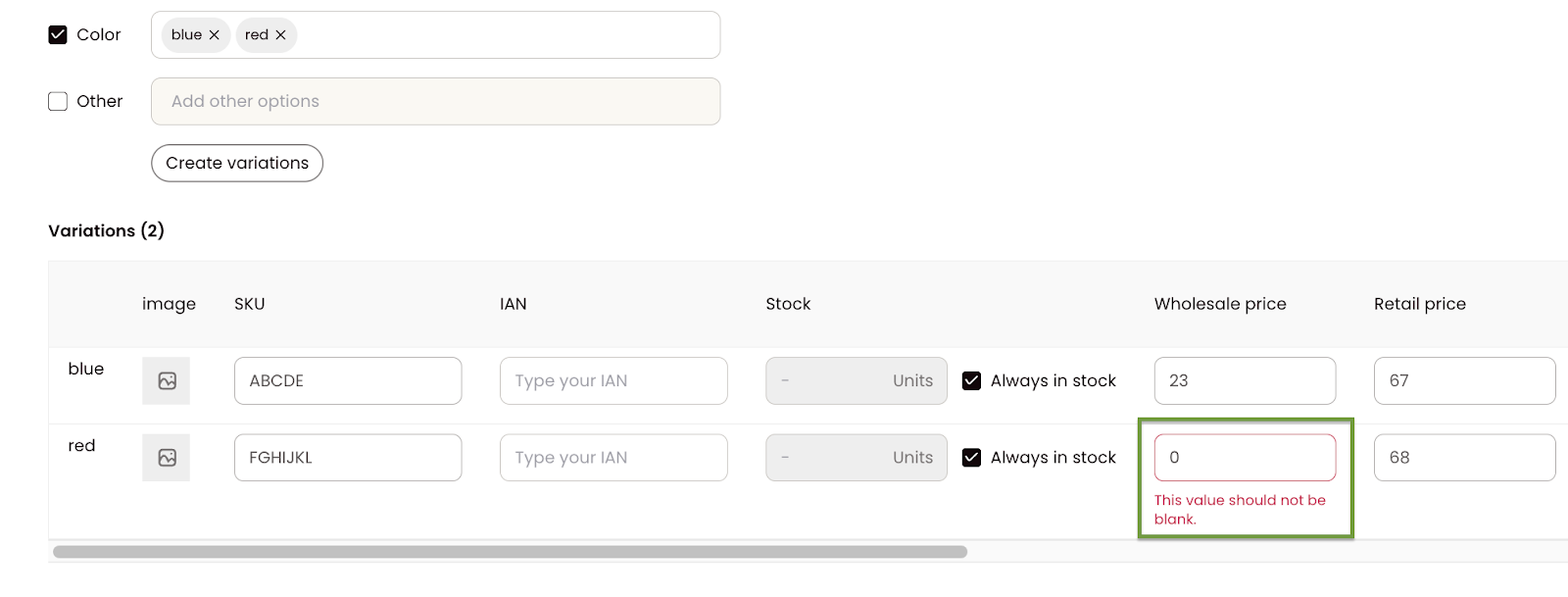
Correct the fields highlighted in red.
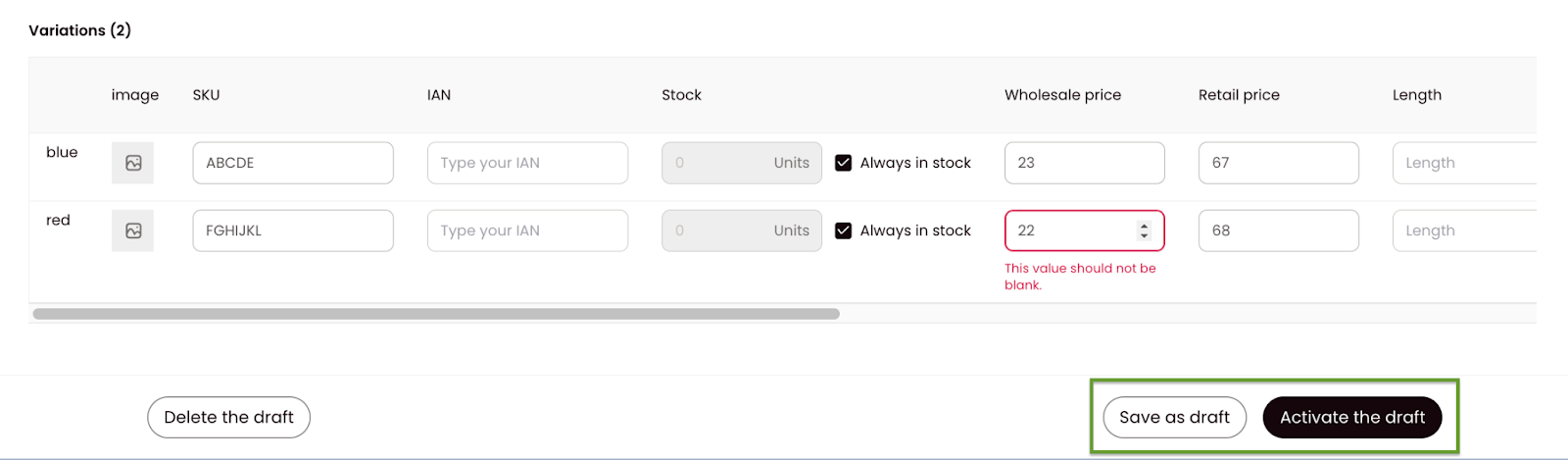
You can choose to Save as a draft (to be brought back to the draft list and review other drafts created) or Activate the draft directly (if no other errors remain).
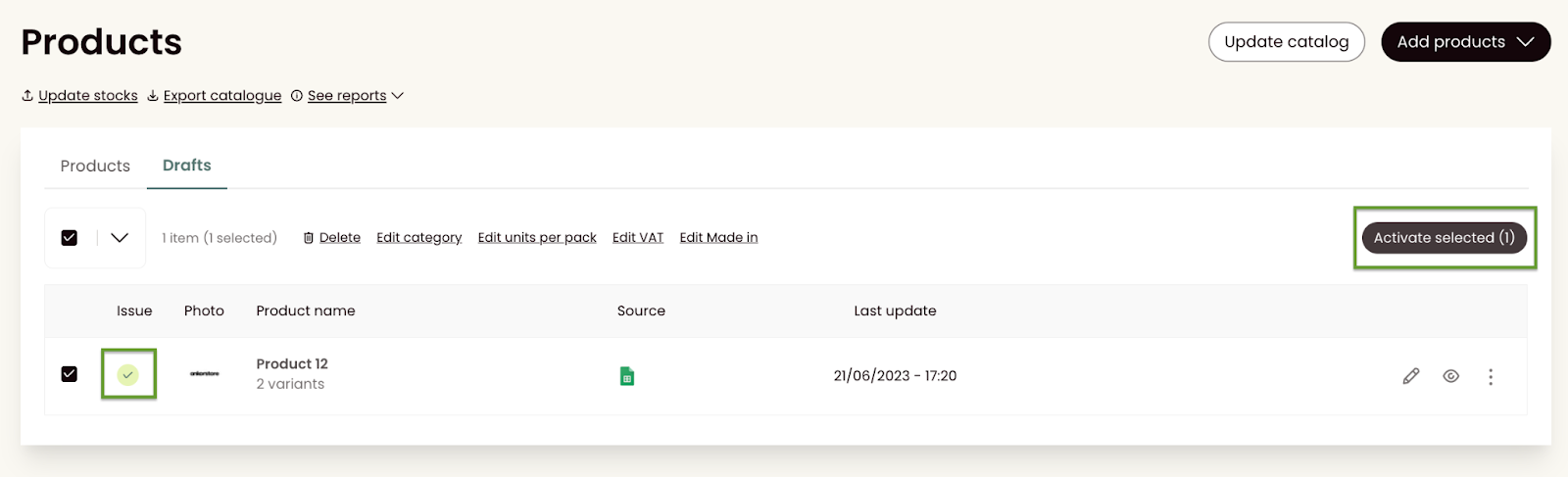
If you choose to Save as draft, you can then activate your drafts by selecting them and clicking on Activate selected.
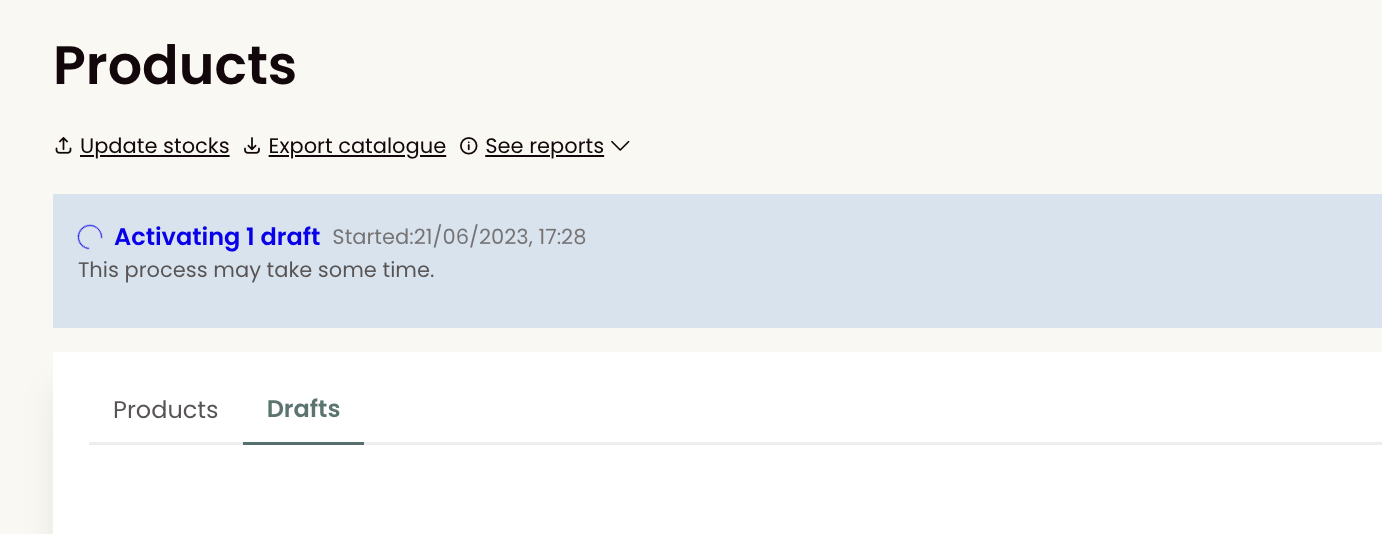
Please note that activating drafts can take a moment. You will see a blue banner indicating that the activation is in progress. You can close the window, it will not impact the activation.
How to Resolve 'Update failed' on Products
What does “Update failed” mean?
If you import products in bulk, you may come across some products with the label “Update failed”. This indicates that the update import failed to meet the requirements for some products, and the update is saved in the drafts tab. You will need to manually correct the errors or upload a CSV/Xl file in order to proceed.
How to finalize the update?
To finalize the update, you need to click on the product line, which will take you to the exact “Drafts” tab. Here, you can update the products by clicking on the pencil icon to edit one by one or use the bulk edit option. For more information on the bulk edition, refer to the article above.
How to solve errors by uploading a CSV or an XLSX file?
Please note that this is the most recommended option to solve many errors of products at once.
What data should be in my file?
You don't have to submit all the information about your products when solving errors (all product attributes must not be in the file you’re importing). Just provide us with the SKU of the products and the attributes you need to correct.
Just make sure the first row of your spreadsheet contains column headers (ex. “SKU”, “Description”, “Stock”…). Headers do not need to respect any specific formatting, as you will be asked to match your columns to our data during a next step of the process.
How to upload a CSV/XLSX file?
Step 1: Click ”Add or update” and select the type of file you want to upload
Step 2: Upload your file
Click “Upload a CSV/XLXS file” to select a file from your computer or drag and drop.
Step 3: Preview your file
This will allow you to check the name of your file, the number of columns, and the products. If you need to choose a different file, click “Choose a different file” or use the back arrow.
To ensure that the system recognises your file, make sure that the headers of your file are on the first row. Once you have confirmed everything is as expected, click “Match your data”.
Step 4: Match your data
Select the Ankorstore header that matches the header in your file for each line.
TIP: If there is some missing information in your file, you will be able to add it manually or in bulk afterward.
To proceed, click on Import.