Add, update in bulk or a single product
Last updated: September 4, 2026
Keeping your product information updated is crucial for success on Ankorstore. Make sure to update your stock and pricing regularly to give retailers the best experience on our platform.
Key features:
Definitions: Product attributes, Products, Drafts, Activation and Error messages
Add or update products in bulk
Add or update a single product
Find your Ankorstore catalogue
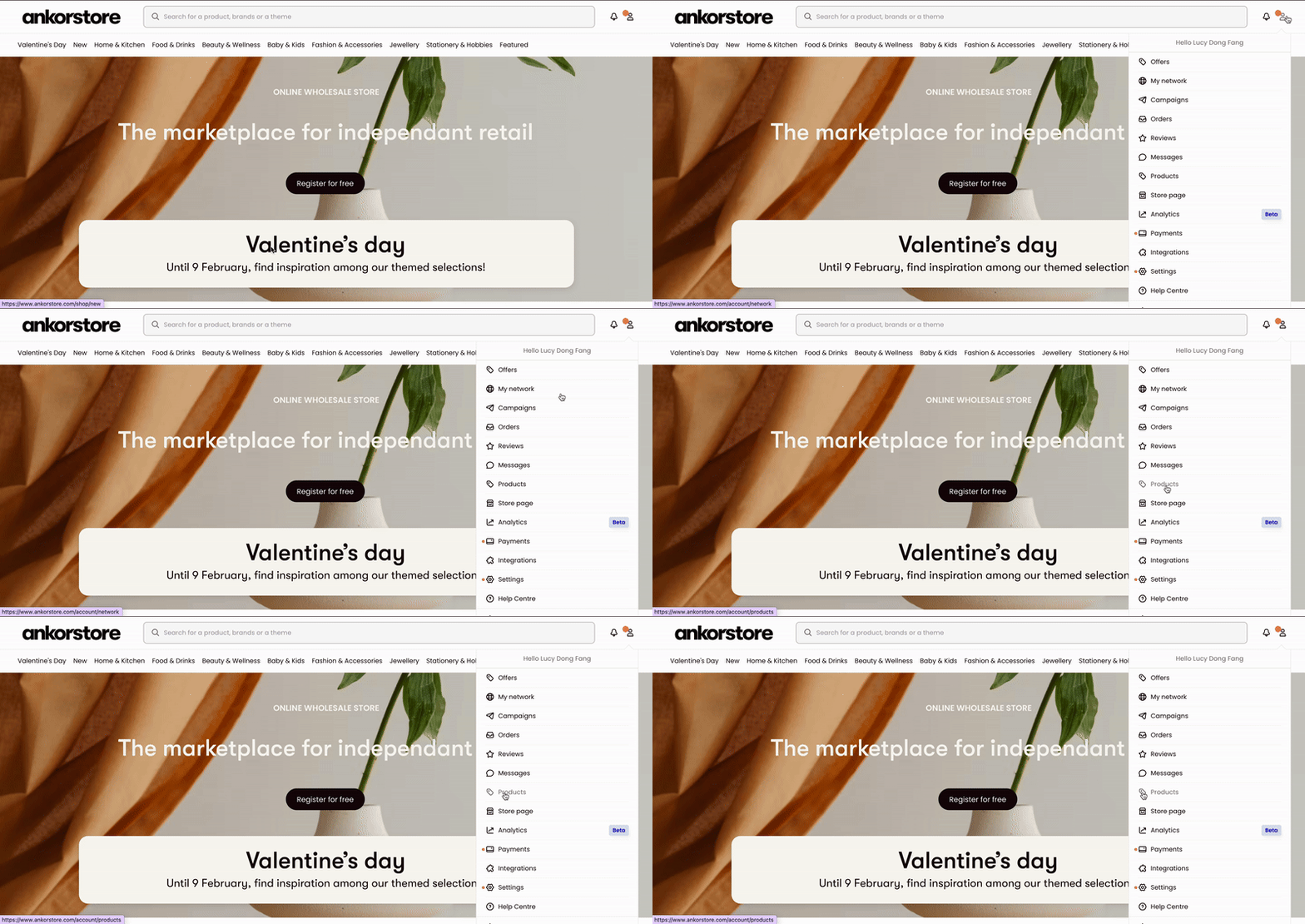
Products
Products are your published and validated items. They are visible to retailers and available for sale when their status is set to Online, regardless of stock status. You can
manage them in the Products tab, including switching their status to Online or Offline.
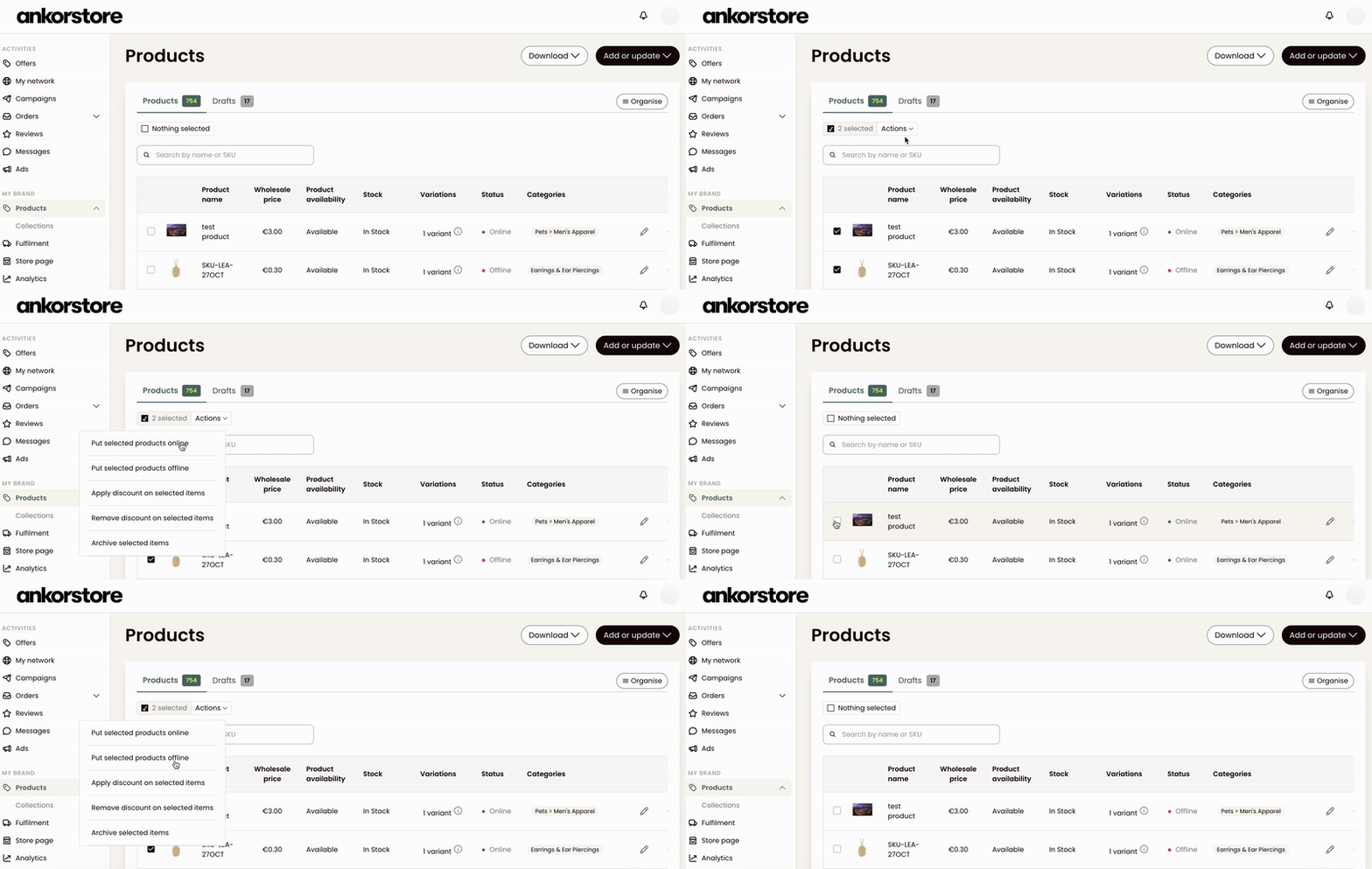
How do I switch products online or offline?
To change the status of multiple products:
Use the checkboxes to select the products you want to update.
Click on Actions and choose Put selected products online (to make them visible to retailers) or Put selected products offline (to hide them from retailers).
Definitions : Product attributes, Drafts, Activation and Error messages
Product Attributes
We call Product Attributes all data about a product or a draft (e.g. SKU, Description, …).
Understand the product attributes:
*Mandatory: Our system needs this attribute to process your import
**Recommended: All attributes that need to be filled in to push your product online. Your product will be in the Draft tab at import if those attributes are not completed.
***Optional: We recommend informing those attributes to attract retailers.
Product attribute | */**/*** | Example | Requirements | Notes/Recommendations |
SKU | * | Your internal product code, unique for each product | All information between your XLSX/CSV file and online catalogue is synchronised based on the SKUs. | |
Product Type | ** | Candle | Keyword which describes the best your products | Choose the right product type so retailers can easily find your brand. |
Product Name | ** | Organic red wine - WINE NAME 70cl | UNIQUE for each product except variation | Start with the type of product followed by the name for best search results |
Product description | ** | Min: 30 characters | We recommend 500 characters and 5 bullet points min. | |
Images | ** | Image1.jpeg | JPEG/PNG only Min size 500 x 500 px. Max 6000 x 6000 px. Max. 1 Mb | High-quality photo: Add at least 4 photos, Square, min: 500x500px with Resolution: 72dpi |
Inventory | ** | 100 = 100 items in stock | 0 = out of stock 1 or more = current stock quantity | Running out of stock can affect the reputation of your business and make you lose sales, so be sure to keep your stock quantities on Ankorstore. |
Casing/Number of units per package: | ** | "12" means that you sell your product in a pack of 12 units. The minimum that a retailer can buy is 12 units of this product. | ||
Retail Price | ** | The retail price, (including tax) is the price at which stores can resell your products in their store. | Public prices include VAT. | |
Wholesale price | ** | The wholesale price (excluding tax) is the cost for stores to purchase your products on the platform. | Wholesale prices are excluding VAT. | |
VAT rate % | ** | |||
Variant images | *** | Image1.jpeg | JPEG/PNG only Min size 500 x 500 px. Max 6000 x 6000 px. Max. 1 Mb | Only for variations. Provide a single image for products with variations. |
Variant sizes | *** | Small /Medium / Large | Only for variations | |
Variant colours | *** | Black / White / Pink | Only for variations | |
Other variant attributes | *** | Cotton / Linen / Wool | Only for variations | |
IAN (EAN-13) | *** | 13-digit | It’s the International Article Number | |
HS code | *** | This field is mandatory for orders between the EU and UK | ||
Dimension: Length | *** | Max characters: 255 | Dimension unit: cm/in/m/mm | |
Dimension: Width | *** | Max characters: 255 | Dimension unit: cm/in/m/mm | |
Dimension: Height | *** | Max characters: 255 | Dimension unit: cm/in/m/mm | |
Made in | *** | GB (Great Britain) | Use the global nomenclature | |
Net weight | *** | 3kg | Max characters: 255 | Weight unit: g/Kg/lb/mg/oz |
Materials | *** | List materials | For furniture & Accessories | |
Composition | *** | List composition | For clothes & Fashion Accessories | |
Ingredients list | *** | List of ingredients | For fine Food & Groceries | |
Volume | *** | Max characters: 255 | Unit of volume: cm2, cm3, l, ml, m2, m3, mm2, mm3 | |
Values: Organic | *** | X = yes empty cell = no | Filters that make your products unique | |
Values: Handmade | *** | X = yes empty cell = no | Filters that make your products unique | |
Values: Eco-Friendly | *** | X = yes empty cell = no | Filters that make your products unique | |
Values: Zero waste objective | *** | X = yes empty cell = no | Filters that make your products unique | |
Values: Bestseller | *** | X = yes empty cell = no | Filters that make your products unique | |
Values: Vegan | *** | X = yes empty cell = no | Filters that make your products unique |
Drafts
Drafts are products that cannot be activated due to missing data or errors. They generally come from a bulk upload ; and must be completed and activated before they become visible to retailers (i.e. becomes Product). They’re available in the Drafts tab
Drafts are now automatically deleted 45 days after creation (previously 15 days).
A visual alert (e.g., “5 days left”) will warn users when a draft is nearing deletion.
This change only affects drafts—products that are online or offline are not impacted.
The retention period was extended and alerts added in response to brands needing more time to recover drafts.
To publish a product on Ankorstore, the following information are required and must follow certain format else the product will go in draft:
Information needed | Specific format | |
At product level | Name of the product | Max 255 characters |
Main images |
| |
vat rate (for relevant cases) |
| |
description |
| |
casing | If you are using Shopify, it should be an integer greater than 1 – if no value is provided, we will default to 1 | |
wholesale price |
| |
retail price | ||
variants | Max: 100 elements | |
At variant level | sku |
|
wholesale price |
| |
retail price | ||
options |
|
How to find the missing (mandatory) information:
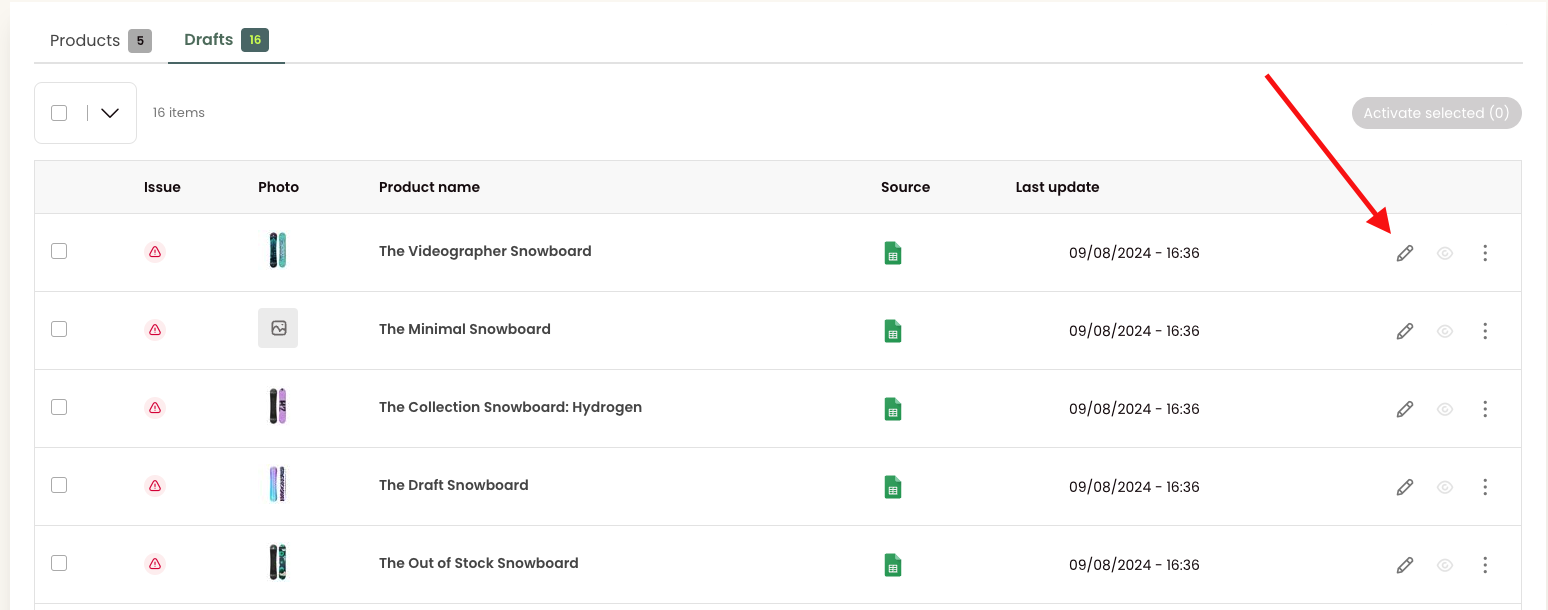
Click the pencil button to see the details of the missing information (e.g: missing product description and SKU).
You can also click the “Download” button and select the “Draft errors report – CSV”. You will get the list of drafts with the associated errors. You need to copy and paste the information of the CSV file to a Google Sheets/ Excel file.

Activate a draft
To activate a draft, you have to review and complete their data (in the Drafts tab) to ensure that all mandatory product attributes are correct & completed. Drafts ready to activate have a green sign in the “Issue” column.
After activating a draft, you will see a banner at the top of the screen. It remains blue while your draft is activating, and turns green to confirm the activation. Your draft is now an active product, and can be found under the Products tab.
Errors messages
If you encounter error, visit the article : 📄 Solve catalogue errors import or fix pending updates
Add or update products in bulk
Download your product’s catalogue (Xlxs. file)
Step-by-step, download your product’s catalogue
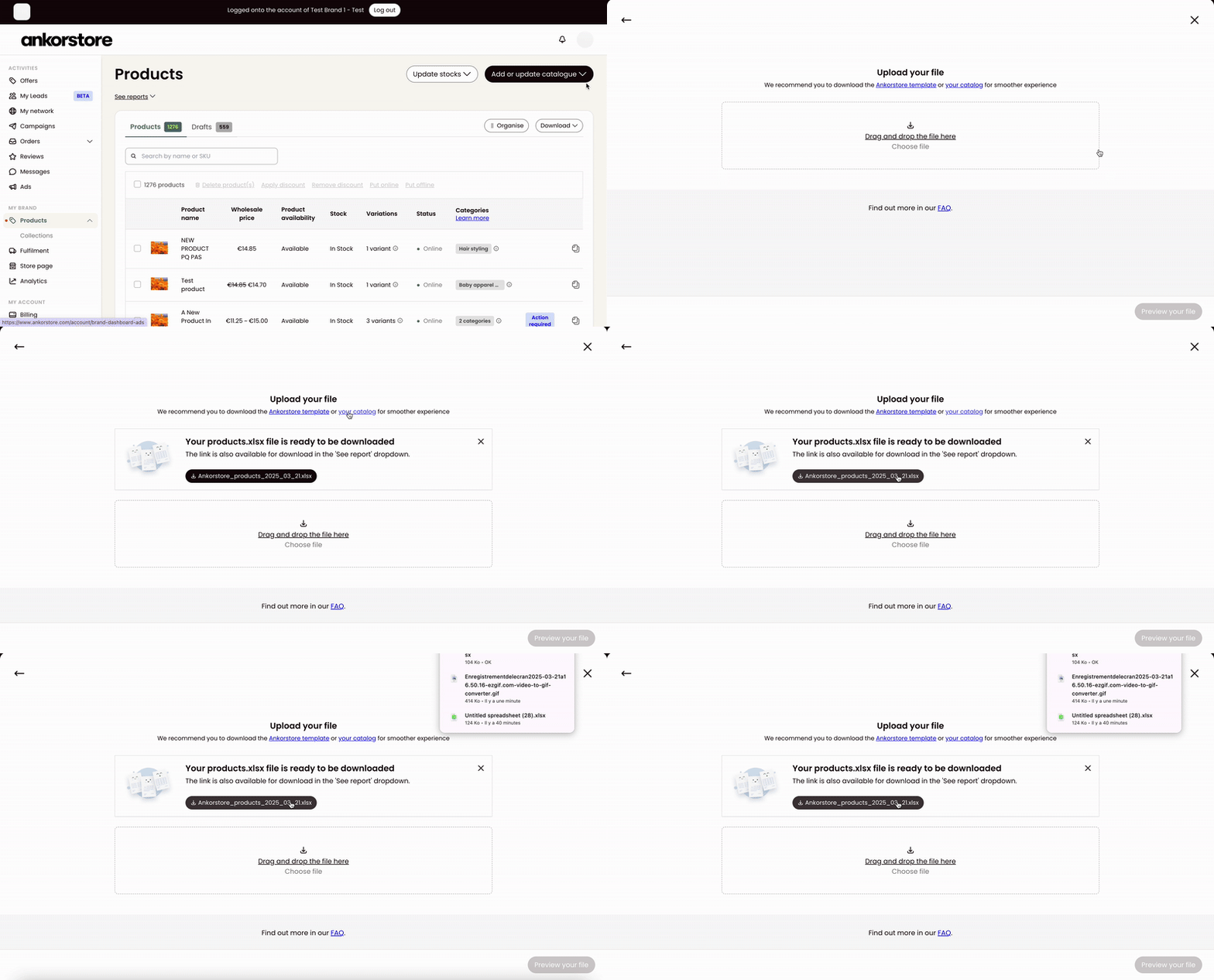
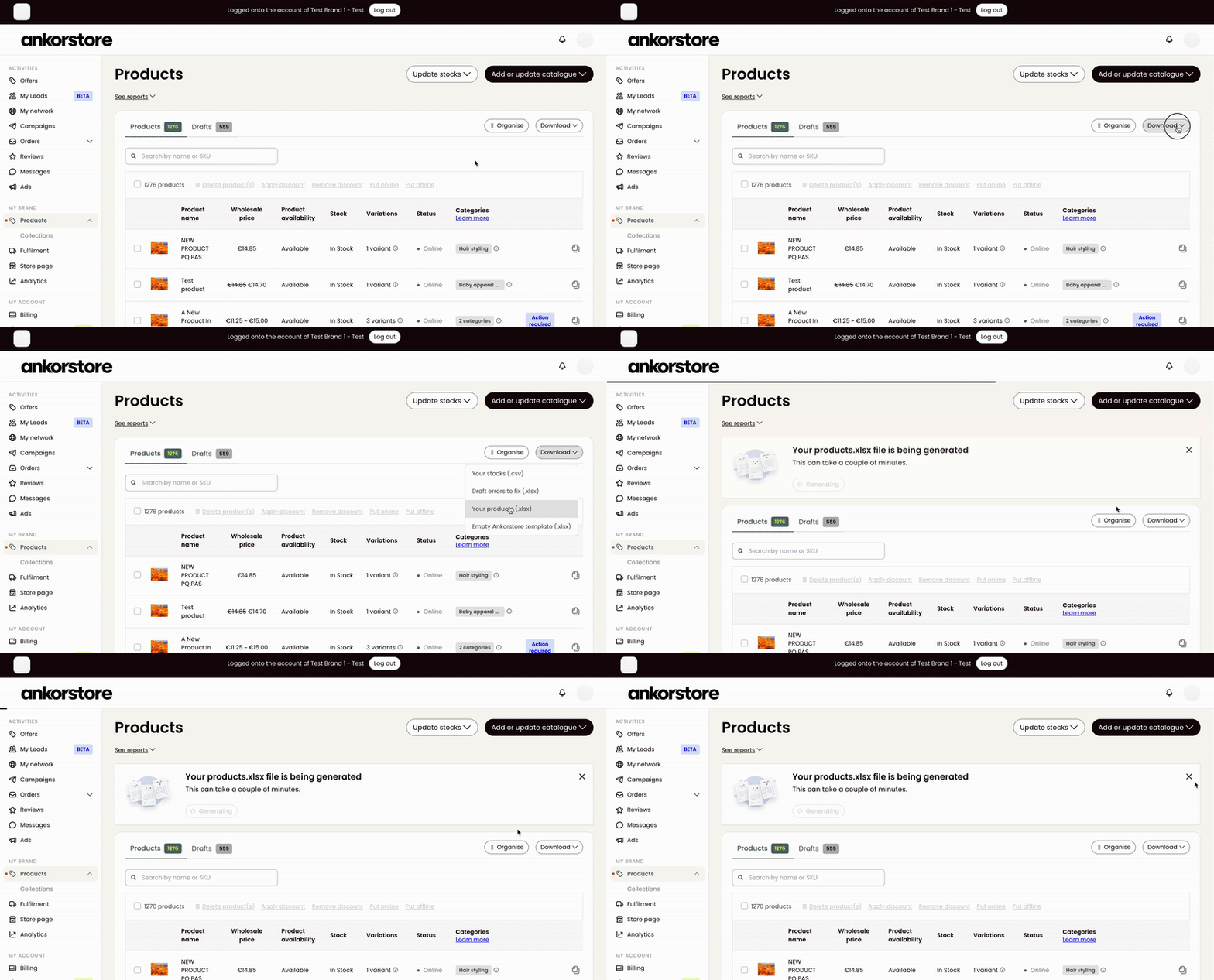
To download your catalogue, click on the “Download” button available on your Products and Drafts page and then click “Your products (Xlsx.)”. This will download all your products, whether they are live or offline.
After selecting the download option, a banner will confirm that your file is being prepared. It will be ready in a few minutes for download.
The catalogue is available as an XL file, it’s an editable file that allows you to make updates of your products with ease.
After editing your file, return to the platform and use the “Import updated catalogue” option to upload the updated catalogue.
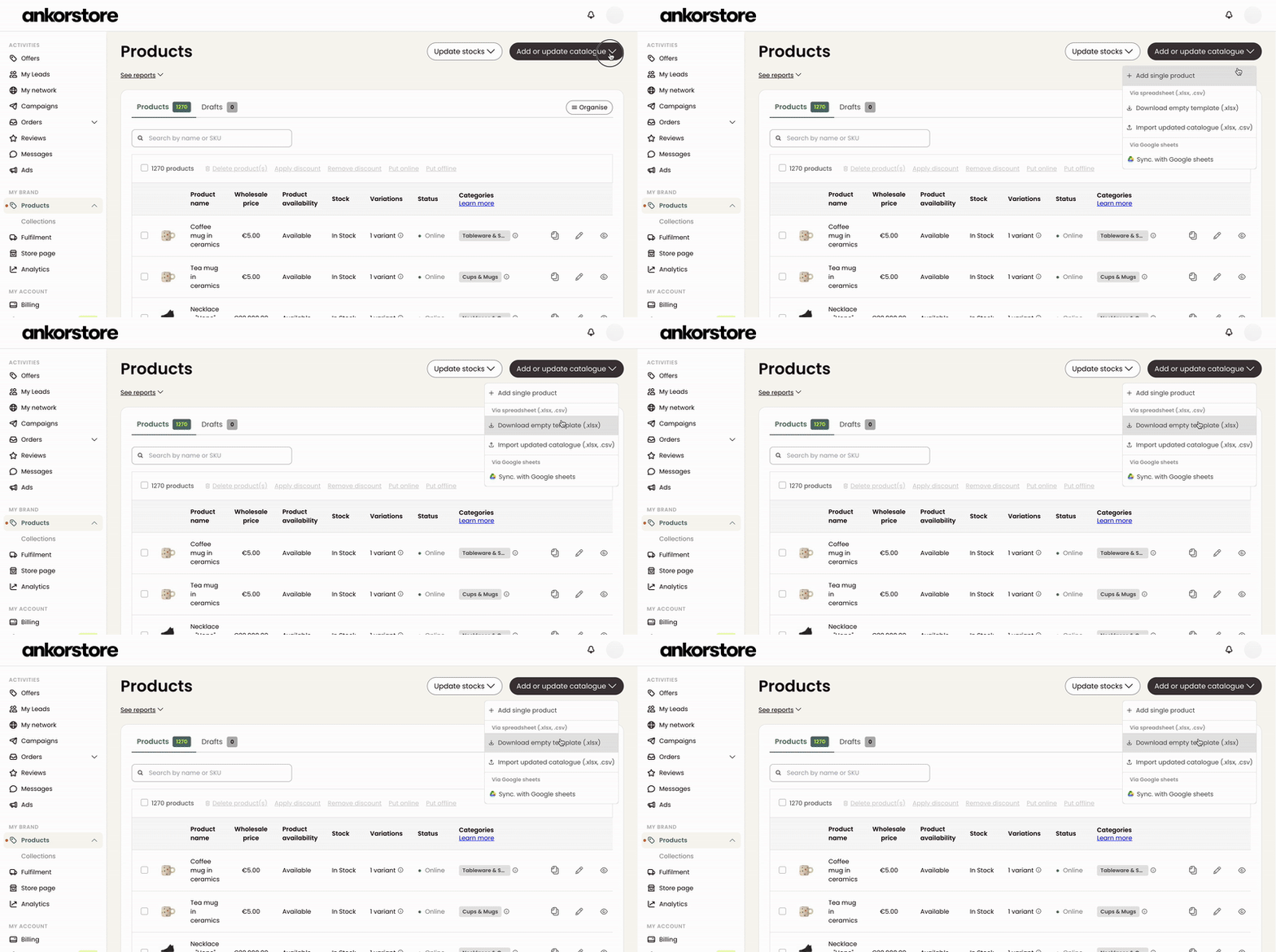
You can also download the empty Ankorstore template directly from the Products page. Click 'Add or update catalogue,' then 'Download empty template.' The template will download to your computer in a few seconds.
Upload a CSV/XLS file - Use your own or stock file
Eligible file
Get started using your own XLSX or CSV file to update your catalogue fully or partially easily
If you have an up-to-date product catalog on an e-commerce platform like Shopify or WooCommerce, you can easily import it to Ankorstore by selecting the "Add or Update Catalogue" option.
Your own XLSX / CSV file
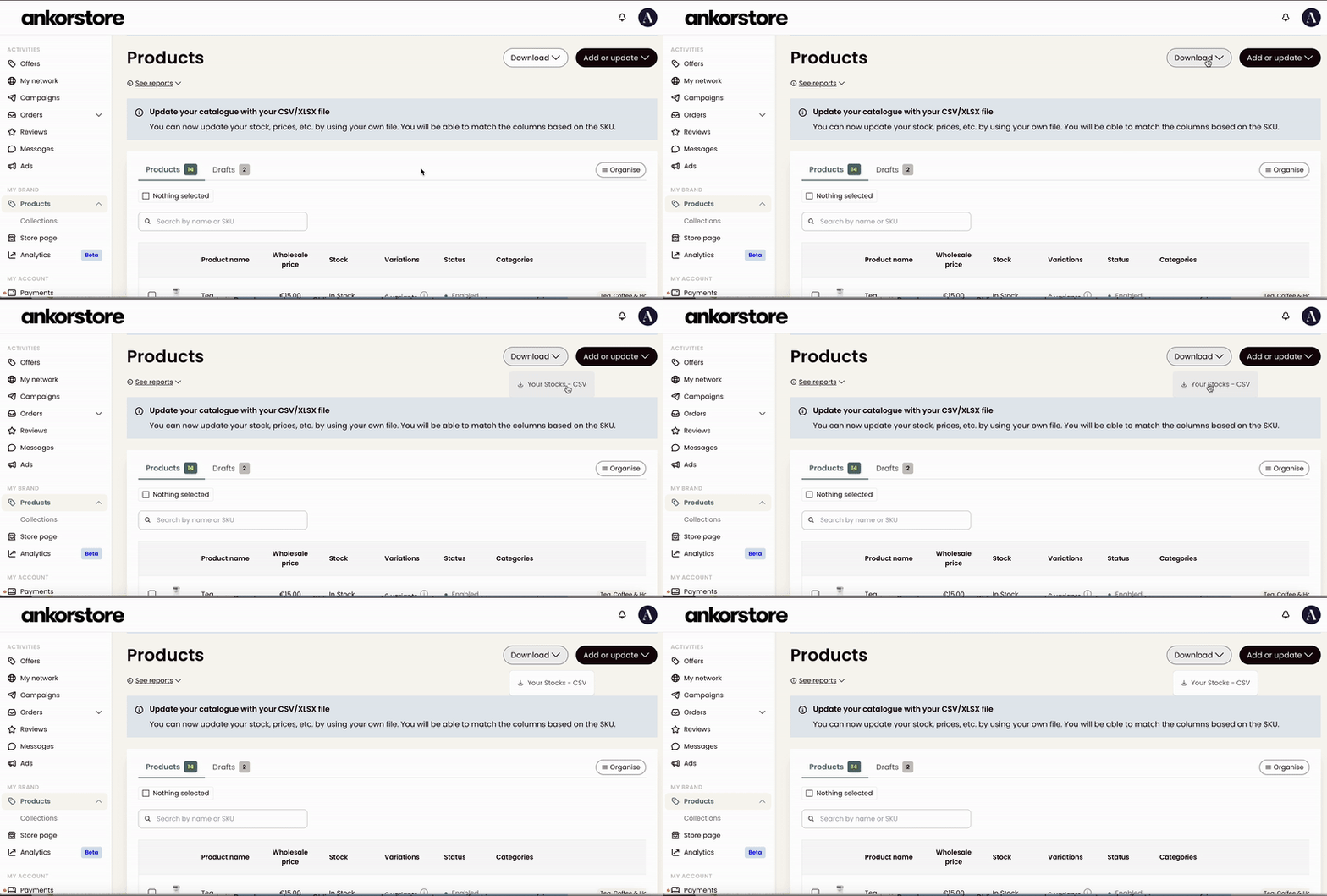
Download your stocks
File formatting
You don't have to submit all the information about your products when updating your catalogue (all product attributes must not be in the file you’re importing).
Products without variations:
Provide SKU of the products and the attributes you want to update.
Products with variations:
Provide the SKU and the name of the products and the attributes you want to update.
Just make sure the first row of your spreadsheet contains column headers (ex. “SKU”, “Description”, “Stock”…). Headers do not need to respect any specific formatting as you will be asked to match your columns to our data during a next step of the process.
CSV: the field separator must be a comma and newlines to separate records. Include a URL and create a separate column for variant images.
XLSX: To add multiple images for a product, you can create as many columns in your file as the number of images you want to upload, up to a maximum of 10 columns. Please note that for products with multiple variants, the images attached to the root product will be taken from the first line of the product. If you prefer to add variant images separately, create a separate column for each variant image. You can add one image per variant. Refer to the example below.
Step-by-step explanations
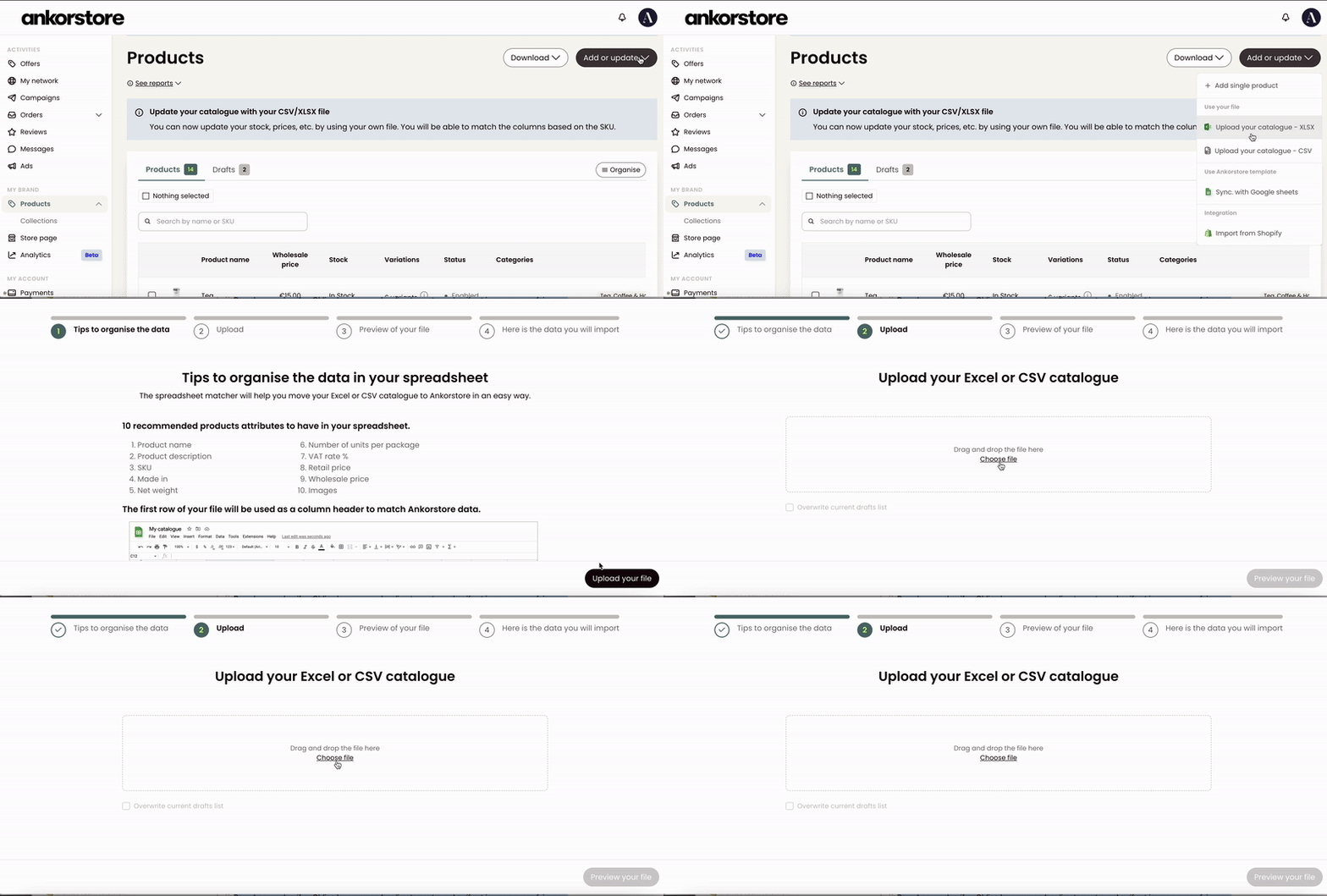
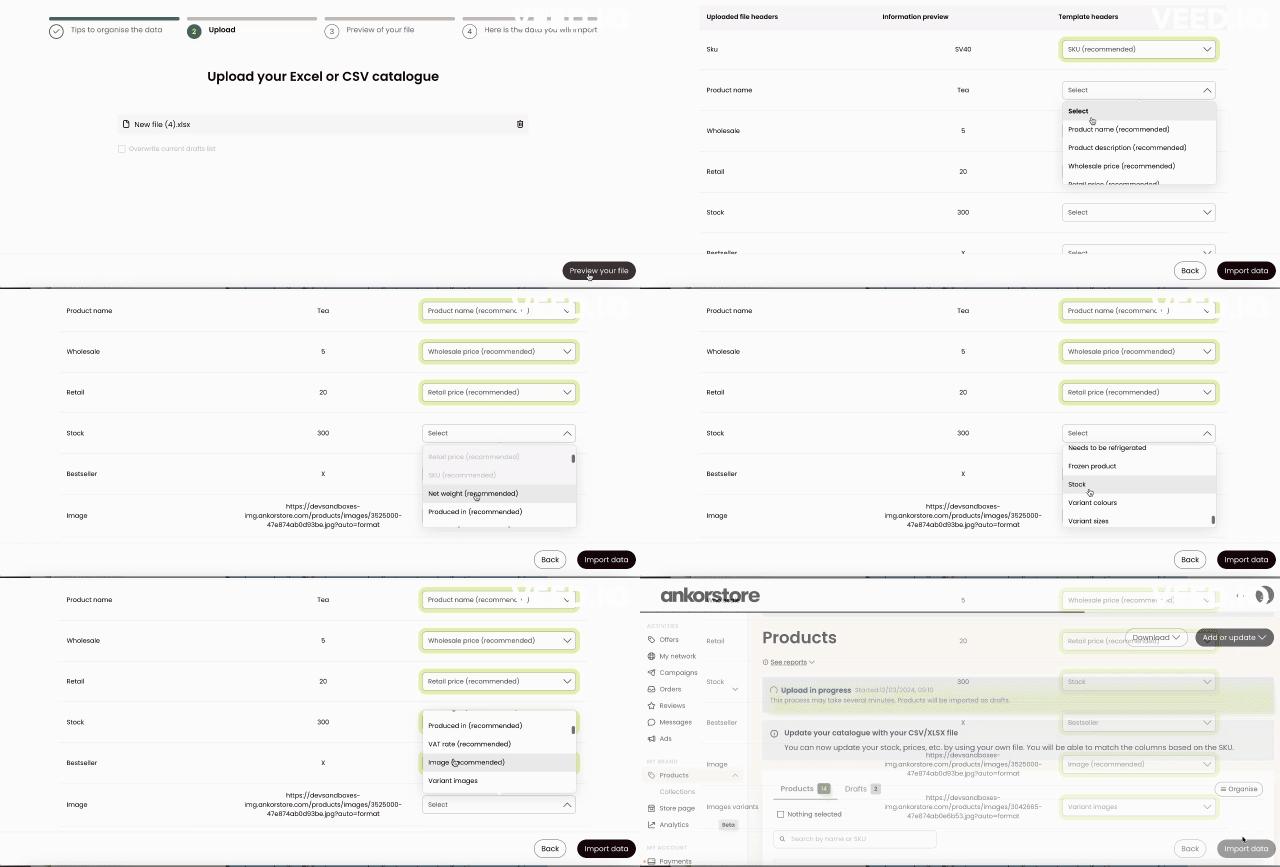
Step 1: Click ”Add or update catalogue” and click “Import updated catalogue”
Step 2: Upload your file
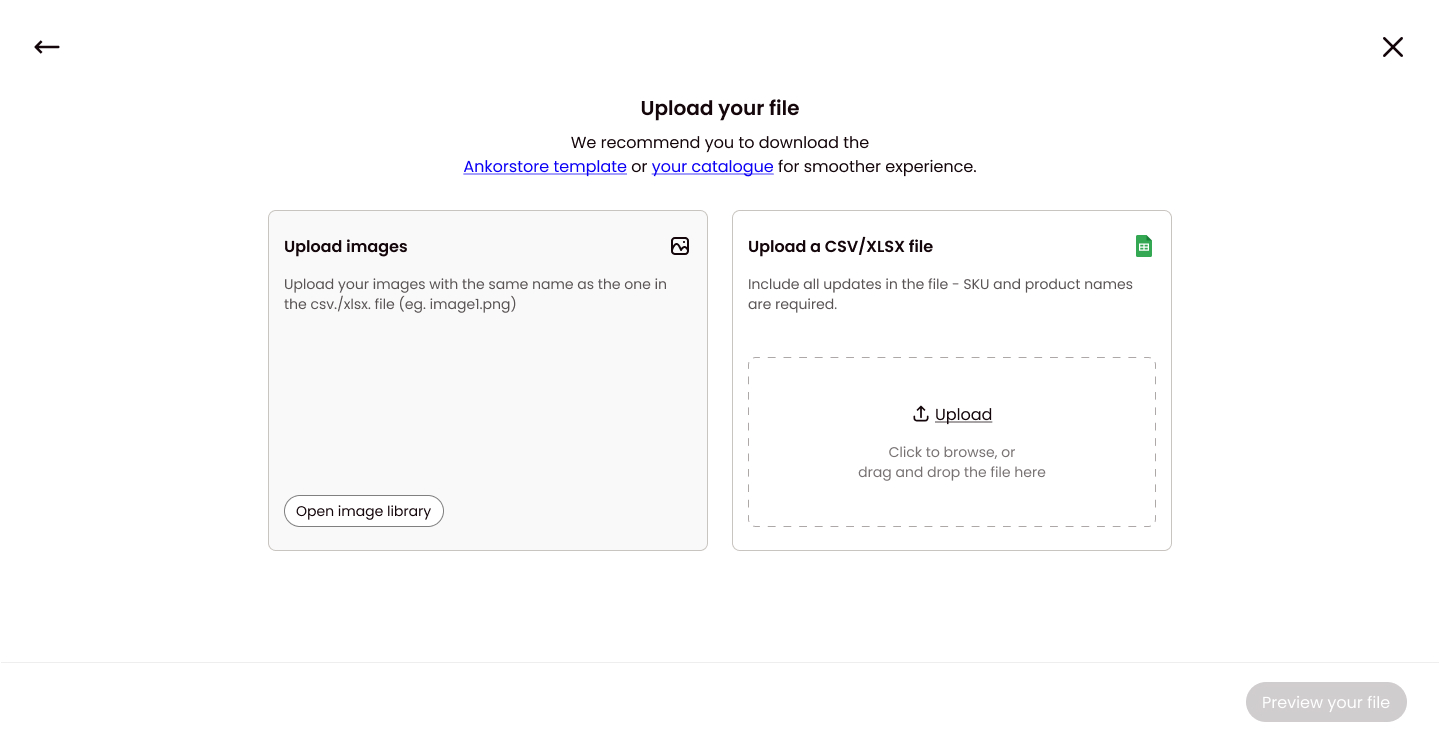
Click “Upload” to select a file from your computer or drag and drop.
Open the image library to add your photos from your computer or drag and drop.
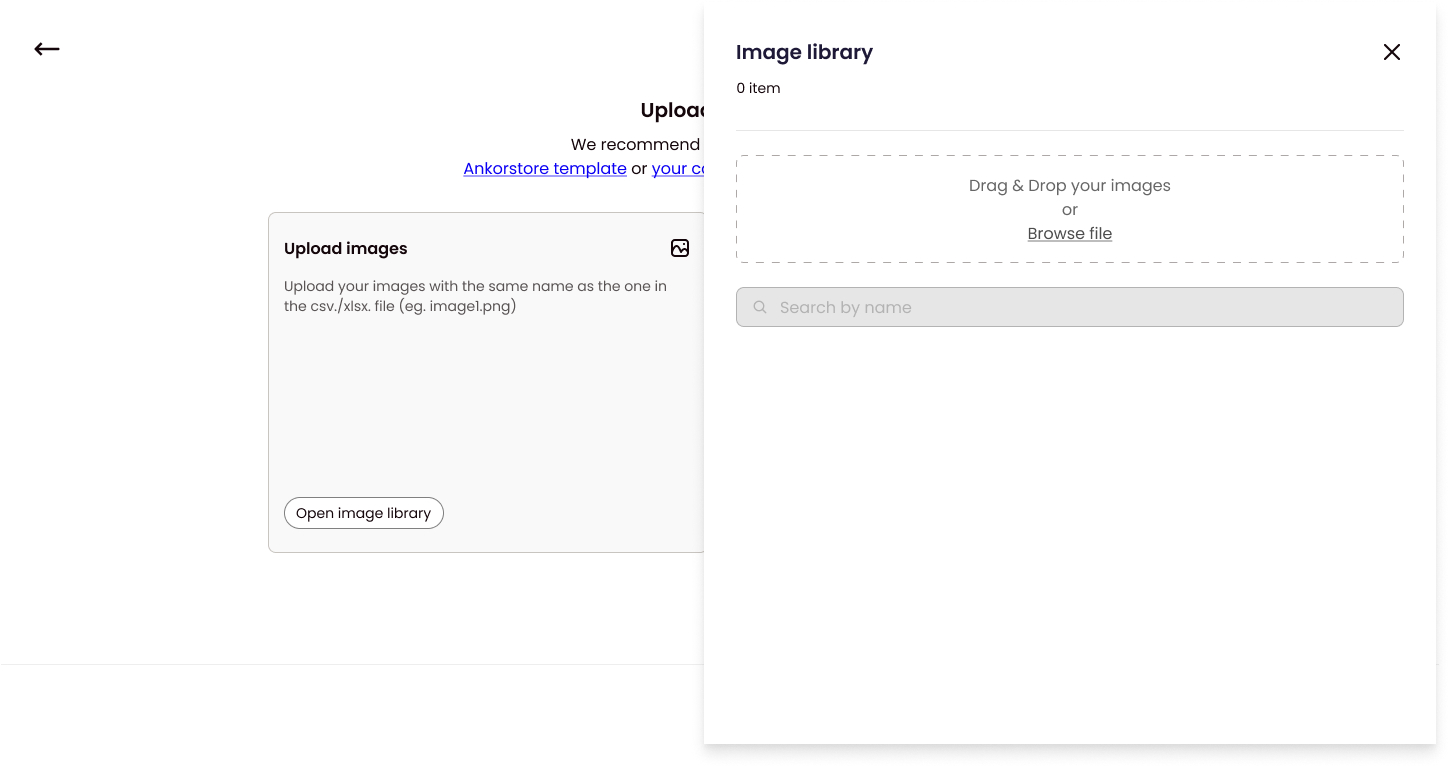
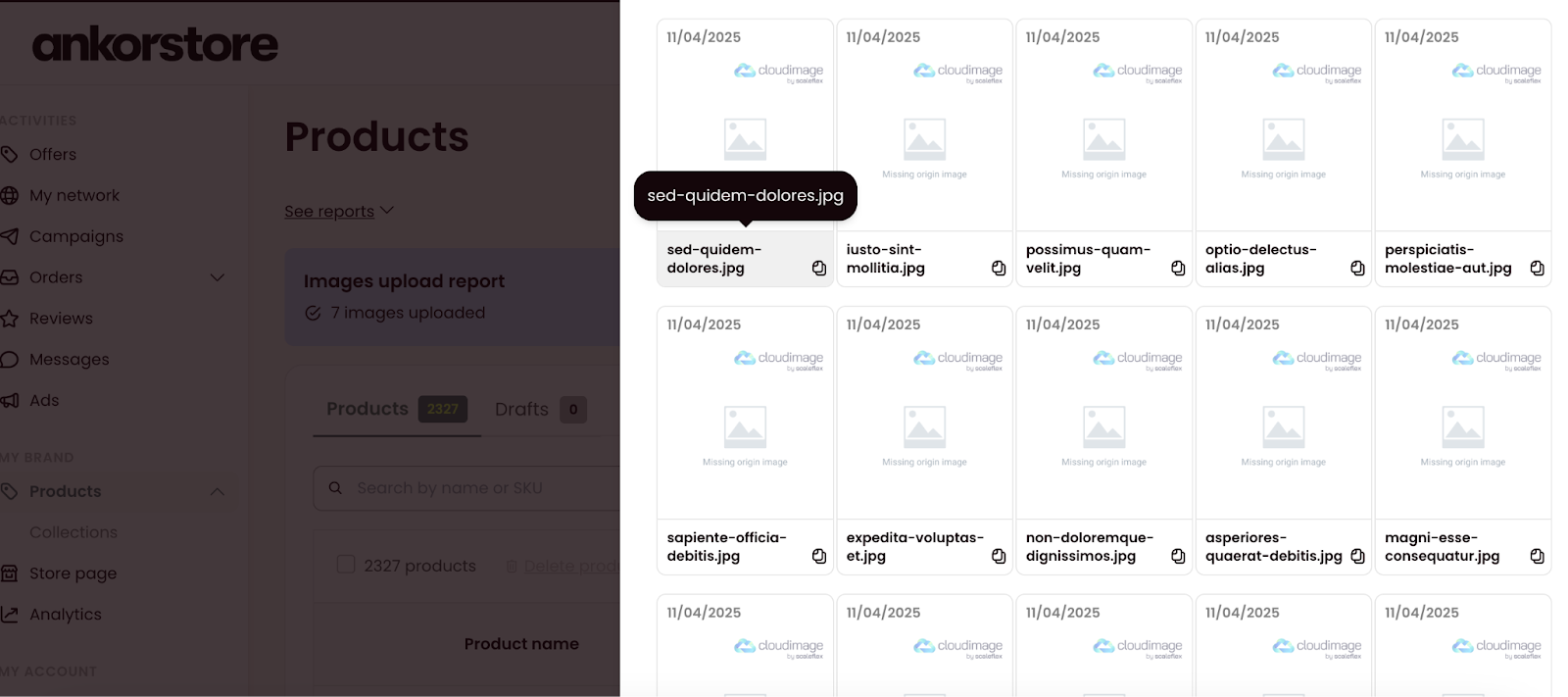
⚠ Image names should be the same in the Excel file and the image library
The image names in your Excel file and image library must match exactly so our system can
correctly connect each product with its corresponding image.
You can easily copy and paste the name from the image library by clicking on the image name.
Step 3: Preview your file
This will allow you to check the name of your file, the number of columns, and the products. If you need to choose a different file, click “Choose a different file” or use the back arrow.
If you are using your own file, make sure that the headers of your file are on the first row. Once you have confirmed everything is as expected, you can proceed by clicking “Match your data”.
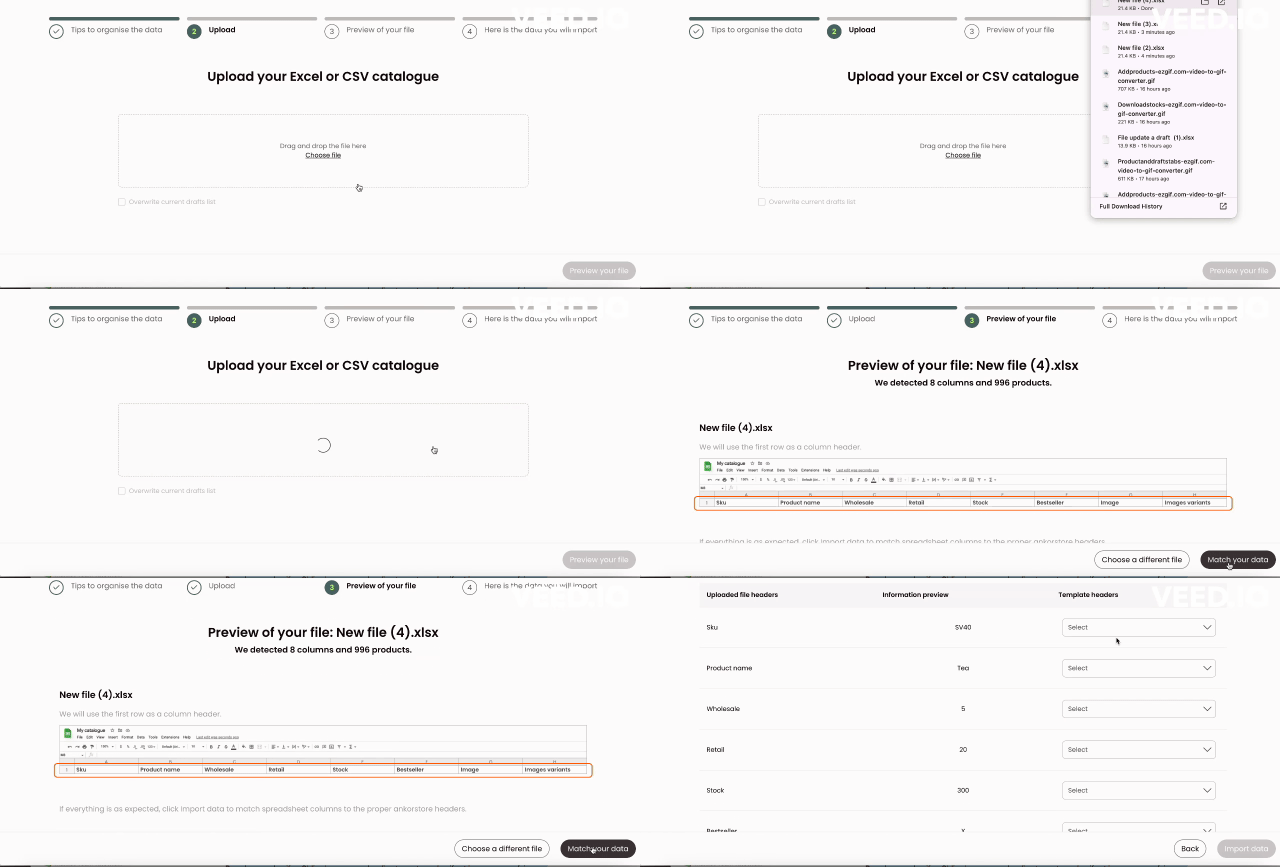
Step 4: Match your data
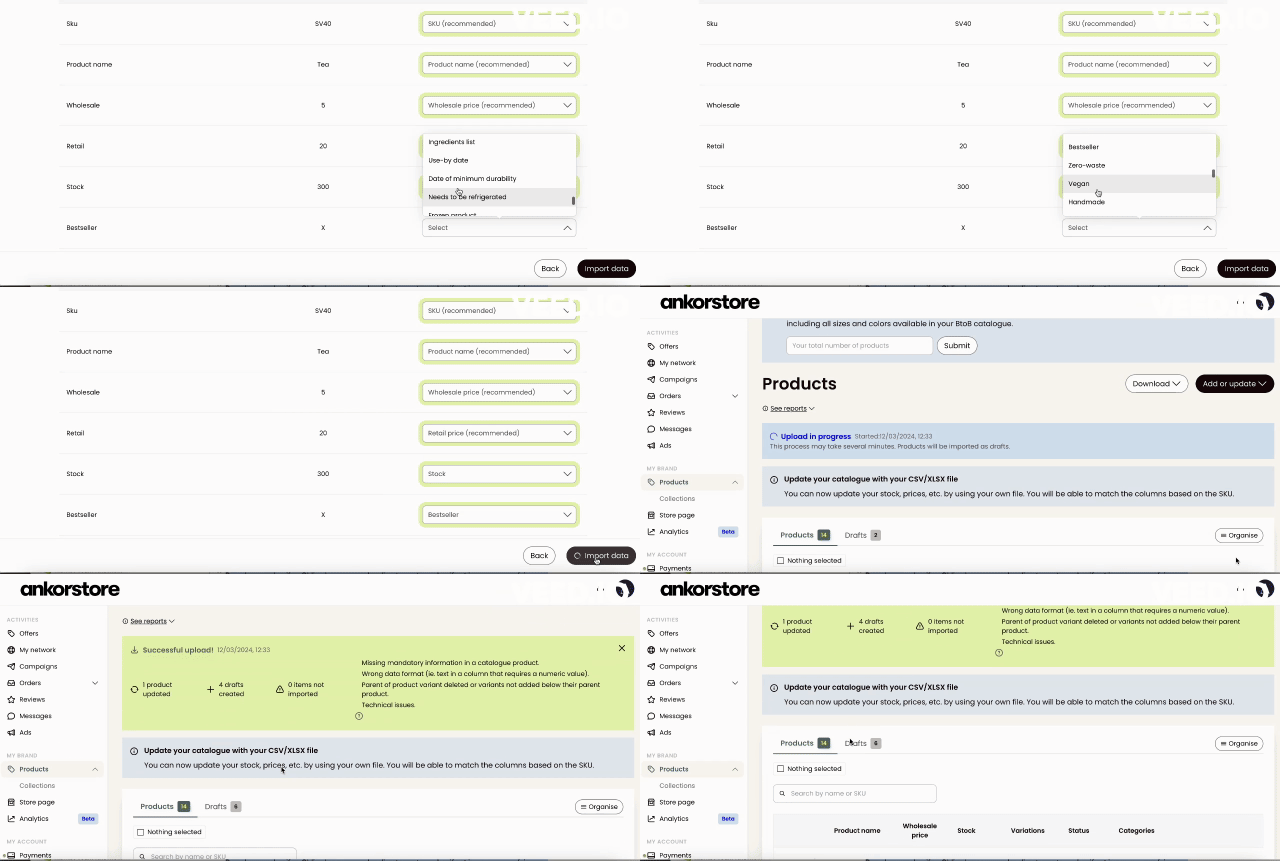
Select the Ankorstore header that matches the header in your file for each line. Refer to the attribute table above to better understand the meaning and format of a product attribute.
⚠ If you have variants:
Images of your variants: select “Variant Images”. “Images” is for the parent product.
Select “Variant colors”, “Variant sizes” or “Other variant attributes” for the other options of your variants
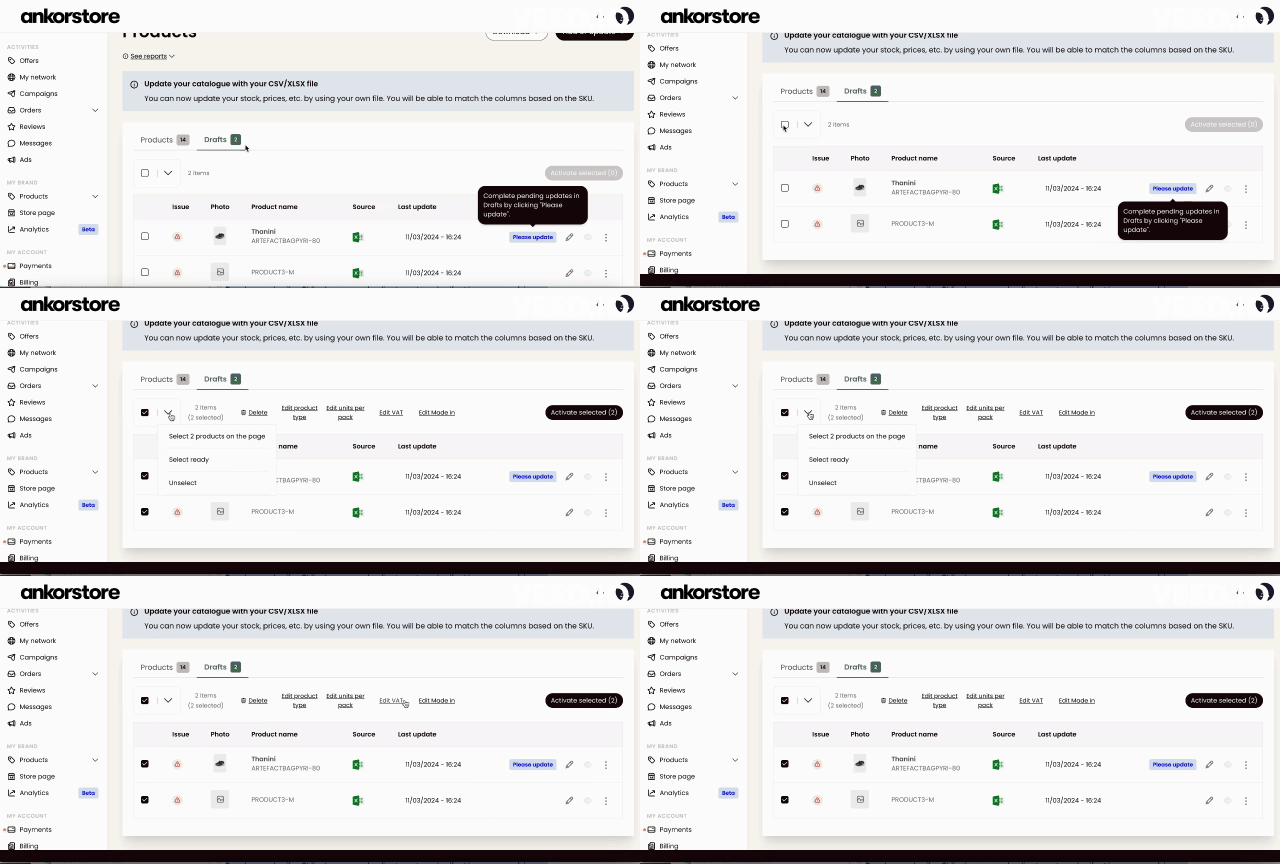
TIP: If there is some missing information in your file, you will be able to add it manually or in bulk afterward.
What happens when I click “Import”?
When adding new products (the SKU didn’t exist in your Ankorstore Catalogue):
✔If the imported information meets requirements, the products will be automatically activated (See recommended field ^). You’ll find this new SKU in the Products tab.
✖ If some recommended fields are missing or invalid, a draft will be created in the Drafts tab. Attributes with correct information will be imported in your draft. You can bulk-edit and bulk-activate those products - For more information on bulk editing, please refer to this article.
When updating existing products (we have recognized an existing SKU in your Ankorstore catalogue, and some attributes filled in your file).
Based on where the SKU was found, here is how the updates will proceed:
SKU exists in the Products tab:
✔If the imported information meets requirements, the product will be automatically updated.
✖ If the imported information does not meet the requirements, the updates will be pending in the drafts tab.
SKU exists in the Drafts tab:
✔Existing draft will be overwritten with new information provided.
✔If the draft meets the activation requirements (all required product attributes filled), it will be automatically activated.
SKU exists in the Products tab, and have a linked draft in the Draft tab:
✔ If the imported information meets the requirements, the products will be updated, and the draft will be deleted.
✖If the imported information does not meet the requirements, the existing drafts will be overwritten with the new information.
This process can take a moment. You will see a blue banner indicating that an update is in progress.
When processed, you will see a green banner with the confirmation of the Successful update.
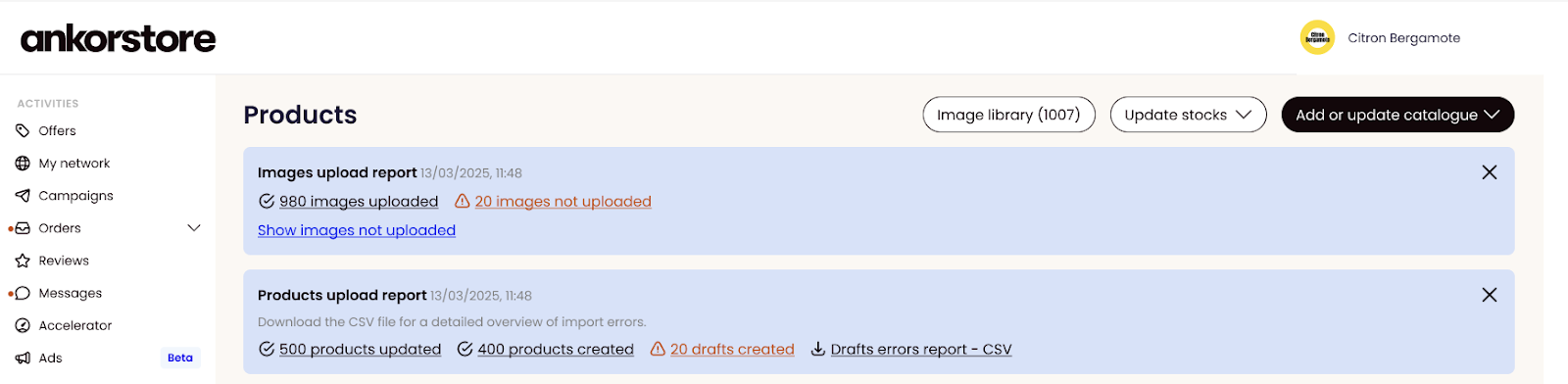
Products upload report - definitions:
Products updated: live SKUs were updated and new products have been created
Drafts created: SKU was saved as a draft (due to incomplete or invalid information)
Items not imported: SKU was missing or other technical issues.
Images upload report - definitions:
Successfully uploaded: Images that are now available in your image library
Not uploaded: Click "Show images not uploaded" to see which images failed (We advise you to check the size or format (JPEG and PNG only).
Connect your Shopify - Import your catalogue from Shopify
If you have your Shopify integration already installed, you can synchronise your catalog and product information.
To know more, please visit the following article: 📄 Ankorstore: Sell Wholesale App
Add or update a single product
Access your products
You can update or add your products directly in your back office through the “Products” tab.
You can see available options when clicking on “Update catalogue” or “Add products”
Update a single product
To update your product information manually, click on the pencil sign.
You will access the product form where you can edit your product details, for example “title”, “description”, “prices” etc.
Add a single product
To add a product individually, please click on “+ Add single product”. You need to provide all the mandatory information and at least 1 image to save the product.
Please note that a manually created product appears directly in the ” Products” tab (no draft is created).