Stock management
Last updated: September 18, 2026
You can update the stock of your products directly in your Personal Space - tab Products.

Why is it important to regularly update your stock?
To increase your sales - you don't want to miss out on sales due to outdated stock levels.
To improve the overall experience of your customers - retailers don't like shopping in a store where half of the products are out of stock.
To build your brand image - keeping your stock levels up to date helps build your company's reputation.
To save time - when you add your current stock in Ankorstore, you can easily see which items are running low.
How to update my stock on Ankorstore?
Individually in the product form - one by one
Download your current stock (CSV)
Download Ankorstore template (XLSX) or with your XLSX file - recommended
Automatically with an API - Shopify
Stock calculation and its indicators
Updating stocks from the product form - one by one
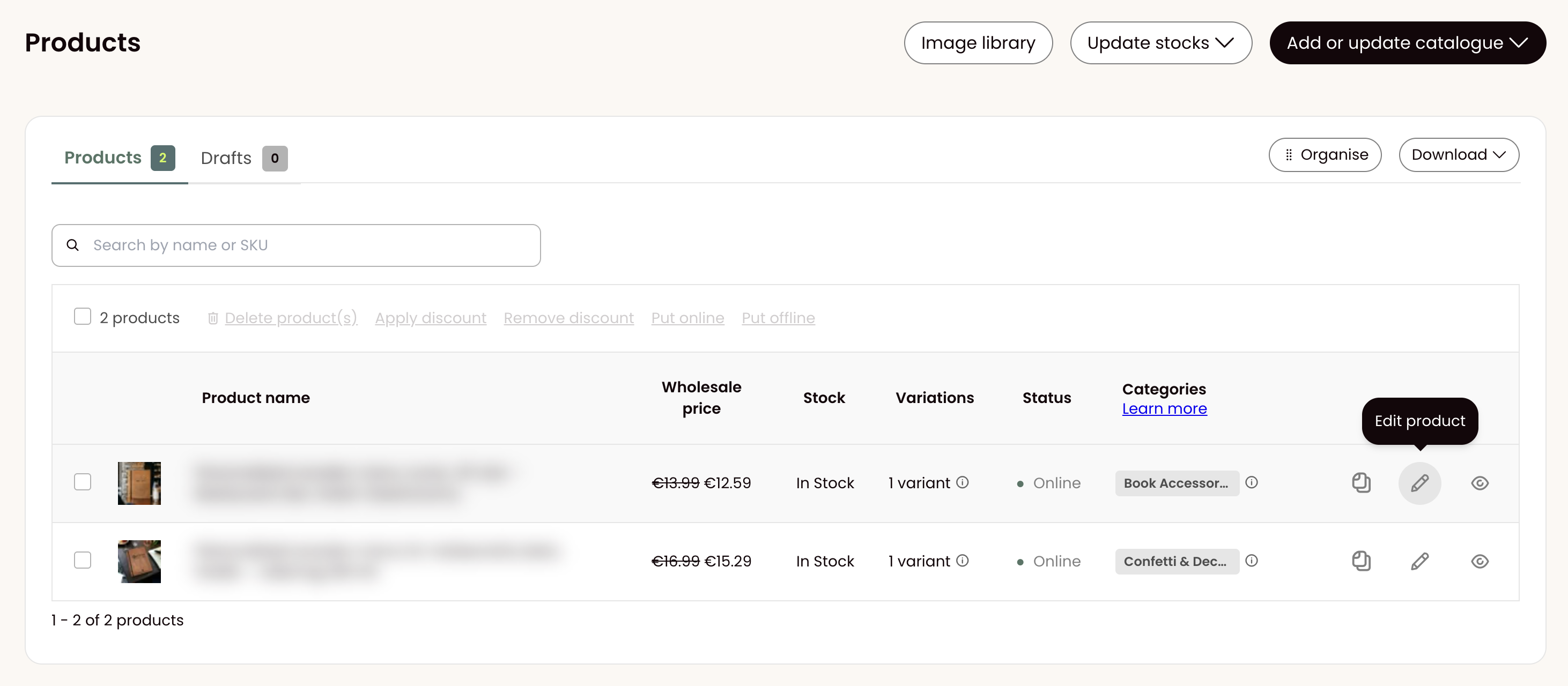
First, open the product form by clicking the pencil sign:
Secondly, scroll down to the Product Variants section:
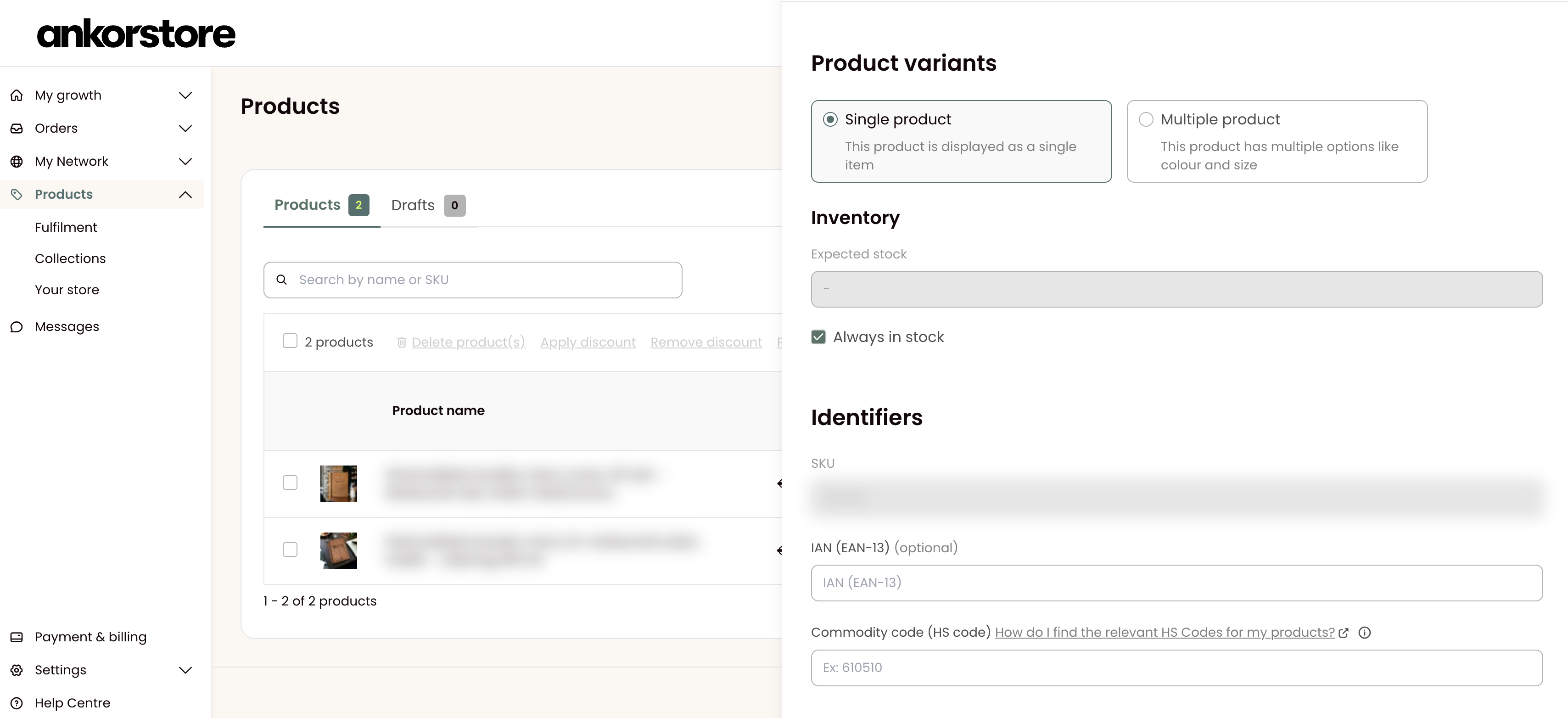
If your item is a single product (your product has no variations) insert the stock quantity in the Inventory field in the Identifiers section.
Alternatively, you can also select that your product is Always in stock.
If your item is a multiple product, insert the stock quantity in the Stock field in the Variations section.
Alternatively, you can also select that your product variation is Always in stock.
Download your current stock (CSV)
You may choose to download the file "Download stocks - CSV", but it's optional. Simply provide us with a CSV or XLSX file with the SKU and the name of the products and the stocks to be updated, and we'll take care of the rest for you.
If you choose to download stocks, you will receive a file containing a list of your current SKUs (column A) and their current stock levels (column B). Open the file and adjust the stock quantities in the dedicated column B.
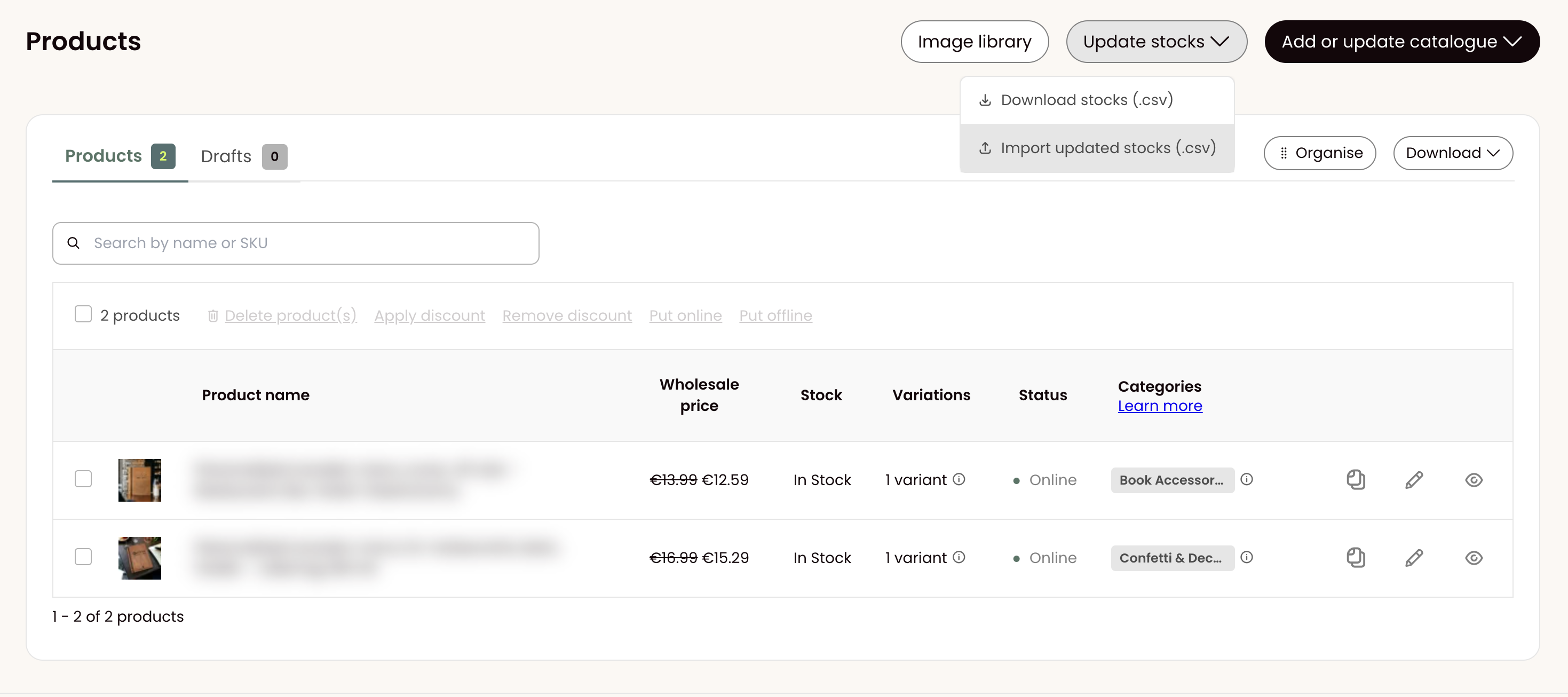
Once done, save the file again as a CSV or XLSX and re-upload it in the section "Upload with a CSV file".
Download Ankorstore template (XLSX) or with your file XLSX - recommended
Please note that this is the most recommended option for updating a large number of products at once.
Step 1: You can choose "Download your products - xlsx" or "Download the empty model .xlsx.", but it is optional. Simply provide us with an XLSX file with the SKU and the name of the products and the stocks to be updated, and we'll take care of the rest for you.
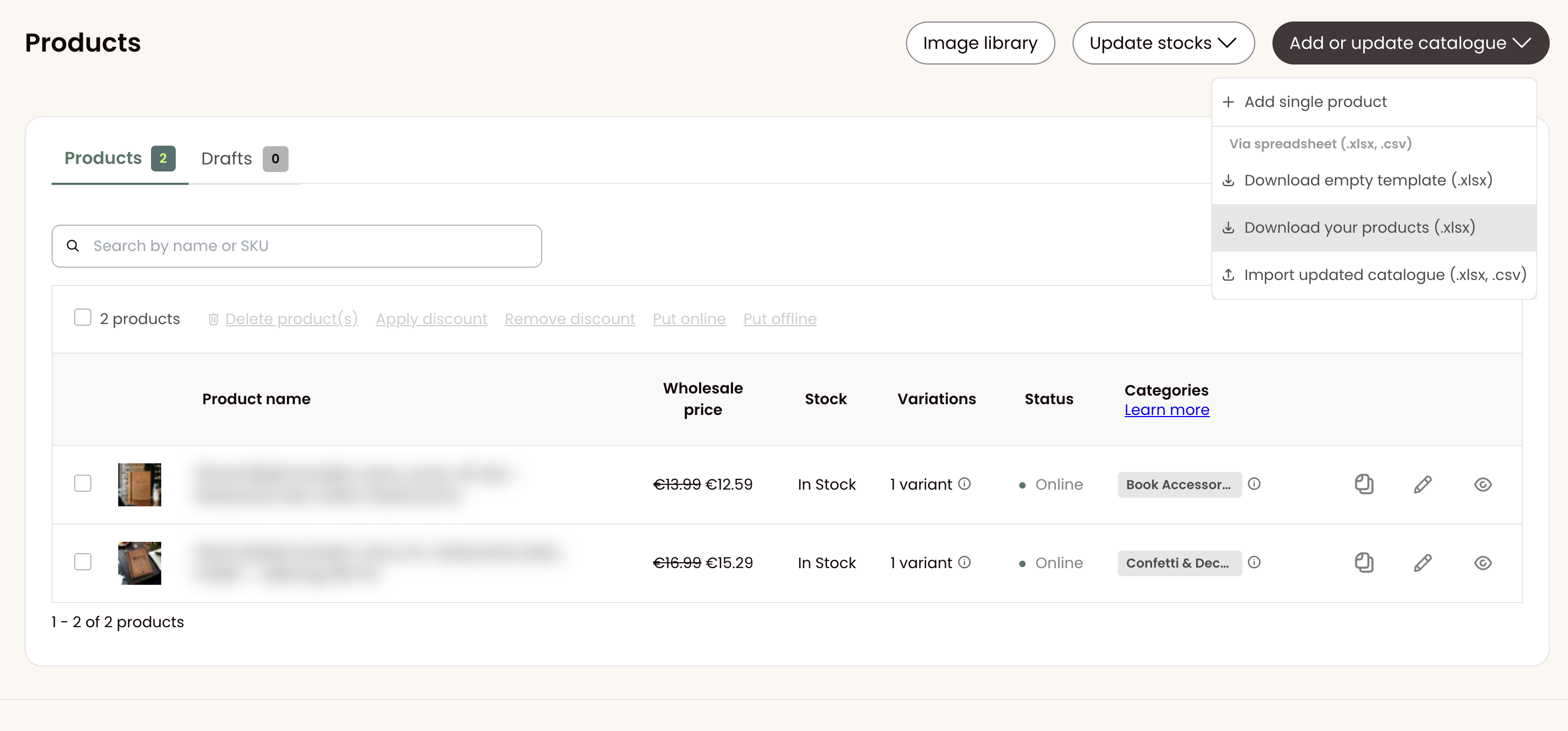
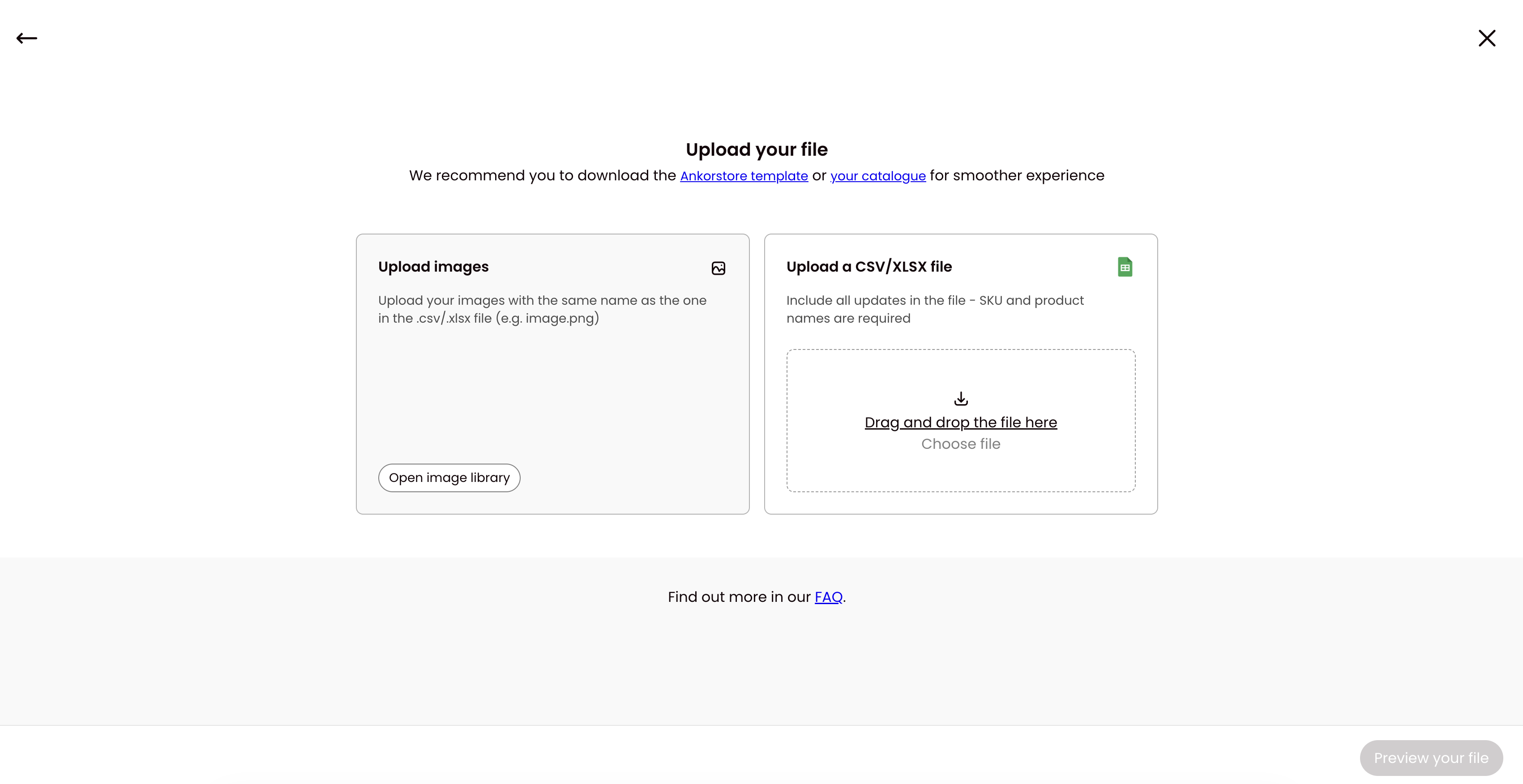
Step 2: Click "Import updated catalog", then "Choose a file" to select a file from your computer or drag and drop.
You don't have to submit all the information about your products when updating your catalog stocks. Products without variations: Provide the SKU of the products and the attributes you want to update. Products with variations: Provide the SKU, name of the products, and the attributes you want to update.
Just make sure that the first line of your spreadsheet contains column headers (e.g. "SKU", "Description", "Stock"...). The headers don't need to follow a specific format as you will be prompted to match your columns to our data in a later step of the process.
Step 3: Preview your file
This allows you to check your file name, the number of columns, and the products. If you need to choose a different file, click "Choose a different file" or use the back arrow.
To ensure the system recognizes your file, make sure the headers of your file are on the first line. Once you've confirmed everything is as expected, you can proceed by clicking "Match your data".
Step 4: Match your data
If you are using an Ankorstore template to update your stocks, the file information will be automatically assigned.
If you are using your file, select the Ankorstore header that corresponds to your file's header for each line.
TIP: If some information is missing from your file, you will be able to add them manually or in bulk later.
To proceed, click Import.
Please note that the update may take some time. Do not close the window during the process.
If no errors occur during the update, stock quantities will be successfully updated.
Tips: What to do when you receive the following error message?
The file does not contain any valid records - the file you are trying to upload is not in the correct CSV format. Please try saving it as a CSV* and uploading it again.
*Please make sure to choose comma as separator (not a semicolon)
Update my stock with an API
We offer an option to synchronize your stock levels using Ankorstore's API and Shopify integration.
For more information, please review the following articles: 📄 How the "Ankorstore: Sell Wholesale" works in Shopify
Share a stock file via a (S)FTP or HTTP(S) URL
This solution applies when you can provide us with a URL that allows us to view and download your stock. In concrete terms, this is a transfer protocol, such as (S)FTP or HTTP(S).
This involves providing us with a URL link that allows us to download a CSV file. Here is an example (be careful, clicking on it will download a CSV file) :
Several systems allow you to create this link easily. Here are some examples:
If you have a link to share with us or have questions about how to generate this link, please contact us at stock@ankorstore.com.
With this link, we will manually establish a correspondence between your fields and those of Ankorstore. Once this step is completed, your stocks will be automatically updated in our system on a daily or weekly basis (as you prefer).
Oxatis
Magento
CCVShop
Channable
Sage
Share a stock file via another URL
This solution can be used if your stock file is stored on a computer and a single file is used.
Attention, this is not the same as sharing your catalog with Google Sheets!
Here are the steps to follow:
Put your stock file on a shareable space: on a Google Drive, DropBox, or any solution that allows us to share a link
Share the file to the email address: stock@ankorstore.com
Send a notification: After sharing the file to the email address above, write to the email address stock@ankorstore.com. We will then assign the necessary settings to your stock file for automatic recurring updates.
By following these steps, you will ensure accurate and regular updating of your stocks, thus guaranteeing better customer satisfaction and increased operational efficiency. If you have any questions, please do not hesitate to contact us at stock@ankorstore.com.
How does stock calculation work and what do the indicators mean?
Stock quantities will be dynamically adjusted as retailers place orders. The deducted stock quantity will be adjusted when the order is placed (not yet confirmed or shipped by the brand) and when the order is confirmed or canceled.
You can view your stock quantities directly in your back office - tab Products.
Stock indicators are defined as follows:
Reserved: when a retailer places an order and until the brand ships the order, all items appear as reserved and marked in purple
Only X left: once a product's stock quantity reaches 5 or less, the available stock is displayed in orange
Out of stock: when a product's stock quantity reaches 0, it is displayed in red and marked as "out of stock"