Manage Your Order
Last updated: October 12, 2026
When you receive an order, choose the best option based on your stock availability:
Accept and ship it
Handle stock issues if necessary
Add free items or discounts (optional)
Accept the order
When: You have all items in stock
How: Review the order → Click "Accept the order" → Ship within your committed shipping time
After accepting but before shipping, you can still modify the order if necessary. For each modification you make, we'll send an email to the retailer to let them know. Changes you can make after accepting:
Remove and replace items, or add free items (read more)
Delay it
Reject it
When you can't fulfil as ordered
Can't fulfil the order as placed? Choose the best option for your situation:
Replace items and ship in time
Split the order, ship what you can in time
Delay the order
Remove items
Cancel the order, if none of the above are feasible
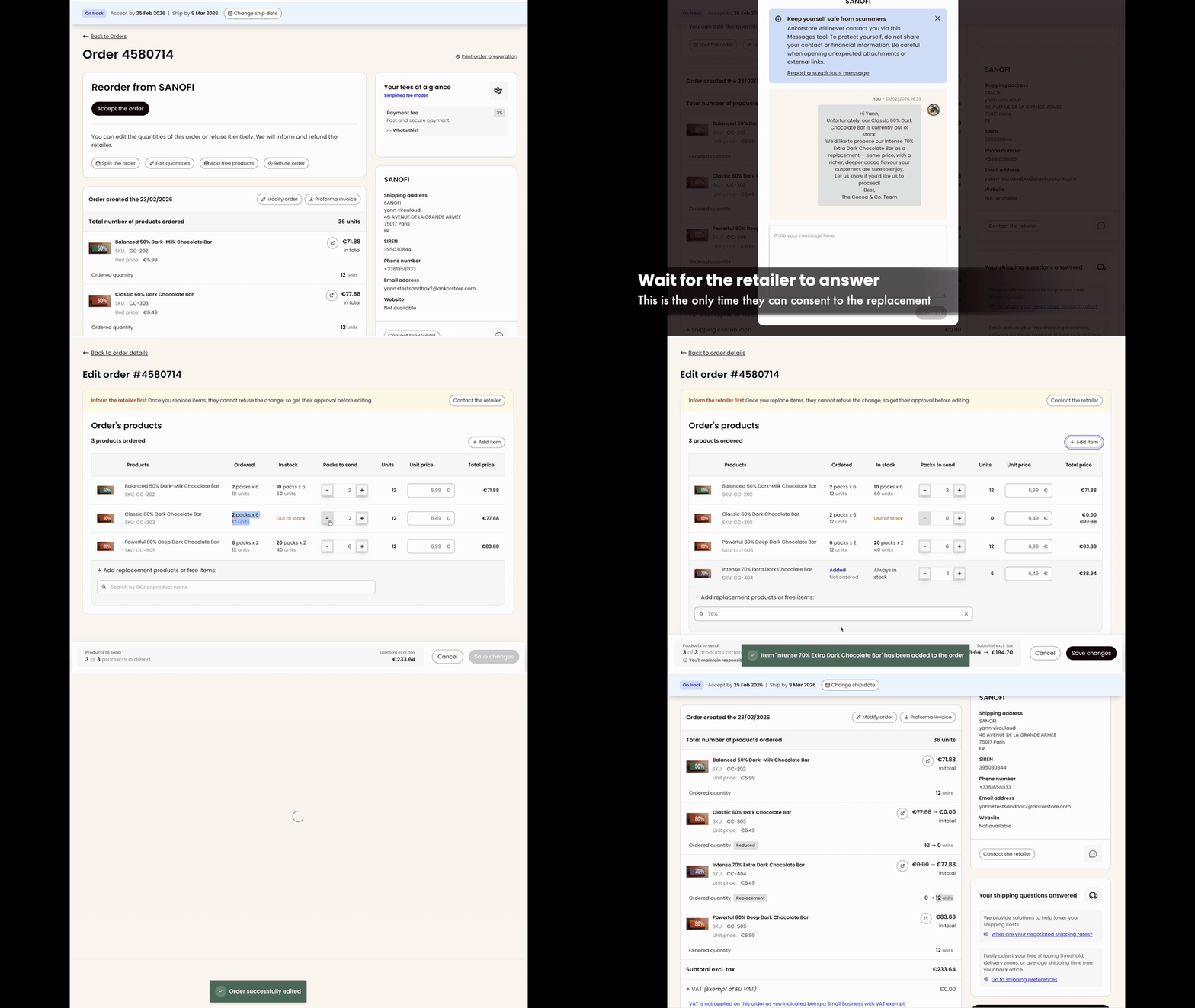
Replacing items
⚠ Important: Get retailer approval BEFORE making changes
This means you must contact the retailer and get their explicit approval before replacing any items in the system. Without prior approval, you risk disputes, negative reviews, and damage to your retailer relationships.
When to use: Items are out of stock and you have suitable alternatives that keep the total within the original order value.
How to replace items:
Step 1 - Contact the retailer first - Get approval via email, phone, or chat (this step is mandatory)
Step 2 - On the order details, click "Modify order" or "Edit quantities"
Step 3 - Remove unavailable items
Step 4 - Click "Add item" or use the search bar at the bottom of the items table ("Search by SKU or product name to add items")
Step 5 - Click on the product in the search results or click "Add for [price]". You can only add items that are in stock and not already in the order
Step 6 - Click "Save changes"
What happens: The retailer receives an email notification about your changes, but the modifications are final. They cannot refuse or modify them.
What if the retailer doesn't approve of my replacements?
If the retailer informed you they don't want any replacements, simply remove the missing items.
Split the Order
When to use: Part of the items are temporarily unavailable, but you know when they'll be back in stock. This option maintains full order value, but you'll cover shipping costs for the second shipment as well.
Detailed guide: 📄 How to split an order : managing orders with limited stock
Delay the Order
When to use: All items are available within the next 3 months, and you want to ship them all at once.
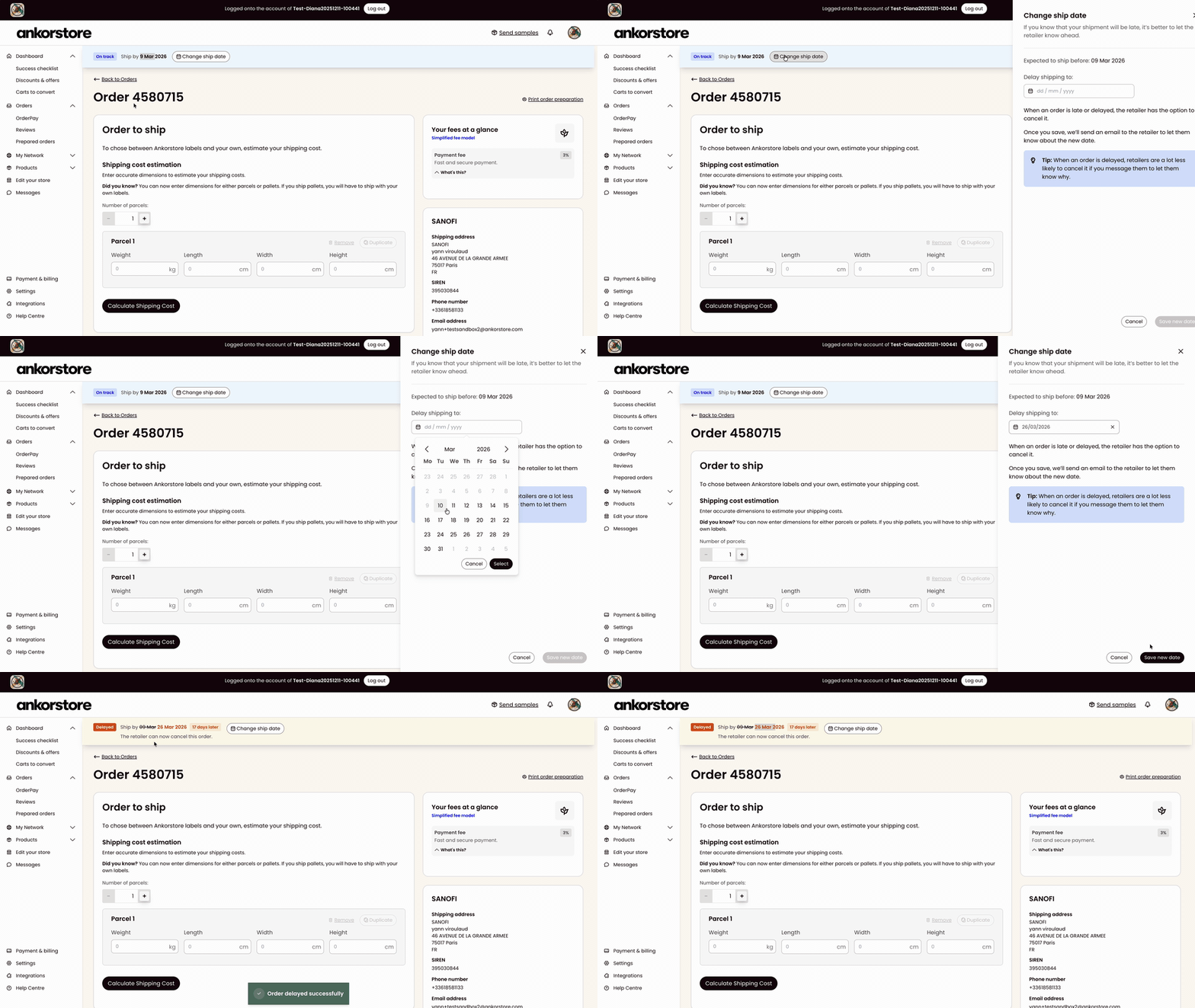
If you know your order will be shipped after your committed shipping date (shown at the top of your order), proactively notify the retailer by updating the ship date. This transparency helps maintain your brand performance and reduces the chance of cancellation.
How to delay an order:
Step 1- Find the delivery banner on top of the order details
Step 2 - Click "Change ship date"
Step 3 - In the "Delay shipping to" form, choose a new shipping date from the calendar selector. The new shipping date can only be within 3 months of the original
Step 4 - Click "Save new date"
What happens? The retailer receives an email about the delay. They can cancel, but most choose to wait. Proactively updating the ship date (rather than shipping late without notice) demonstrates good seller practice, which Ankorstore rewards with higher visibility in search and discovery.
What happens if I don't ship on time?
We track on-time shipping rates for all brands. Brands who consistently ship within their promised timeframes receive higher product ranking in retailer search and discovery. However, proactively delaying an order (rather than just shipping late) will not negatively affect your ranking.
Removing items
When to use: Some ordered items are not going to be available in the near future and you have no suitable replacements, or the retailer rejected your proposed replacements.
How to remove items:
Step 1 - On the order details, click "Modify order" or "Edit quantities"
Step 2 - Remove unavailable items
Step 3 - Click "Save changes"
What happens? The retailer receives an email notification about your changes.
💡Tip: You can now edit by individual units, even for products sold by pack. If you're understocked (e.g., 48 units ordered but you only have 30), simply type "30" directly in the 'Units to send' field.
Cancel the order
When to use: Over 90% of ordered items are not available, and shipping the available ones doesn't make financial sense, or some other reason.
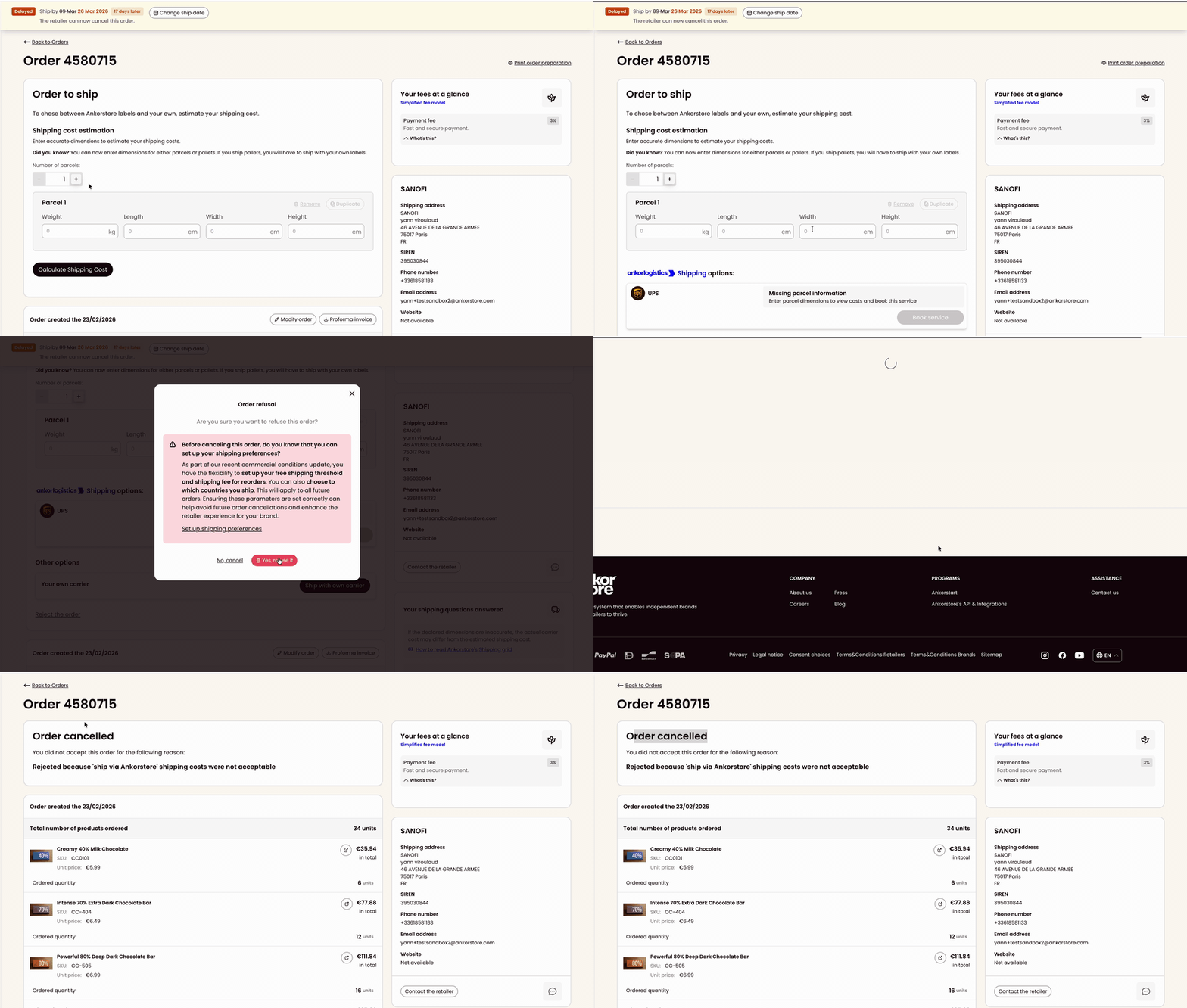
How to cancel an order:
Before accepting it:
Step 1 - Click "Refuse order"
Step 2 - Select a reason — we'll inform the retailer
After accepting:
Step 1 - Click "Calculate Shipping Cost" (even if parcel details are empty)
Step 2 - Scroll down to "Other options"
Step 3 - Click "Reject the order" (below "Your own carrier")
What happens? The retailer receives an email notification about the cancellation and its reason.
Add free items or discounts
Add Free Items
Include samples or gifts to delight retailers.
Step 1 - On the order details, click "Add free products" or "Edit quantities" or "Modify order" (above the items list)
Step 2 - Click "Add item" or directly search products at the bottom of the table of items
Step 3 - Click "Add for free" on the item you want to add, or add any item and modify the unit price to €0.00
Step 4 - When you're done adding free items, click "Save changes"
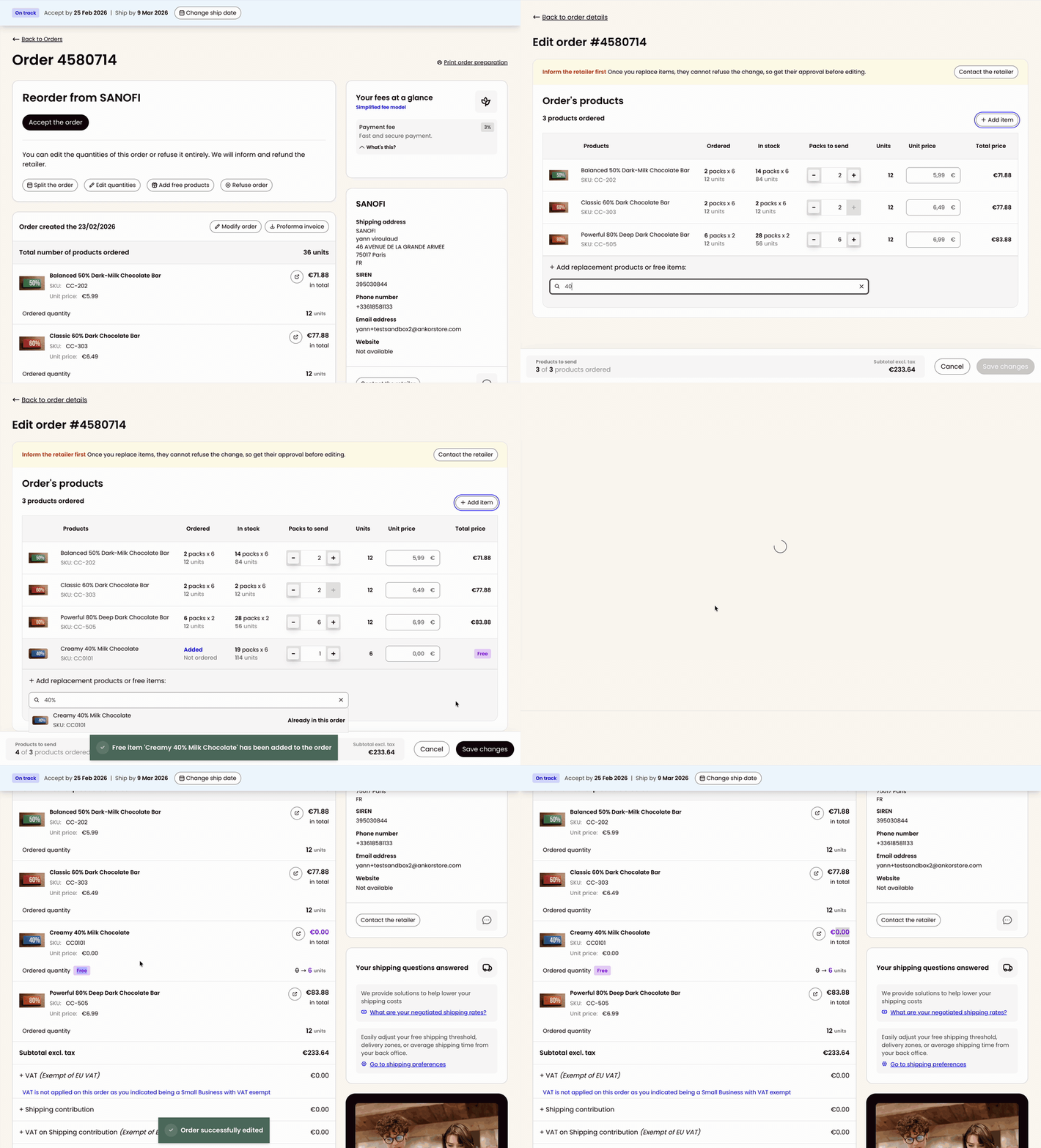
💡Tip: You can add individual units as free samples, even for products sold by pack. For example, to send just 1 unit of a 24-pack as a sample, type "1" directly in the 'Units to send' field.
Discount Items
Offer special pricing on specific products already ordered.
Step 1 - On the order details, click "Edit quantities" or "Modify order" (above the items list)
Step 2 - In the table, adjust the unit price
Step 3 - When you're done, click "Save changes"
⚠ The unit price can only be lower than the price at which the retailer already decided to buy it.
How to create "Buy X, Get Y" promotions
If you want to offer volume-based promotions (like "Buy 5, Get 6"), use this method:
On the order details, click "Edit quantities" or "Modify order"
Increase the Units to the total number you're sending (including the free items)
Decrease the Unit price proportionally to keep the order total the same
When you're done, click "Save changes"
Example: Product A was originally ordered at 4 units × €2.00 = €8.00 total
To offer a "Buy 4, Get 5" promotion:
Change quantity to 5 units
Adjust unit price to €1.60 (€8.00 ÷ 5)
Total remains €8.00
This technique maintains the original order value while rewarding the retailer with extra units.
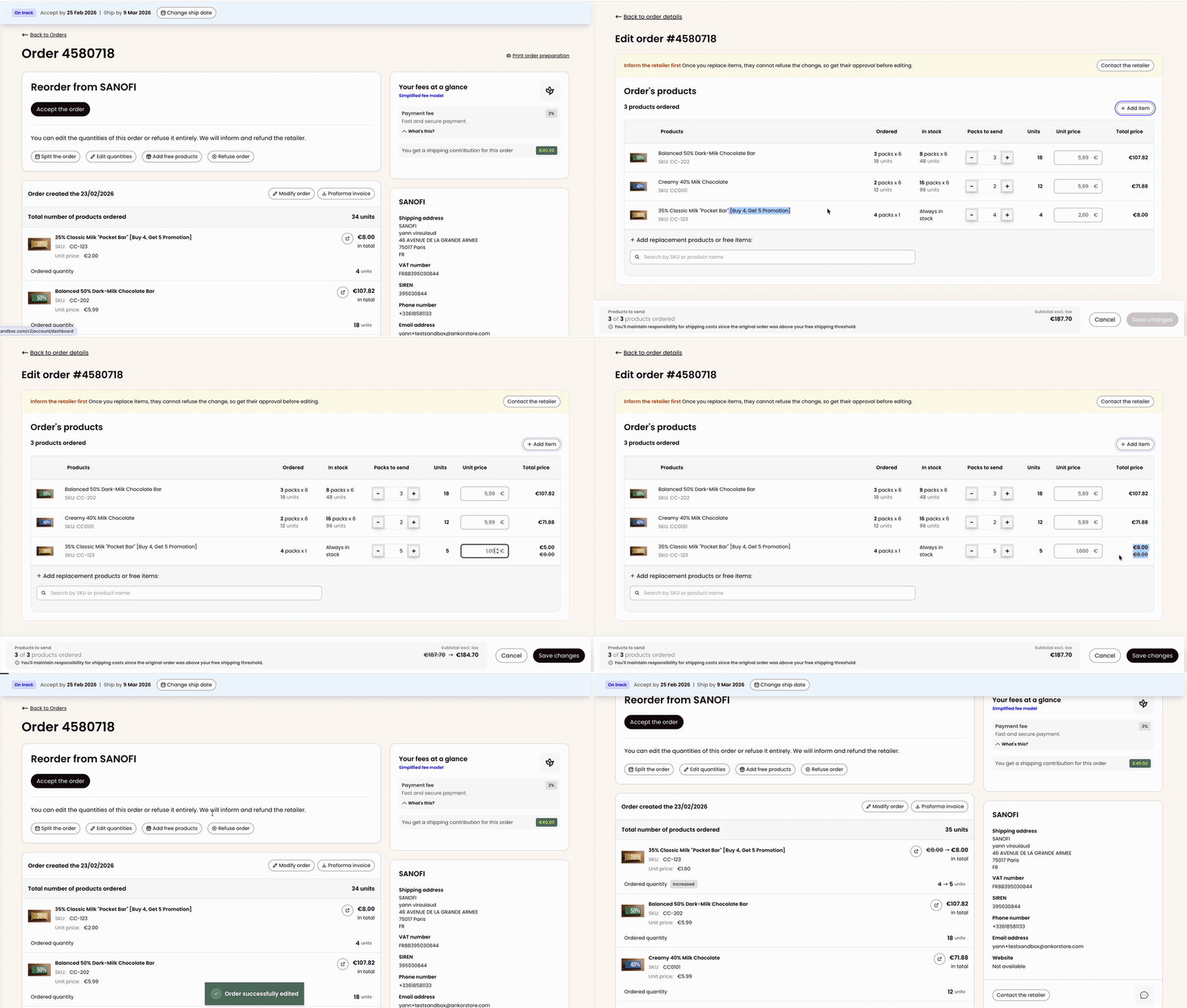
💡Tip: Type the exact numbers directly in the 'Units to send' and 'Unit price' fields. The [+]/[-] buttons adjust by full pack increments, which won't give you the precise values needed for this promotion.
Can I modify an order after it's shipped?
No, once it's shipped the order items can't be adjusted. If you forgot to remove an item, the retailer will have to report it as Missing.