Order status
Last updated: October 22, 2026
How to prepare an order on behalf of a retailer?
While most retailers buy from your brand directly on the Ankorstore platform, you can also prepare orders on behalf of your retailers and send them a link to check out on the Ankorstore platform.
What does it mean?
You can now take orders directly from your retailers and prospects by email, WhatsApp, over the phone or in person and send them a pre-populated cart, even if they’re not yet on Ankorstore. All they need to do is check out.
Why use this feature?
Using the Prepared Orders feature leads to a higher average order value
It makes taking orders on the spot during trade shows easy, preventing you from missing out on sales
It’s the perfect tool for simplifying the ordering process for non-tech savvy or busy customers
How does it work?
Step 1 - Log in to your Ankorstore account, click ‘Orders’ in the left hand menu
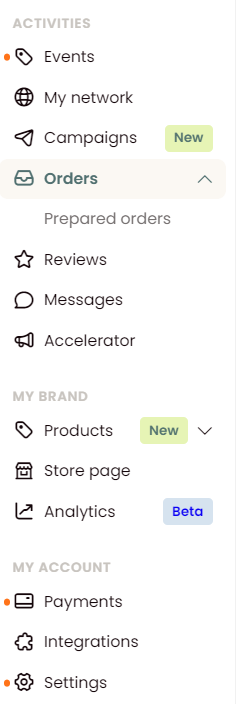
Step 2 - Then click ‘Prepared Orders’.
Find the retailer you’d like to create an order for.
NB: If the retailer you’d like to create an order for is not yet in your contacts, click on ‘Add a new customer’ and enter their email address, customer type, and preferred language before saving.
Step 3 - Select the requested product names or SKUs in the desired quantity.
Step 4 - Send the pre-populated order to your retailer or save it as a draft.
Your retailer will receive a notification by email inviting them to check out.
NB: You can also copy and paste the pre-populated order link and send it to your customer via your preferred communication method.
NB: If you’re sending a pre-populated order to a retailer who is not yet registered on Ankorstore, they will need to sign up before being able to checkout.
Alternatively, you can prepare an order for a retailer by going to the ‘Orders’ section of your account and clicking on the ‘Prepare an order’ button.
Managing your prepared orders
Your prepared orders can have one of these three statuses: Draft, Pending, or Confirmed.
Draft - your prepared order has been saved as a draft
Pending - you have sent the order to the retailer and the retailer has not paid for the order yet
Confirmed - the retailer has paid for the order
Good to know
Once the retailer accepts your pre-populated order, these products will replace any other items from your brand that were previously in their basket.
Product availability, stock quantity, and prices that change between placing the Prepared Order and the time of checkout will be updated accordingly.
Orders subject to VAT or shipping fees will be added automatically at checkout, along with any current offers available to the retailer.
How do we know that we received an order?
Ankorstore sends an email every time you receive a new order. The notification email is sent to the email address you used to register.
You can also find details of the order in the "Orders" tab in your Ankorstore account.
Please note that the retailer will be able to request a cancellation only if you exceed your shipping pledge.
What do I do if an order has been dispatched but the status has not changed?
When you ship with your own carrier, you have to enter the shipping information in your space (My personal space > Orders) and confirm the shipment.
Please remember to add the tracking link of the order. This allows the retailer to confirm reception upon arrival, which will process your payment.
If the order has arrived and the status has not been updated, please contact our customer service department: 📄 Contact form.