Shipping Label & Tracking Link
Last updated: September 2, 2026
Use Ankorstore Partner carrier
If you ship with our partner carrier you'll be able to generate and print a shipping label at the order preparation stage, directly from the order tab of your personal space.
How to create a shipping label
Just follow these steps to create a shipping label:
Step 1: Go to the order tab
Step 2: Click on the order you want to ship
Step 3: Fill in the packaging information
Step 4: Chose the available partner carrier service (Book service)
Step 5: Select your desired format (A4 or full page) and confirm
Step 6: Print your label
Change or cancel a shipping label
This guide will help you through cancelling the shipping labels you have generated so that you can amend the shipment information.
After cancelling the current labels, you will have to re-enter all information again to create new shipping labels. You will also need to rebook a pick-up slot as your original slot will automatically be cancelled. Please do not use any deleted labels.
If you have already printed them, you will need to re-print and use the new labels - this is applicable to all circumstances, including changing the number of parcels in the shipment:
Step 1: Log into your account and go to the orders menu to access the order.
Step2: In the order page find the ‘Revert shipping labels’ link (marked in red below)
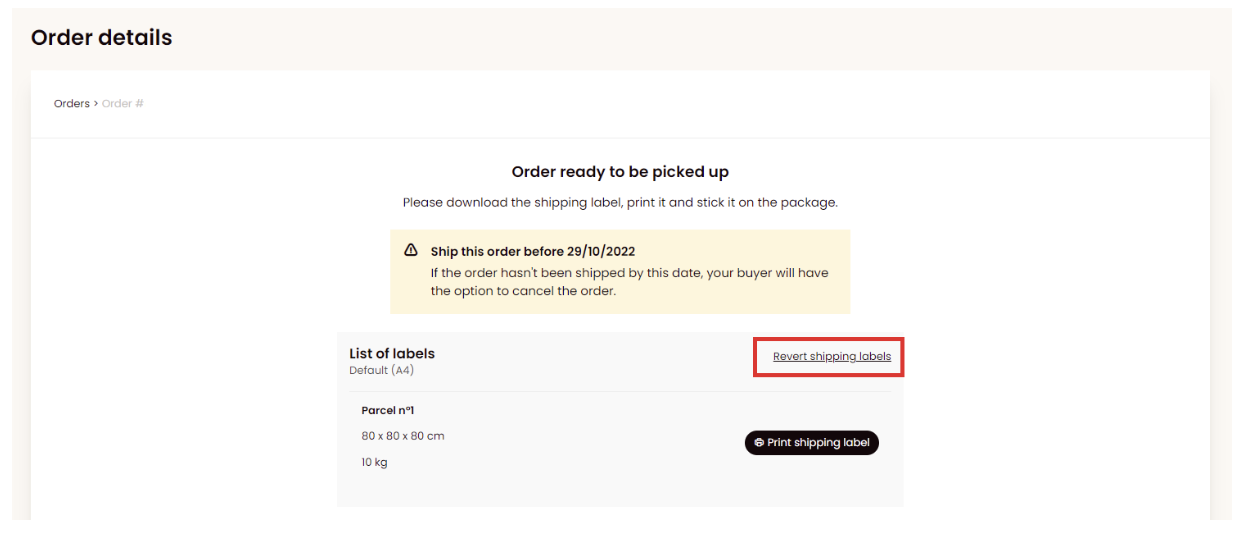
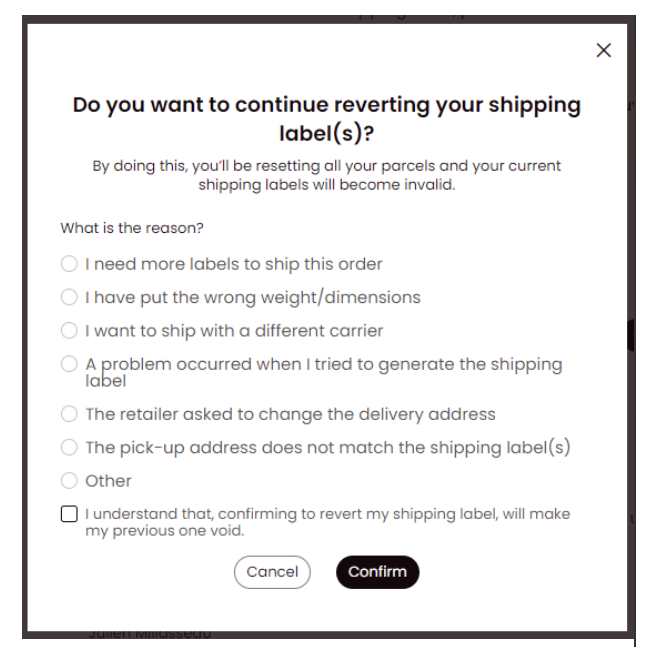
Step 3: Select the reason for label(s) cancellation. Tick the box confirming that you understand you will no longer be able to use the old labels once they are cancelled and confirm. The labels will be cancelled at this stage.
Step 4: Generate new labels and schedule a new pick-up slot.
Use your own shipping Label
If you want to use your own shipping label you can inform the retailer by completing the shipping flow
Step 1: Go to the order tab
Step 2: Click on the order you want to ship
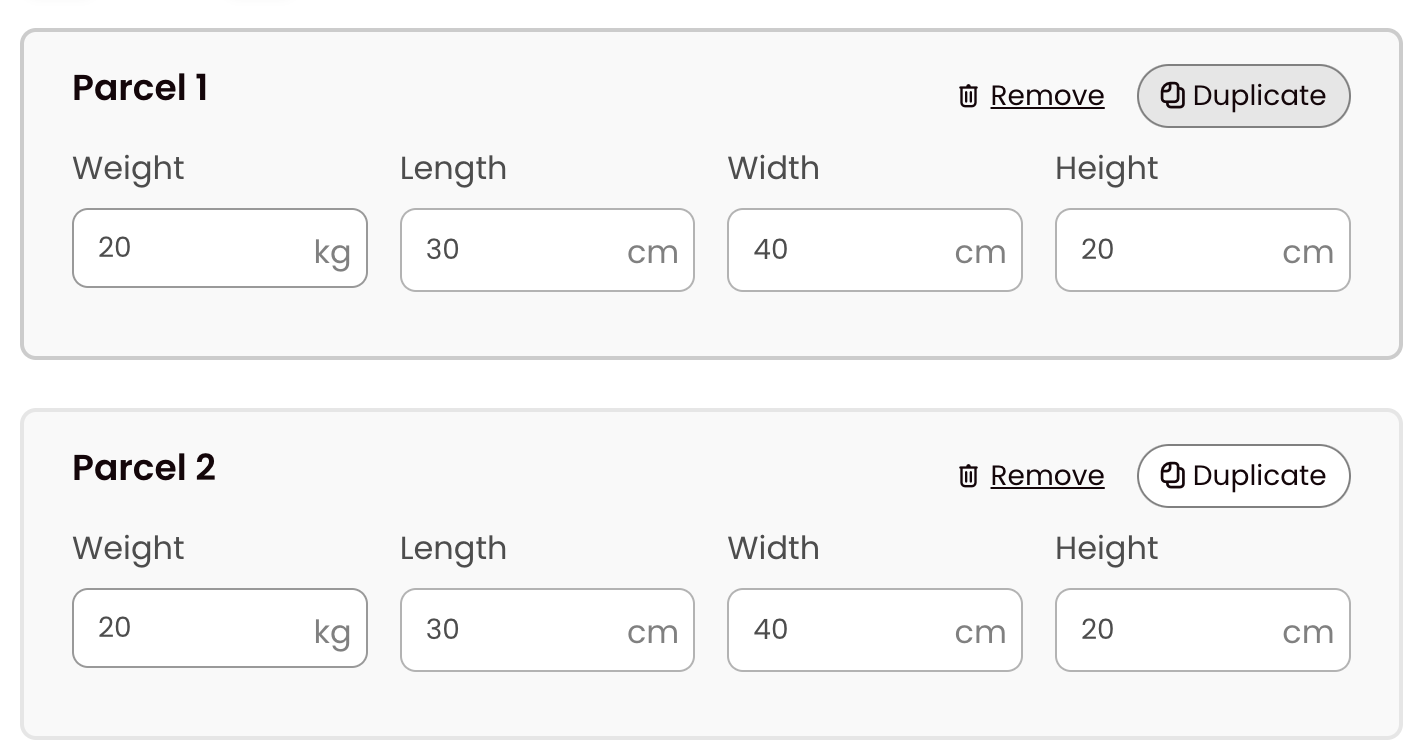
Step 3: Fill in the packaging information (you can duplicate the parcels by clicking on “duplicate”)
How to fill the form faster
Use the duplicate function to duplicate whatever values you have in the form
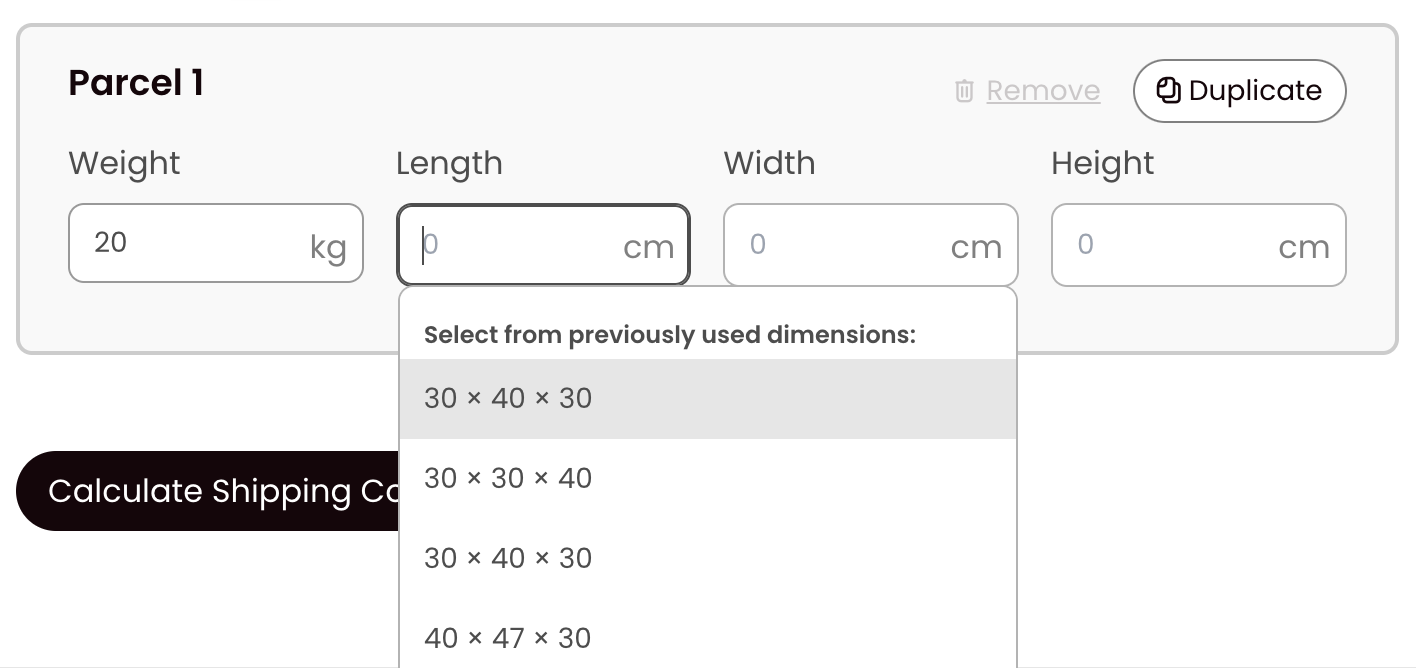
Suggest an autocomplete parcel dimensions
We save all the parcel sizes it will autocomplete the rest of the values that you have used in the past with Ankorstore so you can reuse them quickly. Just
click on the suggested parcel size, it will save you time.
Step 4: Chose the option to ship with your own carrier (ship with your own carrier)
Step 5: A pop-up will appear and you will have to confirm your carrier choice
Step 6: Add your tracking number in order to let your retailer know when to expect the delivery
Provide a tracking number
When to provide a tracking number?
Whenever you ship your order using your own transportation partner by choosing the option “your own carrier”, you need to provide a tracking link to the shipment.
Importance to provide a tracking number
It allows you to manage your customers’ expectations and improve their shopping experience with your brand so they are much more likely to leave you a positive review afterward.
For most carriers, it can also speed up the payment for an accepted order - it will be automatic within a few days after the retailer confirms the successful reception.
Adding a tracking number
There are several ways to do this:
Upon confirming the shipment
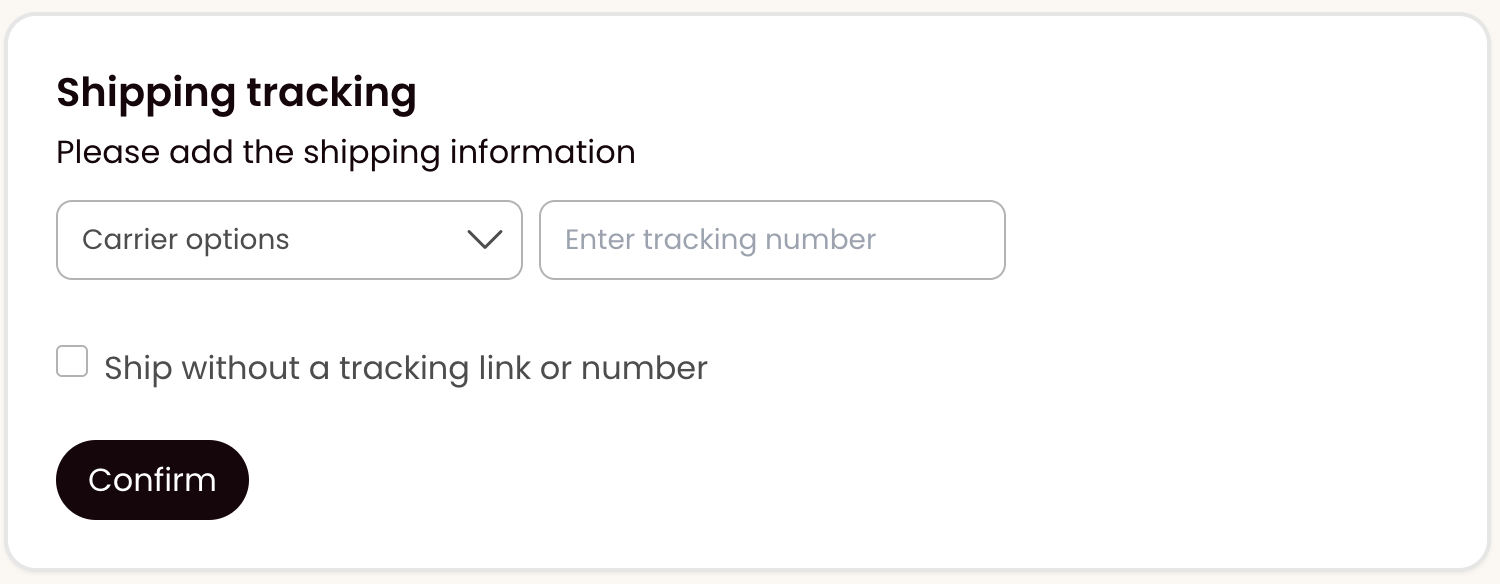
Step 1: Right after you confirmed the order as shipped, you will be prompted to enter a tracking number. Click on “Carrier options” to select the name of your carrier and enter the tracking number (only the number and not the entire link).
Step 2: Click on “Confirm” to save the information.
If you do not have the tracking number at hand, select “Ship without a tracking link or number” and come back later.
Coming back later in the “Orders tab”
Step 1: Log into your Ankorstore account and go to the “Orders” tab.
Step 2: On your list of orders, whenever tracking information is unavailable, it will be signalled by “Add tracking”

Step 3: Click on ”add tracking” or go to the order details and click “edit your tracking information”
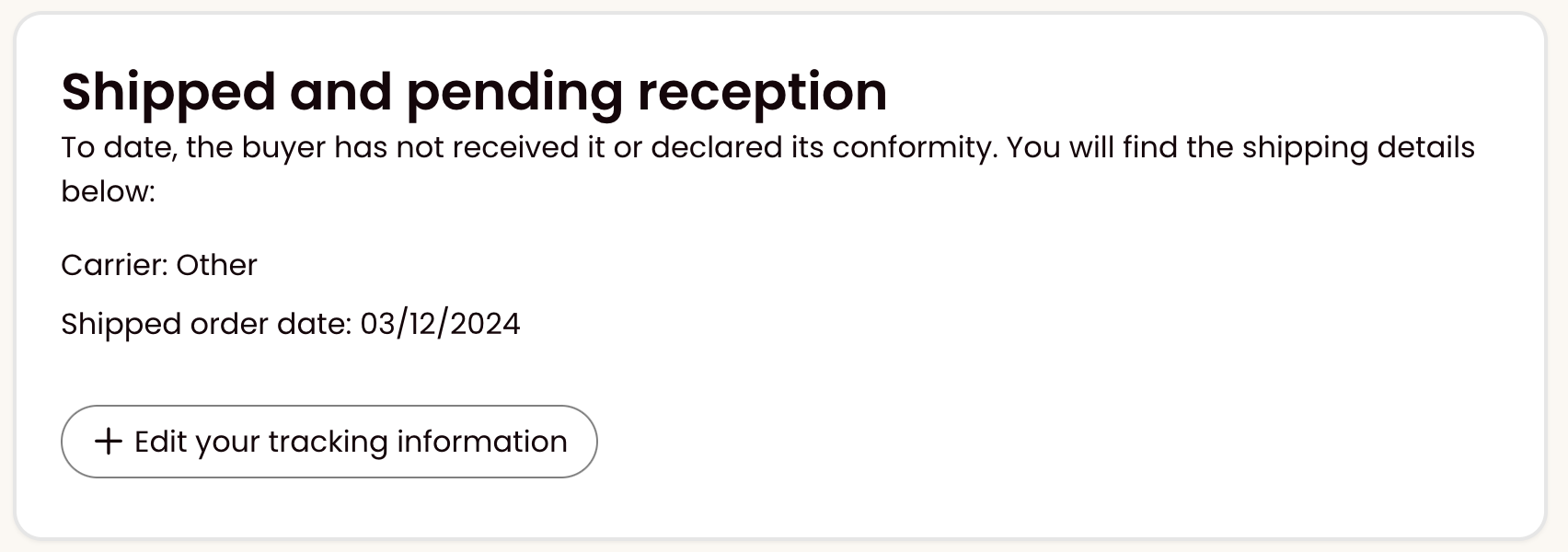
Step 4: Select the carrier, enter the tracking number and click on “Confirm” to save the information.
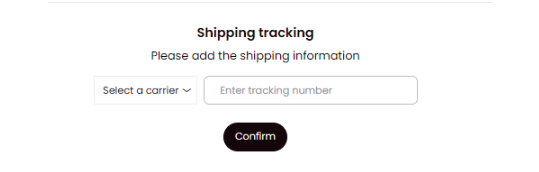
Upon receiving a reminder email
Whenever you confirm an order as shipped but there is no tracking information provided within 48 hours after, you will receive an email prompting you to click on a link which redirects directly to the order. You will then be able to enter the tracking details as if you came back through your profile (as explained above).