Discount management
Last updated: October 12, 2026
Adding discounts to your products attracts more retailers to your Ankorstore shop. Make sure to adjust your discounts regularly to give your brand better visibility.
Ankorstore gives you several ways to manage discounts:
Directly on your Products page: to add or remove discounts product by product
Via My Network: to apply customized discounts to specific retailers
Via Dashboard > Discounts & Offers — a centralized page that also lets you manage all three discount types in one place
Add or remove discounts from the Products page
You can add or remove discounts to your products directly in your back office - tab called: Products
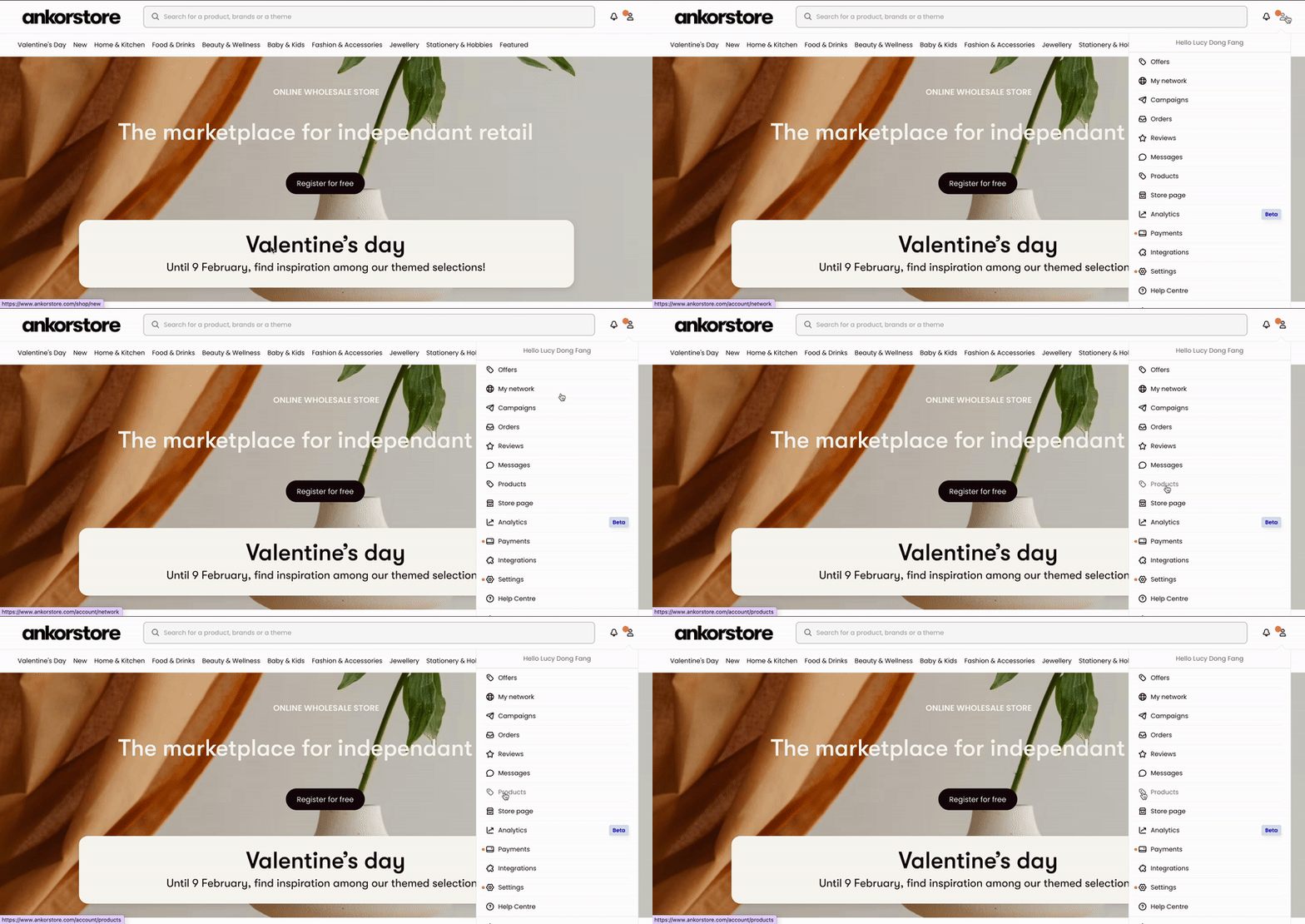
Add a discount to a single product
Step 1: Click the pencil icon to access and edit the product form.
Step 2: Scroll to the "Price" section and add a discount on your wholesale price.
Add a discount to several products
Step 1: Select the products on which you want to add discounts (you can select all available products on the same page at once).
Step 2: Choose the discount to apply.
Remove discounts from multiple products
Step 1: Select the products from which you want to remove discounts (you can select all products on the page at once).
Please keep in mind that some updates may take a moment to be reflected on your online page.
Add or remove customized discounts per retailer
Retailer Discounts — step-by-step guide
Customer discounts can be configured for any retailer with an Ankorstore account included in your My network contact list. Discounts range from 1% to 70% and are fully funded by your brand.
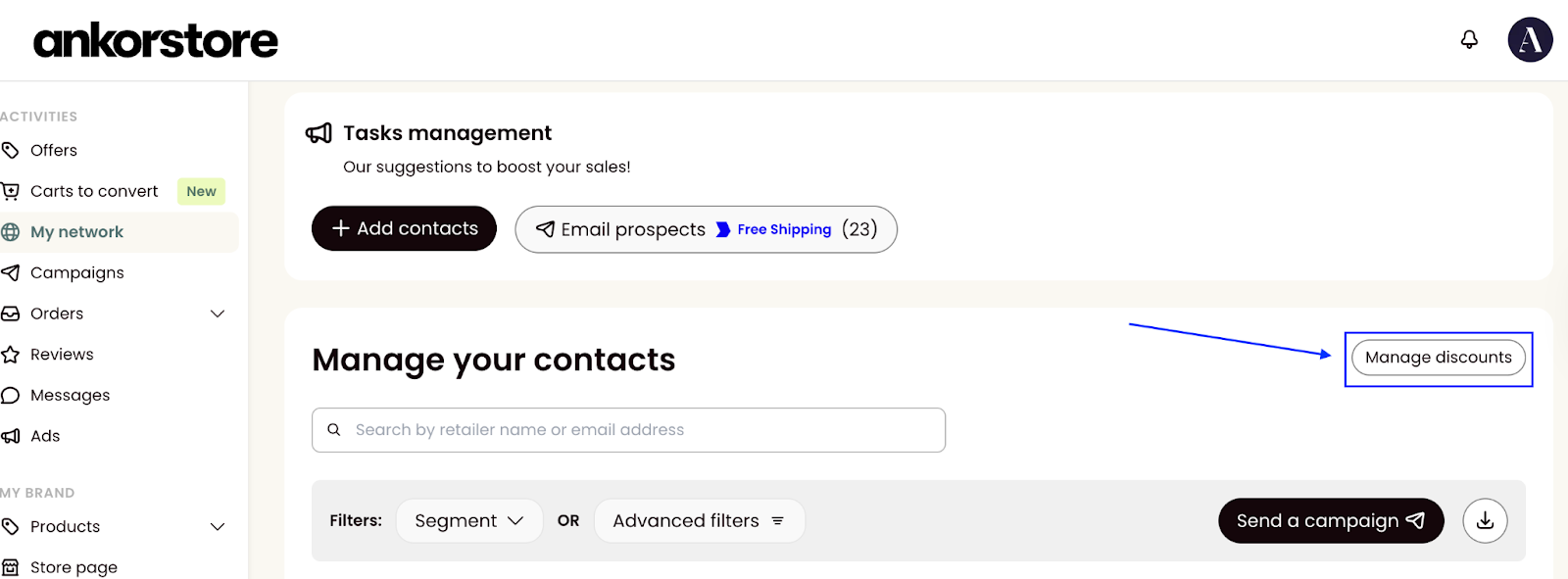
Step 1 - Access the discount management system
Navigate to My network in your back office
Click the "Manage Discounts" button to open the drawer
Step 2 - Click on Create a new discount
In the discounts drawer, click "Create new discount", then choose a discount type.
Option 1: Simple Discount
Fill in the discount details:
Name: Enter an internal name (max 15 characters, not visible to retailers) . Example: "Summer Discount" or "VIP Customers"
Discount percentage: Set between 1% and 70%
Minimum order amount: Optional (can be 0 €)
Note: order amount in other currencies: Ex. 100 € = 100 £ = 1 000 SEK
Click "Save". You will see: "Discount successfully created".
Option 2: Tier Discounts
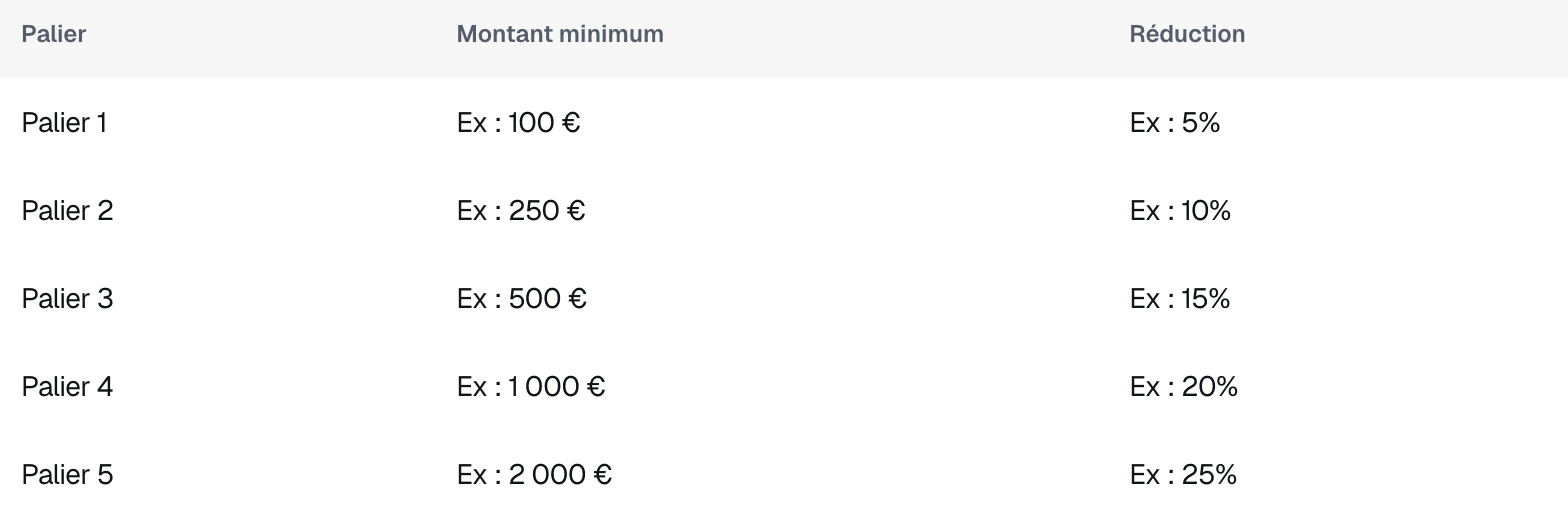
Create up to 5 discount tiers to encourage larger orders.
Name: Enter an internal name (max 15 characters, not visible to retailers). Example: "VIP Tiers" or "Autumn Volume"
Tier setup: Define up to 5 progressive discount tiers
Rules:
Each tier must have a minimum amount greater than the previous tier
Each tier must have a discount percentage greater than the previous tier (between 1% and 70%)
You must configure at least 1 tier and a maximum of 5 tiers
Note on currencies : amounts apply with conversion: Ex. 100 € = 100 £ = 1 000 SEK
The retailer sees all available tiers, and the corresponding discount automatically applies based on their order total.
Click "Save". You will see: "Discount successfully created".
Step 3 - Edit an existing discount
In the "Existing Discounts" section of the drawer:
Click the edit button for the discount you want to update
Update the fields as needed
Save your changes — you will see: "The discount has been updated"
Step 4 - Delete a discount
In the "Existing Discounts" section of the drawer:
Find the discount you want to delete
Click the delete option — you will see: "Customized discount deleted"
Add a discount to a single retailer
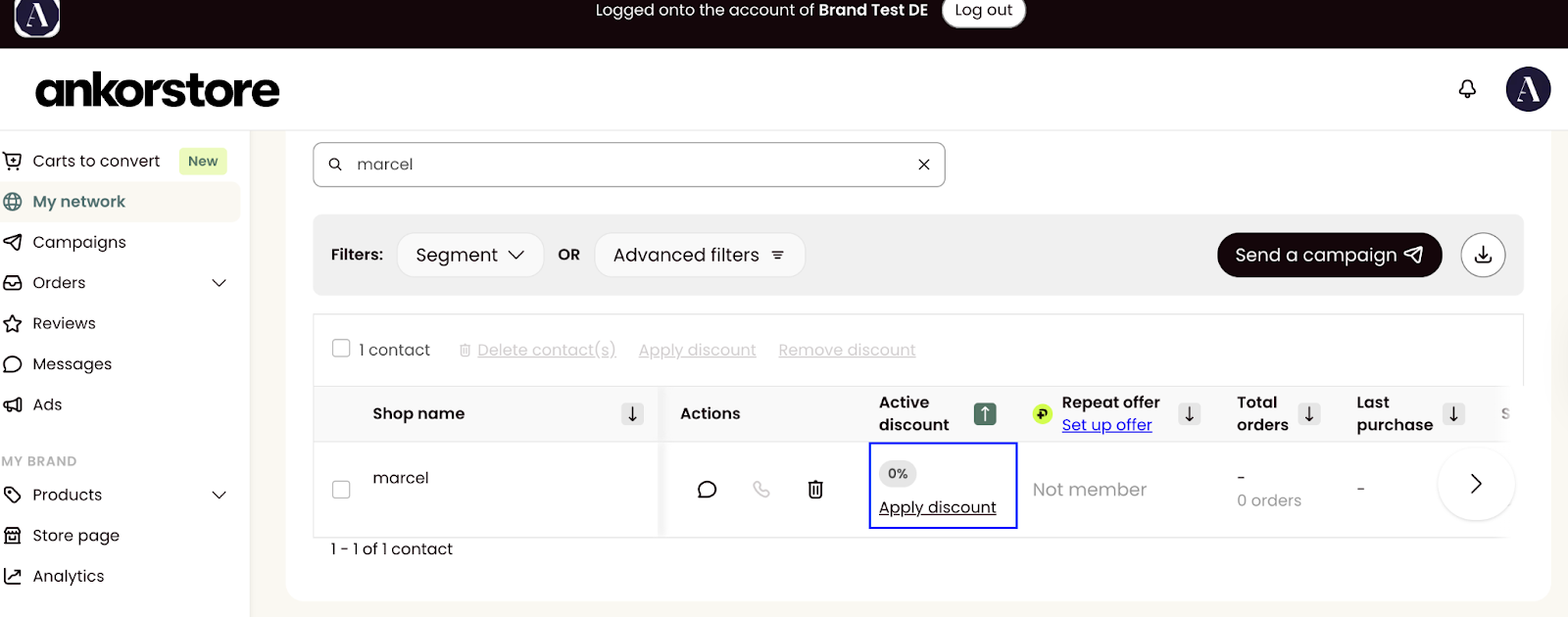
Step 1 - Click the "Add Discount" button in the Active Discount column.
Step 2 - A modal will open - Choose from the dropdown menu of existing discounts (otherwise, click "Create new discount" if you need a new one)
Step 3 - The discount will then appear in the Active Discount column.
Tip: Don't forget to inform your retailer that the customized discount has been applied and encourage them to place an order.
Add discounts to multiple retailers
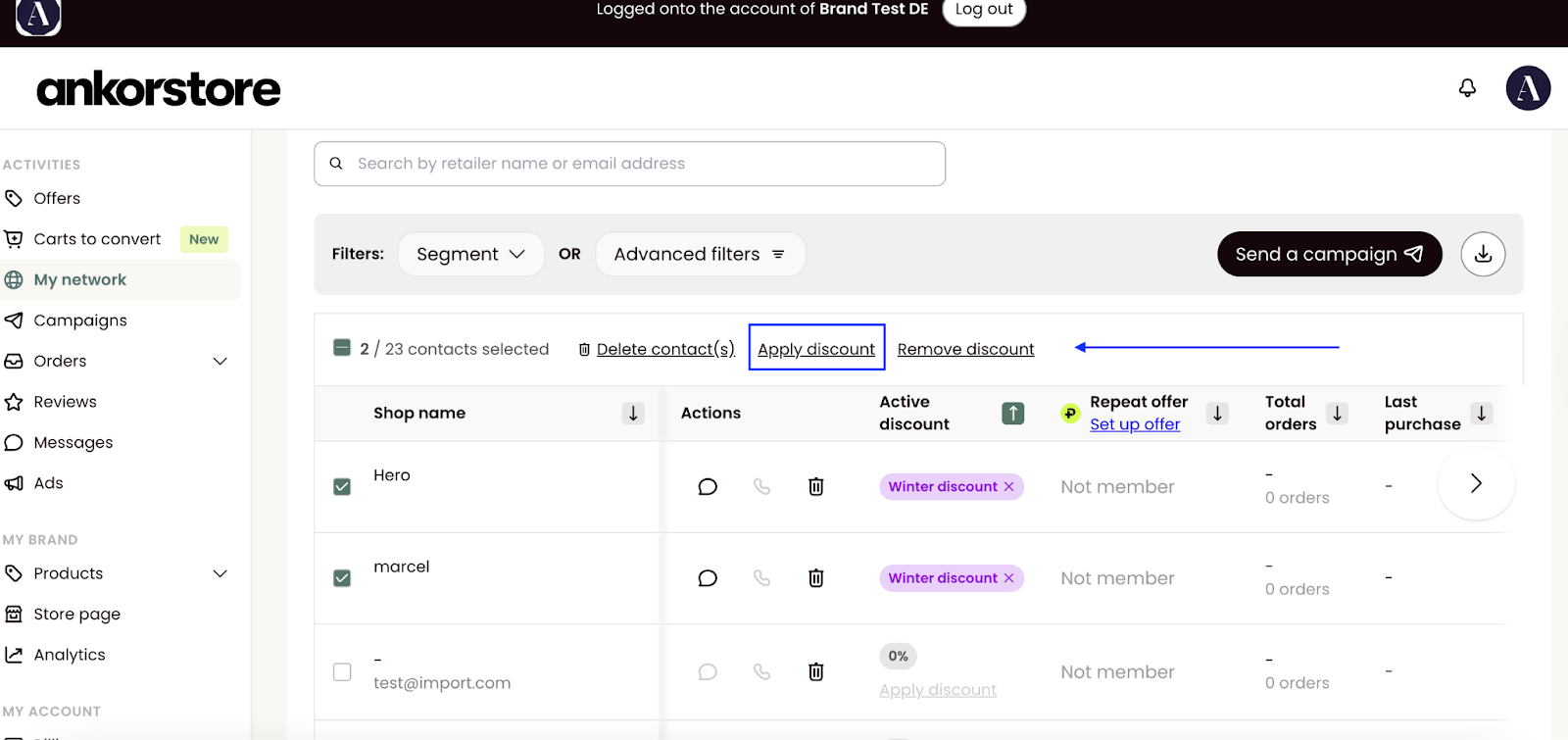
Step 1 - Select the contacts you want to apply the discount to by checking the boxes next to their names.
Step 2 - Click "Add Discount" at the top of the table.
Step 3 - A modal will open. Choose from the dropdown menu of existing discounts (otherwise, click "Create new discount" if you need a new one)
Step 4 - The discount will be applied to all selected contacts and will appear in the Active Discount column.
Discounts & Offers — the centralized discount page
In addition to managing discounts from the Products page and My Network, Ankorstore provides a dedicated page that brings all five discount types together: Discounts & Offers, accessible via Dashboard in your back office.
How to access it
Log in to your Ankorstore back office
Click on the drop-down menu **Dashboard** in the left menu
Select **Discounts & Offers**
Choose the type of discount you want to configure
The three discount types available on this page:
Volume Offer - Tier discounts for all retailers
Applies to all retailers on Ankorstore as soon as they view your catalog.
Up to 5 configurable discount tiers
Visible to all retailers when the offer is active
Example:
- Tier 1: 5 % discount from €250
- Tier 2: 10 % discount from €500
- Tier 3: 15 % discount from €1,000
Tip: This discount is ideal for increasing your average basket size and attracting new customers.
Customer Discounts - Customized discounts per retailer
Applies only to selected retailers in My Network. This is the same feature accessible via My Network - see the [Customer Discounts — step-by-step guide] above for the full setup instructions.
Use cases:
- 🎁 Trigger a first order
- 🔄 Encourage repeat orders
- 💎 Reward loyal or VIP customers
- 🎯 Offer special conditions to strategic partners
Tip: Use this option to build privileged relationships with your best customers or to reactivate dormant ones.
Quarterly offer for Ankorstore Plus members
Applies only to Ankorstore Plus members, with a quarterly recurring discount.
Quarter unlocking system
Discount valid until the end of the following quarter
Encourages loyalty and regular orders
Tip: This discount encourages your best customers to order regularly.
There are three tabs available on this page:
Ankorstore programs & Events
This tab two discount types available:
Ankorstore Events (e.g Ankorstore Days)
Quarter offer for Ankorstore Plus members only - when they spend 500€ in a quarter, they unlock your discount until the end of the next quarter.
Discounts
The two discount types available on this page:
Offer on volume for all orders
Applies to all retailers on Ankorstore as soon as they view your catalog.
Up to 5 configurable discount tiers
Visible to all retailers when the offer is active
Example:
- Tier 1: 5 % discount from €250
- Tier 2: 10 % discount from €500
- Tier 3: 15 % discount from €1,000
Tip: This discount is ideal for increasing your average basket size and attracting new customers.
Customer Discounts - Customized discounts per retailer
Applies only to selected retailers in My Network. This is the same feature accessible via My Network - see the [Customer Discounts — step-by-step guide] above for the full setup instructions.
Use cases:
- 🎁 Trigger a first order
- 🔄 Encourage repeat orders
- 💎 Reward loyal or VIP customers
- 🎯 Offer special conditions to strategic partners
Tip: Use this option to build privileged relationships with your best customers or to reactivate dormant ones.
Promo codes
You name your code and we append a unique brand suffix (e.g. SUMMER26-XXYY), so codes never clash between brands
The promo code can be set up in % or fixed €, with optional minimum order and expiry date
Single-use per retailer, applied at checkout
It is not visible on the marketplace: you need to share the promo code via Campaign tool or through your own channels
You can extend an expired code’s date and activate it again or end it any time
Frequently asked Questions
Can I activate multiple types of discounts at the same time?
Yes. You can have a volume tier discount for all retailers, customized discounts for specific customers, and the Plus quarterly offer all active simultaneously.
How do my clients view these discounts?
Volume Offer (Tier Discounts): Visible on your catalog page to all retailers when the offer is active.
Customer Discounts: Visible only to the concerned retailers in your network.
Plus Quarterly Offer: Visible only to eligible Ankorstore Plus members.
Are discounts cumulative?
No. If a retailer is eligible for multiple discounts, the following priority order applies:
Customized offers always take precedence over volume offers.
If a retailer has a customized discount, it applies automatically — even if a volume offer is also active.
Example: If you have a volume offer of 10% for all retailers and a customized offer of 5% for a specific retailer, the 5% customized discount applies to that retailer.
Do retailers have an overview of their discounts?
Yes. Retailers have access to a dedicated discounts page showing all the discounts they benefit from:
Customized offers dedicated to them
Volume discounts when brands have activated an offer
Are retailers notified when I apply a customized discount for them?
Yes. When you create and activate a customized offer, the concerned retailer automatically receives:
📧 An email notification
🔔 A notification on their Ankorstore platform